




If your Android home screen feels messy, you can fix it fast with a few smart changes. A “pro” setup usually comes down to four things: a clean layout, a consistent wallpaper and icon style, widgets that earn their space, and a launcher that supports your workflow.
Before you start, decide what you want most: a minimalist look, faster one-hand use, or a productivity layout. That one decision helps you avoid endless tweaking and keeps your home screen customization focused.
How To Customize Your Android Home Screen Like A Pro
Start by clearing visual noise, then rebuild with only what you use. You can do everything below on most Android phones, but some menus can look slightly different depending on your device brand and Android version.
- Pick one goal for your setup (minimal, productivity, one-hand, or aesthetic).
- Remove extra home screen pages and delete widgets you never tap.
- Move rarely used apps off the home screen and into the app drawer.
- Choose a wallpaper that supports readability, not just aesthetics.
- Use one icon style (default or an icon pack) and keep it consistent.
- Add only 1–3 widgets you check daily (weather, calendar, tasks).
- Turn on useful launcher features like gestures, folders, and app categories.
Get Inspiration Without Copying A Setup
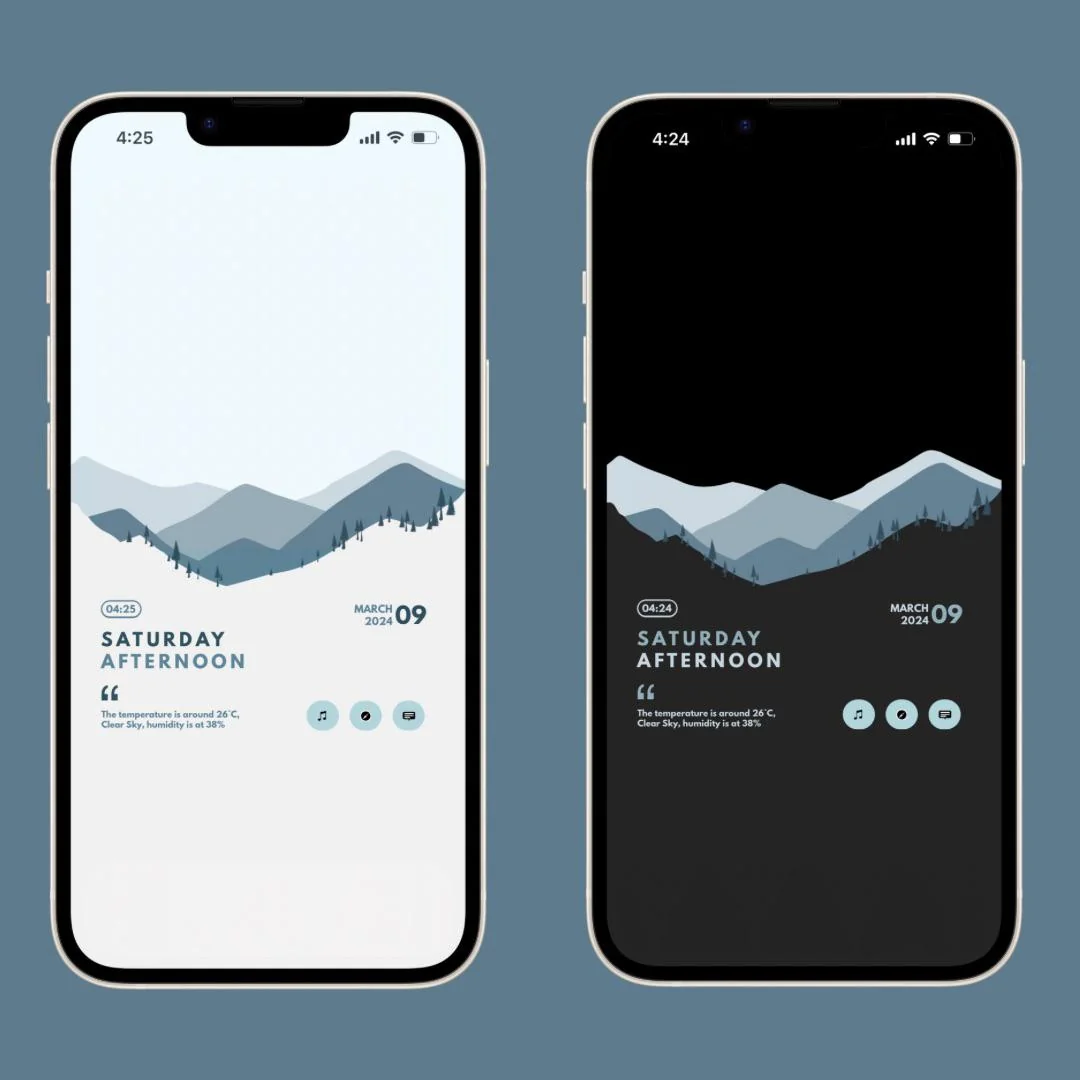
Inspiration saves time because it gives you a target look and layout. Focus on patterns you like, such as a bottom dock, a single widget stack, or a clean grid with folders.
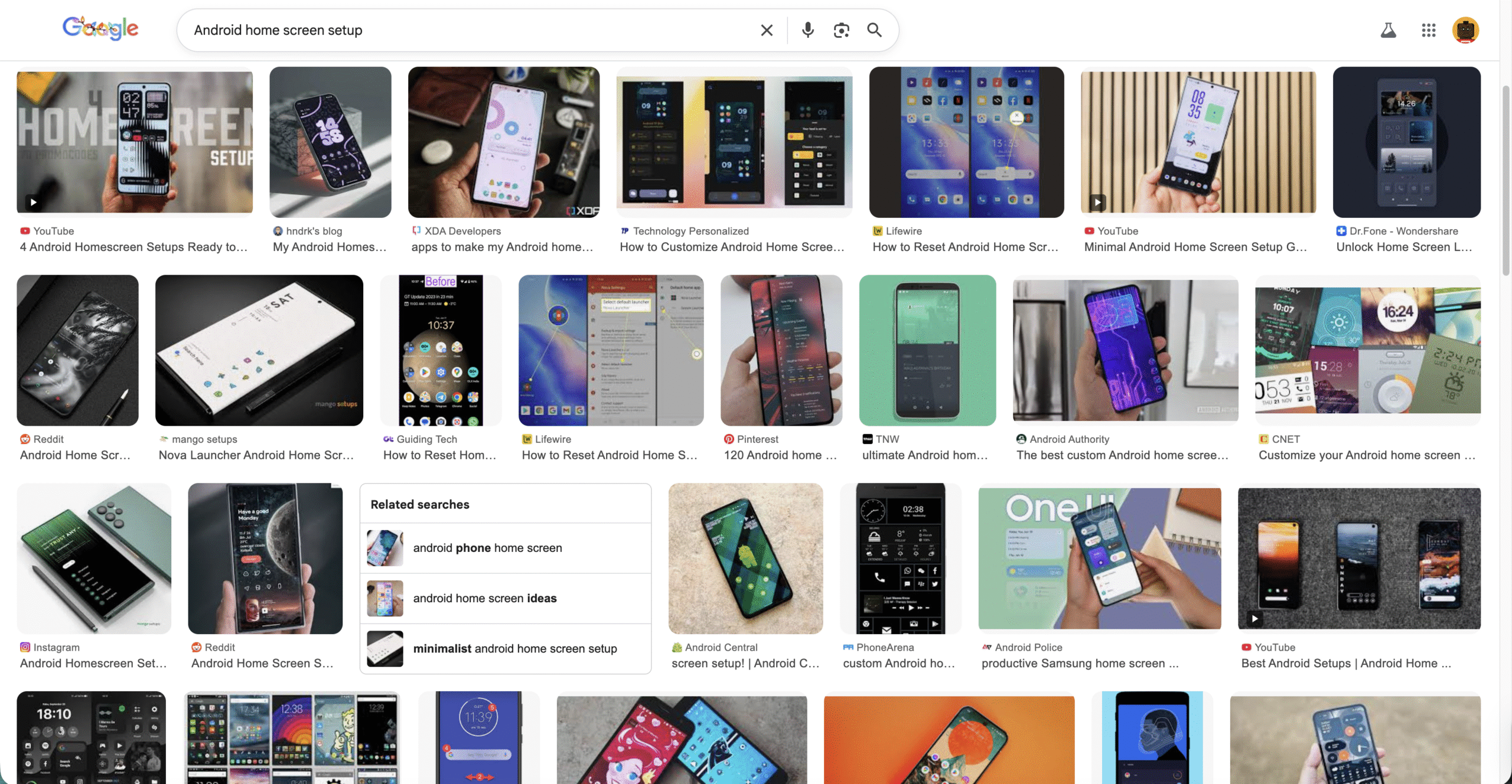
- Search for “Android home screen setup” ideas and note common layouts you like.
- Pick a layout style (two-row icons, one page only, or widget-first).

- Choose a color direction (dark, light, or one accent color).
Choose The Right Launcher For Your Home Screen
A launcher controls your grid size, icon labels, gestures, and app drawer behavior. At the time of writing, some popular launchers change quickly, so stick with options that still receive active development and updates.
- Start with your phone’s default launcher if you only need basic changes.
- Try a minimalist launcher if you want speed and fewer distractions.
- Pick a highly customizable launcher if you want custom gestures, grids, and icon controls.
- Test for one day before you rebuild everything, since feel matters more than features.
Use A Wallpaper That Makes Icons And Widgets Easy To Read
Your wallpaper can make your layout look “pro” instantly, but it can also ruin readability. Clean backgrounds and subtle gradients usually work best with widgets and folders.
- Choose a wallpaper with empty space where your widgets will sit.
- Use darker wallpapers with light icons, or light wallpapers with dark icons.
- Avoid busy patterns behind text-heavy widgets like calendar and tasks.
- Match your wallpaper tone to your icon pack style for a cohesive look.
Pick An Icon Style And Remove Label Clutter
Icon consistency matters more than the icon pack itself. A single style across your home screen makes the layout look intentional and reduces visual noise.
- Use one icon style: default icons or one icon pack.
- Turn off icon labels if your launcher supports it.
- Limit your dock to 4–6 apps you use every day.
- Group similar apps into folders like “Social,” “Work,” and “Finance.”
Add Widgets That Save You Taps
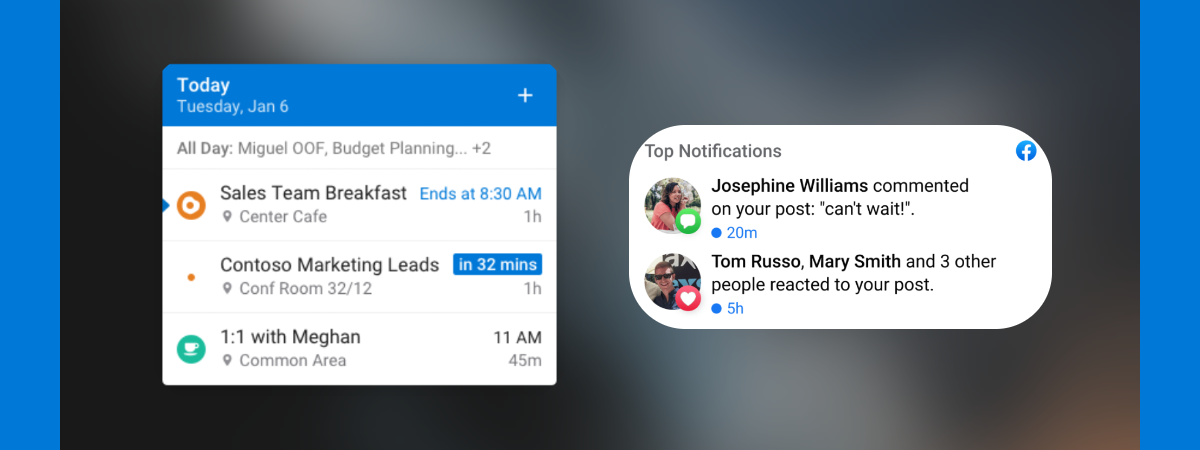
Widgets should reduce app opens, not decorate empty space. If a widget does not save time, it usually becomes clutter after the novelty wears off.
- Add one “information” widget (weather or calendar) near the top.
- Add one “action” widget (tasks, notes, or music controls) near your thumb zone.
- Resize widgets so they show only what you actually read.
- Remove widgets that show the same info as your lock screen.
Troubleshooting Common Problems
I Changed My Launcher And My Home Screen Reset
- Open your launcher settings and look for a backup or restore option.
- Rebuild the dock first, then add folders, then widgets last.
- Turn off “Add New Apps To Home Screen” to prevent future clutter.
My Icon Pack Does Not Apply To All Apps
- Apply icons manually for the few apps that did not change.
- Switch to a more complete icon pack if too many icons look mismatched.
- Use the default icon for outliers to keep the screen readable.
Widgets Keep Reloading Or Disappearing
- Disable battery optimization for your launcher and widget apps.
- Restart your phone after you finish setting up the layout.
- Reduce the number of heavy widgets like news feeds and live animations.
My Home Screen Feels Slow After Customizing
- Remove live wallpapers and animated widgets.
- Reduce blur, transparency, or heavy visual effects in launcher settings.
- Test a simpler layout with fewer widgets and fewer pages.
Tips
- Keep one home screen page for daily apps and one page for everything else.
- Put your most used apps in the bottom corners for one-hand reach.
- Use folders for categories, but keep folder names short and clear.
- Pick one accent color and match it across wallpaper, widgets, and icons.
- After you finish, wait 24 hours before you tweak again.
FAQ
Do I Need A Launcher To Customize My Android Home Screen?
No, you can do basic customization with your default launcher, like wallpapers and widget placement. A third-party launcher helps when you want deeper control over grids, gestures, icon labels, and the app drawer.
What Is The Best Android Home Screen Setup For Productivity?
A simple setup usually works best: a calendar or tasks widget, a tight dock, and one folder row for work apps. Avoid extra pages, since they add friction and hide apps.
Will Customizing My Home Screen Drain Battery?
It can, especially with live wallpapers, always-updating widgets, and heavy animations. A static wallpaper and a few lightweight widgets usually keep battery impact low.
Can I Go Back To My Old Home Screen Layout?
Yes, if your launcher supports backups, restore from your last backup. If you use the default launcher again, you may need to rebuild the layout manually.
Summary
- Choose one goal, then remove clutter before you add anything new.
- Use a launcher that matches your needs, not the one with the most features.
- Keep wallpaper and icons consistent, then add only useful widgets.
- Fix slowdowns by reducing animations, live elements, and heavy widgets.
Conclusion
You can make an Android home screen look professional by keeping it simple and consistent. If you focus on readability, a tight layout, and widgets that save time, your setup will feel faster and look better every day.
Discussion (0)
Be the first to comment.