




Connecting a wireless keyboard gives you a cleaner workspace and more flexibility when working on a Windows laptop or MacBook. Most modern laptops support Bluetooth, but some older systems may require a USB receiver or external adapter. This guide explains how to connect any Bluetooth or wireless keyboard step by step, using reliable methods that still work at the time of writing.
Before starting, confirm whether your keyboard uses Bluetooth or a 2.4GHz USB receiver. Both options work with Windows and macOS, and the setup process is straightforward once your laptop detects the device.
Check Bluetooth On Your Laptop
Your laptop needs Bluetooth to connect a wireless keyboard without a USB receiver. Most current laptops include built-in Bluetooth, and you can verify it in a few clicks.
- Open Start and launch the Device Manager.
- Look for a Bluetooth category in the list.
- If it appears, your laptop supports Bluetooth. If not, use a USB Bluetooth adapter.
Once you confirm Bluetooth is available, switch it on so the laptop can search for nearby devices.
- Open Settings and choose Devices.
- Select Bluetooth & other devices.
- Turn on the Bluetooth toggle.
Turn On The Wireless Keyboard
Wireless keyboards include a power switch, typically on the bottom or top edge. Make sure the device is powered on before pairing.
- Locate the keyboard’s Power switch.
- Turn it on and check for an LED indicator.
Put The Keyboard In Pairing Mode
Pairing mode lets the wireless keyboard broadcast itself so your laptop can detect it. Depending on the model, this may activate automatically when the device is powered on.
- Hold the Bluetooth or Connect button on the keyboard.
- Wait for blinking lights that confirm pairing mode.
Connect The Keyboard To Your Laptop
With Bluetooth enabled and the keyboard in pairing mode, your laptop should detect it within seconds.
- Open Settings > Devices.
- Select Add Bluetooth or other device.
- Choose Bluetooth from the options.

- Select your wireless keyboard when it appears.
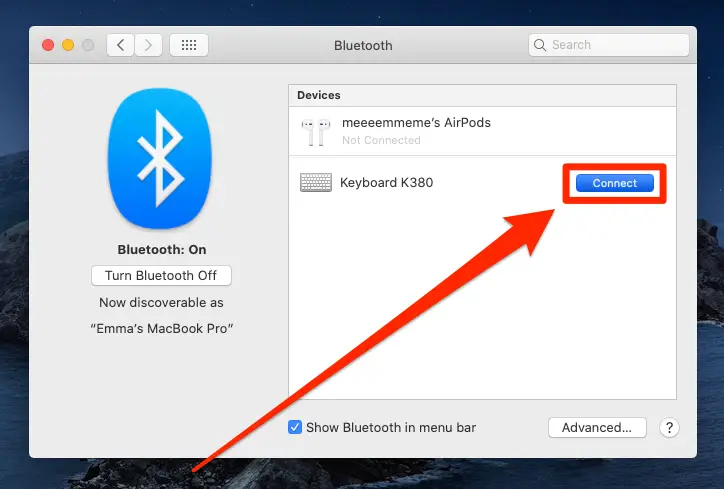
- Enter a pairing code if prompted. But if you're using a Mac, it may prompt you to calibrate (or "identify") the keyboard by pressing a sequence of keys; simply follow the on-screen instructions and press each key as it appears.
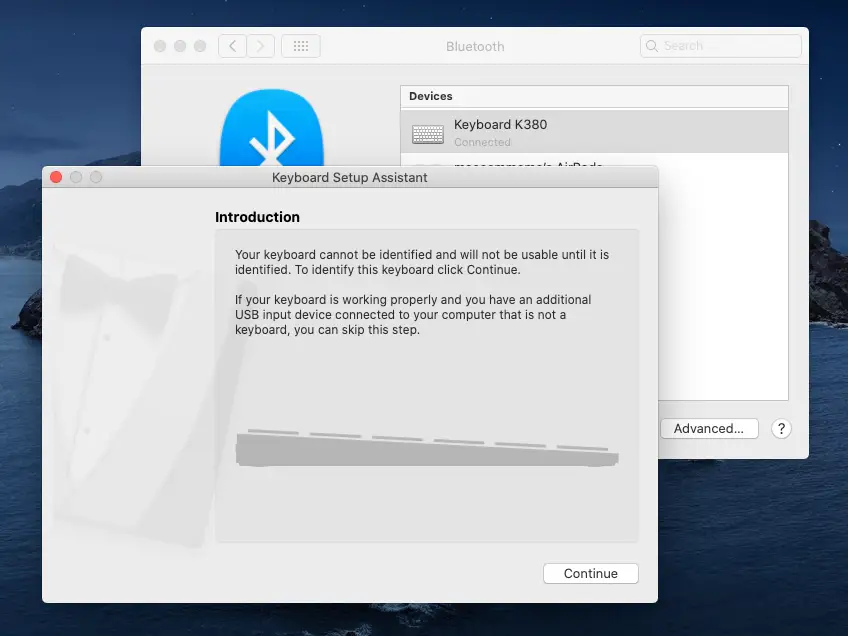
Windows or macOS will finalize the connection, and the keyboard becomes active immediately after pairing completes.
Test The Keyboard
It’s important to ensure the connection works smoothly before relying on the keyboard for long work sessions.
- Open a text editor.
- Type a few sentences to confirm that every key registers.
- Check modifier keys like Shift, Ctrl, and Alt.
- Move further away to the test range.
Troubleshooting Common Problems
Most wireless keyboard issues come from Bluetooth settings, low batteries, or outdated drivers. These quick checks fix the majority of problems.
- Restart Bluetooth on your laptop and try pairing again.
- Replace or recharge the keyboard batteries.
- Unpair and re-add the device from Bluetooth settings.
- Move the keyboard closer to improve signal strength.
- Update Bluetooth drivers in Device Manager.
Tips
- Keep Bluetooth enabled so your keyboard reconnects automatically.
- Use fresh batteries to avoid intermittent disconnects.
- Place the keyboard away from wireless routers or speakers to reduce interference.
- Store the USB receiver safely if your keyboard uses one.
FAQ
Can I Connect A Wireless Keyboard Without Bluetooth?
Yes. Many wireless keyboards include a 2.4GHz USB receiver. Plug it into your laptop and the keyboard connects automatically.
Why Isn’t My Wireless Keyboard Showing Up?
Pairing mode may not be active, Bluetooth may be off, or the keyboard could be too far from the laptop.
Do Wireless Keyboards Work With Mac?
Yes. Most wireless keyboards support macOS, but some models require specific Mac key layouts.
Does A Wireless Keyboard Need Internet?
No. Wireless keyboards use Bluetooth or RF signals that do not require Wi-Fi.
Summary
- Turn on Bluetooth or plug in the USB receiver.
- Power on the keyboard.
- Enable pairing mode.
- Select the keyboard from Bluetooth settings.
- Test keys and range to confirm the connection.
Conlusion
Connecting a wireless keyboard takes only a few minutes and improves your typing experience immediately. Once paired, most keyboards reconnect automatically whenever your laptop is powered on.
Discussion (0)
Be the first to comment.