




Wireless earbuds make it easy to enjoy calls, music, and streaming without cables getting in the way. Apple AirPods connect smoothly to most Windows laptops, including Dell models that support Bluetooth. This guide explains how to connect AirPods to a Dell laptop, what settings matter, and how to avoid pairing issues many users run into.
Because AirPods use standard Bluetooth, they connect to Dell laptops much like any other wireless earbuds. You only need to enable Bluetooth on your laptop, place AirPods in pairing mode, and select them from the device list. The process works with AirPods, AirPods Pro, and AirPods Max as long as your Dell model supports Bluetooth or you use an external adapter.
Check Bluetooth Compatibility On Dell Laptop
Your laptop must support Bluetooth to pair with AirPods. Most modern Dell systems include built-in Bluetooth, but older models may require a USB adapter.
- Open Device Manager from the Start menu.
- Look for a category labeled Bluetooth or Bluetooth Radios.
- If no Bluetooth category appears, use a USB Bluetooth dongle.
Confirming Bluetooth compatibility prevents pairing failures and ensures your Dell laptop can recognize AirPods correctly.
Enable Bluetooth On Dell Laptop
Before pairing AirPods, make sure Bluetooth is turned on. Windows disables it automatically on some Dell laptops to save power, so checking this step matters.
- Go to Settings > Devices > Bluetooth & other devices.
- Toggle Bluetooth to the On position.
- Select Add Bluetooth or other device if the option appears.
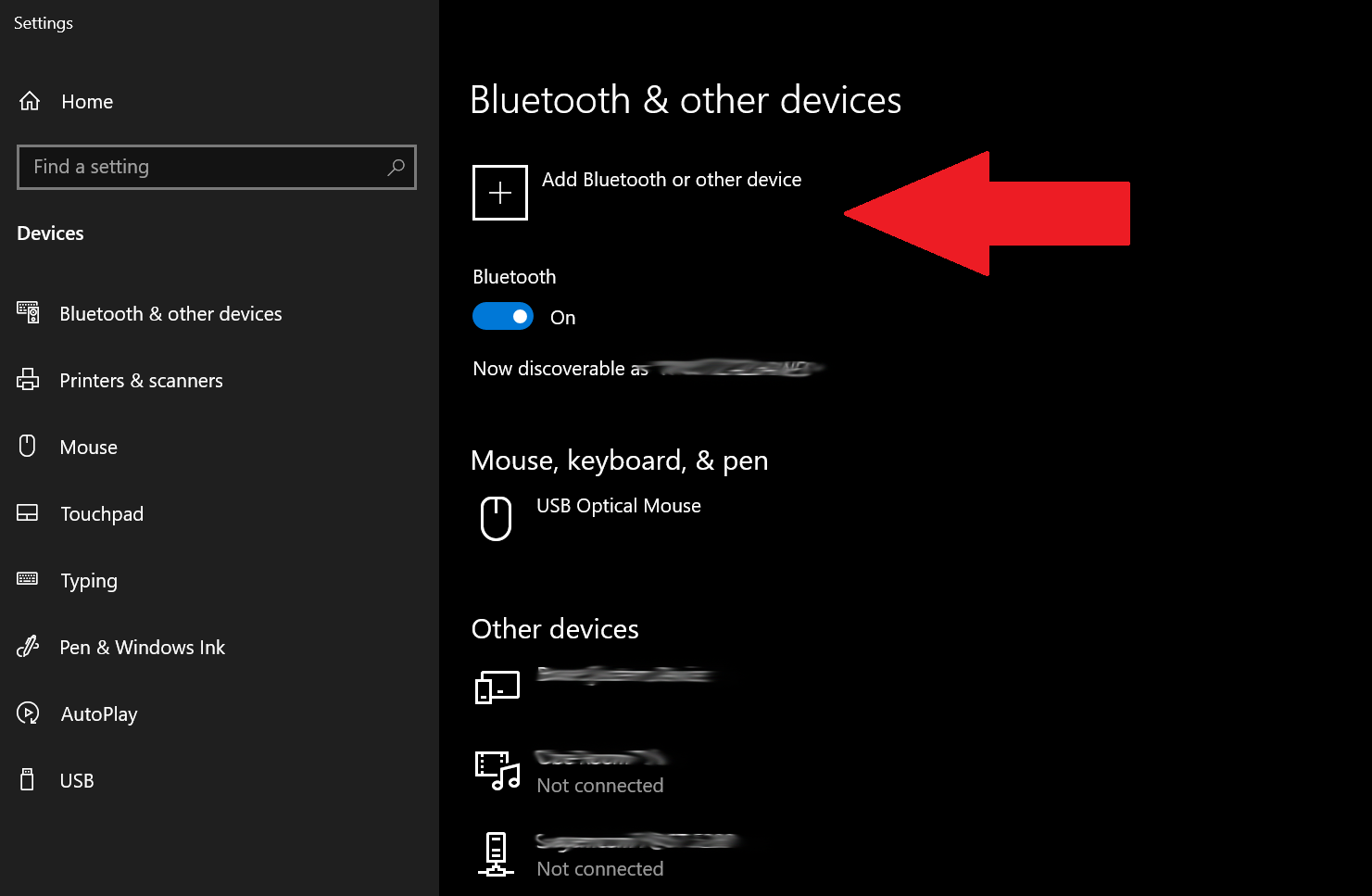
With Bluetooth active, your Dell laptop begins scanning for nearby devices like earphones and game controllers, including your AirPods.
Put AirPods In Pairing Mode
AirPods must enter pairing mode before your Dell laptop can detect them. The steps are the same across most AirPods generations.
- Place both AirPods inside the charging case.
- Open the lid and keep it open.
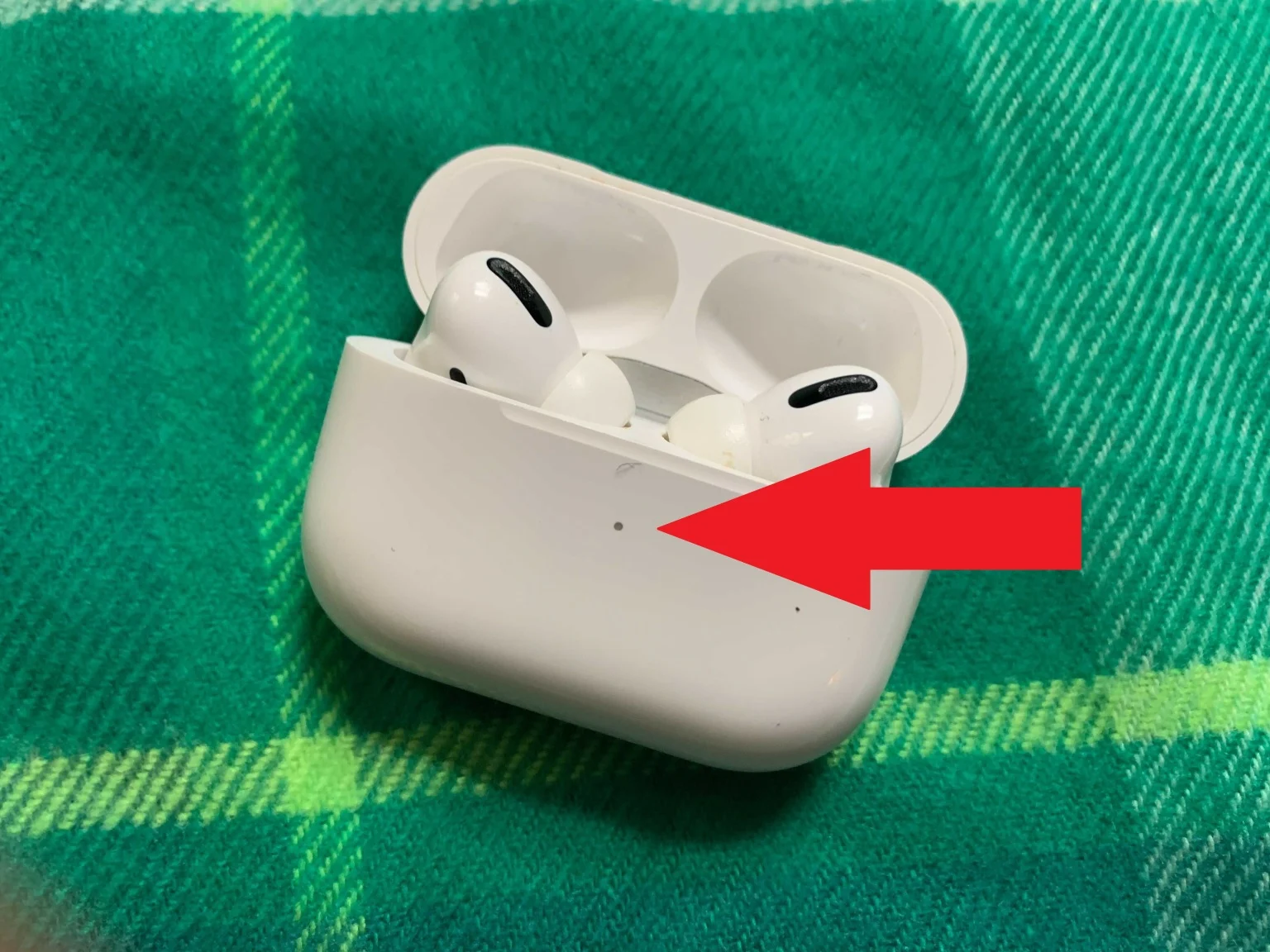
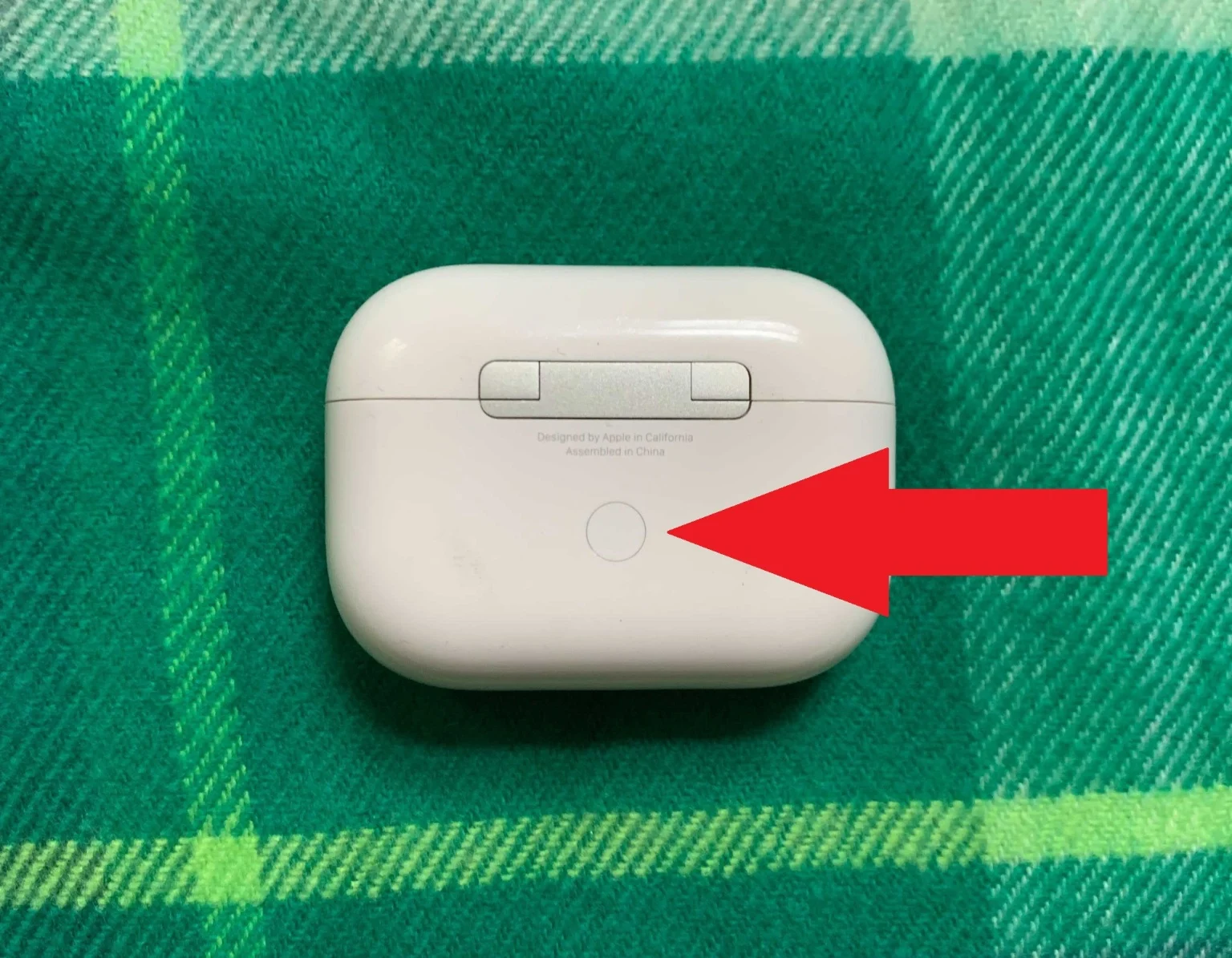
- Press and hold the button on the back of the case until the LED flashes white.
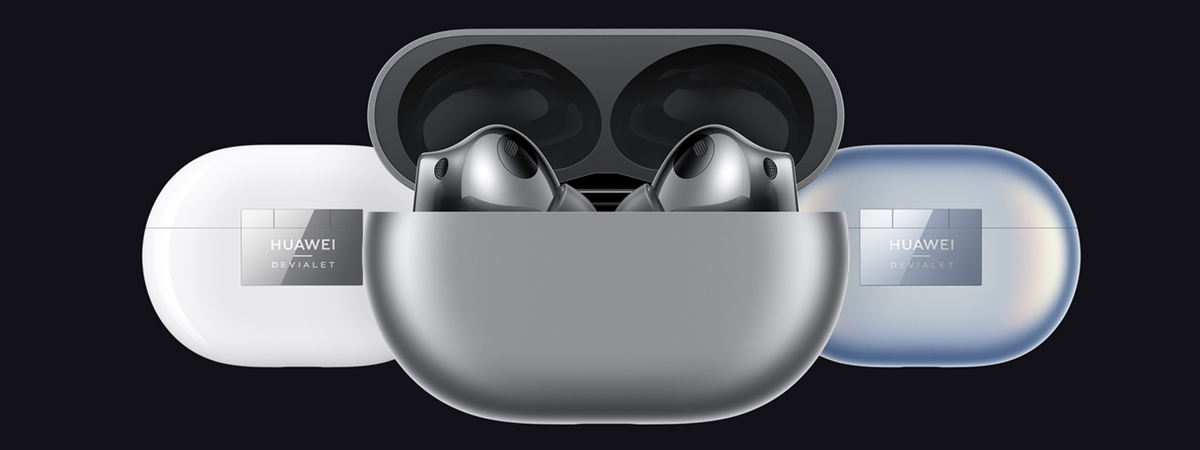
- For AirPods Max, hold the noise-control button until the light flashes.
When the LED flashes white, the AirPods broadcast a Bluetooth signal that Windows can detect.
Connect AirPods To Dell Laptop
With Bluetooth enabled and AirPods in pairing mode, you can complete the connection in Windows settings.
- Open Bluetooth & other devices on your Dell laptop.
- Select Add Bluetooth or other device.
- Choose Bluetooth from the list of device types.
- Select your AirPods when they appear.
- Wait for Windows to show Connected.
Once connected, audio from your Dell laptop automatically routes to the AirPods. You may choose the output device manually from the taskbar if you have multiple audio devices.
Troubleshooting Common Problems
- AirPods not showing up: Reset the AirPods by holding the case button until the light turns amber, then white.
- Audio stutters or cuts out: Move closer to the laptop or remove interference such as other Bluetooth devices.
- Dell laptop says “Cannot connect”: Remove the AirPods from the device list and pair again.
- No sound despite being connected: Select AirPods as the output device in the taskbar sound menu.
- Bluetooth missing: Install the correct Dell Bluetooth driver from your model’s support page.
Tips
- Keep Bluetooth drivers updated for smoother connections.
- Charge your AirPods before pairing to avoid random disconnects.
- Reset the AirPods if they continually fail to appear in Windows.
- If switching between iPhone and Dell laptop, disable automatic ear detection to reduce connection conflicts.
FAQ
Can AirPods connect to any Dell laptop?Yes, as long as the laptop supports Bluetooth or uses a USB Bluetooth adapter.
Do AirPods Pro and AirPods Max work the same way?Yes, pairing steps are nearly identical across all AirPods models.
Why do my AirPods disconnect randomly?Weak Bluetooth signals, outdated drivers, or low battery can cause disconnections.
Can I use AirPods for Zoom or Teams on a Dell laptop?Yes, but Windows may switch to the lower-quality headset profile for microphones.
Summary
- Check Bluetooth compatibility on your Dell laptop.
- Enable Bluetooth in Windows settings.
- Put AirPods in pairing mode using the case button.
- Connect them through the Bluetooth device list.
- Troubleshoot audio or pairing issues if necessary.
Conclusion
Connecting AirPods to a Dell laptop gives you a clean, wireless listening experience for work, entertainment, and calls.
By following the steps above, you’ll get a stable connection and better audio performance throughout the day.

Discussion (0)
Be the first to comment.