



iPhone backups always save to a fixed system location. Apple does not offer a setting to change it, even when your main drive runs out of space. You can still move backups safely on macOS and Windows using symbolic links, which redirect backups without breaking Finder or iTunes.
Table of contents
- Why you can’t change the iPhone backup location by default
- What you need before moving iPhone backups
- Change iPhone backup location on macOS
- Change iPhone backup location on Windows
- Finder vs iTunes backups: what’s different
- How to revert to the default iPhone backup location
- Common errors and how to fix them
- Is it safe to store iPhone backups on an external drive?
- Tips for managing iPhone backups long-term
- FAQs
- Summary
Why you can’t change the iPhone backup location by default
Apple locks backup paths to protect system integrity and prevent data corruption. Finder on macOS and iTunes on Windows both rely on hardcoded locations, so changing them requires a redirect rather than a setting.
What you need before moving iPhone backups
You need administrator access, enough free space on a second drive, and a completed iPhone backup. Use an external drive that stays connected during backups to avoid failures.
Change iPhone backup location on macOS
Find the current iPhone backup folder on Mac
Finder stores iPhone backups in a hidden system folder. You must confirm this location before moving any files to avoid linking an empty directory.
- Open Finder
- Click Go in the menu bar
- Select Go to Folder
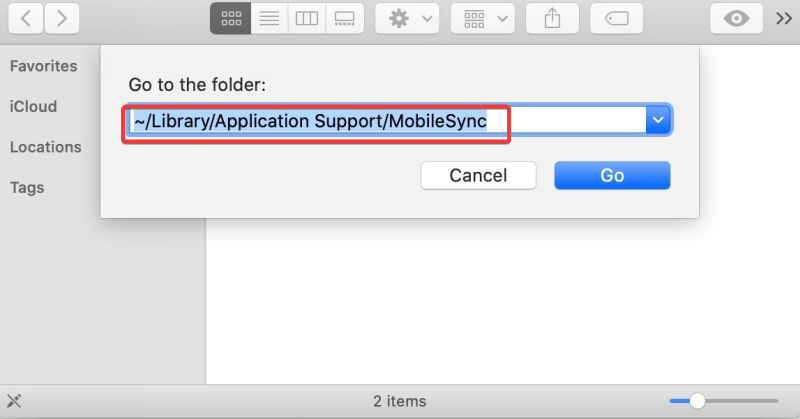

- Paste: /Users/yourusername/Library/Application Support/MobileSync/
Create a new backup location on another drive
Create a clearly named folder on your external or secondary drive. Avoid system-protected directories to prevent permission issues.
- Open the external drive in Finder
- Create a folder named iPhone Backups
Move existing iPhone backups to the new location
Move the entire Backup folder, not individual files. Finder must see the same folder structure after redirection.
- Drag the Backup folder to the new drive
- Wait until the transfer finishes
Create a symbolic link on macOS
A symbolic link tells macOS to treat the new folder as the original backup location.
- Open Terminal
- Run:
ln -s /Volumes/YourDrive/iPhone\ Backups/Backup ~/Library/Application\ Support/MobileSync/Backup
Confirm Finder uses the new backup location
Run a new backup to confirm Finder follows the link.
- Connect your iPhone
- Open Finder
- Start a backup
- Check that files appear on the external drive
Change iPhone backup location on Windows
Locate the iTunes backup folder on Windows
iTunes stores backups inside your user profile. Confirm the folder exists before moving it.

- Press Windows + R
- Enter:
%APPDATA%\Apple Computer\MobileSync
Create a new backup folder on another drive
Use a short, simple path to avoid Command Prompt errors.
- Open the target drive
- Create a folder named iPhoneBackup
Move iTunes backups to the new location
Move the entire Backup folder. Do not rename it.
- Cut the Backup folder
- Paste it into the new location
Create a symbolic link on Windows
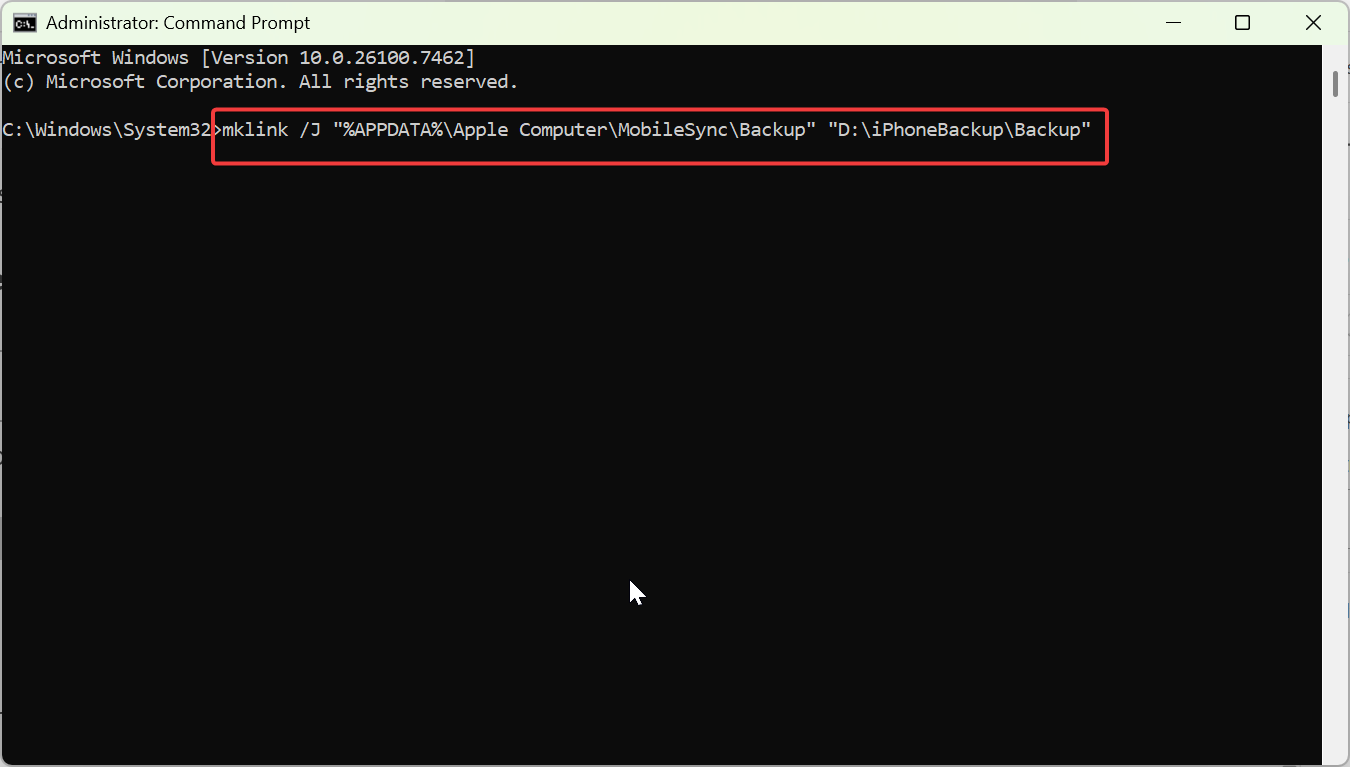
Windows uses mklink to redirect folders.
- Open Command Prompt as Administrator
- Run:
mklink /J "%APPDATA%\Apple Computer\MobileSync\Backup" "D:\iPhoneBackup\Backup"
Verify iTunes backs up to the new location
Start a new backup in iTunes. Confirm file activity appears on the secondary drive.
Finder vs iTunes backups: what’s different
macOS uses Finder for iPhone management, while Windows still relies on iTunes. The redirect method stays the same, but commands and default paths differ.
How to revert to the default iPhone backup location
Reverting restores the original setup without losing data.
- Delete the symbolic link
- Move the Backup folder back to its original path
- Run a new backup to confirm success
Never delete backup files before restoring the original folder.
Common errors and how to fix them
Most failures come from incorrect paths or missing permissions.
- Backup fails instantly: Check that the external drive stays connected
- “Access denied” error: Recreate the link with admin rights
- Finder ignores the link: Confirm the original folder name stays Backup
Is it safe to store iPhone backups on an external drive?
Yes, as long as the drive remains connected during backups. Use reliable drives and avoid sleep or disconnection while Finder or iTunes runs.
Tips for managing iPhone backups long-term
- Keep one recent backup only to save space
- Label external drives clearly
- Test backups after macOS or iTunes updates
- Avoid syncing backups to cloud folders
FAQs
Can I use a network drive for iPhone backups?
Network drives often cause backup failures and slowdowns. Local drives work best.
Will updates break the symbolic link?
Major OS updates may remove it. Recreate the link if backups revert.
Does this affect iCloud backups?
This method only changes local backups. iCloud remains unaffected.
Summary
- Apple locks iPhone backup locations by design.
- Symbolic links safely redirect backups on Mac and Windows.
- Finder and iTunes continue working without changes.
- You can revert at any time without data loss.
Changing the iPhone backup location solves storage limits without risking your data. Follow the correct steps for your platform, verify each backup, and keep your secondary drive connected for consistent results.


Discussion (0)
Be the first to comment.