




Android does not include a single switch to set a default Google account. Instead, each app decides which account it treats as primary, based on sign-in order or your last selection. Once you understand this behavior, changing the “default” becomes straightforward.
Table of contents
- How Android chooses a “default” Google account
- Change the default Google account for Gmail
- Change the default Google account for Google Play Store
- Change the default Google account for Google Assistant
- Change the default Google account used by Android system services
- Samsung, Pixel, and other Android skins
- What does not work
- Tips for managing multiple Google accounts
- FAQs
- Summary
How Android chooses a “default” Google account
Android assigns priority per app, not system-wide. The first Google account you add often becomes the system-preferred account, while individual apps follow their own rules.
Why Android has no global default account toggle
Google built Android to support multiple identities at the same time. Because of that design, you must change the active account inside each app or reset account priority at the system level.
Change the default Google account for Gmail
Gmail uses the last active account you selected. When you open the app, it remembers which inbox you viewed last.
Make one Gmail account open by default
- Open Gmail.
- Tap your profile picture in the top-right corner.
- Select the Google account you want to use.
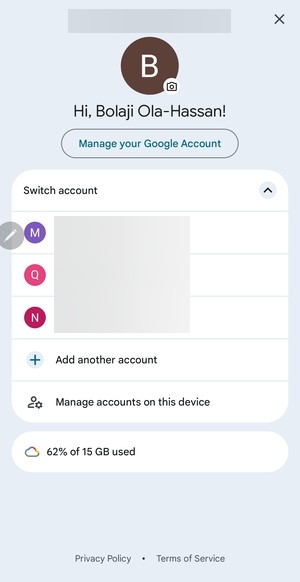

Gmail will open that inbox by default until you switch accounts again.
Change the default Google account for Google Play Store
The Play Store ties purchases, subscriptions, and app history to one active account. If you use the wrong account, billing issues can follow.
Switch the Play Store purchase account
- Open Google Play Store.
- Tap your profile picture in the top-right corner.
- Select the Google account you want to use for installs and purchases.


The Play Store will now use that account for downloads, subscriptions, and payments.
Change the default Google account for Google Assistant
Google Assistant pulls personal data from one account at a time. If reminders, contacts, or calendar results look wrong, the selected account usually causes it.
Set the primary account for Assistant services
- Start by opening Settings on your Android.
- Tap Google.


- Tap Settings for Google apps.
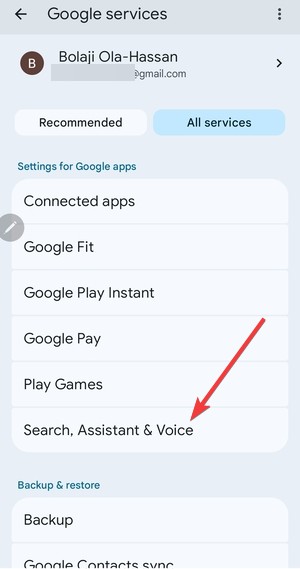
- Tap Search, Assistant & Voice.

- Tap Google Assistant.
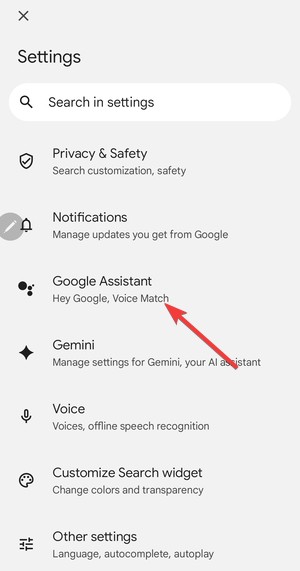

- Tap your account, then select the Google account you want Assistant to use.


The Assistant will now use that account for personal results, reminders, and calendar access.
Change the default Google account used by Android system services
Some Android services follow the first Google account you added to the phone. This can affect backups, device sync prompts, and account suggestions across Google apps.
Reorder Google accounts on Android
This method resets account priority by removing accounts and adding them back in the order you want.
- Open Settings.
- Tap Passwords & accounts (or Accountsand backup).
- Tap your first Google account.
- Tap Remove account.

- Repeat until you remove all Google accounts from the device.
- Go back to Passwords & accounts, then tap Add account.
- Add the Google account you want as the system-preferred account first.
- Add your remaining Google accounts after that.
Android will treat the first-added Google account as the system-preferred account for many prompts and services.
Samsung, Pixel, and other Android skins
Samsung and Google place account menus in slightly different locations. The behavior stays the same, but the menu names change.
- On Samsung devices, open Settings and tap Accounts and backup.
- On Pixel phones, open Settings and tap Passwords & accounts.
What does not work
Signing out of one app does not change the system-preferred account. Clearing the cache or restarting the phone will not reset the Google account priority either.
Tips for managing multiple Google accounts
- Use one account for purchases and subscriptions only.
- Give accounts clear labels inside Google settings.
- Switch accounts inside apps instead of removing and re-adding them often.
FAQs
Can I set a default Google account for all apps at once?
No. Android handles Google accounts per app, not globally.
Will changing the Gmail account affect Play Store purchases?
No. Gmail and Play Store manage accounts independently.
Does removing an account delete my data?
No. Your data stays in your Google account and will resync when you add it back.
Summary
- Android does not offer a global default Google account switch.
- Each app chooses its active account independently.
- Switch accounts inside Gmail, Play Store, and Assistant to change their defaults.
- Remove and re-add accounts in order to reset system-level account priority.
Changing the default Google account on Android works best when you match the method to the app you want to control. For full device-level priority changes, re-adding accounts in the correct order gives the most consistent results.

Discussion (0)
Be the first to comment.