



Outlook 365 often opens email and web links in Microsoft Edge, even when another browser is set as the system default. This behavior frustrates users who prefer Chrome, Firefox, Brave, or other browsers for daily browsing.
Microsoft provides two reliable ways to change the default browser for Outlook 365 links. One method uses Windows default app settings, while the other changes link handling directly inside Outlook.
Change The Default Browser For Outlook 365 In Windows
Windows controls how apps handle email and web links through default app associations. Setting your preferred browser for MAILTO links ensures Outlook opens URLs correctly.
- Press Windows + I to open Settings
- Select Apps
- Click Default Apps
- Search for your preferred browser, such as Chrome or Firefox
- Scroll to MAILTO and select the browser
- Close Settings and test an Outlook email link
Change The Default Browser Directly In Outlook 365
Outlook 365 includes its own link handling setting that overrides Windows defaults. Adjusting this option ensures links open in your chosen browser instead of Edge.
- Open Outlook 365
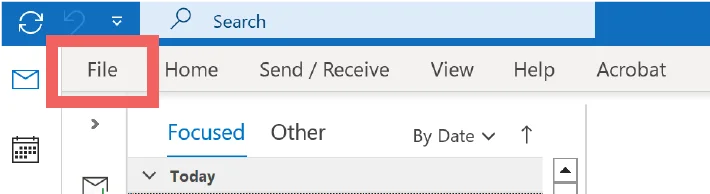
- Click File
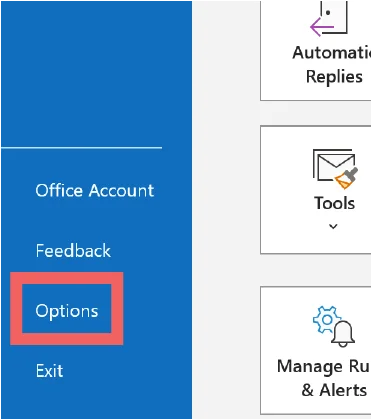
- Select Options
- Choose Advanced
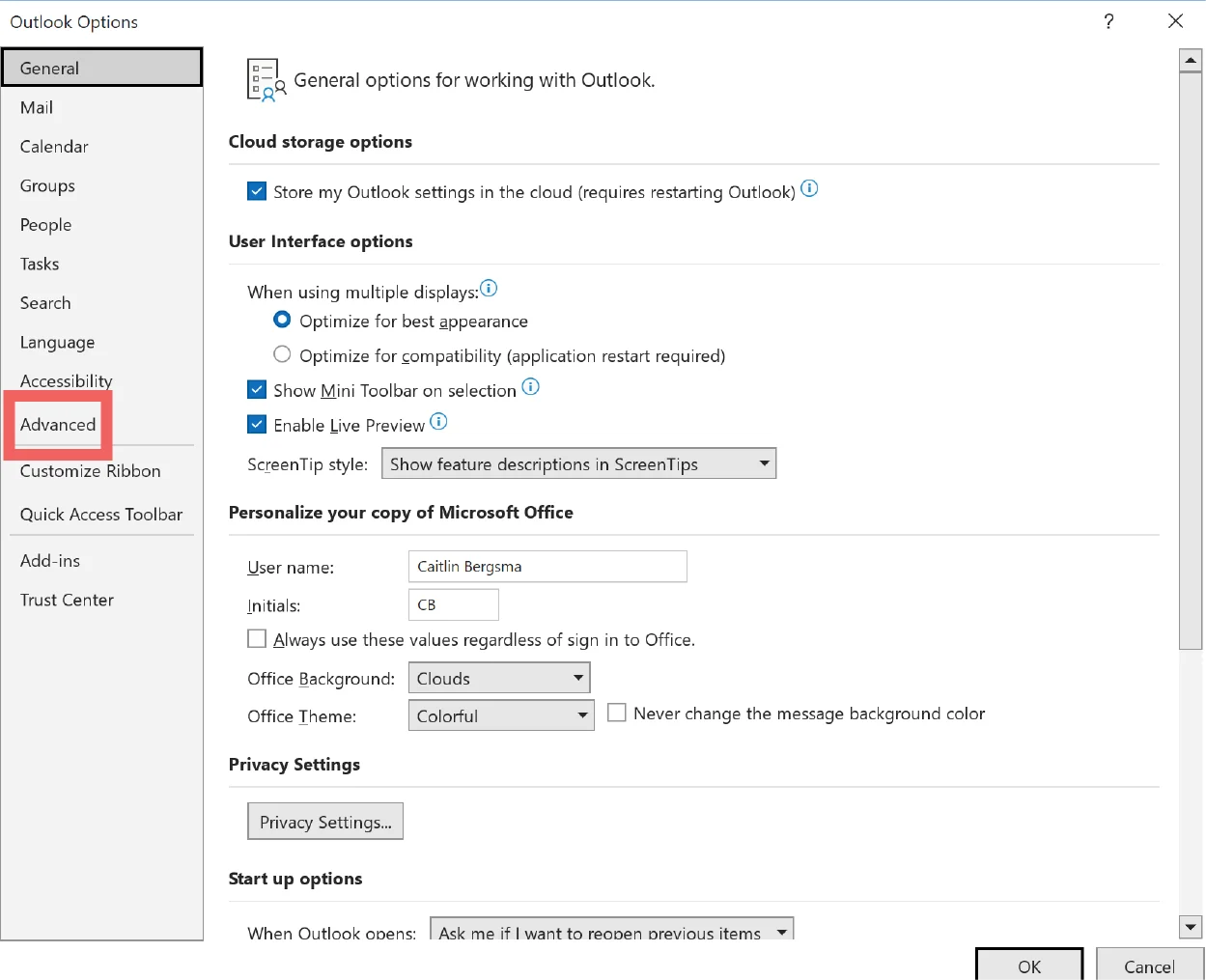
- Scroll to Link Handling
- Change Open hyperlinks from Outlook in to your preferred browser
- Click OK to save changes
Troubleshooting Common Problems
If Outlook still opens links in Edge, restart Outlook and your PC after changing settings. Some updates apply only after a full restart.
Ensure your browser is fully installed and updated. Missing browser registrations can prevent Outlook from recognizing it as an option.
Tips
- Set your browser as the default for HTTP, HTTPS, and MAILTO
- Check Outlook settings after major Windows updates
- Restart Outlook after changing link handling options
- Use one browser consistently to avoid conflicts
FAQ
Why does Outlook 365 keep opening links in Edge?
Outlook uses its own link handling setting, which can override Windows default browser preferences.
Can I use Chrome or Firefox with Outlook 365?
Yes. Outlook supports Chrome, Firefox, Brave, and other installed browsers.
Do these steps work on Windows 11?
Yes. Both methods work on Windows 11 and Windows 10.
Summary
- Outlook 365 may override system browser settings
- Windows MAILTO defaults help control link behavior
- Outlook link handling ensures consistent browser use
Conclusion
Changing the default browser in Outlook 365 only takes a few minutes and restores control over how email links open. Adjusting both Windows and Outlook settings ensures your preferred browser launches every time.


Discussion (0)
Be the first to comment.