




It is not unusual for Outlook users to face issues or errors while using the application. Many Outlook users, on different tech/community forums, have reported facing an issue where their Outlook application stops responding or freezes while accessing it, sending an email, or opening a file.
This is a grave issue as it might prevent users from sending emails or even accessing the mailbox data. Therefore, it is important to resolve this issue at the earliest possible time.
In this guide, we’ll be explaining some quick and effective solutions, with step-by-step instructions, to fix the Outlook not Responding issue. But before we proceed, let’s understand the causes behind this Outlook issue.
Common Reasons for Outlook not Responding Error
Understanding the causes behind the Outlook not responding error can help in easily resolving the issue. So, let us look at the possible reasons that can trigger this error:
- Outlook is in use by another related program/process
- Outlook is missing the latest updates
- Oversized Outlook data (PST) file
- Faulty or incompatible Outlook add-ins or extensions
- Third-party programs, such as Antivirus, is interfering with Outlook processes
- Corrupted or damaged Outlook installation
- Insufficient system resources
- Corrupted Outlook profile
- Corrupted or damaged Outlook data (PST) file
Methods to Fix the Outlook not Responding Error
Firstly, check and ensure that your system meets the requirements to run your Outlook version properly. If this is not the case, then follow the below solutions in the given order to resolve the issue.
1. Check and End All Outlook Processes
It might happen that Outlook is in use by another related program or process that might be interfering with its functionality, resulting in the ‘not responding’ error. So, you can open the Task Manager on your system and check and close all the Outlook-related processes (if any). Here’s how you can do this:
- Press Ctrl + Alt + Del keys or right-click on the Taskbar and select Task Manager to open the Task Manager.
- Go to the Processes tab and find all running instances of Outlook.exe.
- Select each process and click on End Task.
After ending all the processes, restart your Outlook application and check if the issue is resolved.
2. Disable Faulty Add-ins
Add-ins in Outlook are installed to enhance the functionality and performance, but sometimes these add-ins can interfere with the application’s functionality if they’re incompatible or become faulty. To check this, you can launch your Outlook in safe mode (press Windows + R keys, type Outlook.exe /safe, and click OK). If your Outlook works properly in safe mode, then the issue is most likely caused by a faulty add-in. Follow the steps below to disable the add-ins:
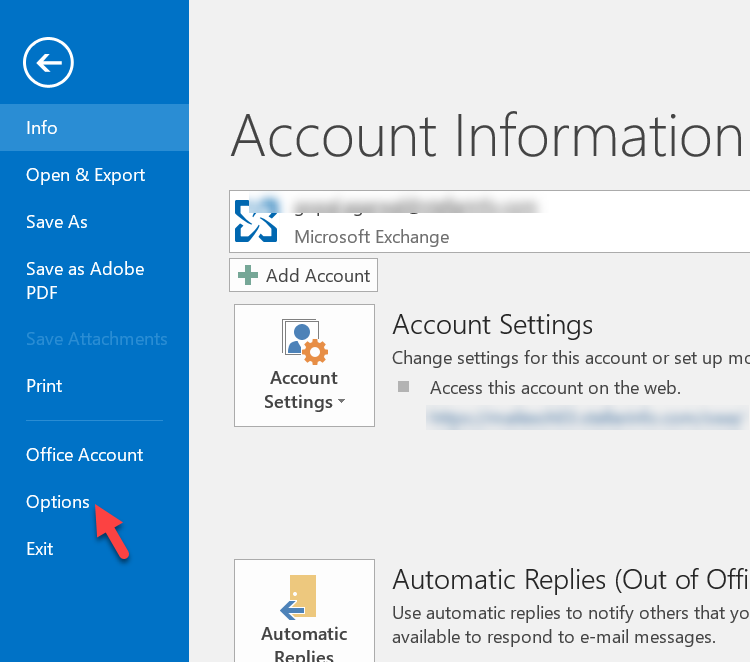
- In Outlook, click on File.
- Click on the Options tab and select Add-ins.
- At the bottom of the window, choose COM Add-ins and click on Go.

- In the window that opens, uncheck all the add-ins and click OK.
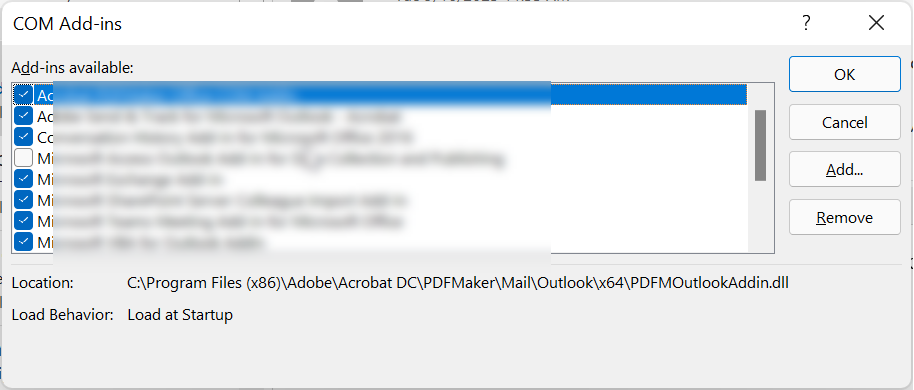
Restart Outlook, re-enable the add-ins one-by-one, and restart Outlook until you identify which one was causing the problem.
3. Temporarily Disable Antivirus
If your antivirus application is outdated or not compatible with Outlook, then it can interfere with Outlook processes, resulting in not responding error and other issues. So, to check this, temporarily disable your Antivirus program by following these steps:
If you’re using Windows Defender:
- Click on Start and type Windows Security.
- Launch the application, navigate to Virus & threat protection > Manage settings.

- Turn off Real-time protection.
Note: If you are unable to find Manage settings in the window’s security, then you should connect with your IT administrator. It might be disabled by the administrator.
If you’re using a third-party antivirus program:
- Open your antivirus program and go to its Settings.
- Search for the disable protection temporarily or exclude Outlook from scanning option and enable it.
After making the changes, start Outlook and check if the issue is resolved. If it is resolved, then update your antivirus program or install a program that is compatible with Outlook.
4. Reduce Oversized PST File
Outlook may freeze or stop responding if the PST file is too large or oversized. You can check the size of your PST file and reduce its size if it is oversized. To reduce the PST file size, you can do the following:
- Empty the Deleted Items folder.
- Delete unnecessary or duplicate mailbox items
- Use the Mailbox Cleanup tool in Outlook.
- Move some mailbox items to a new PST file.
- Compact the PST file.
- Archive older mail items.
5. Create a New Outlook Profile
You may also encounter the error “Outlook not Responding” if your user profile is corrupted or set up incorrectly. Creating a new Outlook profile can help you resolve the error, if it has occurred due to a corrupt profile. Here’s how to create a new user profile in Outlook:
- Ensure Outlook is closed. Open Control Panel fromthe Start menu.
- Click on Programs and go to User Account > Mail (Microsoft Outlook).
- Click on Show Profiles and then click on the Add button to add a new profile.

- Enter the profile name and click on OK.

- After entering the name, confirm your email address, click on Next, and click Finish.

- Now, select the corrupted profile and click the Remove option to delete it.
- After this, choose the Always use this profile option, select the new profile, and then click OK. Launch Outlook.
This should fix the given error if it was caused due to corruption in user profile.
6. Repair the PST File
If your PST file is corrupted or damaged, then Outlook may not respond when you try to send email or access the mailbox items. To fix the issue, you can repair the corrupted PST by using the ScanPST tool that comes installed with Outlook. Also called Inbox Repair tool, it scans the PST file and resolves the corruption issues. Follow the given steps to repair PST file by using the ScanPST.exe:
- Exit Outlook and find ScanPST.exe on your system. It is located at C:\Program Files (x86)\Microsoft Office\root\OfficeXX or C:\Program Files\Microsoft Office\OfficeXX.
- Double-click to open the tool.
- Click on Browse and choose your PST file.
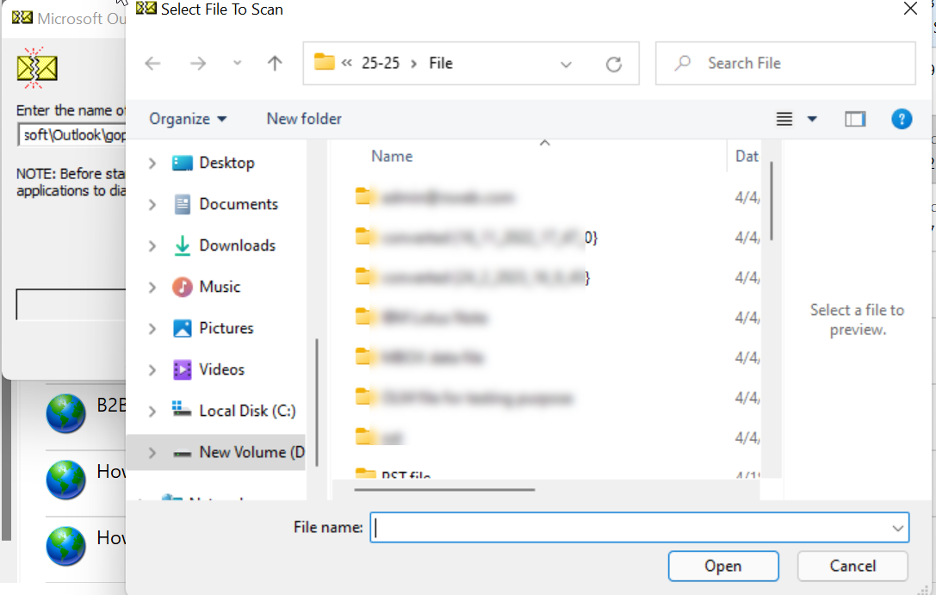
- Click on Start to begin the scanning process.
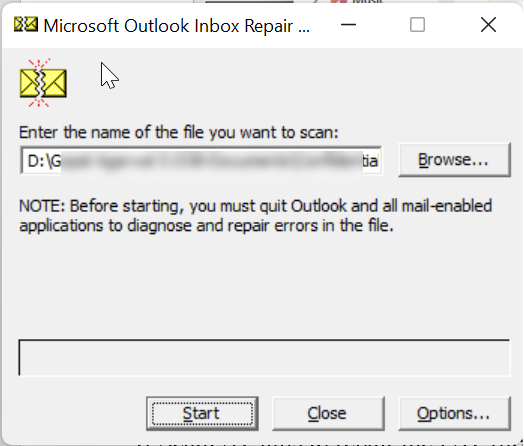
- After completing the scan, if problems are found, then click on Repair.
After completing the repair process, restart Outlook and check if the issue is resolved.
If ScanPST fails to repair the PST file, then the chances are that your file is severely corrupted. In this case, you can use a more powerful Outlook PST repair tool, like Stellar Repair for Outlook. It’s a dedicated tool purpose-built to repair corrupted or inaccessible PST files of any size and with any level of corruption. The tool can recover all the PST file items, including emails, attachments, calendar entries, and contacts, without any data loss. It saves the recovered items in a new PST file (which you can import into your Outlook) and various other formats, such as EML, MSG, RTF, HTML, PDF, etc.
Conclusion
The Outlook not Responding error can be the result of a variety of factors – internal or external. By following the step-by-step methods mentioned in this guide, you can fix this error and restore Outlook’s normal functionality. However, in case there is a problem with PST file, then an easy way is to repair the file with Stellar Repair for Outlook - an advanced PST repair tool. It can smoothly repair large, encrypted, or severely damaged PST file while preserving the original folder structure and hierarchy.


Discussion (0)
Be the first to comment.