




If ads slow down your Android phone or interrupt apps, Private DNS offers a simple fix. Android includes a built-in Private DNS feature that blocks many ads system-wide without installing apps, granting permissions, or rooting your device.
This guide shows you how to implement the Private DNS on your phone, explains what it can block, and the ads it cannot prevent from showing.
Table of contents
What private DNS does on Android
Private DNS changes how your phone resolves website and app connections. Instead of using your ISP’s default DNS, Android sends requests through an encrypted DNS provider that can block known ad and tracking domains.
How DNS-level ad blocking works
Ad-blocking DNS services maintain large blocklists of advertising and tracking domains. When an app tries to load an ad from one of those domains, the DNS request fails, so the ad never appears.
This approach works before content loads, which makes it fast and battery-friendly.
Ads private DNS cannot block
Private DNS cannot block ads served from the same domain as the content. YouTube ads, Facebook ads, Instagram ads, and sponsored posts still appear because they load from first-party domains.
How to block ads on Android using private DNS
Android lets you enable Private DNS in system settings. The steps look similar across most devices, including Samsung, Pixel, and Xiaomi phones.
Enable private DNS on Android
Follow these steps on Android 9 or newer:
- Open Settings.
- Tap Network & Internet or Connections.


- Next, click More connection settings.
- Select Private DNS.
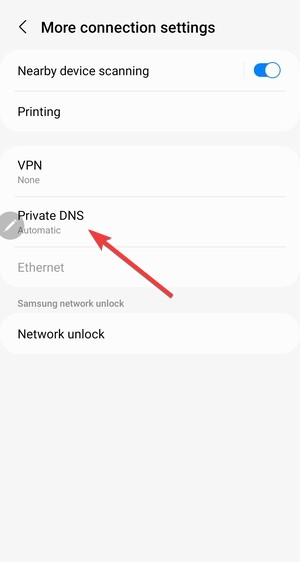

- Choose Private DNS provider hostname.
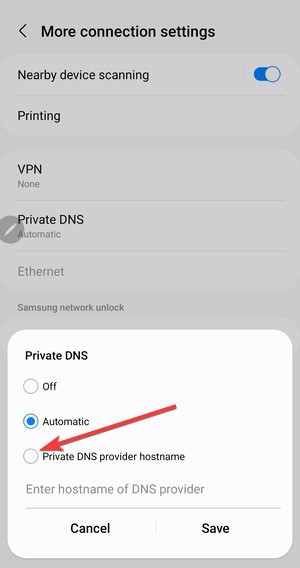

- Enter a DNS hostname and tap Save.


If your phone shows a “Connected” message, Private DNS is active.
Best private DNS hostnames for ad blocking
These hostnames work without creating an account:
- dns.adguard.com – Strong ad and tracker blocking.
- family.adguard-dns.com – Blocks ads and adult content.
- p2.freedns.controld.com – Balanced filtering with good performance.
Some providers also offer dashboards and customization, which requires creating an account.
Best private DNS providers for ad blocking
Choosing the right DNS depends on how much control you want and how strict blocking should be.
AdGuard DNS
AdGuard DNS focuses on aggressive ad and tracker blocking with zero setup. It works well for users who want results immediately and prefer not to manage settings.

It blocks most banner ads and many in-app ads without noticeably slowing connections.
NextDNS
NextDNS offers the most customization. You can enable or disable blocklists, allow specific apps, and view analytics.
This option suits advanced users who want control over privacy, security, and filtering behavior.
Control D and RethinkDNS
Control D balances privacy and performance while offering multiple filtering profiles. RethinkDNS emphasizes transparency and open filtering rules.

These services appeal to power users who want more insight into what gets blocked.
Private DNS vs ad-blocking apps
Private DNS works well as a first layer of protection and can sometimes stop Google ads on Chrome, but it does not replace full ad-blocking apps.
Advantages of private DNS
- No apps or permissions required
- Works system-wide
- Low battery and memory usage
- Encrypted DNS traffic
Limitations compared to ad blockers
Private DNS cannot hide empty ad spaces or block first-party ads. App-based blockers and browser extensions handle cosmetic filtering better.
Many users combine Private DNS with a browser-level blocker for stronger results.
Troubleshooting private DNS ad blocking
Private DNS sometimes fails due to network or app conflicts.
Private DNS not working or disconnecting
If ads still appear:
- Switch between Wi-Fi and mobile data
- Restart your phone
- Try a different DNS provider
Some networks block encrypted DNS traffic, which causes random disconnects.
Some apps stop working or fail to load
Certain apps rely on blocked domains to function. Switch to a less aggressive DNS provider or disable Private DNS temporarily for that network.
Privacy and security considerations
DNS providers can see domain requests, so privacy policies matter.
Is private DNS safe to use?
Encrypted DNS prevents ISPs from inspecting your traffic, but DNS providers still process requests. Reputable providers limit logging and anonymize data.
Choosing a privacy-friendly DNS
Look for clear logging policies, independent audits, and transparent filtering rules. Avoid providers that sell browsing data or lack documentation.
Tips for better ad blocking on Android
- Combine Private DNS with a browser ad blocker
- Disable ad personalization in Google settings
- Keep DNS enabled on both Wi-Fi and mobile data
- Test multiple DNS providers to find the best balance
FAQs
Does private DNS block ads in apps?
Private DNS blocks many in-app ads, but not ads served from the app’s own servers.
Does private DNS slow down internet speed?
Most users see no slowdown, and some experience faster loading due to blocked requests.
Can private DNS break Wi-Fi or mobile data?
Misconfigured DNS or network restrictions can cause issues, but switching providers usually fixes them.
Do I need root access to use private DNS?
No. Private DNS works on stock Android without root.
Summary
- Private DNS blocks ads system-wide without apps or root access.
- It works best on banner ads, trackers, and some in-app ads.
- AdGuard DNS and NextDNS offer the best balance of ease and control.
- Combining DNS with browser blockers improves results.
Private DNS offers the simplest way to reduce ads on Android. Enable it, test a few providers, and pair it with browser blocking for the cleanest experience.
Discussion (0)
Be the first to comment.