




macOS ships with solid built-in tools, but the best Mac apps unlock far more power, flexibility, and productivity. Whether you use a MacBook for work, study, or creative projects, third-party apps can significantly improve how you manage files, communicate, and stay organized.
At the time of writing, the apps below continue to receive active development and work reliably on modern versions of macOS. This list includes both free and paid Mac apps, focusing on everyday value rather than niche features.
Productivity And Workflow Apps
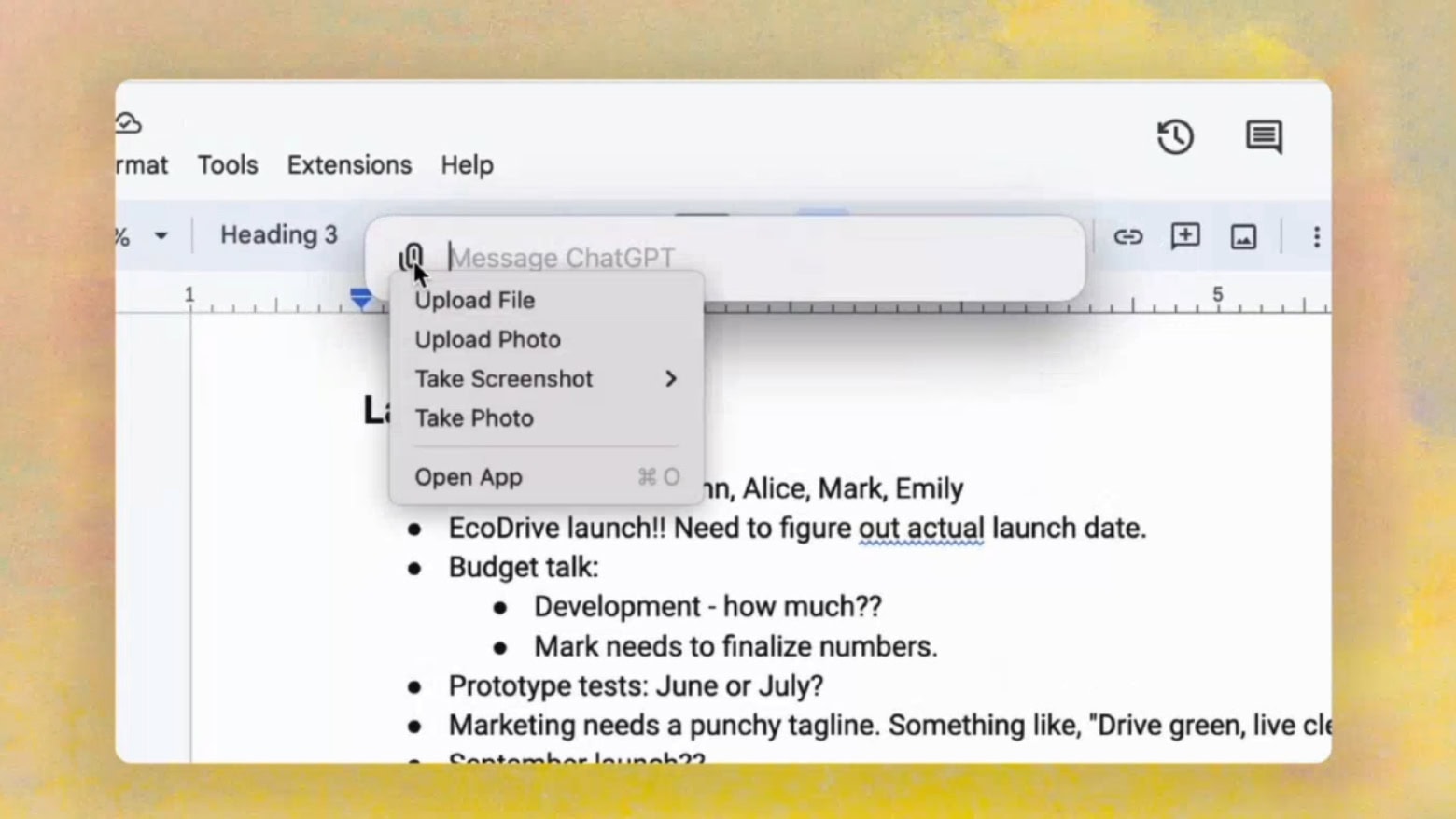
Productivity apps remain the most popular category among Mac users. These tools help automate tasks, reduce friction, and speed up daily workflows.
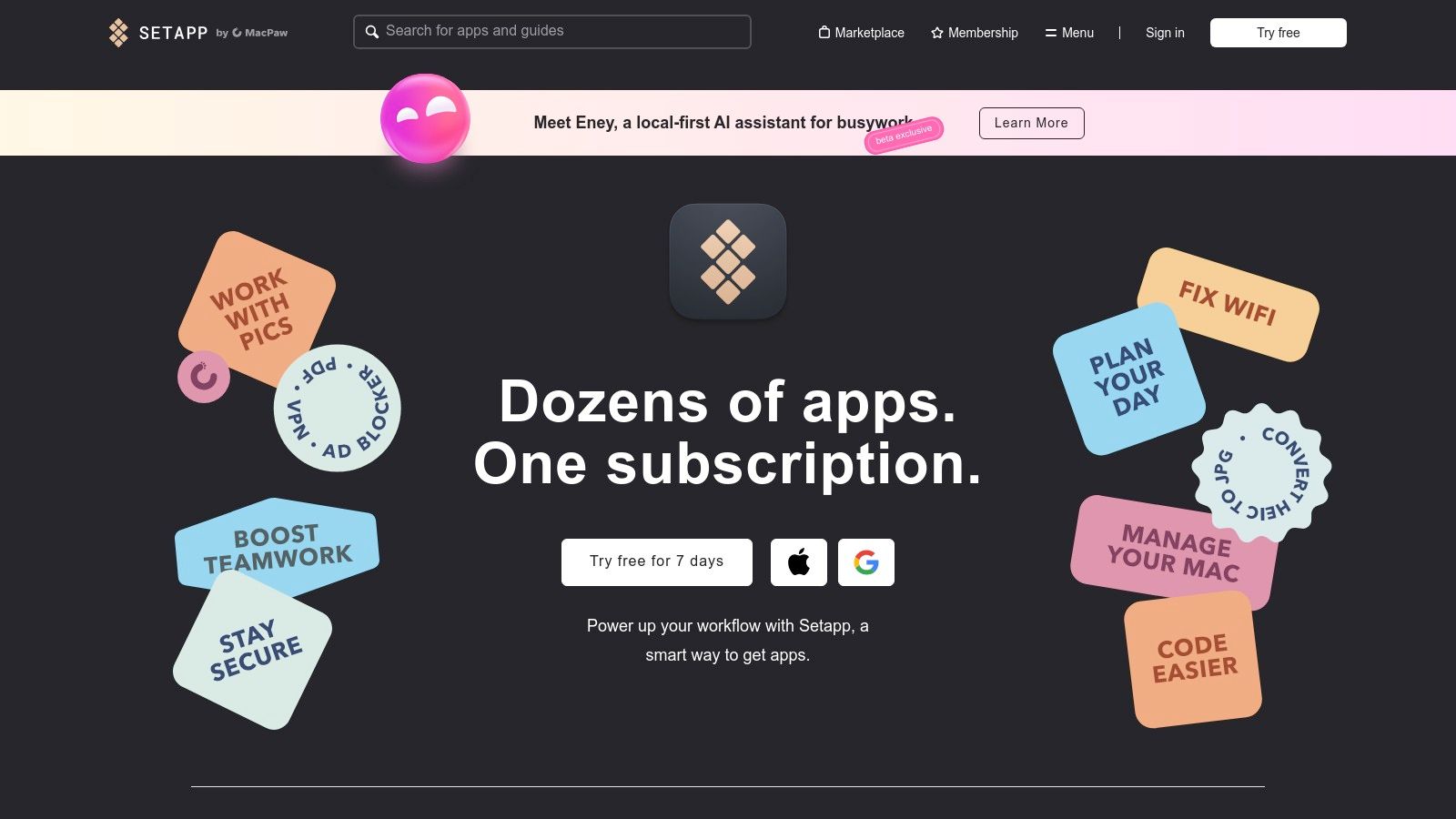
Apps like Alfred, Notion, and Setapp enhance search, task management, and access to multiple utilities from one place. They suit students, professionals, and anyone managing multiple projects.
Storage, File Management, And System Tools
As storage fills up, macOS performance can slow down without clear warnings. File management and cleanup apps help maintain system responsiveness.
CleanMyMac X, Hazel, and Bartender give users better control over disk space, file organization, and the macOS menu bar. These apps focus on automation and clarity rather than manual cleanup.
Communication And Collaboration Apps
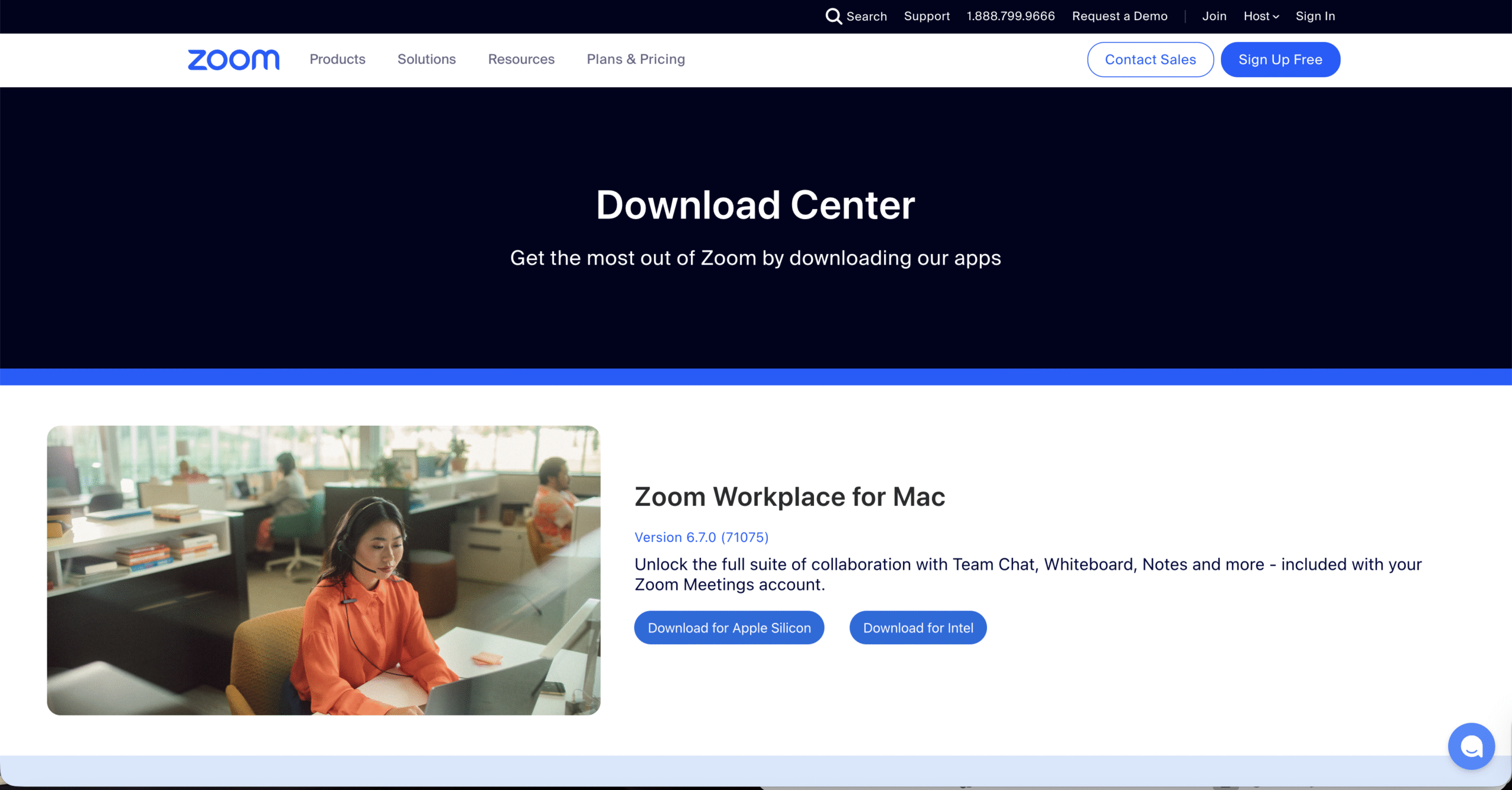
Remote work and digital collaboration make communication apps essential on Mac. Email, video calls, and note sharing all benefit from specialized tools.
Zoom, Spark, and Microsoft OneNote provide stable communication, smarter inbox management, and cross-platform note syncing across devices.
Media, Entertainment, And Creative Apps
Mac remains a strong platform for media consumption and light creative work. Media apps expand format support and improve playback flexibility.
VLC Media Player, Spotify, and PDF Expert handle video playback, music streaming, and document editing more efficiently than default macOS tools.
Utilities For Everyday Mac Use
Small utility apps often make the biggest difference over time. These tools solve daily annoyances that macOS does not fully address.
Amphetamine, Magnet, Copy Clip, and Reeder improve window management, clipboard history, RSS reading, and system behavior without adding complexity.
Troubleshooting Common Problems
If an app fails to launch, check macOS security permissions under Privacy & Security. Some utilities require accessibility or file access permissions.
Compatibility issues often stem from outdated macOS versions. Updating the system usually resolves performance or installation problems.
Tips
- Install apps gradually to avoid clutter.
- Check built-in macOS features before adding utilities.
- Use free versions before upgrading to paid plans.
- Review permissions for system-level apps.
- Remove unused apps to maintain performance.
FAQ
Are paid Mac apps worth it?
Yes, paid Mac apps often provide better support, advanced features, and long-term updates.
Do free Mac apps have limitations?
Many free apps offer core features with optional paid upgrades for advanced tools.
Can these apps slow down my Mac?
Running too many background apps can affect performance, especially on older Macs.
Summary
- Mac apps expand productivity beyond stock tools.
- Free and paid options both offer strong value.
- Utilities improve everyday macOS usability.
- System maintenance apps prevent slowdowns.
Conclusion
The best Mac apps balance usefulness, reliability, and simplicity. By choosing apps that match your workflow, you can turn macOS into a faster, more capable workspace without overwhelming your system.

Discussion (0)
Be the first to comment.