




Notepad is one of the simplest text editors available in Windows 11. Even though it looks minimal, it includes useful features that can help you write notes, edit text files, or work with simple code.
Learning a few basic Notepad tips can make the app more efficient and easier to use. This guide explains helpful Notepad tips for Windows 11 that every beginner should know.
What Is Notepad in Windows 11?
Notepad is a lightweight text editor included with Windows. It allows users to create and edit plain text files without formatting.
Common uses for Notepad include:
- Writing quick notes
- Editing configuration files
- Viewing log files
- Creating simple scripts or code
Because it saves files in plain text format, it is widely used for programming and system tasks.
Enable Word Wrap in Notepad
Word Wrap makes long lines of text automatically move to the next line instead of extending beyond the screen.
To enable Word Wrap:
- Open Notepad.
- Click Format in the menu.
- Select Word Wrap.
This makes reading long text much easier.
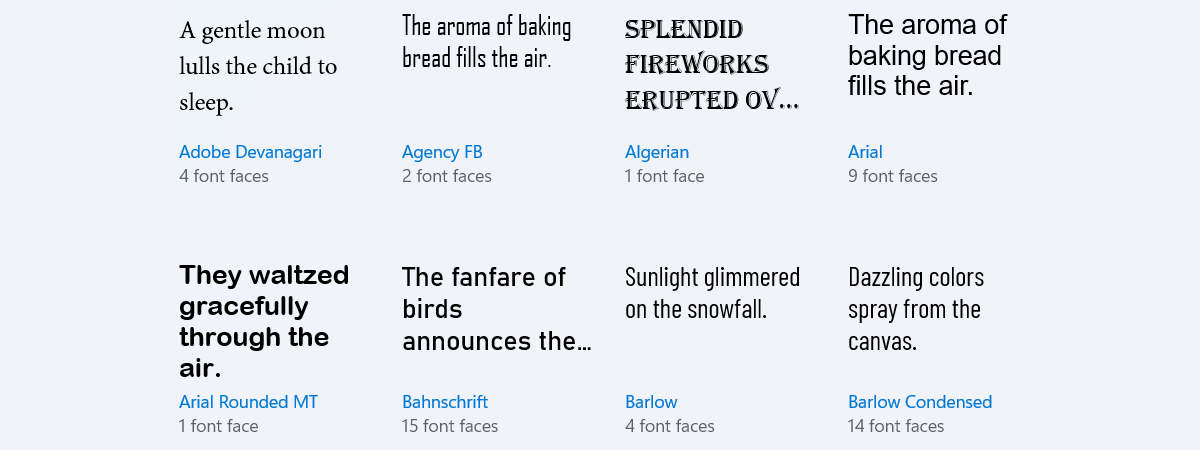
Change the Font and Text Size
If the default text is too small, you can adjust the font settings.
To change the font:
- Open Notepad.
- Click the Settings icon (or Format > Font in some versions).
- Choose your preferred font style.
- Select a font size.
- Apply the changes.
This only changes how text appears in Notepad.
Use Keyboard Shortcuts in Notepad
Keyboard shortcuts can make editing faster.
Some useful shortcuts include:
- Ctrl + N – Create a new file
- Ctrl + O – Open a file
- Ctrl + S – Save the current file
- Ctrl + C – Copy text
- Ctrl + V – Paste text
- Ctrl + F – Find text in the document
Using shortcuts can significantly speed up your workflow.
Use Find and Replace
Notepad includes a simple search tool that helps locate words quickly.
To find text:
- Press Ctrl + F.
- Enter the word or phrase.
- Click Find Next.
To replace text:
- Press Ctrl + H.
- Enter the text to replace.
- Enter the new text.
- Click Replace.
This is useful when editing large text files.
Zoom In or Out for Better Visibility
Modern versions of Notepad allow zooming for better readability.
To zoom:
- Press Ctrl + Plus (+) to zoom in
- Press Ctrl + Minus (-) to zoom out
- Press Ctrl + 0 to reset zoom
This is helpful when working with long documents.
Show Status Bar in Notepad
The Status Bar displays useful information like line and column numbers.
To enable it:
- Click View in Notepad.
- Select Status Bar.
This feature is useful when editing structured text or code.
Save Files with Different Extensions
Notepad can save files in many formats.
For example:
.txtfor plain text.batfor batch scripts.htmlfor web pages.csvfor data files
To save with a custom extension:
- Click File > Save As.
- Select All Files in Save as type.
- Enter the desired extension.
Final Thoughts
These basic Notepad tips for Windows 11 can help you get more out of this simple but powerful text editor. Features like Word Wrap, search tools, keyboard shortcuts, and font customization make Notepad easier to use for everyday tasks.
Even though it is a lightweight program, Notepad remains useful for quick edits, note-taking, and working with plain text files.
FAQs
What is Notepad used for in Windows 11?
Notepad is used for creating and editing plain text files, notes, and simple scripts.
Can I change the font in Notepad?
Yes. You can change the font style and size from the Notepad settings or Format menu.
Does Notepad support keyboard shortcuts?
Yes. Common shortcuts include Ctrl + S to save, Ctrl + F to find text, and Ctrl + H for replace.
Can Notepad create files other than .txt?
Yes. You can save files with different extensions such as .bat, .html, or .csv.

Discussion (0)
Be the first to comment.