



Setting up an auto-reply in Apple Mail helps you respond automatically when you are out of the office, on vacation, or unavailable. Apple offers different options depending on your device and email provider, and each method works slightly differently.
This guide explains how to configure an Apple Mail auto reply on iPhone, iPad, and Mac, plus an alternative using iCloud Mail when native options are limited.
How To Set Up Auto-Reply In Apple Mail On iPhone Or iPad
Apple Mail on iPhone and iPad supports automatic replies only for certain account types, such as Microsoft Exchange. If the option is available, you can enable it directly from Settings.
- Open the Settings app and tap Mail
- Select Accounts and choose your email account
- Tap Automatic Reply and turn it on
- Optionally select an End Date for the reply
- Enter your message in the Away Message field
- Tap Save to apply the auto-reply
The auto-reply begins immediately after you enable it. If you want to prepare the message in advance, turn the toggle off until you are ready.
How To Set Up Auto-Reply In Apple Mail On Mac
macOS offers more flexibility through Mail rules. This method works with most email providers and allows conditional replies.
- Open the Mail app and select Mail from the menu bar
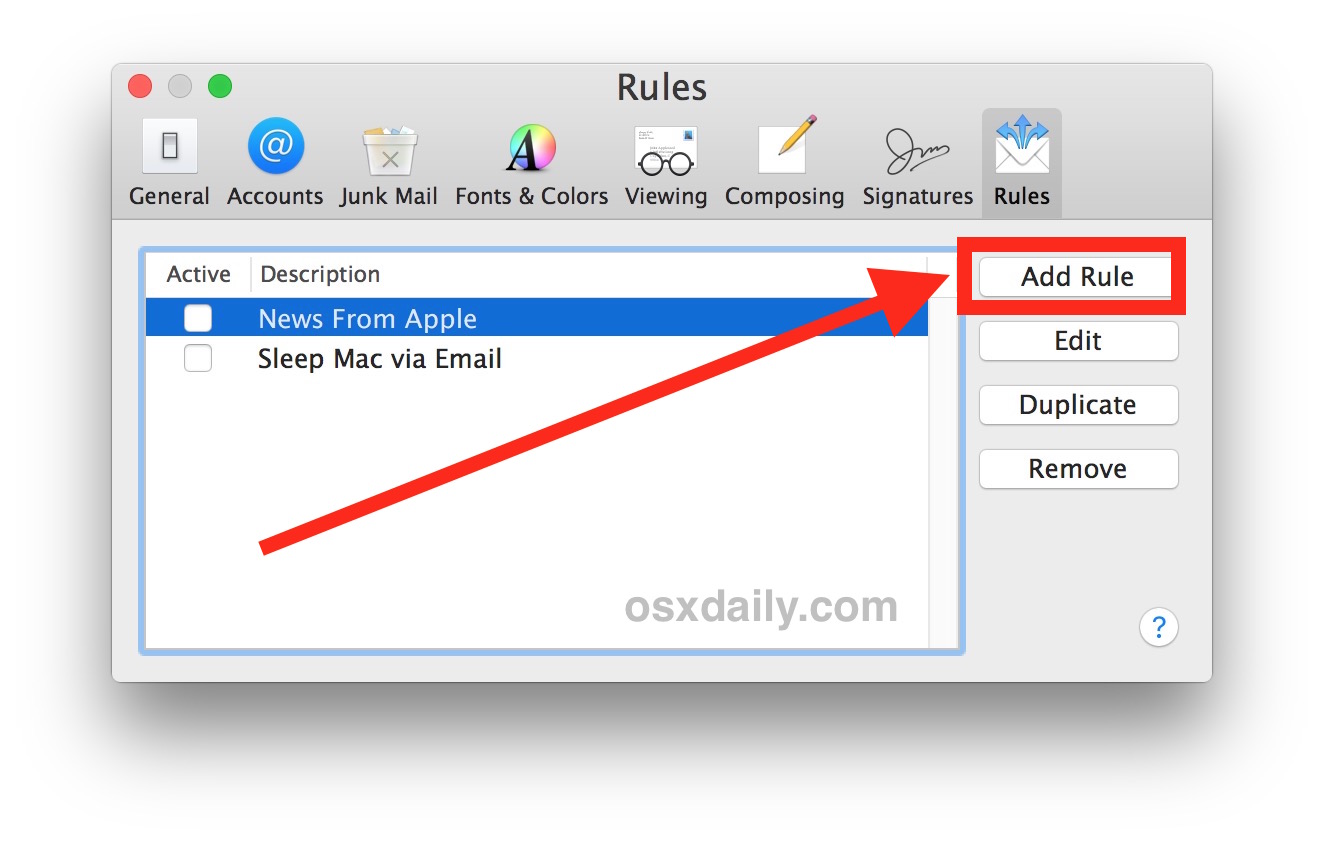
- Click Settings and open the Rules tab
- Select Add Rule and enter a description
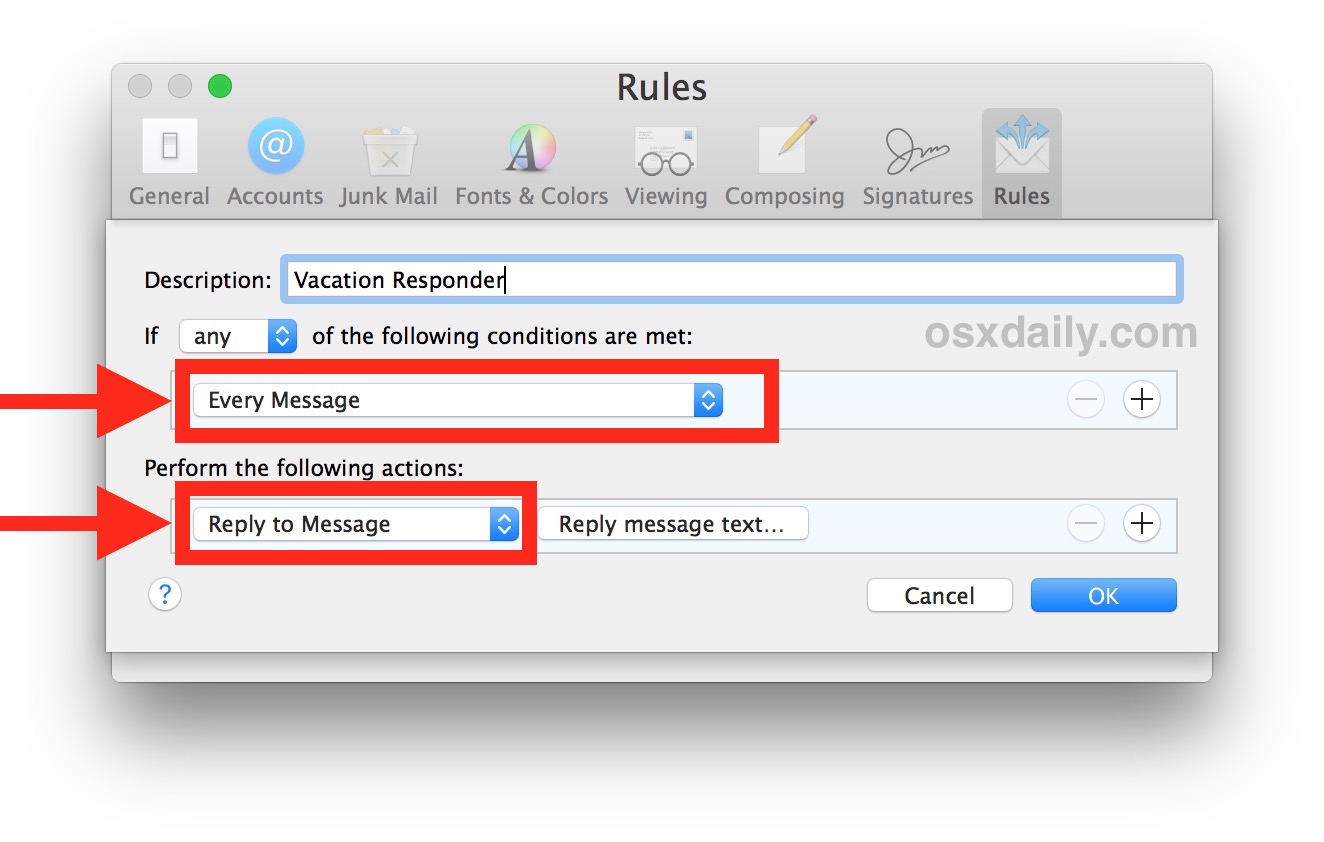
- Choose your conditions, such as Account or Subject
- Under actions, select Reply To Message
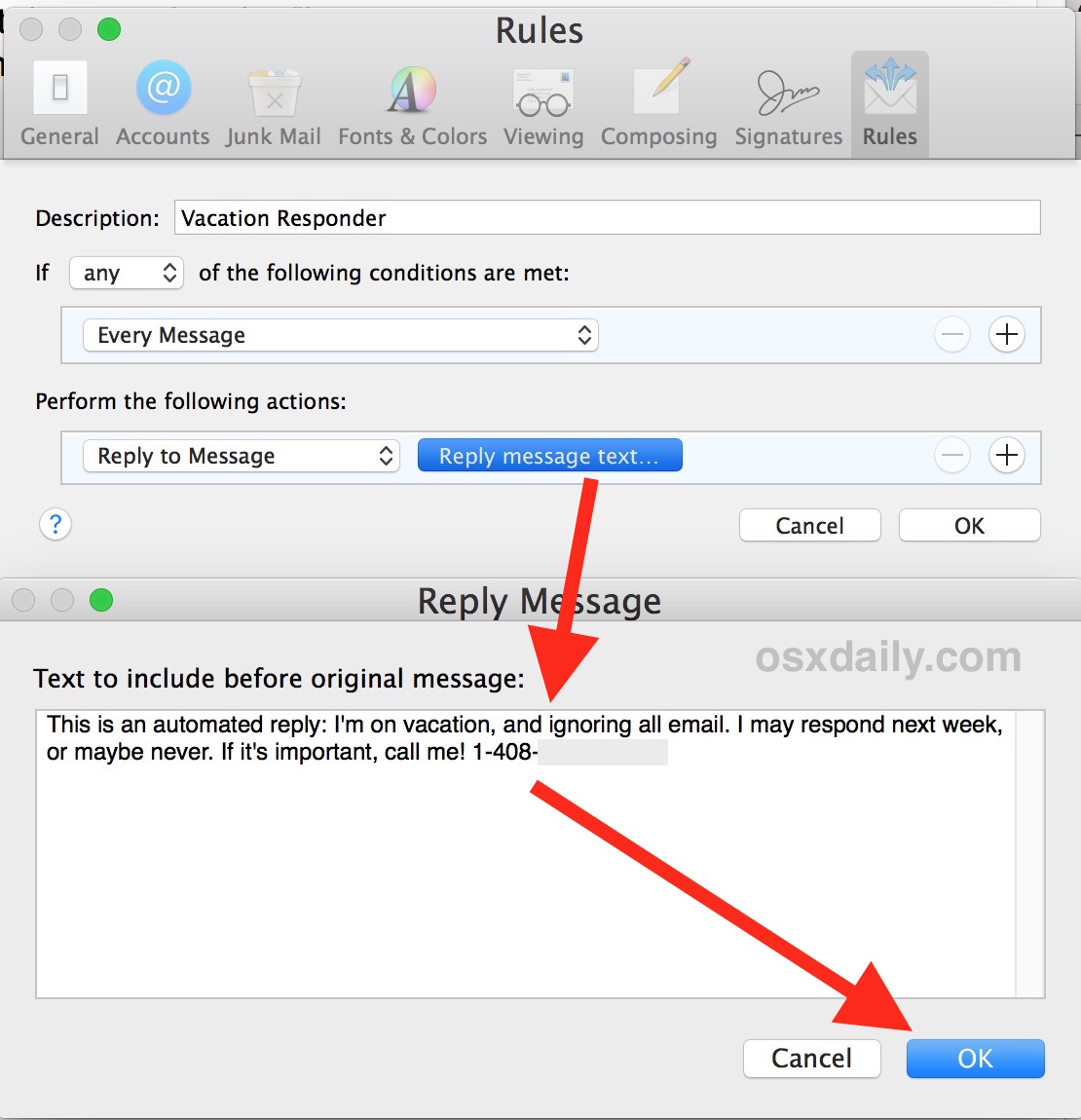
- Enter your auto-reply message and click OK
- Confirm the rule and choose whether to apply it immediately
The rule stays active until you manually disable it, so remember to turn it off when you return.
How To Set Up Auto-Reply Using iCloud Mail
If your email provider does not support auto-replies in Apple Mail, iCloud Mail offers the most reliable alternative. This option includes start and end scheduling.
- Sign in to iCloud Mail from a web browser
- Open Settings and select Auto-Reply
- Enable automatic replies
- Set start and end dates if needed
- Enter your message and close the window
This method works from any device and does not require the Mail app to stay open.
Troubleshooting Common Problems
If the Automatic Reply option does not appear on iPhone or iPad, your email provider likely does not support it. In this case, use the Mac rule method or iCloud Mail.
If replies send multiple times to the same sender, review your Mail rules and remove overlapping conditions.
Tips
- Keep auto-reply messages short and professional
- Avoid including sensitive personal details
- Test the auto-reply by emailing yourself
- Disable rules promptly when you return
FAQ
Can I set a start date for Apple Mail auto-replies on iPhone?
No. Auto-replies on iPhone begin immediately once enabled.
Does Apple Mail support auto-replies for Gmail?
No. Gmail requires setting vacation replies within the Gmail service.
Can I use different replies for internal and external contacts?
Yes, if your account supports external away messages.
Summary
- iPhone and iPad support auto-replies only for certain accounts
- Mac Mail rules work with most providers
- iCloud Mail offers the most flexible scheduling
- Rules must be disabled manually when finished
Conclusion
Apple Mail provides multiple ways to set up an auto-reply depending on your device and email provider. While iPhone options are limited, Mac rules and iCloud Mail ensure you can always create a reliable out-of-office reply when needed.


Discussion (0)
Be the first to comment.