



The Favorites feature on iPhone lets you reach important contacts faster and control who can reach you when notifications are limited. By adding people to your Favorites list, you reduce friction when calling, enable priority access during Focus mode, and keep essential contacts one tap away.
You can add, reorder, remove, and customize Favorite contacts directly from the Phone or Contacts apps. All steps below work on current iOS versions at the time of writing.
How To Add Favorite Contacts Using The Phone App
The Phone app offers the fastest way to add contacts to your Favorites list. This method works well if you already know who you want quick access to.
- Open the Phone app and tap the Favorites tab.
- Tap the Plus (+) icon in the top corner.
- Select a contact from your list or use search to find them.
- Choose the contact method you prefer, such as call, message, or FaceTime.
The contact appears immediately in your Favorites list using the method you selected.
How To Add Favorite Contacts From A Contact Card
If you are already viewing a contact’s details, you can add them to Favorites without opening the Favorites tab. This approach works from both the Contacts app and the Phone app.
- Open the Contacts app or the Contacts tab in the Phone app.
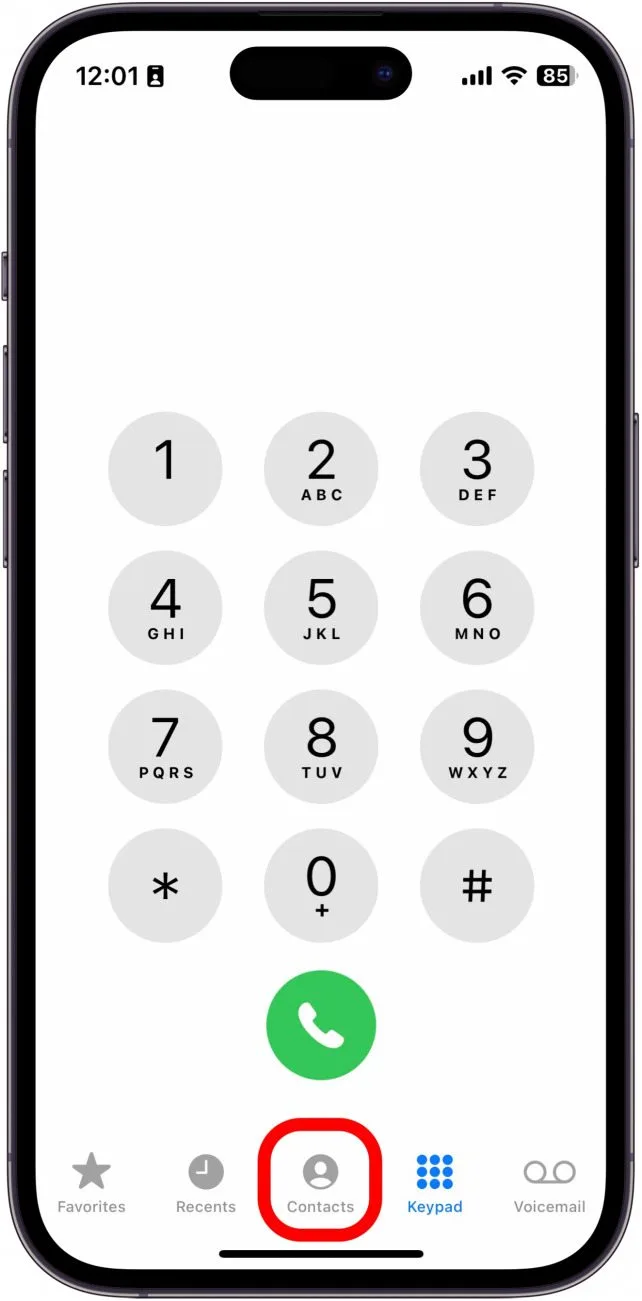
- Select the contact you want to favorite.
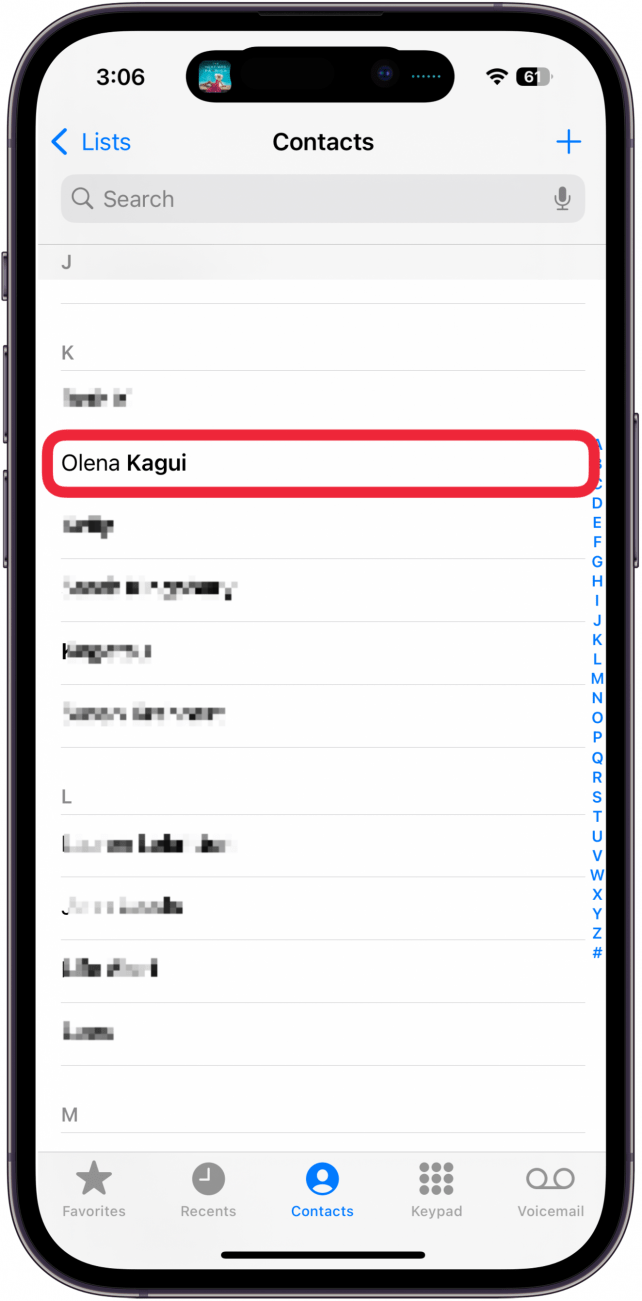
- Tap Add To Favorites.
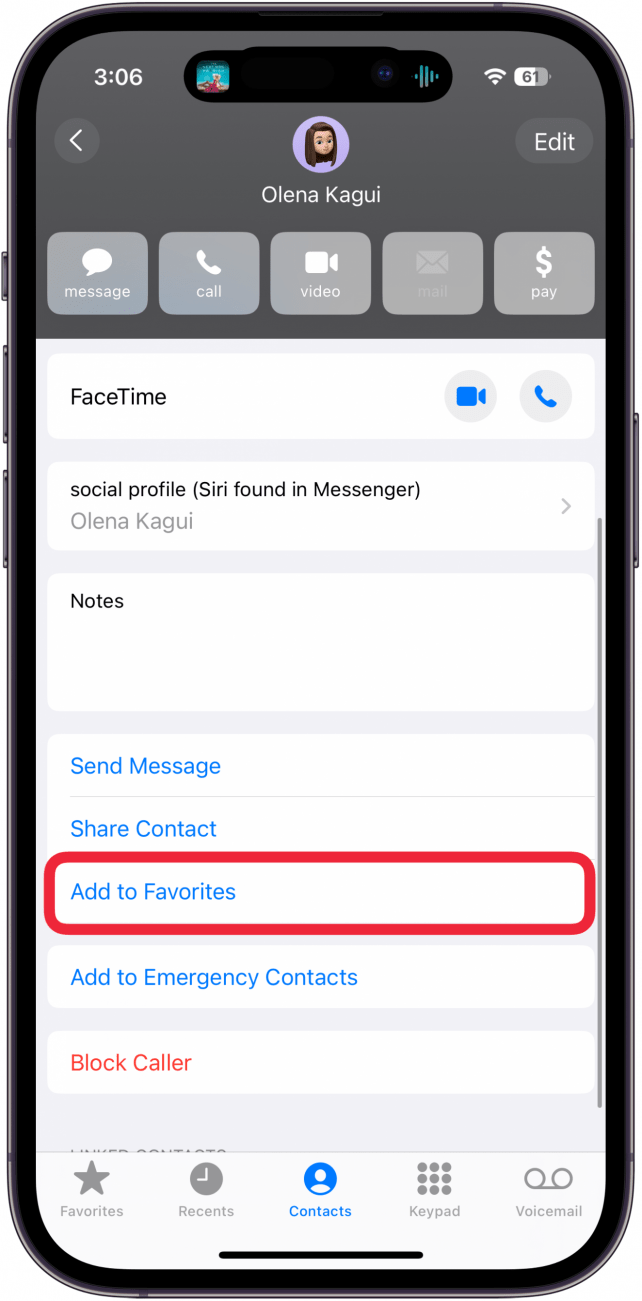
- Choose how you want to contact that person.
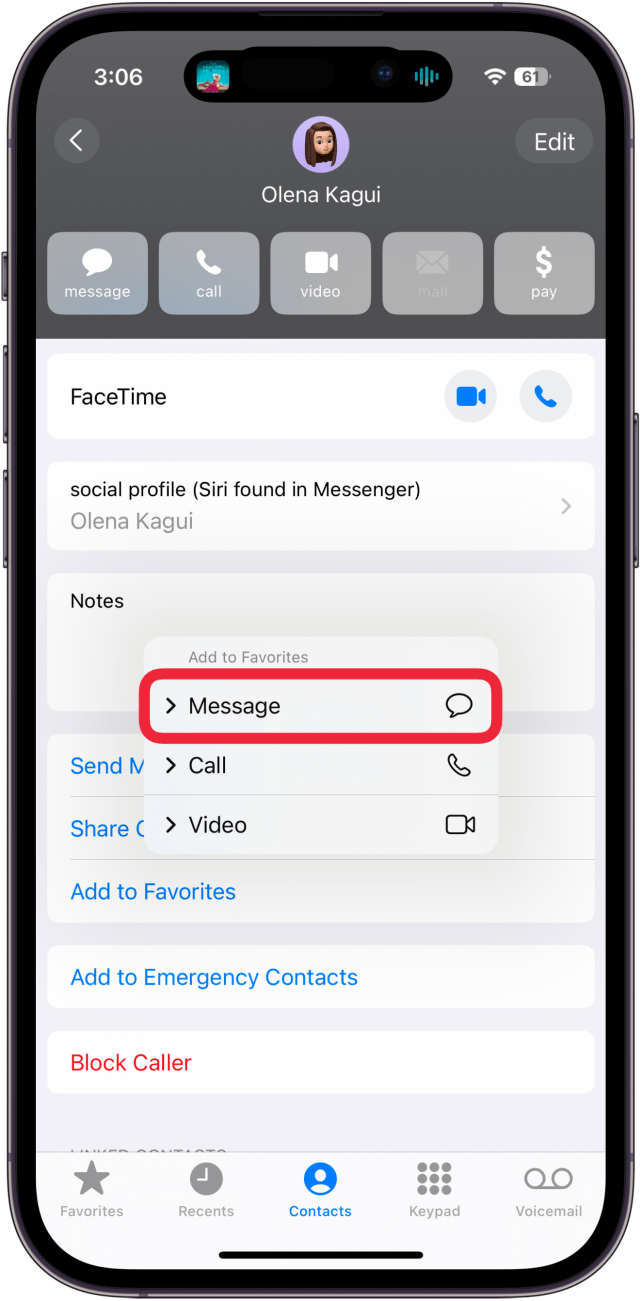
This method helps when you discover the need to favorite someone while reviewing their contact information.
How To Reorder Favorite Contacts On iPhone
As your Favorites list grows, placing the most important contacts at the top saves time. iOS lets you rearrange the order at any time.
- Open the Phone app and tap Favorites.
- Tap Edit in the top-right corner.
- Drag the three-line handle next to a contact to change its position.
- Tap Done to save the new order.
The new arrangement syncs automatically if iCloud Contacts is enabled.
How To Remove Contacts From Favorites
You can remove contacts from Favorites without deleting them from your address book. This keeps your contact list intact while cleaning up Favorites.
- Open the Phone app and go to Favorites.
- Tap Edit.
- Tap the red minus icon next to the contact.
- Select Delete, then tap Done.
You can re-add the contact later using the same steps as before.
How To Allow Favorite Contacts During Focus Mode
Favorite contacts can bypass Focus mode restrictions, making them ideal for family, close coworkers, or emergency contacts. You control this behavior per Focus profile.
- Open the Settings app.
- Tap Focus and select a Focus mode such as Do Not Disturb.
- Tap People under Allowed Notifications.
- Set Allow Calls From to Favorites.
- Optionally enable Allow Repeated Calls.
This setup ensures urgent calls still reach you even when notifications are silenced.
Troubleshooting Common Problems
If Favorites are not working as expected, the issue usually relates to iCloud sync or Focus settings. Check that Contacts syncing is enabled and confirm the correct Focus profile allows calls from Favorites.
Restarting the Phone app or signing out and back into iCloud can also resolve missing or outdated Favorites lists.
Tips
- Use Favorites for contacts you call weekly to reduce dialing time.
- Assign the most reliable contact method when adding a Favorite.
- Keep the list short to avoid clutter and improve speed.
- Review Focus mode settings after adding new Favorites.
FAQ
Can I change the contact method for an existing Favorite on iPhone?
Yes. Remove the contact from Favorites, then add it again and choose a different contact method.
Where do I find the Favorites list on iPhone?
You can find Favorites in the Favorites tab inside the Phone app.
Do Favorites sync across Apple devices?
Yes. Favorites sync through iCloud when Contacts syncing is enabled.
Can Favorites bypass silent mode?
Favorites can bypass Focus mode restrictions if allowed, but silent mode still applies unless overridden by Focus settings.
Summary
- Add Favorite contacts from the Phone app or contact cards.
- Reorder or remove Favorites at any time.
- Allow Favorites to bypass Focus mode restrictions.
- Use troubleshooting steps if Favorites do not sync properly.
Conclusion
Favorite contacts on iPhone provide faster access to important people and better control over incoming calls. With proper setup, you stay reachable when it matters without sacrificing focus or privacy.

Discussion (0)
Be the first to comment.