If your computer is running poorly and you can't fix it, Windows 8.1 gives you the option to refresh the operating system without having to lose your personal files. In certain scenarios this is the best cure and the fastest way to make the computer run smoothly again. Let's see how the Refresh feature in Windows 8.1 works and why it is useful.
What Happens When You Refresh A Windows 8.1 PC?
Before you move forward with this mildly drastic approach to repairing system issues, you should make sure to understand what you'll be doing. While your personal files will remain intact through this procedure, you'll be altering your system quite a bit.
Things that stay the same:
Your personal files will not be deleted. You'll find them right where you left them. However, they need to be placed in the following user folders: Desktop, Downloads, Documents, Pictures, Music and Videos. The user files that you store in other locations of the system drive won't be kept.
Your account settings will be kept the way you have them set.
Your Windows Store apps will remain installed.
Things that change:
Your system settings will be restored to factory default settings.
Your desktop applications and drivers will be uninstalled, but a list of them will be saved to your desktop to aid in their re-installation.
Seeing as how you'll have to reinstall every desktop app you've ever installed on your computer, you'll want to be sure this is the right move for you. However, if you've tried everything and you still aren't getting anywhere, refreshing your Windows 8.1 computer can help a lot.
How To Refresh Your Windows 8.1 PC
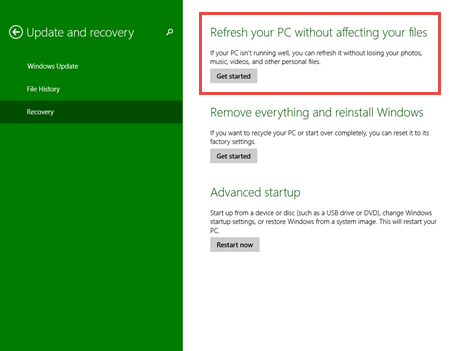
To get started, you'll need to access PC Settings. Click or tap "Update and recovery" and then Recovery. In the "Refresh your PC without affecting your files" section, click or tap "Get started."
refresh, Windows 8.1, installation, reinstall
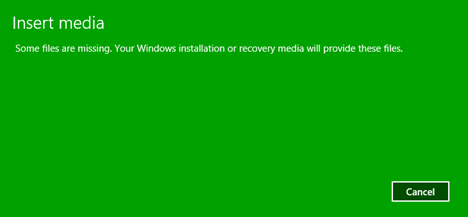
At this step you may be informed that some files are missing. If that is the case, insert a Windows 8.1 installation disc or a recovery disc.
refresh, Windows 8.1, installation, reinstall
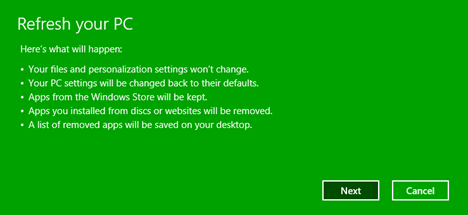
Windows 8.1 provides a quick overview of what is going to happen next, to make sure you know what you're about to do. If you're sure you want to continue, click or tap Next. If you're having second thoughts, click or tap Cancel.
refresh, Windows 8.1, installation, reinstall
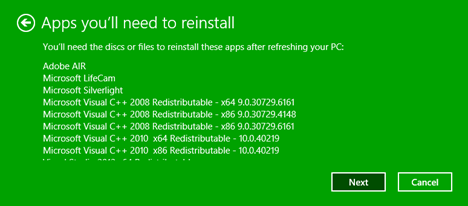
You are also shown a list of desktop apps that you will need to reinstall after the refresh. Click or tap Next to continue.
refresh, Windows 8.1, installation, reinstall
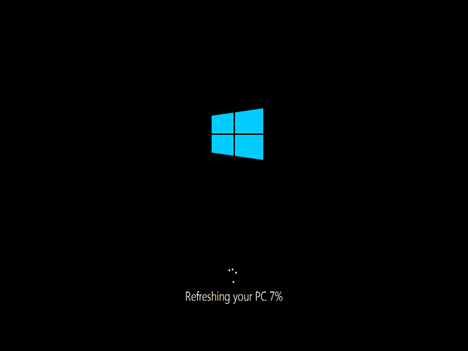
Provided everything appears in order, you'll be ready to go. Click or tap Refresh to get it going. Your computer will restart and work through the refresh for you. You'll be shown percentages to let you know how well you're progressing through the task.
refresh, Windows 8.1, installation, reinstall
When the process completes, your computer will restart a couple of times and you'll have to wait while Windows finishes setting things up for you. When done, log into Windows 8.1.
What Happens After A Windows 8.1 Refresh?
Once the Refresh cycle is complete and you can log back into Windows, you'll find very little different from when you left it. You'll see the Start screen and find all of your Windows Store apps still installed. Switch to the Desktop and you'll find all of your desktop links intact. Dig deeper and you'll find that all personal data on the computer, from all users, is right where you left it, as long as it was stored in standard user folders and libraries. While it may not look like much has changed, there are a few indicators that the procedure completed successfully.
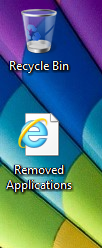
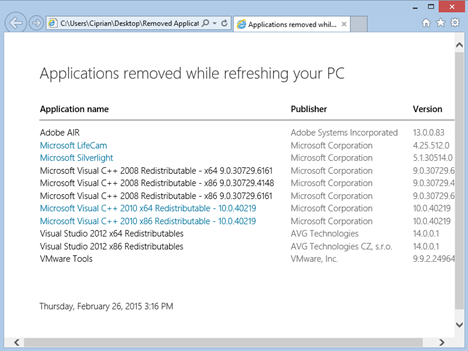
First, you'll find a .html file on your Desktop named "Removed Apps.html." Open this file for a full list of the applications that were removed during the refresh procedure.
refresh, Windows 8.1, installation, reinstall
The file provides hyperlinks to most of the applications' download pages. Use this document to quickly download and install all the programs you lost. Windows 8.1 makes it as easy as possible to get things back to the way they were.
refresh, Windows 8.1, installation, reinstall
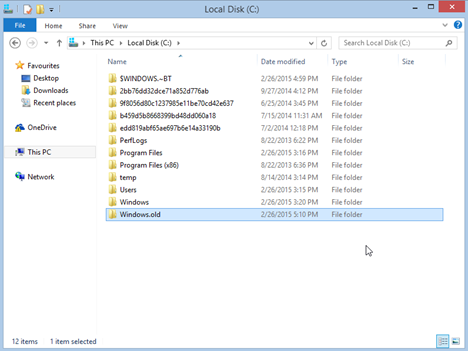
Have a look on your C: drive and you'll find another addition: a new folder named Windows.old, contains all the program files and Windows directory from your previous installation. If any of your applications had additional information stored in their installation directory, you can recover it here. You'll also find your old drivers in there. While there is a Users directory in the Windows.old folder, it won't contain anything of use in this situation. Your user files are still in your personal folders where they belong.
refresh, Windows 8.1, installation, reinstall
You might want to keep the Windows.old folder around until your computer is back to normal and you have a chance to test everything out. Once you're sure you don't need anything from it, you can delete it or back it up to an external drive to save space on your hard drive.
Once you have your programs reinstalled, you'll need to check your system settings. All settings in the modern style PC Settings interface will be synced from your Microsoft account. Those things won't change. However, any settings you configured directly from the Control Panel (things like Family Safety, firewall settings or power configurations) will need to be set up again.
Conclusion
While sacrificing all of your programs and system settings is a mildly-heavy price to pay, it's easy enough to swallow if it gets your computer back to normal. While this sort of a repair installation has been available in other Windows releases, it's never been simple for an untrained user to tackle. This is a great Windows 8.1 feature that is sure to help a lot of users in a tough spot.
After refreshing my windows it tells me this message “window could not complete the installation. To install windows on this computer, restart the installation ” so am seriously confused about this. Anyone can help please
moses ·
i got to the stage where it says some files are missing. your windows installation or recovery media will provide these files. kindly shed more light on what to do next
Abi ·
I am using LENOVO Z580 and upgraded my original win 8 pc to 8.1.But i don’t have product key.If i refresh my pc does it will back to win 8 or will remain in win 8.1..Please help..
Erik Estrada ·
i have a serious problem that I can’t sentiment be able to fix. After attempting to reboot my PC, it appears that I wiped the entire thing clean and now when I try to use my newly created media drive, my PC has a message on a black and white screen reading that there is no operating system. Is this fixable? Thank you in advance.
DeAnna ·
I refreshed my laptop because it wasn’t running right. Then when it was time for me to redownload the apps from the removed apps list. I had to refresh it again. When I refreshed it for the second time I lost the apps in the removed apps list. Does anyone know how I can recover those apps? My operating system is windows 8.1 and I didn’t create a restore point. Thanksin advance!
Kristi ·
Yea, unfortunately everyone saying this works and how great it worked for them, is not what I am experiencing. Instead, I am fraught with anxiety because everything changed. And yes, I did the refresh not the reset. Everything is different from the background, to certain files, to even my serial being gone from my Office software. Now what? I need exact steps on what to do AFTER the fact because I am obviously missing somethign here.
winnie ·
No mention of what happens to e-mail accounts and contacts. can anyone tell me?
William Herron ·
Attention users and Mr. Rusen: Before doing a “Recovery” operation, synched services like Google Drive and Microsoft One Drive must be disconnected from syncing with cloud services. The content on these cloud services may change because of your activity from other computers. When the Recovered PC is back online with these cloud services, the synced results may not be what you expect.
Perhaps Mr. Rusen could write an article about how to disconnect and reconnect various cloud services when a Recovery operation is to be performed.
Thank you, WH
vander ·
I recently refreshed my computer but now after the login screen, the whole screen is black can anyone help?
Pankaj das ·
Press Ctrl+Alt+Del same time.Task Manger will be open then press Winkey+R and run explorer.exe from here.Your PC explorer.exe program crass every time when you turn it on.also do fresh Installation after backup your data.
Ray B ·
You should note that on newer computers (such as Toshiba P-50B) with Win 8.1 it is possible to reach the “Choose an Option” screen without a recovery drive. Press and hold the 0 key while starting up. Hold down 0, a menacing looking Red screen with come up telling you that you are in the HD Recovery area – press Yes to continue. THIS DOES NOT wipe out your HD, yes takes you to the “Choose and Option” screen.
Verlie Whitlock ·
I started the process – it got to 41%, then the next time I checked it, it said that it couldn’t complete the refresh because there was a problem and that nothing had changed… It didn’t say what the problem was, though – is there a way to find out? Earlier, three ‘restore’ procedures didn’t complete…is the next stop a complete clean of the drive? Sometimes helpers tell you to keep trying – does it sometimes go through to the end when it hasn’t at earlier times?
dharish ·
hey, can any1 help ?
when i start my laptop, it shows the windows 8.1 logo then the blue screen of death.
Then it restarts and shows preparing automatic repair and the screen goes black.
I cant even access safe mode/troubleshoot.
I am a DJ and all my data/music/projects are in the laptop. So,please help.
Nekrofrost ·
I have the same problem 🙁
barcil ·
i refresh my pc, it was successful to this stage” setting up a few more things” then at 3% it will give me a pop up message saying windows cannot cannot complete installation, to install windows on this pc restart installation.if ve done that for two days and it still gives me the same thing.
Prasanna ·
Hi,
I am also facing the same problem,if you have solved the problem means plz help me out here..









Discussion (16)
After refreshing my windows it tells me this message “window could not complete the installation. To install windows on this computer, restart the installation ” so am seriously confused about this. Anyone can help please
i got to the stage where it says some files are missing. your windows installation or recovery media will provide these files. kindly shed more light on what to do next
I am using LENOVO Z580 and upgraded my original win 8 pc to 8.1.But i don’t have product key.If i refresh my pc does it will back to win 8 or will remain in win 8.1..Please help..
i have a serious problem that I can’t sentiment be able to fix. After attempting to reboot my PC, it appears that I wiped the entire thing clean and now when I try to use my newly created media drive, my PC has a message on a black and white screen reading that there is no operating system. Is this fixable? Thank you in advance.
I refreshed my laptop because it wasn’t running right. Then when it was time for me to redownload the apps from the removed apps list. I had to refresh it again. When I refreshed it for the second time I lost the apps in the removed apps list. Does anyone know how I can recover those apps? My operating system is windows 8.1 and I didn’t create a restore point. Thanksin advance!
Yea, unfortunately everyone saying this works and how great it worked for them, is not what I am experiencing. Instead, I am fraught with anxiety because everything changed. And yes, I did the refresh not the reset. Everything is different from the background, to certain files, to even my serial being gone from my Office software. Now what? I need exact steps on what to do AFTER the fact because I am obviously missing somethign here.
No mention of what happens to e-mail accounts and contacts. can anyone tell me?
Attention users and Mr. Rusen: Before doing a “Recovery” operation, synched services like Google Drive and Microsoft One Drive must be disconnected from syncing with cloud services. The content on these cloud services may change because of your activity from other computers. When the Recovered PC is back online with these cloud services, the synced results may not be what you expect.
Perhaps Mr. Rusen could write an article about how to disconnect and reconnect various cloud services when a Recovery operation is to be performed.
Thank you, WH
I recently refreshed my computer but now after the login screen, the whole screen is black can anyone help?
Press Ctrl+Alt+Del same time.Task Manger will be open then press Winkey+R and run explorer.exe from here.Your PC explorer.exe program crass every time when you turn it on.also do fresh Installation after backup your data.
You should note that on newer computers (such as Toshiba P-50B) with Win 8.1 it is possible to reach the “Choose an Option” screen without a recovery drive. Press and hold the 0 key while starting up. Hold down 0, a menacing looking Red screen with come up telling you that you are in the HD Recovery area – press Yes to continue. THIS DOES NOT wipe out your HD, yes takes you to the “Choose and Option” screen.
I started the process – it got to 41%, then the next time I checked it, it said that it couldn’t complete the refresh because there was a problem and that nothing had changed… It didn’t say what the problem was, though – is there a way to find out? Earlier, three ‘restore’ procedures didn’t complete…is the next stop a complete clean of the drive? Sometimes helpers tell you to keep trying – does it sometimes go through to the end when it hasn’t at earlier times?
hey, can any1 help ?
when i start my laptop, it shows the windows 8.1 logo then the blue screen of death.
Then it restarts and shows preparing automatic repair and the screen goes black.
I cant even access safe mode/troubleshoot.
I am a DJ and all my data/music/projects are in the laptop. So,please help.
I have the same problem 🙁
i refresh my pc, it was successful to this stage” setting up a few more things” then at 3% it will give me a pop up message saying windows cannot cannot complete installation, to install windows on this pc restart installation.if ve done that for two days and it still gives me the same thing.
Hi,
I am also facing the same problem,if you have solved the problem means plz help me out here..