



When Windows displays the message “Your Location Is Currently In Use,” it means an app, service, or system feature is actively accessing your device’s location data. This message exists to improve transparency and help you manage privacy rather than indicate a security problem.
Windows uses location data for features like weather updates, time zone adjustments, maps, nearby device discovery, and location-aware apps. You stay in control of which apps can access this information and when.
Why Windows Shows The “Your Location Is Currently In Use” Message
This message appears whenever Windows location services are active. It does not mean someone is tracking you secretly or accessing your device remotely.
Windows displays this notification to alert you when an app, browser, or background service requests location access so you can review or change permissions if needed.
How To See Which Apps Are Using Your Location
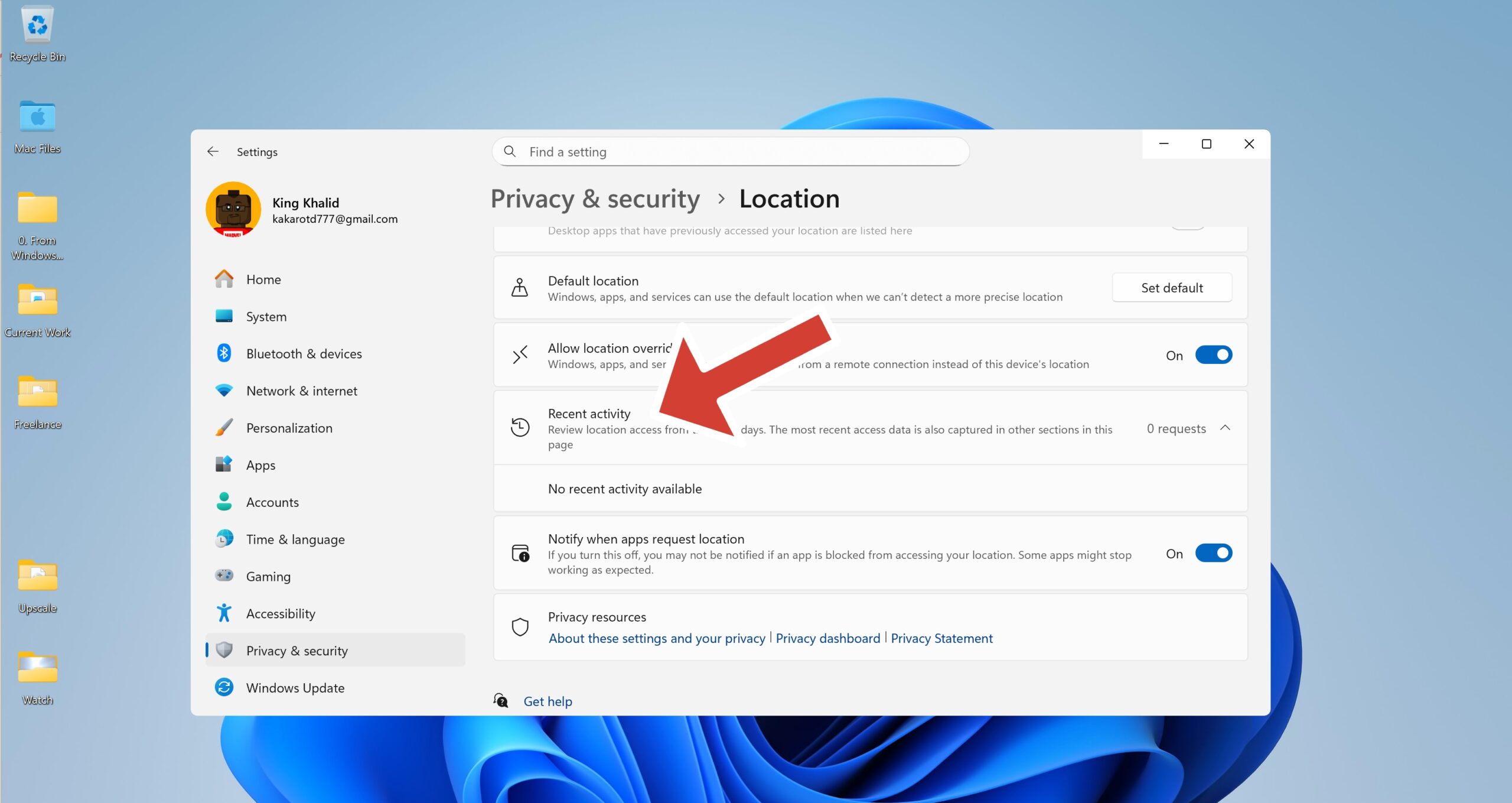
Before disabling anything, it helps to identify which apps recently accessed your location. Windows provides a built-in activity log for this.
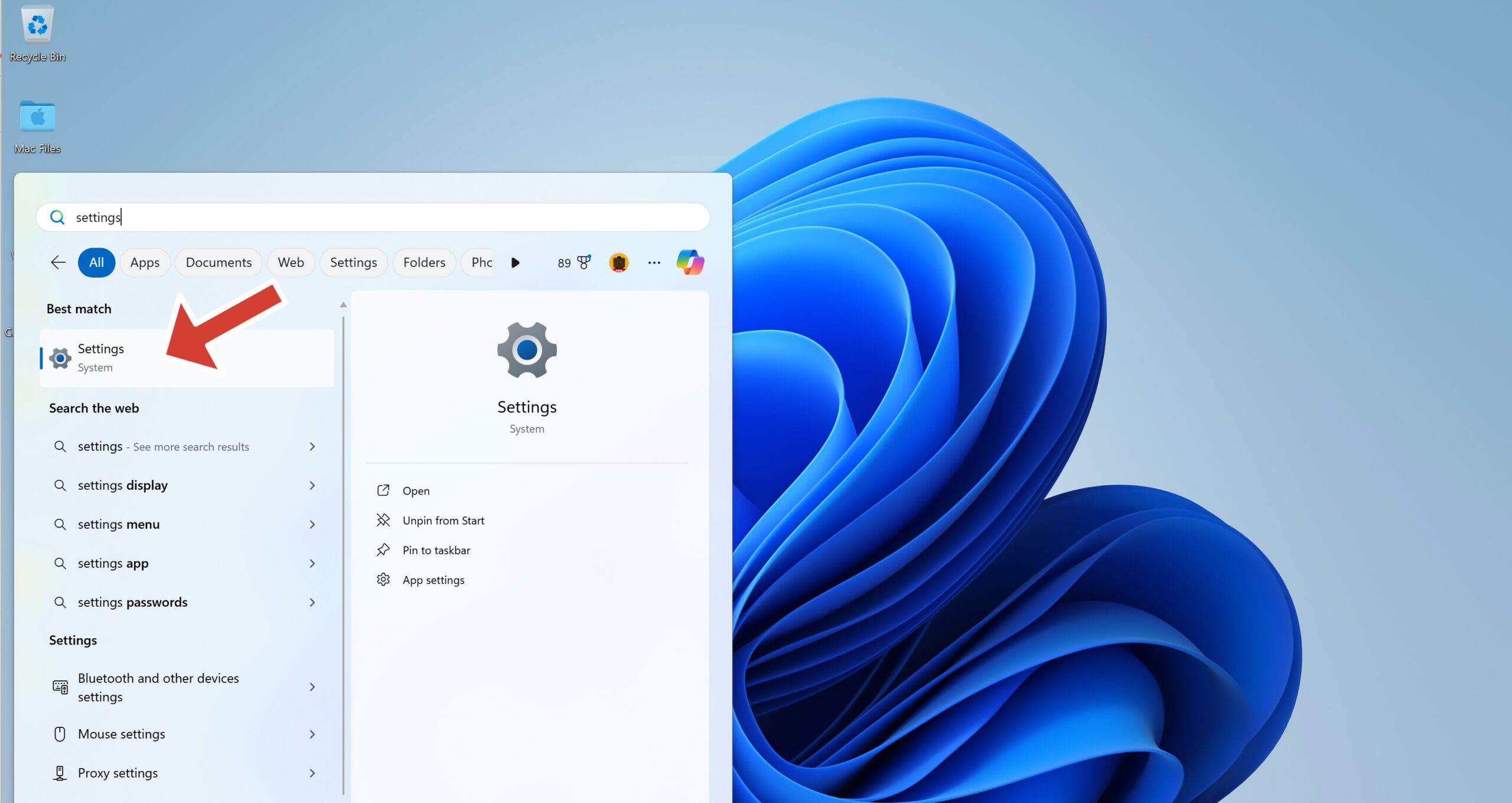
- Open Settings from the Start menu
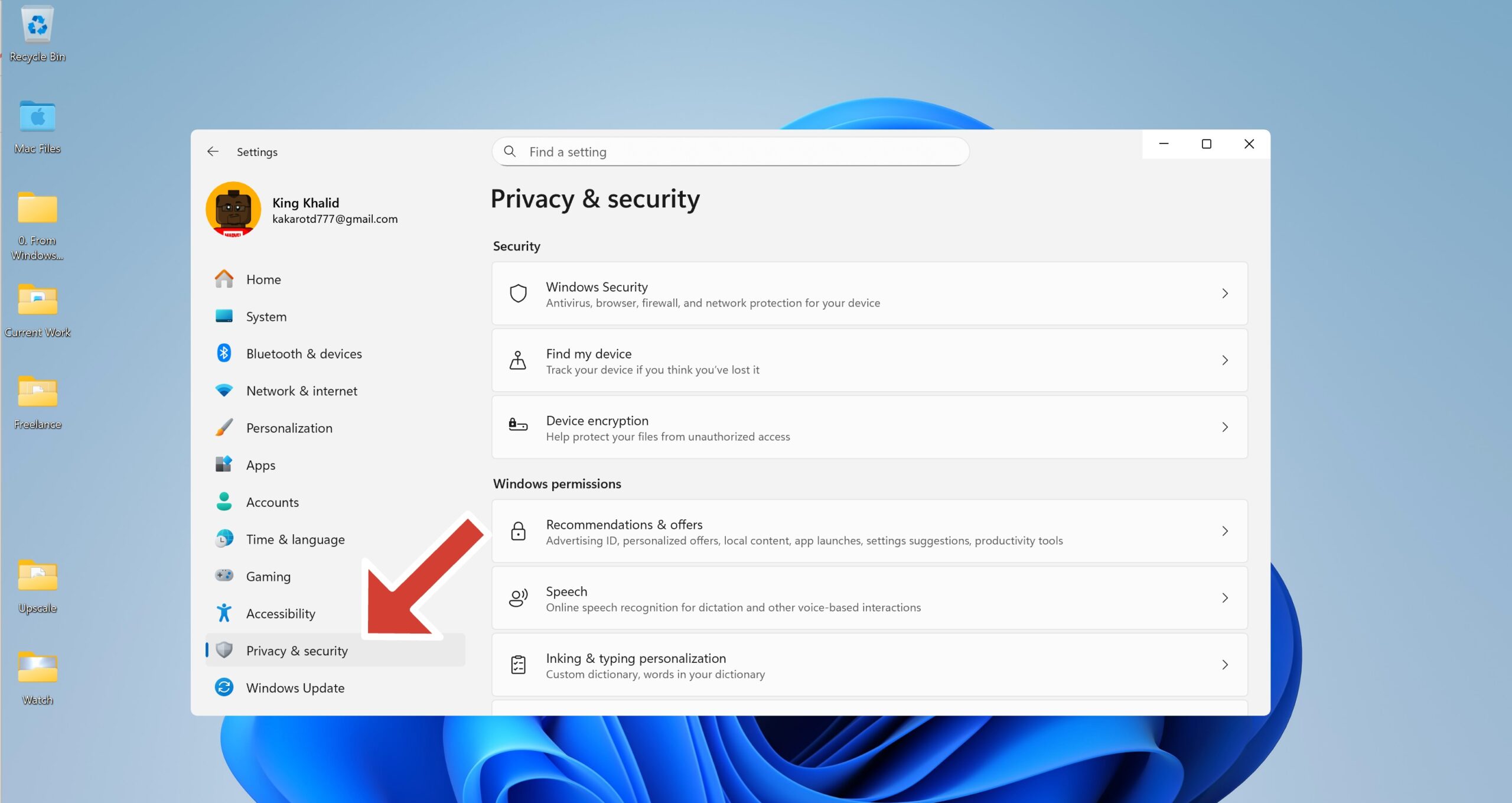
- Select Privacy & Security
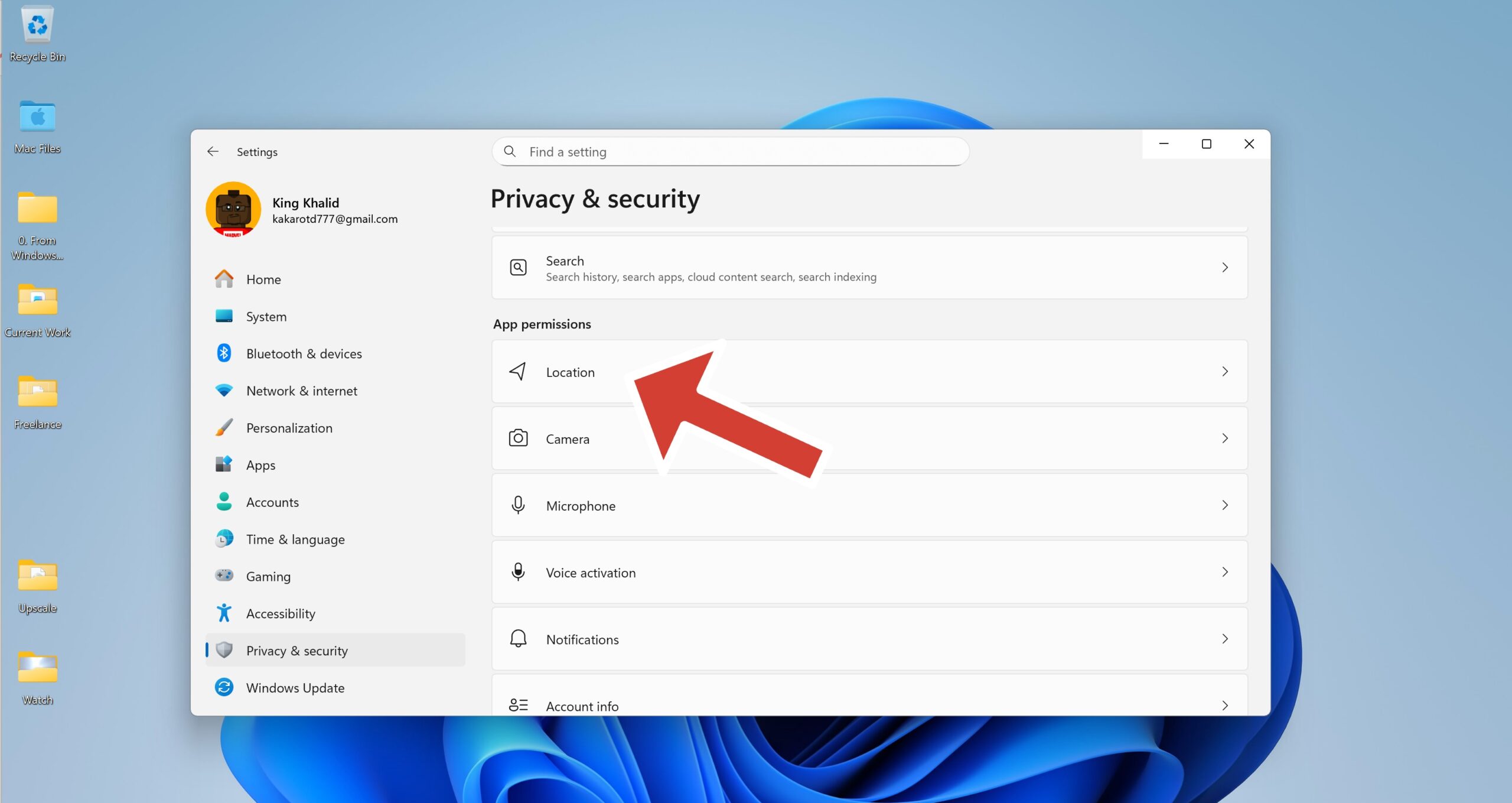
- Click Location
- Check the Recent activity section to see apps that accessed your location
How To Manage Location Access On Windows
You can control Windows location services globally or on an app-by-app basis, depending on your needs.
- Open Settings and go to Privacy & Security
- Select Location
- Turn off Location services to disable location access entirely
- Use Let apps access your location to disable specific apps only
Disabling location services may affect features like weather updates, maps, and automatic time zone detection.
How To Hide The Location Icon From The Taskbar
If you prefer fewer visual indicators, you can hide the location icon while keeping location services enabled.
- Press Windows + R and type regedit
- Navigate to HKEY_LOCAL_MACHINE\SYSTEM\CurrentControlSet\Services\lfsvc\Service\Configuration
- Edit the Status value and set it to 0
- Restart your PC
How To Set A Default Location In Windows
Setting a default location helps if your device lacks GPS or if you want apps to rely on a fixed location.
- Open Settings and go to Privacy & Security
- Select Location
- Click Set default under Default location
- Choose a location on the map
How To Clear Location History
Windows stores limited location history locally to improve app performance. You can delete it at any time.
- Open Settings
- Go to Privacy & Security and select Location
- Click Clear under Location history
Troubleshooting Common Problems
If the message keeps appearing unexpectedly, a background app or browser tab may be requesting location access repeatedly. Review browser permissions and recently installed apps.
System features like Bluetooth scanning, Wi-Fi positioning, or automatic time zone updates can also trigger location access.
Tips
- Review location permissions after installing new apps
- Disable browser location access unless required
- Clear location history periodically
- Set a default location to reduce frequent location requests
FAQ
Does this message mean someone is tracking me?
No. It only indicates that Windows or an app is using location services you have allowed.
Can I turn off location access completely?
Yes. You can disable location services globally from Windows settings.
Why does the message appear even when no apps are open?
Background services like weather, time sync, or Bluetooth scanning may still access location data.
Will disabling location affect system features?
Yes. Some features may stop working or become less accurate.
Summary
- The message means an app or system feature is using your location
- Windows shows it for transparency and privacy control
- You can manage or disable location access at any time
- Clearing history and limiting apps reduces notifications
Conclusion
The “Your Location Is Currently In Use” message on Windows is a privacy feature, not a warning sign. Once you understand what triggers it and how to manage permissions, you can decide exactly how much location access your system and apps receive.


Discussion (0)
Be the first to comment.