



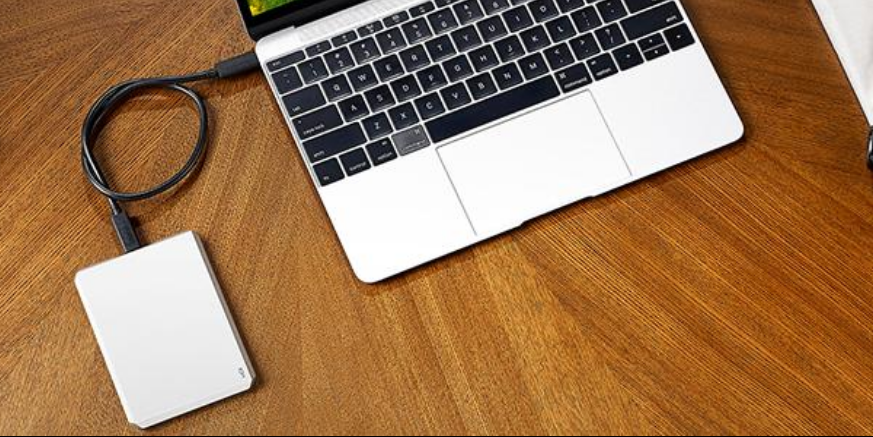
If Windows 11 won’t recognize an external hard drive, the device may not appear in File Explorer even though it is connected to your computer. This issue can happen due to driver problems, incorrect disk settings, or hardware connection issues.
Fortunately, several troubleshooting methods can help detect and fix the problem. This guide explains why Windows 11 may not recognize an external hard drive and how to resolve it.
Why Windows 11 Does Not Detect an External Hard Drive
There are several reasons why an external hard drive may not appear in Windows.
Common causes include:
- Loose or faulty USB connection
- Outdated or corrupted drivers
- Missing drive letter assignment
- Disk not initialized or formatted
- Power issues with the drive
Identifying the cause helps determine the correct solution.
Check the Physical Connection
The first step is to make sure the external drive is properly connected.
Try the following:
- Reconnect the USB cable
- Use a different USB port
- Try another USB cable
- Connect the drive to another computer
If the drive works on another computer, the problem may be related to your system settings.
Check Disk Management
Sometimes Windows detects the drive but does not assign it a letter.
Follow these steps:
- Right-click the Start button.
- Select Disk Management.
- Look for the external drive in the list.
If the drive appears but has no letter:
- Right-click the drive.
- Select Change Drive Letter and Paths.
- Click Add.
- Choose a drive letter.
The drive should then appear in File Explorer.
Initialize the External Hard Drive
If the drive shows as Not Initialized, it must be initialized before use.
Steps:
- Open Disk Management.
- Right-click the disk labeled Not Initialized.
- Select Initialize Disk.
- Choose either MBR or GPT.
After initialization, you can create a new volume.
Update USB Drivers
Outdated drivers can prevent Windows from detecting external devices.
To update drivers:
- Right-click the Start button.
- Select Device Manager.
- Expand Disk drives.
- Right-click the external drive.
- Click Update driver.
You can also update USB controllers in Device Manager.
Run Hardware Troubleshooter
Windows includes built-in tools that can help identify hardware issues.
Steps:
- Open Settings.
- Go to System > Troubleshoot.
- Select Other troubleshooters.
- Run the Hardware and Devices troubleshooter if available.
This may automatically detect and fix problems.
Check Power Supply for External Drives
Some external hard drives require additional power.
If your drive has a separate power adapter:
- Make sure it is plugged in properly
- Check that the power indicator is on
Insufficient power may prevent the drive from appearing.
Scan for Hardware Changes
You can also force Windows to search for connected devices.
Steps:
- Open Device Manager.
- Click Action in the top menu.
- Select Scan for hardware changes.
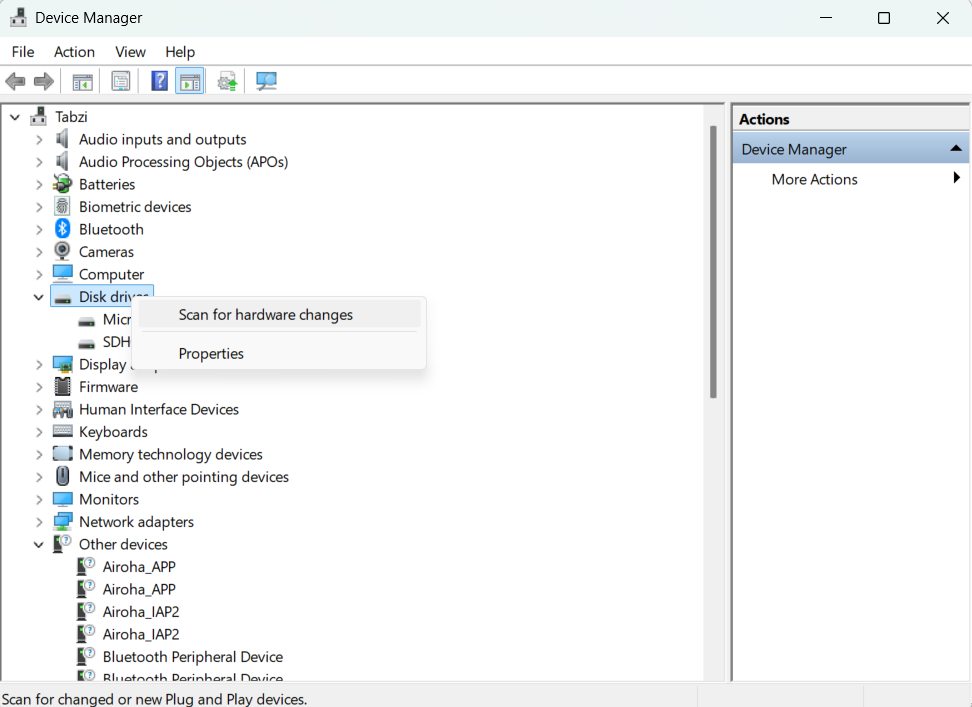
Windows will check for newly connected hardware.
Final Thoughts
If Windows 11 won’t recognize an external hard drive, the problem is often related to connection issues, missing drivers, or incorrect disk settings. Checking Disk Management, updating drivers, and ensuring proper connections usually resolves the issue.
If the drive still does not appear, testing it on another computer can help determine whether the problem is with the drive itself or the system.
FAQs
Why is my external hard drive not showing in Windows 11?
It may be caused by driver issues, missing drive letters, or connection problems.
How do I make Windows recognize my external hard drive?
Check Disk Management, assign a drive letter, update drivers, or reconnect the device.
What does it mean if the disk is not initialized?
It means the drive has not been configured for use in Windows.
Can a faulty USB cable cause the drive not to appear?
Yes. A damaged cable or port can prevent Windows from detecting the drive.


Discussion (0)
Be the first to comment.