



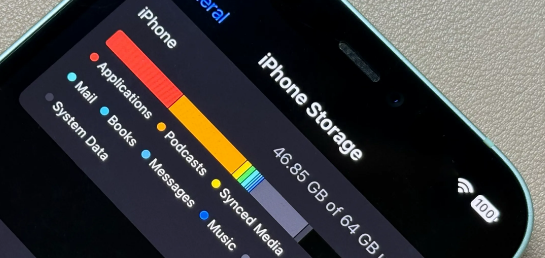
You deleted photos. You removed apps you no longer use, felt good about it, and put the phone down. A week later the storage warning is back.
This is one of the most consistently frustrating experiences smartphone users have, and the reason it keeps happening is that the visible files on your phone, the photos, the apps, the downloads, represent only part of what is actually consuming your storage. The rest is accumulated invisibly, created by processes running in the background, and in many cases never cleaned up automatically.
Here is what is actually filling your phone, explained plainly.
App Cache: The Biggest Invisible Culprit
Every app on your phone stores temporary data to make itself load faster. This is called cache, and the idea is sensible. When you open Instagram, instead of downloading every image and video from scratch each time, the app saves copies locally. When you revisit a website in Chrome, the browser loads it from the stored version rather than fetching it again over the network. Everytime you play a Spotify track you have listened to before, it loads from local storage rather than streaming anew.
The problem is that apps are not good at cleaning up after themselves. They accumulate cache aggressively and delete it reluctantly.
A typical social media app might occupy 100MB when installed. After six months of regular use its cached data can reach 3GB, 5GB, or considerably more. TikTok and Instagram are particularly aggressive. Users regularly find these apps consuming ten gigabytes or more in cached video previews and media, despite never consciously downloading anything.
The app's listed size in your storage settings often dramatically understates what it actually occupies. The installed app is one number. The documents and data attached to it are another, sometimes far larger, number listed separately.
Messaging Apps and Auto-Downloaded Media
WhatsApp, Telegram, iMessage, and similar apps save every photo, video, voice note, and document sent to you in group chats and conversations. Most of them do this automatically by default.
Consider what passes through an active family group chat over a year. Dozens of photos daily. Video clips. Voice messages. Forwarded images. Each one saved to your phone whether you wanted it or not. Over twelve months a busy group chat can deposit several gigabytes of media onto your device with zero action on your part.
WhatsApp is consistently among the top offenders. Its media folder accumulates rapidly, and because the files sit in a dedicated folder rather than your camera roll, many people never see them growing.
The fix for most messaging apps is in their own settings. WhatsApp has a storage management tool under Settings that shows exactly which chats are consuming the most space and lets you delete media selectively. Telegram lets you set a maximum local storage limit, after which it removes older cached data automatically. iMessage lets you configure messages to auto-delete after 30 days or a year rather than keeping every conversation forever.
System Data and the Operating System Itself
Both Android and iOS maintain a category of storage that gets labelled System Data, Other, or simply System. It appears in your storage breakdown as a substantial grey or dark block, often several gigabytes, with no obvious way to reduce it.
This category contains a mix of things. Some of it is the operating system itself and cannot be removed. Some of it is caches maintained by the operating system rather than individual apps. Siri voice data, Spotlight search indexes, system logs, temporary files generated during app crashes, and data accumulated by core services like Google Play Services on Android all contribute.
The operating system's own caches grow continuously. iOS generates Siri voice and language model data in the background. Android accumulates data from Google Play Services, which handles background app updates, location history, and account synchronisation. Neither platform exposes a simple delete button for this data.
On iOS, the system is theoretically designed to automatically purge its own caches when storage runs low. In practice this does not always work reliably. The category can grow to 20GB or more on devices that have been in use for several years without a fresh restore. A full iPhone backup and restore, as opposed to a quick restart, is often the only way to clear it significantly.
On Android, restarting the phone periodically clears some temporary system caches. Avoiding third-party cleaner apps is important here. Most of them do very little useful work while consuming battery and occasionally deleting data they should not touch.
App Updates That Leave Residue Behind
When an app updates itself, it downloads the new version and installs it over the old one. What it does not always do is clean up every file the old version created. Configuration files, cached assets in the old format, and leftover data from deprecated features accumulate with each update cycle.
This is particularly noticeable with apps that update frequently, which in practice means almost every major app on your phone. Google Maps, YouTube, Facebook, Chrome, and similar apps push updates every few weeks. Each update has a small chance of leaving residual files. Over dozens of updates across dozens of apps, the accumulated residue adds up.
Operating system updates contribute the same way. When your phone updates iOS or Android, it keeps temporary files generated during the update process in case it needs to roll back. Once the update completes successfully, those files should be cleaned up. They often are not, at least not immediately.
Photos and Videos You Forgot You Deleted
This one catches most people. When you delete a photo or video on both iOS and Android, it does not disappear. It moves to a Recently Deleted folder and stays there for 30 days before being permanently erased.
If you deleted fifty photos to free up space, those fifty photos are still on your phone consuming the same storage they always did. They will stay there for a month unless you go into Recently Deleted and empty it manually.
On iOS, go to Photos, scroll to the bottom of the Albums tab, and find Recently Deleted. On Android, the same folder exists within Google Photos. Emptying it regularly is one of the fastest ways to recover storage you thought you had already reclaimed.
Offline Content and Downloads You Forgot About
Streaming apps allow offline downloads. Netflix, Spotify, YouTube Premium, Apple Music, and similar services let you save content for offline use. This is useful on aeroplanes or during commutes, but downloaded content accumulates rapidly and is easy to forget about.
A single Netflix series season downloaded in HD occupies several gigabytes. A downloaded playlist on Spotify takes hundreds of megabytes. If you habitually download content for trips and forget to remove it afterwards, these files compound quietly over months.
Most streaming apps list their downloaded content in their own settings and make it easy to delete. The difficulty is remembering to check. Setting a reminder to clear downloads after a long journey is a simple habit that prevents substantial accumulation.
Browser Data and Streaming Cache
Your phone's browser stores cached versions of websites, temporary cookies, and browsing history. On a desktop this is a minor concern. On a phone with limited storage it matters more.
Chrome on Android and Safari on iOS both accumulate cache that can reach several gigabytes after sustained use without clearing. Chrome's cache is cleared under Settings within the browser. Safari's website data is found under iOS Settings, then Safari, then Advanced, then Website Data.
YouTube, even when you are not downloading videos offline, caches thumbnails and partial video data as you browse. TikTok caches video previews aggressively as you scroll. Browsing social media for an hour generates more cached data than most people realise.
How to Actually Reclaim the Space
The most effective approach is methodical rather than desperate.
Start by going to your phone's storage settings and sorting apps by size. On iOS this is under Settings, General, iPhone Storage. On Android it is under Settings, Storage, Apps. Look for apps whose total footprint, including documents and data, is disproportionate to what you expect. A messaging app or social media app near the top of that list is almost always cache that can be cleared.
On Android, you can clear cache for individual apps without deleting your account data or settings. On iOS, offloading an app removes the app itself but keeps its data, while deleting it removes everything. For cache-heavy apps like Instagram, deleting and reinstalling often reclaims several gigabytes that clearing data in settings does not touch.
Empty your Recently Deleted photo album. Go into your messaging apps and delete old media from chats where the files are no longer needed. Check your streaming apps for forgotten downloads. Restart your phone monthly to clear temporary system caches.
None of these steps is complicated. What makes them effective is doing them regularly rather than reactively. Phone storage does not fill up in a single event. It fills in small increments across dozens of silent, background processes over weeks and months. Managing it is a maintenance task rather than a one-time fix.

Discussion (0)
Be the first to comment.