




Finding the power button on a Samsung QLED TV can feel confusing because Samsung hides it to keep the design clean. Most models place it in only a few spots, and once you know the layout, you can locate it in seconds.
Table of contents
- Why Samsung QLED TV power buttons seem hard to find
- Common power button locations on Samsung QLED TVs
- Model-year differences for Samsung QLED power button placement
- Where to find the power button on Samsung lifestyle TVs
- How to turn on a Samsung QLED TV without the physical button
- What to do if the Samsung QLED power button is missing or broken
- Tips for locating hard-to-see buttons on QLED TVs
- FAQs
- Summary
Why Samsung QLED TV power buttons seem hard to find
Samsung focuses on thin bezels and minimal front-facing elements, so physical buttons stay out of sight. When you understand this design choice, you can search more confidently in the right areas.
Common power button locations on Samsung QLED TVs
Samsung uses three consistent placements across many QLED models. These sections help you check each spot quickly and avoid random searching.
Center underside of the TV bezel
Many QLED TVs place a small joystick-style button directly under the Samsung logo. Reach under the center bezel and feel for a small button that clicks in multiple directions.
Front-right underside of the bezel
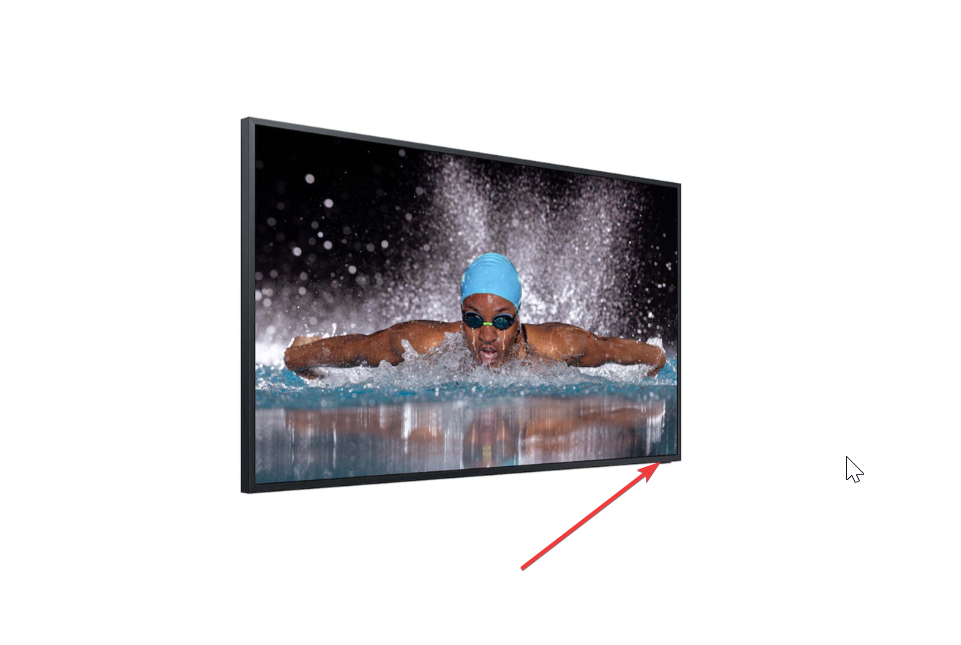
Some models shift the power button to the bottom-right edge. Slide your hand along the underside of the right side until you feel the button click.
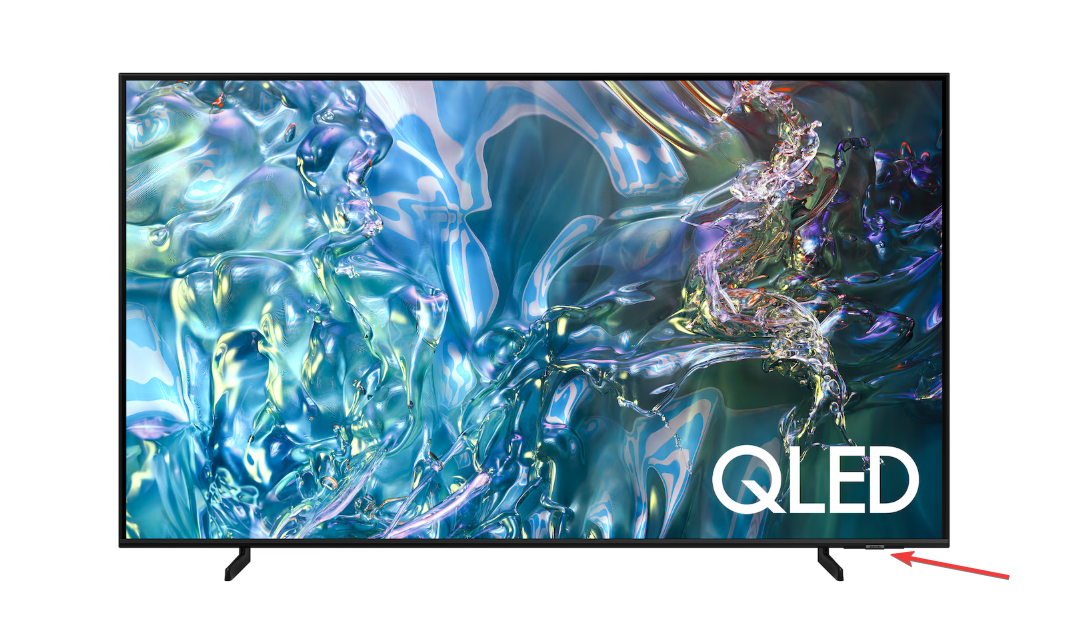
Back-right rear panel
Slim or lifestyle-driven panels often hide the button on the rear-right side. Reach behind the lower-right corner and feel for a small joystick or button on the back.
Model-year differences for Samsung QLED power button placement
Button placement changes slightly across QLED generations. These notes help you narrow down where to look based on when your TV came out.
QLED models from 2018–2020
Most units from these years use a center-bottom joystick button under the Samsung logo. This placement works well with the slightly thicker bezels of older QLED sets.
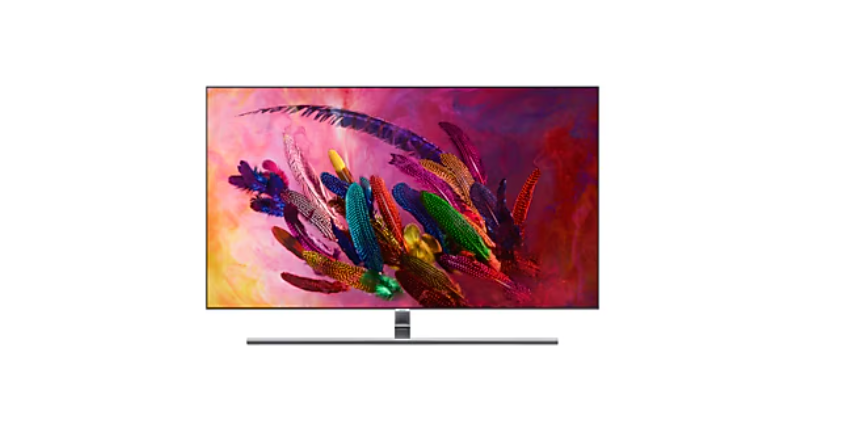
QLED models from 2021–2023
Newer Q-series sets commonly move the power button to the right underside or rear-right. This shift supports ultra-thin frames while keeping controls accessible by touch.
2024–2025 QLED and Neo QLED updates
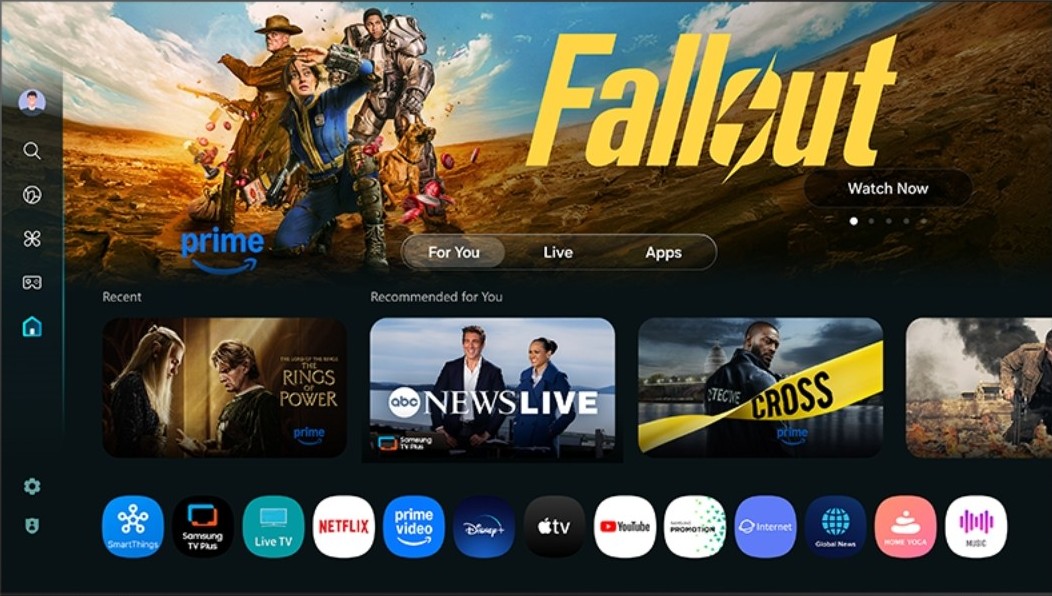
Recent models often use a recessed rear-right button on the back panel. You can expect a very clean front face, and you need to check the back more carefully.
Where to find the power button on Samsung lifestyle TVs
Lifestyle TVs combine QLED screens with unique designs, so they do not always follow standard Q-series layouts. These notes help you locate the button on popular lifestyle lines.
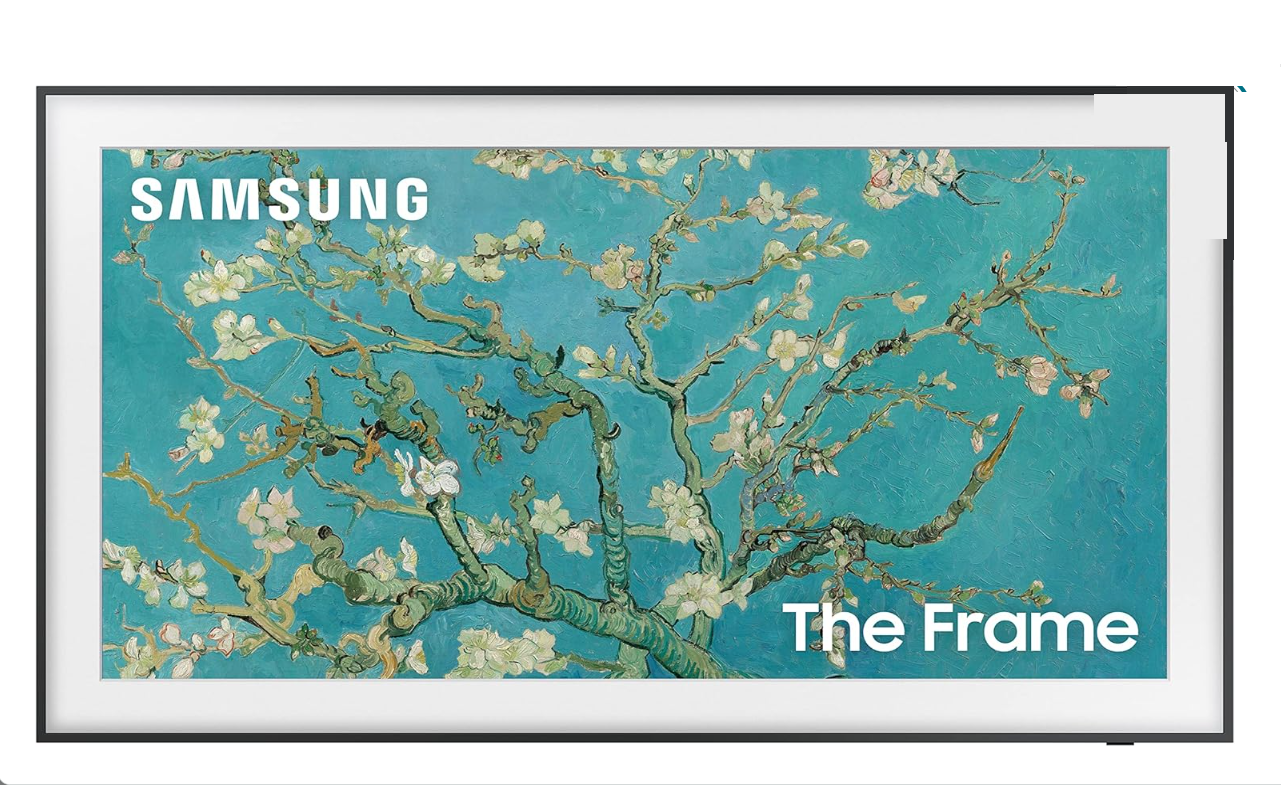
The Frame
The Frame usually places the power button on the rear-right area of the panel. If the Samsung QLED TV contains a One Connect box, check near where the cable runs out from the back of the TV.
The Serif
The Serif often hides the power button under the right edge of its “I-shaped” profile. Feel under the right side lip for a small button that clicks.
The Terrace
The Terrace uses a recessed rear-right power button to protect it from outdoor conditions. You may need to reach deeper beneath the panel or behind the right side to access it.
How to turn on a Samsung QLED TV without the physical button
If you cannot reach the button or still struggle to find it, you can rely on remote and app controls. These options keep your TV usable even when the physical button feels hidden.
Use the Samsung remote
The remote power key remains the fastest way to turn the TV on and off. As long as the remote has working batteries and points toward the TV sensor, you can skip the physical button entirely.
Use the SmartThings app
The SmartThings app turns your phone into a remote control. Once you add your TV to the app, you can power it on, change inputs, or adjust volume without touching the TV.
Turn on the TV with HDMI-CEC devices
Gaming consoles and streaming boxes can power on the TV automatically when you start them. Enable HDMI-CEC in both the TV settings and the external device to use this shortcut.
What to do if the Samsung QLED power button is missing or broken
- Check for debris or obstructed access: Dust, furniture, or a soundbar can hide the button completely. Move any devices under the TV and wipe the underside and rear-right area with a soft cloth to clear the path.
- Use remote or app alternatives temporarily: You can keep using the TV with the remote, SmartThings app, or HDMI-CEC devices. These options buy you time while you decide if you want a hardware repair.
- When to contact Samsung support: If the button assembly feels loose, cracked, or never responds, contact Samsung support or an authorized service center. A technician can safely replace broken parts and confirm that no other hardware issues exist.
Tips for locating hard-to-see buttons on QLED TVs
- Use your phone flashlight to check beneath the bezel and along the rear-right side.
- Feel for a small joystick or rocker instead of a standard round button.
- Move soundbars, stands, or decor that might block the underside of the TV.
- Check the back-right area first if your TV has a very slim front frame.
FAQs
Where is the power button on Samsung QLED TVs? It usually sits under the center bezel, on the right underside, or on the rear-right panel. Check these three locations in order.
Why do Samsung TVs hide the power button? Samsung hides physical controls to keep the front design clean and the bezels thin. This approach gives the TV a more modern, minimal look.
Can I turn on the TV without the power button? Yes. You can use the Samsung remote, the SmartThings app, or HDMI-CEC devices like consoles and streaming boxes to power on the TV.
What if my power button does not work? Clear debris, move any blocking devices, and try remote or app controls instead. If the button still fails, contact Samsung support for a hardware check.
Summary
- Samsung QLED TVs hide the power button to keep the design clean and minimal.
- The button usually sits under the center bezel, on the right underside, or on the rear-right panel.
- Lifestyle models like The Frame, The Serif, and The Terrace use slightly different placements.
- You can power the TV on with the remote, SmartThings app, or HDMI-CEC devices.
- If the button seems damaged or unresponsive, contact Samsung support for a proper repair.
You can now locate the most likely power button areas on your Samsung QLED TV and use alternative methods if the button is hard to reach. If none of these locations or options work, reaching out to support gives you a clear next step.


Discussion (0)
Be the first to comment.