



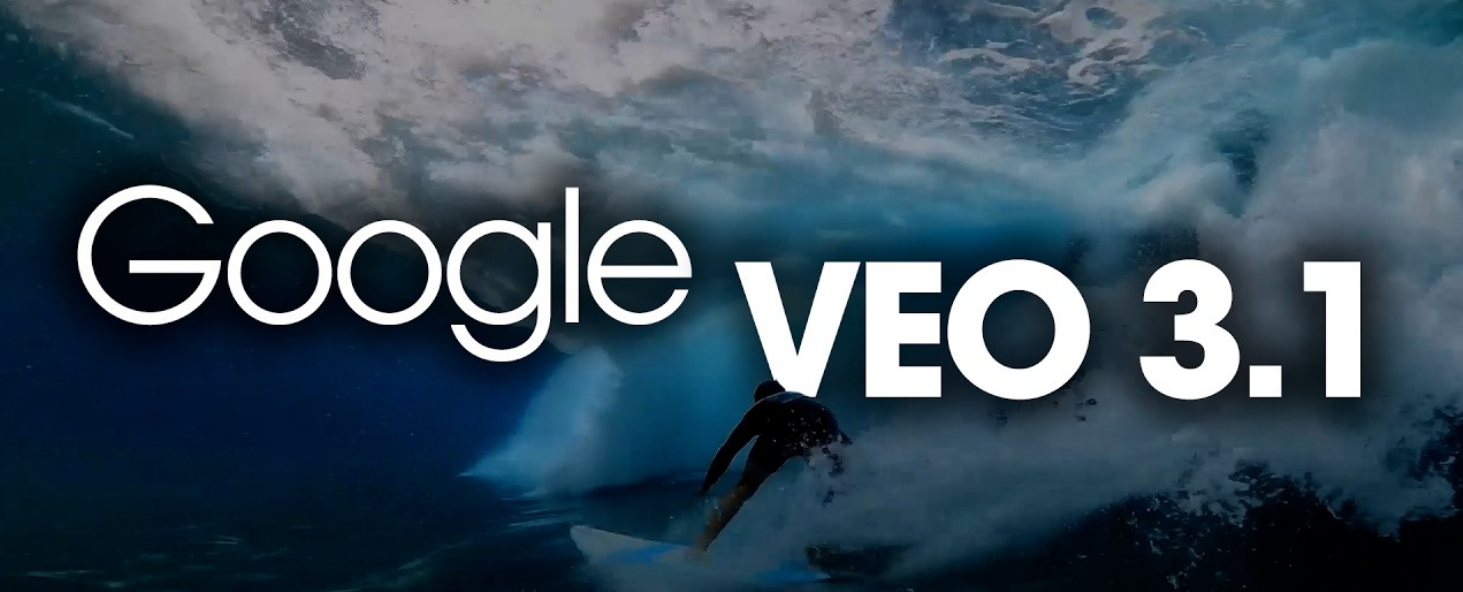
If you’ve been following AI tools lately, you’ve probably seen people talk about what Veo 3 is and how to use it. In simple terms, Veo 3 is Google’s advanced AI model that can generate videos from text prompts. Instead of filming or editing, you just describe a scene, and the AI creates a video for you.
It sounds futuristic, but the idea is actually quite practical. Veo 3 is built to help creators, marketers, and even beginners produce video content faster without needing cameras or editing software.
What Is Veo 3?
Veo 3 is an AI video generation model developed by Google. It takes written prompts and turns them into short, realistic video clips.
Think of it like this. If image generators create pictures from text, Veo 3 takes it a step further and creates moving scenes.
You can describe things like:
- A city at night in the rain
- A drone shot over mountains
- A person walking through a market
And the model generates a video based on that description.
What makes it stand out is how well it understands motion, lighting, and cinematic style.
How Veo 3 Actually Works
You don’t need to understand the technical side to use it, but the basic idea is simple.
You give the AI a prompt, and it builds the video frame by frame.
Here is what happens behind the scenes:
- You describe a scene in words
- The AI understands objects, motion, and environment
- It generates multiple frames
- Those frames are combined into a video
The more clearly you describe the scene, the better the result usually looks.
How to Use Veo 3
Right now, Veo 3 is not fully open to everyone, but the way you use it is quite straightforward.
Step 1: Get Access
Veo 3 is typically available through:
- Google AI tools or previews
- Limited early access programs
- Platforms that integrate Google’s AI models
You may need to join a waitlist or use a supported platform.
Step 2: Write Your Prompt
This is the most important part.
Instead of vague prompts, try to be specific.
For example:
“A cinematic shot of a bike rider moving through a foggy forest in the morning with soft sunlight.”
The more detail you give, the better the output.
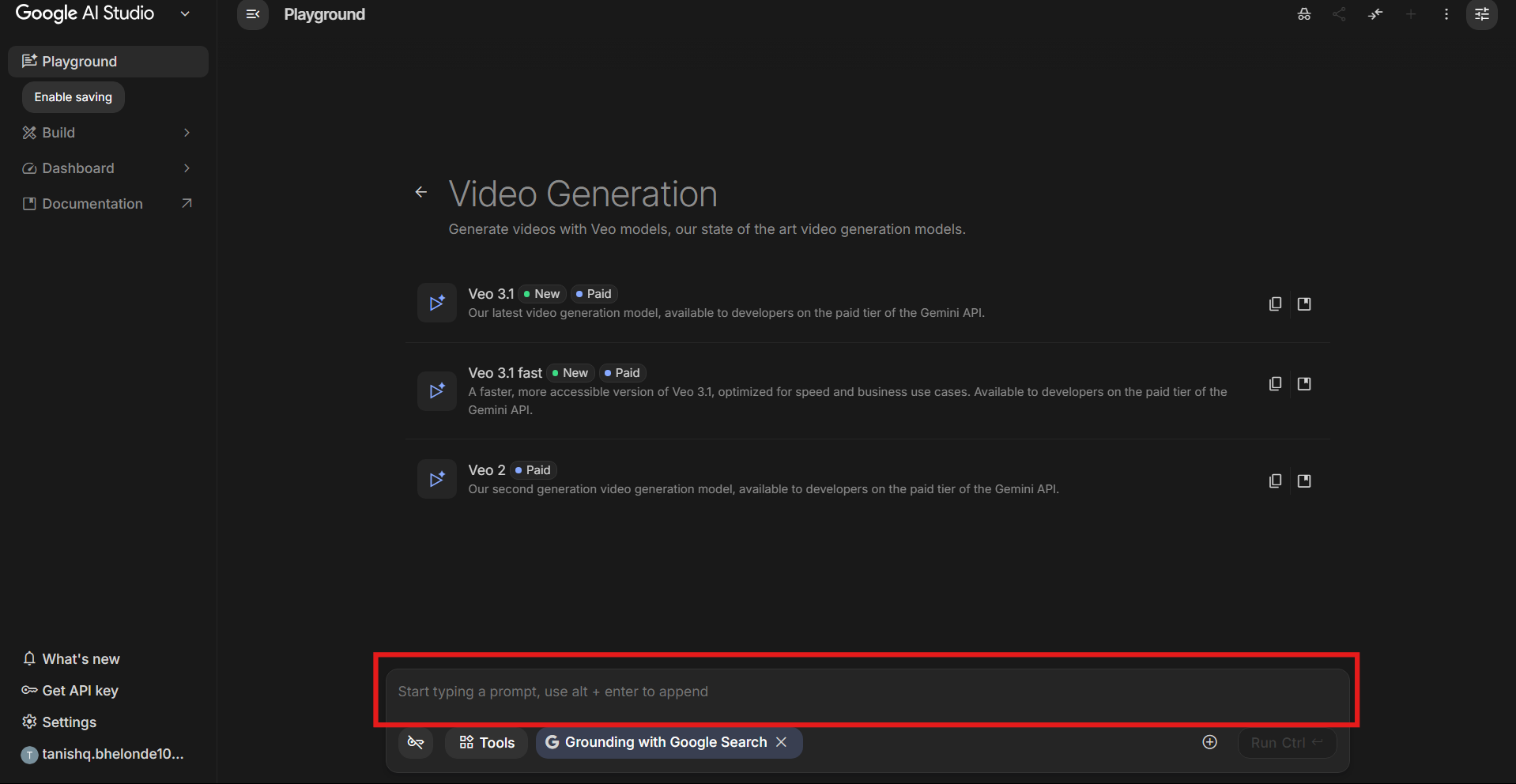
Step 3: Generate the Video
Submit your prompt and let the AI process it. This can take a little time depending on the system.
Step 4: Refine the Output
You will rarely get a perfect result on the first try.
You can:
- Add more details
- Adjust the scene
- Change lighting or camera angles
Small changes can make a big difference.
Tips to Get Better Results
Using Veo 3 is not just about typing anything and expecting magic. A few small improvements in how you write prompts can help a lot.
- Describe the camera angle such as close up or wide shot
- Mention lighting like sunset, neon, or soft light
- Add motion details like slow movement or fast tracking
- Keep your prompt clear and structured
Good prompts usually lead to better looking videos.
Where Veo 3 Is Actually Useful
This is where things get interesting. Veo 3 is not just a cool demo. It has real use cases.
Content Creation
You can create short videos for social media without filming anything. This is useful for quick content or experiments.
Idea Visualization
If you have a concept in mind, you can quickly turn it into a visual scene without production work.
Marketing
Simple promotional videos can be generated without hiring a full production team.
Learning and Experimentation
It is also a great tool to understand storytelling, framing, and visual ideas.
Things to Keep in Mind
Veo 3 is powerful, but it is still evolving.
- Access is still limited
- Results may need a few retries
- Complex scenes are not always perfect
- Rendering can take time
It works best when you treat it as a creative tool rather than expecting perfect output every time.
Final Thoughts
Once you understand what Veo 3 is and how to use it, it starts to feel less like a futuristic concept and more like a practical tool. The ability to turn simple text into video opens up a lot of possibilities, especially for creators who want speed and flexibility.
It is not going to replace traditional video production anytime soon, but it is definitely changing how ideas can be turned into visuals. If you enjoy experimenting with new tools, Veo 3 is worth keeping an eye on.
FAQs
What is Veo 3?
Veo 3 is an AI model that generates videos from text descriptions.
Can anyone use Veo 3?
Not yet. Access is still limited and depends on the platform.
Do I need editing skills to use Veo 3?
No. You just need to write clear prompts.
Can Veo 3 create realistic videos?
Yes. It can generate cinematic and realistic video clips, depending on the prompt.


Discussion (0)
Be the first to comment.