



If you have seen this setting in your browser, you may be wondering what hardware acceleration in Chrome is. Hardware acceleration is a feature that allows Google Chrome to use your computer’s GPU instead of just the CPU to handle certain tasks.
This can make browsing smoother, especially when watching videos, using web apps, or handling graphics-heavy content. However, it may not always work perfectly on every system.
What Is Hardware Acceleration in Chrome?
Hardware acceleration in Chrome is a feature that shifts some processing tasks from the CPU to the GPU (graphics card).
Instead of relying only on the processor, Chrome uses your GPU for tasks like:
- Rendering web pages
- Playing videos
- Running animations
- Handling WebGL and graphics content
This improves performance and reduces load on the CPU.
How Hardware Acceleration Works
Normally, your CPU handles most browser tasks. When hardware acceleration is enabled, Chrome offloads graphics-related work to the GPU.
Here is what happens:
- Chrome detects available GPU resources
- Graphics tasks are sent to the GPU
- CPU workload is reduced
- Performance improves for supported tasks
This is especially useful for modern websites and apps.
Benefits of Hardware Acceleration in Chrome
Enabling hardware acceleration offers several advantages.
- Smoother video playback
- Better performance in web apps
- Faster rendering of pages
- Reduced CPU usage
- Improved multitasking
It is helpful if you use Chrome for streaming, gaming, or heavy browsing.
When Hardware Acceleration Helps the Most
This feature is most useful in certain situations.
Video Streaming
Watching videos on platforms like YouTube becomes smoother and uses less CPU.
Web Applications
Apps like Google Docs or design tools run more smoothly.
Gaming and Graphics
Browser-based games and 3D content perform better.
When You Should Disable Hardware Acceleration
Despite its benefits, hardware acceleration can sometimes cause issues.
You may want to disable it if you notice:
- Screen flickering
- Browser crashes
- Lag or stuttering
- High GPU usage
- Display glitches
These issues are usually caused by driver compatibility problems.
How to Enable or Disable Hardware Acceleration in Chrome
Follow these steps to manage the setting.
1: Open Chrome Settings
- Open Google Chrome
- Click the three-dot menu
- Select Settings
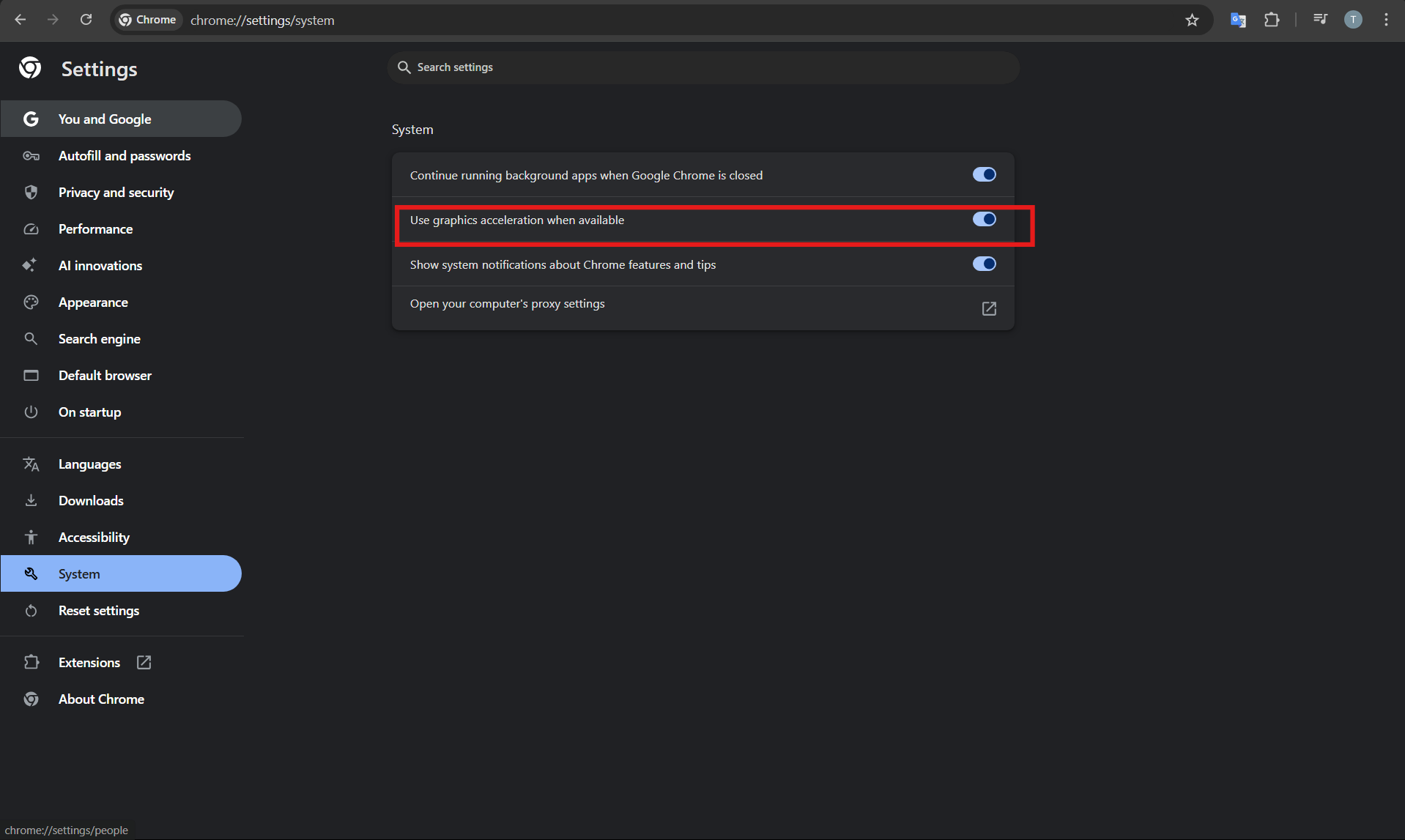
2: Go to System Settings
- Scroll down and click System
- Find Use graphic acceleration when available
3: Toggle the Setting
- Turn it On to enable
- Turn it Off to disable
4: Restart Chrome
Click Relaunch to apply changes.
How to Check If Hardware Acceleration Is Working
You can verify if Chrome is using your GPU.
- Type chrome://gpu in the address bar
- Press Enter
- Check the status of GPU acceleration
If most items show as “Hardware accelerated,” it is working.
Does Hardware Acceleration Improve Performance?
In most cases, yes. Hardware acceleration improves performance by using dedicated graphics hardware.
However, the impact depends on:
- Your GPU capability
- Driver updates
- System configuration
On modern systems, it usually provides noticeable benefits.
Final Thoughts
Understanding what hardware acceleration in Chrome is helps you decide whether to enable it. For most users, keeping it enabled improves performance, especially for videos and graphics-heavy tasks.
However, if you experience glitches or instability, disabling it can often fix the issue. It is a simple setting, but it can make a noticeable difference in your browsing experience.
FAQs
What is hardware acceleration in Chrome?
It is a feature that uses your GPU to improve browser performance.
Should I enable hardware acceleration?
Yes, in most cases. Disable it only if you face issues.
Does hardware acceleration use more GPU?
Yes, but it reduces CPU usage.
How do I know if it is working?
Check the status using chrome://gpu in the browser.


Discussion (0)
Be the first to comment.