




If you use RGB devices like keyboards or mice, you might have noticed a feature called Dynamic Lighting in Windows 11. This is a built-in system that lets you control RGB lighting directly from Windows without needing third-party apps.
It is part of Microsoft’s effort to simplify device customization and reduce reliance on multiple software tools.
What Is Dynamic Lighting in Windows 11?
Dynamic Lighting is a Windows 11 feature that allows you to control RGB lighting for compatible devices from a single place.
Instead of using separate apps for each brand, Windows can manage lighting for:
- Keyboards
- Mice
- Headsets
- Other RGB accessories
It works using an open standard to support multiple devices.
How Dynamic Lighting Works
Dynamic Lighting uses a standardized system (based on the HID LampArray standard) to communicate with supported devices.
This means:
- Devices connect directly to Windows
- Lighting can be controlled from system settings
- Effects can sync across devices
It reduces the need for brand-specific software.
Key Features of Dynamic Lighting
Dynamic Lighting includes several useful features.
- Control brightness and colors
- Apply lighting effects
- Sync RGB across devices
- Set global lighting preferences
- Manage multiple devices in one place
It simplifies RGB customization.
How to Enable Dynamic Lighting in Windows 11
Follow these steps to turn it on.
1: Open Settings
- Press Windows + I
- Go to Personalization
2: Open Dynamic Lighting
- Click Dynamic Lighting
3: Enable Lighting Control
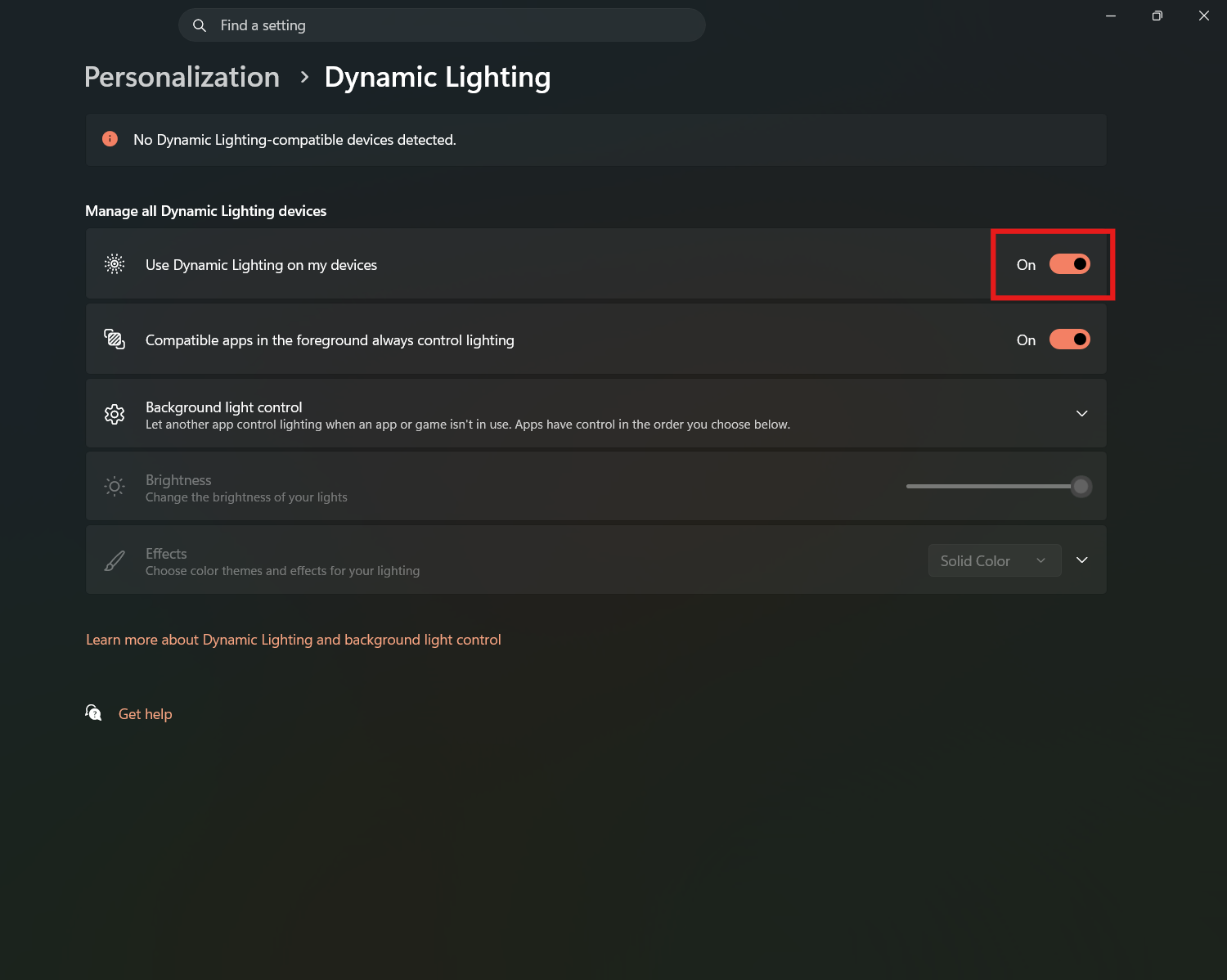
- Turn on Use Dynamic Lighting on my devices
Supported Devices
Dynamic Lighting works only with supported hardware.
- Newer RGB keyboards and mice
- Devices that support Windows Dynamic Lighting standard
- Selected brands like Razer, SteelSeries, etc.
Older devices may not be supported.
Benefits of Dynamic Lighting
Using this feature offers several advantages.
- No need for multiple RGB apps
- Cleaner system performance
- Unified control interface
- Easier setup and management
It improves both usability and efficiency.
Limitations of Dynamic Lighting
There are some limitations to consider.
- Limited device support
- Fewer effects compared to brand software
- Some advanced features may be missing
For advanced customization, manufacturer apps may still be needed.
Dynamic Lighting vs Manufacturer Software
| Feature | Dynamic Lighting | Manufacturer Software |
|---|---|---|
| Ease of use | Simple | Advanced but complex |
| Device support | Limited | Full support |
| Features | Basic | Advanced effects |
| Performance | Lightweight | Can be heavy |
Dynamic Lighting is better for simplicity, while brand apps offer more control.
When Should You Use Dynamic Lighting?
Use it if you:
- Want simple RGB control
- Use multiple brands of devices
- Prefer fewer background apps
Avoid it if you need advanced lighting effects.
Final Thoughts
Understanding Dynamic Lighting in Windows 11 helps you take control of your RGB devices without extra software. It is a clean and simple solution for managing lighting across multiple devices.
While it is still growing in support and features, it is a step toward a more unified and streamlined experience in Windows.
FAQs
What is Dynamic Lighting in Windows 11?
It is a built-in feature to control RGB lighting for supported devices.
Does it work with all RGB devices?
No. Only supported devices work with it.
Do I need extra software?
No. It works directly from Windows settings.
Is it better than manufacturer apps?
It is simpler, but manufacturer apps offer more advanced features.


Discussion (0)
Be the first to comment.