




A hard disk drive, often shortened to HDD or hard drive, is the traditional mechanical storage device inside most desktop and laptop PCs. It stores your operating system, apps, and files on spinning magnetic platters, and it keeps that data even when you turn your computer off.
Even with the rise of faster solid-state drives, hard disk drives remain a popular computer storage device because they provide a lot of space for the price. When you understand what a hard disk drive is, how it works, and how it compares to an SSD, you can choose the right mix of storage for your budget and your needs.
Hard Disk Drive Basics
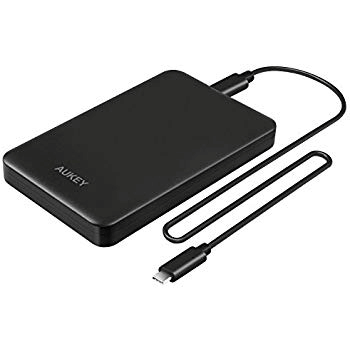
A hard disk drive is a non-volatile storage device that uses magnetism to store digital data. The drive sits inside your PC case or laptop as an internal hard drive, or inside an enclosure as an external hard drive that connects over USB or Thunderbolt.
When people ask “what is a hard disk drive” or “what is an HDD in a computer,” they usually want a simple answer. An HDD is the part of your system that holds your Windows installation, your games, your documents, your photos, and your backups, measured in gigabytes or terabytes of capacity.
Unlike system memory, an HDD keeps data even when you shut the computer down. That makes it ideal for long-term storage, archives, and large media libraries where hard drive capacity matters more than raw speed.
How A Hard Disk Drive Works
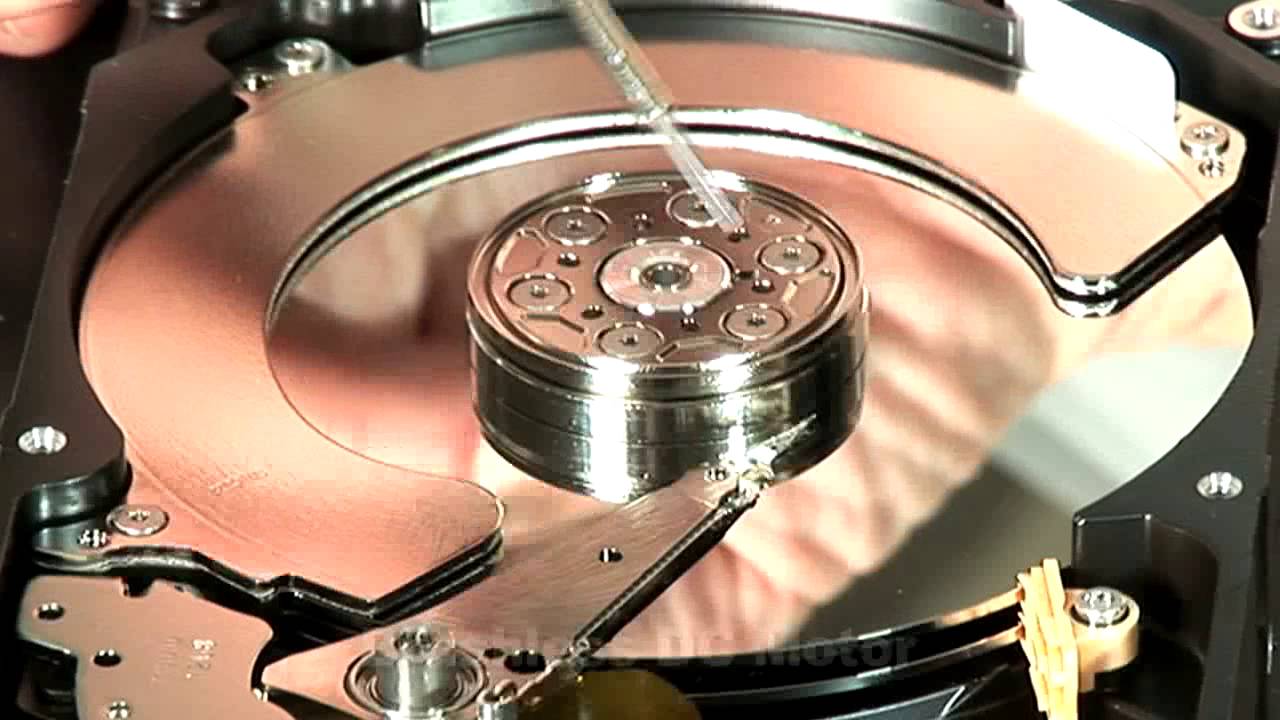
Inside a hard disk drive, several metal or glass platters spin at a constant speed, often 5,400 or 7,200 revolutions per minute. A tiny read and write head floats just above the surface of each platter on a moving actuator arm.
The drive divides each platter into concentric tracks and smaller sectors. When your computer needs a file, the controller on the drive tells the actuator arm where to move. The heads pass over the correct track while the spinning platters move the right sector under the head.
The heads change or sense the magnetic orientation of the platter surface to represent ones and zeros. That is how a mechanical hard drive writes and reads data. The firmware on the controller board then sends the data back and forth over a SATA or USB connection to your computer.
Main Components Of A Hard Disk Drive

Every common HDD includes a few key parts that work together to store and protect your data. When you know these components, it becomes easier to understand hard drive terminology and troubleshooting steps.
Platters And Spindle
The platters are round disks with a thin magnetic coating that stores your files. A central spindle motor spins the platters at a fixed speed so the heads can reach any sector in a predictable amount of time.
Read And Write Heads With Actuator Arm
The read and write heads sit on the end of an actuator arm that pivots across the platters. The heads never touch the platter surface during normal use, they ride on a very thin cushion of air generated by the spinning disks.
Controller Board And Cache
The controller board on the underside of the drive contains a small processor, memory cache, and firmware that manage all input and output. This controller handles error correction, internal data layout, and communication with your motherboard.
Connectors And Form Factor
Most consumer HDDs use a SATA data connector and a separate power connector. Desktop hard drives usually ship in a 3.5-inch form factor, while laptop hard drives and many portable drives use a smaller 2.5-inch form factor to save space and power.
Types Of Hard Disk Drives

Manufacturers offer several types of hard disk drives that target different devices and workloads. The main differences involve size, performance ratings, and durability rather than basic HDD meaning or function.
Desktop Internal Hard Drives
Desktop class drives use the larger 3.5-inch form factor and typically run at 7,200 RPM. They focus on high capacity for a low cost per gigabyte, which makes them a good fit for gaming PCs, home servers, and general-purpose desktops.
Laptop And Portable Hard Drives
Laptop hard drives use the 2.5-inch form factor and often spin at 5,400 RPM to save power and reduce heat. You will find these mechanical hard drives in older notebooks, game consoles, and portable external drives.
External Hard Drives
External HDDs live inside a protective case and connect over USB or Thunderbolt. They work well for backups, Time Machine archives, media libraries, and moving large files between computers without opening the case.
NAS And Enterprise Hard Drives
NAS and enterprise hard disks are built for 24/7 operation in servers and network-attached storage. They often include extra vibration protection, larger caches, and firmware tuned for RAID arrays and always-on workloads.
Hybrid Hard Drives (SSHD)
Hybrid drives combine a traditional HDD with a small solid-state cache. Frequently used files sit on the flash portion for faster access, while the main hard disk platter still provides large and affordable capacity.
Hard Disk Drive Vs SSD
Many buyers now compare a hard disk drive vs SSD when they plan a new system or an upgrade. Both are storage devices, but they behave very differently in day-to-day use.
A solid-state drive uses flash memory instead of spinning platters. That design gives you much faster load times, almost silent operation, and better resistance to shock. A mechanical HDD trades speed for capacity and value, so you usually pay less per terabyte.
For many users, a mixed setup works best. You install the operating system and frequently used apps on an SSD, then keep a large internal or external hard drive for game libraries, video projects, and backups where you need more space than speed.
How To Choose The Right Hard Disk Drive
Once you understand what a hard disk drive is, you can match a specific model to your workload. Use these simple checks when you shop for a new HDD for your desktop, laptop, or external enclosure.
- Decide how much capacity you actually need based on your current files and future growth, for example one terabyte for light use or several terabytes for 4K video and large game libraries.
- Choose a form factor that fits your device, 3.5 inch for most desktops and 2.5 inch for laptops and game consoles.
- Check the interface, most modern hard drives use SATA, while some external drives use USB or Thunderbolt only.
- Look at performance ratings such as RPM and cache size if you plan to run apps or games directly from the drive.
- Pick a drive class that matches the job, such as a NAS hard drive for a home server or a basic desktop drive for general storage.
- Consider noise level and power draw if you build a quiet PC or rely on battery power in a notebook.
Common Uses For Hard Disk Drives
Hard disk drives still handle many storage tasks in home and office setups. The mix of capacity and cost keeps them relevant, even when you also use SSDs and cloud storage.
- Primary storage in budget desktops and older laptops where a mechanical hard drive ships as the main system drive.
- Secondary storage in gaming PCs that use an SSD for Windows and an HDD for Steam, Epic, and other game libraries.
- External backup drives that store system images and file history for data protection.
- Media servers and NAS devices that stream movies, music, and photos across a home network.
- Video surveillance systems that record continuous security camera footage to large surveillance-rated HDDs.
Troubleshooting Common Problems
Even a reliable hard disk drive can develop issues over time. Before you assume the drive has failed, you can run through a few quick checks that often reveal a simple fix or confirm that you should back up and replace the drive.
- If the drive does not show up in Windows, confirm that the SATA data cable and power cable sit firmly in place, then check Disk Management to see if the drive needs a drive letter or a quick format.
- If the HDD makes new clicking or grinding noises, stop heavy use right away, copy important files to another drive, and plan a replacement as soon as possible.
- If the system feels slow when you open files, run a built-in disk check tool, clear some free space, and close apps that constantly read and write to the drive.
- If an external hard drive disconnects randomly, try a different USB port, swap the cable, and avoid unpowered hubs that cannot deliver enough current.
- If SMART tools report pending sectors or reallocated sector counts that keep increasing, treat that as an early warning and move your data before the HDD fails.
Tips
- Use a solid-state drive for your operating system, then add a large HDD as a secondary drive to stretch your storage budget.
- Keep at least 10 to 15 percent of your hard drive capacity free so the file system can work efficiently.
- Place external hard drives on a stable surface to avoid drops and bumps while the platters spin.
- Schedule regular backups to another drive or a NAS so a single hard disk failure never costs you important data.
- Monitor drive health with SMART tools a few times a year so you catch problems before they turn into emergencies.
FAQ
What Is The Difference Between A Hard Disk Drive And A Hard Drive?
In everyday use, people treat “hard disk drive” and “hard drive” as the same thing. Both terms describe the same mechanical storage device that uses spinning platters and magnetic recording to store data inside your computer.
Is A Hard Disk Drive The Same As Memory?
No, an HDD is long-term storage, while RAM is short-term memory that clears when you power off. The hard disk drive holds Windows, apps, and files, and the system loads active data into RAM while you work or play.
How Long Does A Hard Disk Drive Usually Last?
Many consumer HDDs run for three to five years in normal use, and some last much longer. Heat, vibration, heavy workloads, and manufacturing defects can shorten that life, so you should always keep current backups regardless of age.
Can I Replace A Hard Disk Drive With An SSD?
In most modern desktops and laptops, you can swap a 2.5-inch or 3.5-inch hard drive for a compatible SSD. You gain faster load times and a quieter system, and you can still add an HDD as a secondary drive if you need more storage space.
Do I Still Need An HDD If I Have Cloud Storage?
Cloud storage helps with sharing and off-site backups, but it depends on your internet connection. A local hard disk drive gives you fast access to large files and offers an extra copy of important data that does not rely on any online service.
Summary
A hard disk drive is a mechanical storage device that uses spinning platters and magnetic recording to store data in your computer. HDDs come in several types, including desktop, laptop, external, NAS, and hybrid drives, and they still offer a low-cost way to add terabytes of storage.
Compared to SSDs, hard drives trade raw speed for capacity, which makes them ideal for media libraries, backups, and large game collections. When you understand HDD basics, common problems, and simple maintenance tips, you can combine hard drives and solid-state storage to build a balanced setup that fits your workload and budget.
Conclusion
Hard disk drives still matter in a world that now includes SSDs and cloud storage. They deliver reliable and affordable capacity for everyday users, creative professionals, and home labs that need room for big projects and long-term archives.
By answering the question “what is a hard disk drive” in practical terms, you can see where HDDs fit in your own setup. A fast SSD keeps your system feeling responsive, while one or more hard drives handle the heavy lifting for bulk storage and backups so your data stays accessible for years.
Discussion (0)
Be the first to comment.