



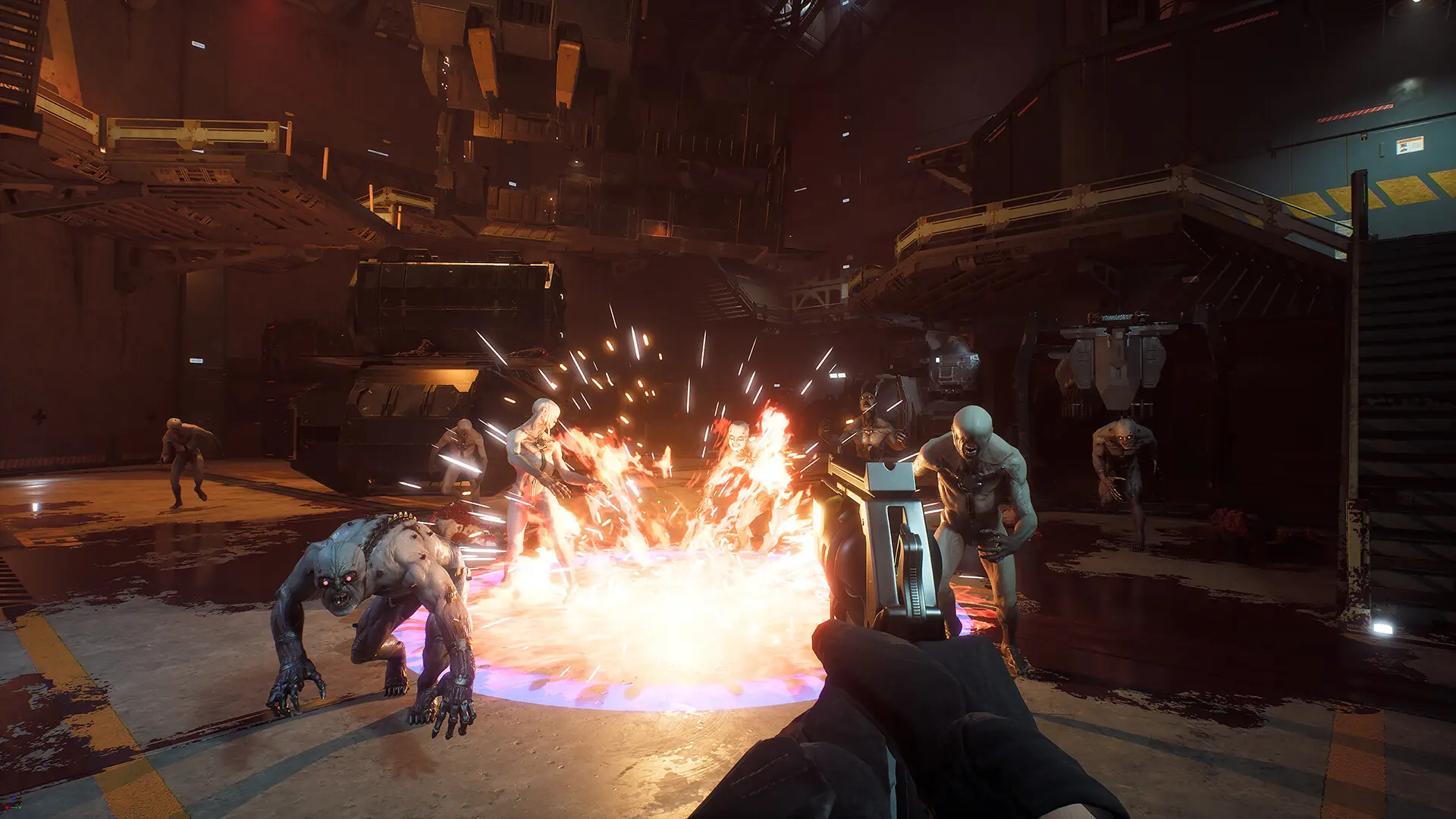
The latest dwproton update has removed the need for a separate workaround when running Honkai: Star Rail on Steam Deck and other Linux gaming systems.
Version 11.0-10 adds the signature workaround directly to the community Proton build, allowing the game to launch without the manual fixes previously required. The release also improves several other gacha game launchers by fixing failed Netmarble updates, HoYoPlay window decorations, and automatic Protonfix support for NIKKE.
dwproton is a community developed compatibility layer based on Proton. It has a similar purpose to GE-Proton but places greater focus on games such as Honkai: Star Rail, Genshin Impact, Zenless Zone Zero, Wuthering Waves, and Neverness to Everness.
The new release can be installed through ProtonPlus, which is available from the Discover software store in Steam Deck Desktop Mode.
Honkai: Star Rail no longer needs a separate workaround
Honkai: Star Rail previously required an additional workaround to function correctly through dwproton.
Version 11.0-10 integrates the same signature method that the developers had already used in their launchers for around three years. As a result, the game should now work immediately after selecting the new compatibility layer.
| dwproton 11.0-10 change | Effect |
|---|---|
| Honkai: Star Rail signature workaround | Lets the game work without manual fixes |
| Netmarble launcher update fix | Restores launcher update functionality |
| HoYoPlay window patch | Corrects missing or broken window decorations |
| NIKKE Protonfix update | Applies the required fix automatically |
| ProtonPlus availability | Simplifies installation on Steam Deck |
The developers acknowledge that this workaround is less technically clean than relying on a signed build. However, using the existing method avoids locking dwproton to one signing key and allows more developers to contribute to the project.
That tradeoff supports the community driven nature of dwproton while giving players a simpler setup process.
Launcher fixes cover several popular games
The update is not limited to Honkai: Star Rail.
Netmarble launcher updates should now work correctly after previously failing under the compatibility layer. This may benefit games that depend on the launcher to download patches or verify files before starting.

dwproton 11.0-10 also imports a patch that fixes window decorations in Chromium Embedded Framework launchers such as HoYoPlay. Broken title bars, borders, or window controls can make these applications harder to move or manage in Desktop Mode.
The NIKKE Protonfix should also apply automatically when the game is launched through Steam. Players previously affected by inconsistent fix detection should no longer need to trigger it manually.
dwproton focuses on gacha game compatibility
Valve’s standard Proton builds support a large collection of Windows games on Linux, but some titles require specialised changes.
Gacha games can be especially difficult because they often use dedicated launchers, frequent updates, unusual login systems, and additional protection mechanisms. A game may work after one patch and stop launching after the next.
dwproton concentrates on these specific problems rather than trying to serve every Windows game equally.
| Supported focus area | Examples |
|---|---|
| HoYoverse games | Honkai: Star Rail, Genshin Impact, Zenless Zone Zero |
| Other gacha titles | Wuthering Waves, NIKKE |
| New online releases | Neverness to Everness |
| Launcher compatibility | HoYoPlay and Netmarble |
| Game specific fixes | Automatic Protonfix configurations |
This targeted approach can make dwproton more useful than a general Proton build for players who regularly use these launchers.
Compatibility can still change when developers update a game, so no community layer can guarantee permanent support.
How to install dwproton on Steam Deck
The easiest installation method is ProtonPlus.
You can open Desktop Mode on your Steam Deck, launch the Discover store, and install ProtonPlus. The application can download and manage community compatibility tools without requiring you to move files manually.
After installing dwproton 11.0-10, you can return to Steam and select it from the compatibility settings for the relevant game or launcher.
| Step | Action |
|---|---|
| 1 | Switch the Steam Deck to Desktop Mode |
| 2 | Open the Discover software store |
| 3 | Search for and install ProtonPlus |
| 4 | Open ProtonPlus and find dwproton |
| 5 | Install version 11.0-10 |
| 6 | Open the game’s Steam properties |
| 7 | Select dwproton under compatibility options |
The exact game setup may differ depending on how the launcher was added to Steam. Players should also keep their existing installation details in case a later update requires troubleshooting.
Community compatibility remains unofficial
dwproton is not an official Valve, HoYoverse, or game publisher product.
Its fixes come from community developers working around compatibility problems between Windows software and Linux based systems. Future game or launcher updates could change how well the current release works.
Online games may also have rules or protection systems that change over time. Players should understand those risks before using an unofficial compatibility layer.
The 11.0-10 release still represents an important usability improvement. Honkai: Star Rail no longer needs a separate manual workaround, and several launcher problems have been addressed in the same update.
For Steam Deck players who regularly use gacha game launchers, dwproton is becoming a more focused alternative to standard Proton and GE-Proton builds.

Discussion (0)
Be the first to comment.