




Want your favorite apps and folders to stand out at a glance? Learning how to change desktop icons to custom pictures lets you turn boring default icons into memorable visuals. You can customize desktop icons on Windows 10, Windows 11, and macOS using photos, logos, or themed art that matches how you work.
In this guide, you will see how to set custom desktop icons for folders, shortcuts, and drives on Windows, plus how to change folder icons on Mac. You only need a few images saved on your computer and a little time to organize your desktop layout.
Before You Start: Get Your Custom Icon Pictures Ready
Customizing desktop icons works best when you prepare your images first, especially on Windows 10 and Windows 11, which prefer ICO files for custom desktop icons.
- Save the pictures you want to use in a dedicated folder on your PC or Mac so you can find them quickly.
- Use simple, high-contrast images so the custom icon looks clear at small sizes.
- On Windows, convert JPG or PNG files to ICO format using any free image-to-ICO converter before you change folder icons.
- On Mac, you can usually copy and paste PNG or JPG images directly into the folder icon using the Get Info panel.
Change Folder Icons To Custom Pictures On Windows 10 And Windows 11
You can customize desktop icons for any folder in File Explorer, including folders pinned to your Windows 10 or Windows 11 desktop. This method works well when you want different icons for work files, photos, or game folders.
- Right-click the folder you want to customize and select Properties.
- Go to the Customize tab.
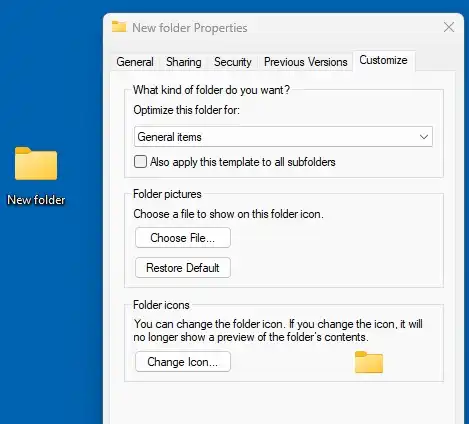
- In the Folder Icons section, select Change Icon.
- Pick a built-in icon from the list, or select Browse to choose a custom ICO file from your computer.
- Select your custom ICO file, choose Open, then select OK.
- Select Apply, then choose OK to confirm the new custom desktop icon.

If you want to change multiple folder icons on Windows 11 or Windows 10, repeat the same steps and reuse the same ICO files. This helps you build a consistent icon set across all your project folders.
Change Desktop Shortcut Icons To Custom Pictures On Windows
Shortcut icons for apps and websites can also use custom pictures. This helps when you want cleaner app icons on your Windows desktop or want to group similar shortcuts with matching visuals.
- Right-click the desktop shortcut you want to customize and select Properties.
- On the Shortcut tab, select Change Icon.
- Ignore any warning about built-in icons and select OK to open the icon list.
- Choose a built-in icon or select Browse to pick a custom ICO file for the shortcut.
- Select your ICO file, choose Open, then select OK.
- Select Apply, then choose OK to finish changing the shortcut icon.
This process works for most app shortcuts, desktop program icons, and even shortcuts to web pages created in your browser. For a cleaner layout, you can apply the same custom icon to all shortcuts related to a single app or service.
Change Drive Icons To Custom Pictures On Windows
You can also create custom drive icons on Windows 10 and Windows 11 for USB drives or internal drives. This helps you spot the correct drive quickly when you plug in external storage.
- Create or copy an ICO file you want to use as your drive icon and save it in the root of that drive (for example, D:\driveicon.ico).
- Open Notepad and create a new text file.
- Type the following lines exactly:
[Autorun]
ICON=driveicon.ico - Select File > Save As, choose the same drive, and name the file autorun.inf.
- Eject the drive safely, then reconnect it to your PC.
- Open File Explorer again and check the drive icon to confirm the new custom picture appears.
Modern versions of Windows sometimes ignore autorun settings for security reasons. If the new drive icon does not appear, you may need to refresh File Explorer or restart your PC before Windows shows the custom drive icon.
Change Desktop Icons To Custom Pictures On Mac
macOS lets you change desktop icons for folders, apps, and drives by copying an image and pasting it into the Get Info panel. This method works in recent macOS versions and makes custom desktop icons easy to manage.
- Open the image you want to use in Preview, or right-click an image in your browser and copy it.
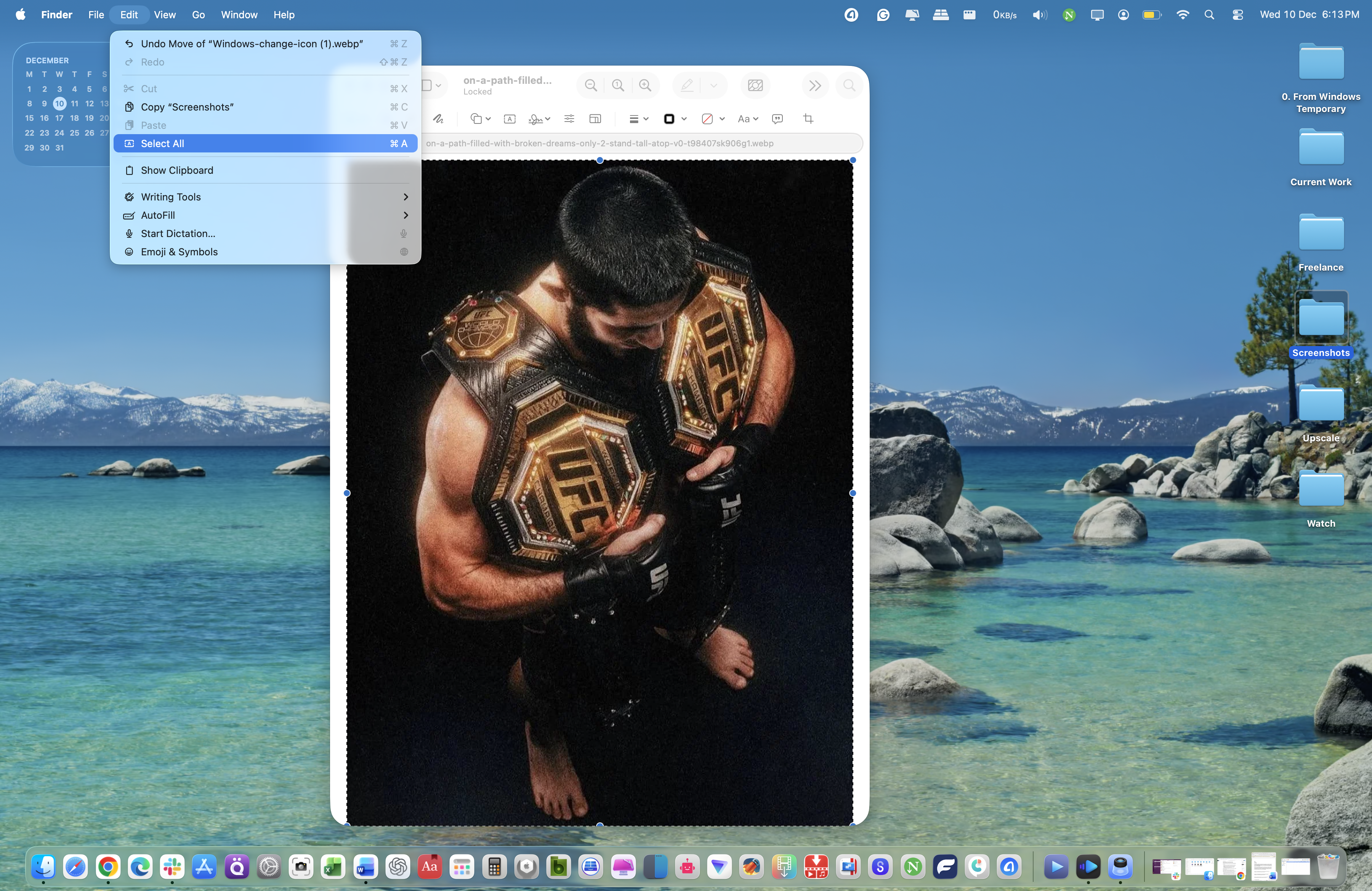
- If you use Preview, select Edit > Select All, then choose Edit > Copy to place the image on the clipboard.
- In Finder, right-click the folder, app, or drive you want to customize and select Get Info.
- In the Info window, select the small icon thumbnail in the top-left corner so it highlights.
- Press Command + V to paste your custom image onto the icon.
- Close the Info window and check the new custom icon on the desktop or in Finder.
If you want to reset the icon later, open Get Info again, select the small icon thumbnail, and press Delete to restore the default macOS icon.
Convert Pictures To Icon Files For Windows Custom Icons
Windows 10 and Windows 11 use ICO files for most custom desktop icons. If you only have JPG or PNG images, quickly convert them to icon format before customizing folder icons or shortcut icons.
- Pick a clear, square picture that looks good at small sizes, such as 256×256 pixels.
- Open the image in any graphics editor that supports icon export, or use an online image-to-ICO converter.
- Export or convert the file and save it as .ico in a permanent folder, such as C:\Icons.
- Use these ICO files whenever you change folder icons or shortcut icons on Windows 10 or Windows 11.
Creating a small library of ICO files makes it easier to update multiple icons later without hunting for images every time.
Troubleshooting Common Problems
- New Icon Does Not Appear On Windows: Refresh the desktop by right-clicking and selecting Refresh, or sign out and back in to your Windows account.
- Windows Folder Icon Reverts After Restart: Make sure the ICO file stays in the same location and you did not delete or move the icon folder.
- Drive Icon Does Not Change: Confirm the autorun.inf file and ICO file live in the root of the drive and that the icon file name in the INF file matches exactly.
- Mac Folder Icon Won’t Update: Verify you clicked the small icon thumbnail in the Get Info window before pasting, not just the preview image in the pane.
- Mac Only Shows A Generic Icon: Copy the image from Preview or directly from a browser, not from Finder thumbnails, then paste again in Get Info.
- Icons Look Blurry Or Pixelated: Start with larger source images and use square dimensions, such as 512×512, before converting to ICO or pasting into macOS.
Tips
- Keep a dedicated Icons folder so you can reuse the same custom desktop icons across multiple shortcuts and folders.
- Use one color for work folders and another for personal folders to organize custom desktop icons visually.
- Match custom folder icons to app icons for game launchers or creative tools so related items stand out together.
- Avoid overly detailed photos when you customize desktop icons; simple shapes and bold colors stay readable at small sizes.
- Take a quick screenshot of your current desktop layout before you change many icons so you can rebuild it later if needed.
- On shared PCs, keep personal or sensitive folders under neutral icons and names, even when you use custom folder icons for other content.
FAQ
Can I Use PNG Files Directly As Desktop Icons On Windows?
Windows 10 and Windows 11 do not use PNG files directly for desktop icons. Convert PNG images to ICO format first, then apply them as custom folder icons or shortcut icons.
Do Custom Desktop Icons Affect Performance?
Custom desktop icons usually have a minimal impact on performance, even on older PCs. Using very large ICO files or extremely high-resolution images may slow down icon loading slightly.
Can I Sync Custom Desktop Icons Between Different Windows PCs?
Windows sync features handle some personalization settings, but custom desktop icons often rely on local ICO files. Store your icons in a cloud folder and repeat the icon changes on each PC for consistent results.
How Do I Reset All Desktop Icons Back To Default?
On Windows, open Properties for each customized folder or shortcut, select Change Icon, then choose Restore Defaults. On Mac, open Get Info, select the icon thumbnail, and press Delete to revert to the original icon.
Summary
- You can change desktop icons to custom pictures on Windows 10, Windows 11, and macOS to organize your workspace visually.
- Windows custom desktop icons work best with ICO files, while Mac lets you paste standard images into the Get Info panel.
- Folder icons, shortcut icons, and even drive icons can all use custom art when you follow the correct properties or Get Info steps.
- If a custom icon does not appear, refresh your desktop, confirm file paths, and check that you selected the correct thumbnail before pasting or saving.
- Building a small library of clean, square images helps you quickly customize desktop icons without hunting for files each time.
Conclusion
Learning how to change desktop icons to custom pictures gives you more control over how your workspace looks and feels. With a few quick changes, you can turn a cluttered grid of identical folders into a clear, colorful layout that matches the way you think.
Whether you customize desktop icons on Windows 11, adjust folder icons on macOS, or assign unique icons to drives and shortcuts, the steps stay simple once you build a small icon library. Use the methods in this guide to refresh your desktop design, highlight important files, and make your everyday clicks easier to recognize at a glance.


Discussion (0)
Be the first to comment.