Until I got my hands on the Toshiba Encore, I had not used a Windows device that is made to be a tablet, except the Surface Pro 2. While testing the Toshiba Encore I have learned a lot about what it truly means to use a Windows 8.1 tablet and the strengths and weaknesses of this device. If you want to learn more about the Toshiba Encore, what it offers and how well it works, don't hesitate to read this review.
Unboxing the Toshiba Encore
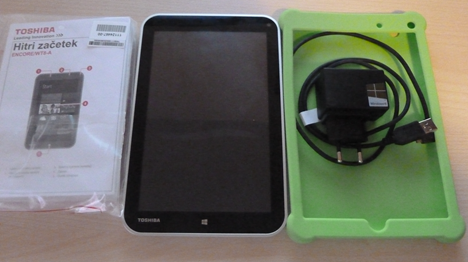
There's nothing special about the Toshiba Encore and the way it is packaged. Inside the box you will find the basics you need and nothing else: the tablet itself, a micro-USB cable, the charger, the manuals, the warranty and the product key for your Windows 8.1 license which is also used to activate your copy of Microsoft Office 2013 Home & Student. Depending on where you buy this tablet, you might also find a leaflet with apps recommended by Microsoft for this tablet.
Toshiba, Encore, tablet, Windows 8.1, review, performance
Because of its affordable price, the packaging doesn't include a stand or a type cover like on the more expensive Surface 2 or the Nokia Lumia 2520. Inside the box you will find information about recommended purchases for your tablet. The list includes an Encore stand case that is available in four colors, a touch screen pen which can be very useful on this kind of tablet and the Encore sleeve for carrying the device safely. Below you can find a full unboxing video for this device.
Depending on the price you pay for the Toshiba Encore and from where you buy it, you might also receive a rubber cover. In my case it was green.
Hardware Specifications
Toshiba Encore is an 8" tablet with an IPS display working at a 800x1200 resolution. It weighs only 1.06 lbs (0.48 kg) and it has a Li-Ion battery which promises to last up to 14 hours. The tablet has a quad-core Intel Atom Z3740 running at 1.33 GHz, 2GB of RAM DDR3 (out of which 1.89 GB are usable - the rest is reserved for the graphics chip) and 32 GB of storage space on an SSD made by Samsung. It has a micro HDMI port, a micro USB port, a microSD slot and two cameras: one on the back and one in the front. Unfortunately, Toshiba hasn't published the detailed hardware specifications for this device on their website. You can find them only on Engadget or other third-party websites. The Toshiba Encore comes with a Windows 8.1 32-bit edition and not with Windows RT as you might expect. This is great but it also means that the operating system will require slightly more resources to run smoothly. All the specs are fine except one important miss - there is no USB port. Yes, you can use micro USB cable and connect it to all kinds of devices and adapters but I found myself wanting a full USB port. Also, you cannot use USB devices with the Toshiba Encore while you want to charge it, for obvious reasons.
Using the Toshiba Encore
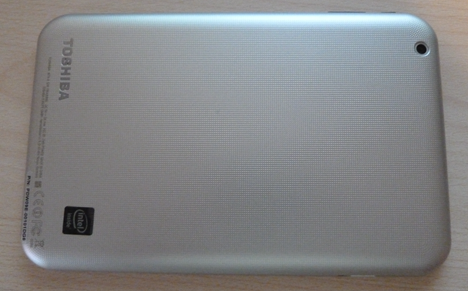
One of the first things you notice about the Toshiba Encore is how light it feels to hold in your hands. Especially after using a device like a Surface Pro 2. It weighs only 1.06 lbs (0.48 kg) and it is very easy to carry around. Also, its back cover is designed so that you have a good grip when holding it in your hands.
Toshiba, Encore, tablet, Windows 8.1, review, performance
The Toshiba Encore was designed to use in portrait orientation, and the buttons were arranged accordingly. I found this unfortunate for the following reasons:
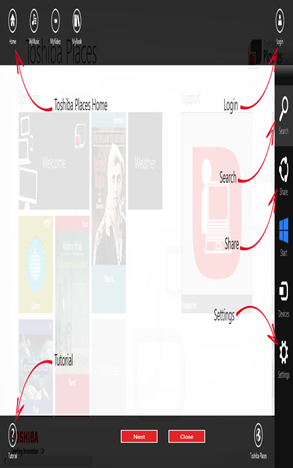
Windows 8.1 works in portrait mode but it doesn't look great and the experience of using it is much better in landscape mode. To understand what I mean, simply look at the screenshot below and how bad it looks. This is the Toshiba Places app that's bundled with the Encore. Everything looks a lot more crowded when in portrait mode.
Toshiba, Encore, tablet, Windows 8.1, review, performance
There is a great distance between the Windows button and the volume buttons. This means that taking screenshots on the Toshiba Encore is very difficult and error prone.
When browsing the web in portrait mode, websites don't scale that well and reading the text displayed is harder than when using this tablet in landscape mode. Plus, less information is displayed on the screen.
Using the Desktop in portrait mode is an awful experience, especially if you don't have a mouse. Using the Desktop in landscape mode is slightly less frustrating simply because there's a lot more screen space available to display buttons and windows. You have slightly higher precision when interacting with it.
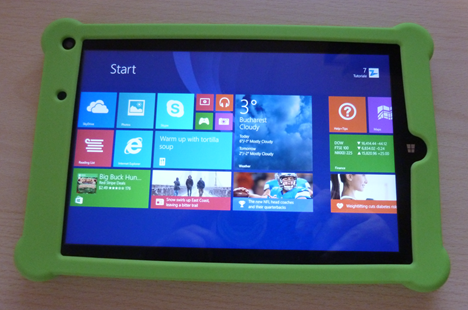
Another important aspect of using the Toshiba Encore is the way it charges and how it manages the battery. First of all, this tablet comes with only one power plan. You cannot switch to other plans like you do on the Surface, for example. Also, the power cable is short and you can't use the tablet comfortably while it charges. Then, the charging process is very slow. If you charge it while it is turned off, the battery is charged in 5 hours. That's a lot of time. If you charge it while it is turned on and you are using it, it charges in about 12 hours. Also, the specifications mention the fact that the Toshiba Encore lasts up to 7 days while in sleep mode. In my testing experience it wasn't able to last more than 3 days. However, I did use it for a bit each and every day. While I was charging the Toshiba Encore, I noticed a bug that quickly became annoying: I was leaving the tablet to charge overnight, while I was sleeping, without turning it off. Therefore, the tablet went into sleep mode while it was charging. Every morning, when I unplugged it and started using it, the touch screen was unresponsive. I had to force a shut down and restart the tablet in order for the touchscreen to work. The only solution for this problem was to shut it down completely before leaving it to charge overnight. Also, I have made several tests and I noticed that, if you leave the tablet to charge until the battery is 100% full and you unplug it soon after that moment, the screen continues to work well. This unresponsiveness issue appears only when leaving it plugged in a long time after it is fully charged. Another small issue is the fact that there are moments when the Toshiba Encore hangs/freezes while using it, especially if you multitask between many apps. It's like it doesn't have enough resources to deal with all the apps and it makes you wait a while until loading yet another app or switching to another window. If you work with 2 to 4 apps at a time, its performance and responsiveness will remain normal tough. In terms of battery time the Toshiba Encore delivers decent results. If you use it for things like browsing the web, it can last up to 9 hours. If you play games or watch video, its autonomy will drop by a few hours. However, it will always last you more than a laptop. I also used the rubber cover that was bundled with the Toshiba Encore. Mine was green and rather unpleasant looking. When using it, I found it hard to figure out where the power and volume buttons are placed and I wasn't sure I was pressing the correct button. However, all the buttons don't lose their responsiveness when using the cover.
Toshiba, Encore, tablet, Windows 8.1, review, performance
Personally, I wouldn't use it just because it doesn't look good. However, if you have a child that's going to abuse this device and play with it, then the cover is highly recommended. Also, please remember that this cover may not be part of the standard packaging of this device. The cameras on the Toshiba Encore have no hardware specifications being published. The front camera seems to be a cheap VGA camera you can use for making brief video calls and the back camera is able to record 720p and 1080p video. However, the quality of the recording is very average.
Apps that are Bundled with the Toshiba Encore
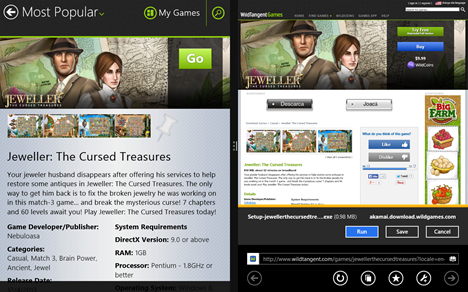
Unfortunately, the Toshiba Encore has some desktop software bundled with it, even though it is being sold as a tablet, not a hybrid device. You will find on it Spotify (which works only in a few countries), Toshiba Manuals, Toshiba Service Station, Microsoft Office 2013 Home & Student (needs to be activated with the product key found inside the packaging) and McAfee LiveSafe - Internet Security. Unfortunately, the McAfee suite makes the boot time longer and it is very difficult to use on a touch screen. Plus, in our series of reviews for Internet Security suites, it performed poorly. I recommend that our readers remove this suite and use better security products. There are also some touch-based apps bundled with the Toshiba Encore: Toshiba Places, McAfee Central, WildTangent Games and Pinball FX2. While Toshiba Places can be useful when you need to learn more about your tablet and how to receive support when it is needed, the McAfee Central app acts only as a tool for viewing the status of your security suite. You cannot use it to administer McAfee LiveSafe - Internet Security. You need to go to the Desktop and use a mouse for that. I found it ironic that the WildTangent Games app is a touch based app but it offers for download mostly classic desktop games that don't work well with touch. Most probably you will want to uninstall this app because of this
Toshiba, Encore, tablet, Windows 8.1, review, performance
Depending on the country where it is sold, you might find in the packaging of the Toshiba Encore, a list of apps and games recommended by Microsoft. This list is a mix of local apps, that are specific to your region, and global apps that are available everywhere. Some of these apps are truly useful and offer added value to their users. The collection also includes paid apps that have a free trial available.
Performance in Benchmarks
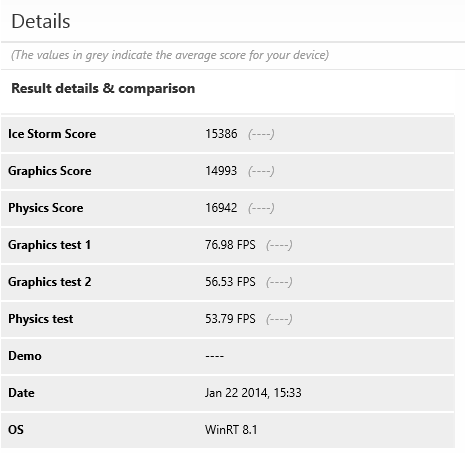
One of the first measurements I've made was related to how fast the boot time is. To measure this, I have used BootRacer. I was pleasantly surprised to see that the Toshiba Encore boots, on average, in 28 seconds, even though it has some trialware bundled with it, that runs at startup. A very good result! Then, I ran the 3DMark app from the Windows Store which is used to measure gaming performance for tablets. In the Ice Storm Unlimited test (the most detailed test available), the Toshiba Encore had a score of 15386. For comparison, in the same test, the Nokia Lumia 2520 is only 1% faster, with an average score of 15545. The Surface 2 is 10% slower, with an average score of 13751 and the Dell Venue 8 Pro is 2% slower, with an average score of 15086.
Toshiba, Encore, tablet, Windows 8.1, review, performance
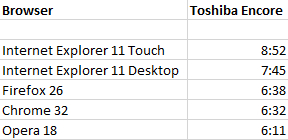
Next, I measured how long the battery lasts while browsing the web. Below you can see the time it lasted when using all the major browsers, while running the Peacekeeper battery test.
Toshiba, Encore, tablet, Windows 8.1, review, performance
As you can see, when using the touch version of Internet Explorer, which was designed especially for tablet use, you get great mileage from your battery - it will last you 8 hours or more.
Product rating3/5
Verdict
Giving a verdict for the Toshiba Encore is a hard task. Unfortunately, this tablet is not for geeks and IT professionals unless they are willing to buy a stand, a Bluetooth keyboard, and a mouse so that they can use it as a hybrid device. However, this quickly raises the cost of the device and for that money you may want to buy another device like the Surface 2 or the Lumia 2520. In my view, the Toshiba Encore is for beginners to the tablet world, who want an affordable device which allows them to browse the web, do Facebook, YouTube, etc. For consuming media content and browsing the web, the Toshiba Encore is a very good choice. If you want more than that, you should look elsewhere.











Discussion (0)
Comments are closed.