



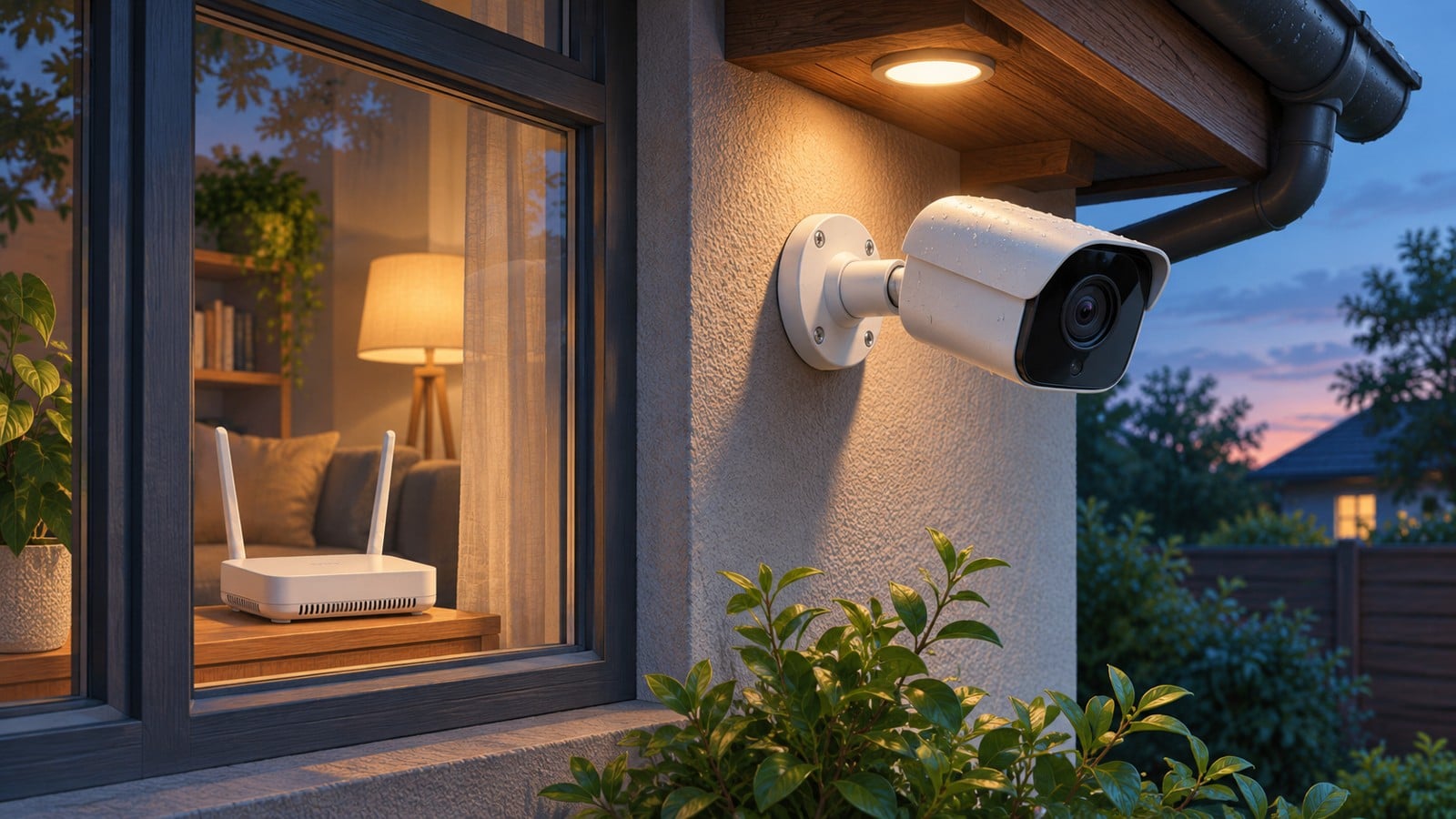
If a Tapo C425 appears offline, first test it while your phone is on the same home network. A camera reachable locally but unavailable over mobile data needs a different investigation from one that cannot connect to Wi-Fi at all.
Make the local test unambiguous
- Connect the phone to the camera’s normal home LAN, avoiding a guest network with device isolation.
- Temporarily turn off mobile data and any phone VPN or traffic filter for this test.
- Open Tapo and try the camera again. Restore the phone’s normal settings afterward.
- If it remains offline, restart the camera and router using their normal controls. Account for the interruption to other devices.
These checks follow TP-Link’s offline troubleshooting. The C425 is battery-powered, so generic instructions to unplug a mains-powered camera do not describe its power arrangement.
If you changed the router
Check whether the Wi-Fi name, security settings, or password changed. TP-Link’s network-change guidance allows restoring the previous compatible wireless settings or reconfiguring the camera for the new network. An old saved password cannot authenticate to a new password merely because the router is in the same place.
If disconnections come and go
When the camera is reachable, inspect signal strength under Network Connection or Device Info > Wi-Fi, depending on the app version. TP-Link’s signal-strength guidance treats RSSI stronger than −50dBm as strong, −50 to −70dBm as usable, and below −70dBm as poor.
Temporarily test closer to the router to see whether stability improves. If local access works but remote access fails, keep that distinction in your support report. Resetting removes setup, so reserve it for a reconfiguration you intend to complete. The final check is reliable access both on home Wi-Fi and, if needed, from mobile data.
Featured image: AI-generated illustration of representative equipment, not an exact product photograph or a hands-on test.
Discussion (0)
Comments are closed.