




Syncing your Android phone with a Windows PC helps you stay productive without constantly switching devices. When both devices work together, you can manage messages, calls, notifications, and files directly from your computer.
At the time of writing, Windows users have three reliable options to sync Android with Windows. Each method focuses on different needs, from basic notifications to advanced file transfers and remote access.
Sync Android With Windows Using Phone Link
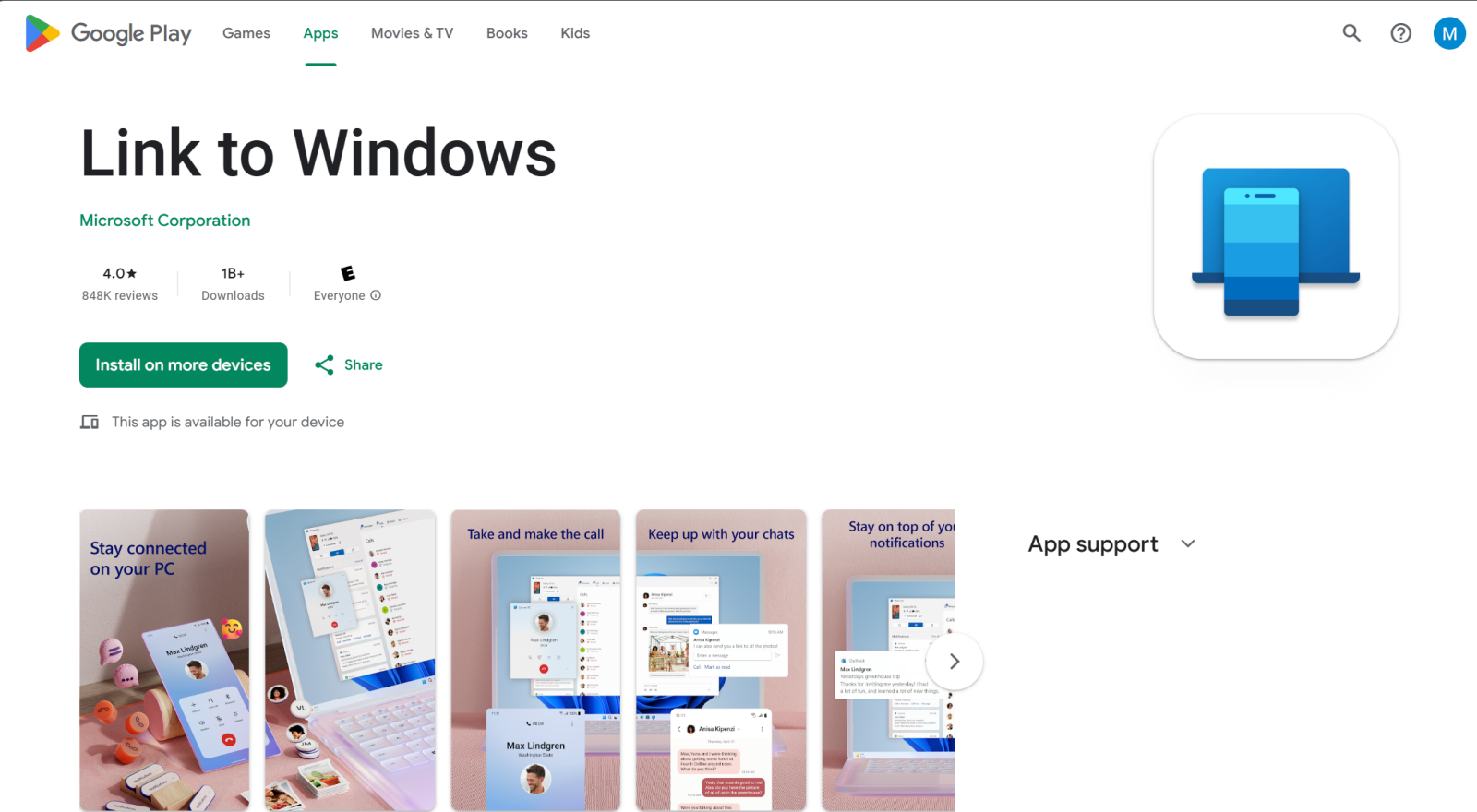
Phone Link is Microsoft’s built-in solution for connecting an Android phone to a Windows PC. It focuses on communication features and works on both Windows 10 and Windows 11.
This method is ideal if you want to manage calls, messages, and notifications without touching your phone.
- Open the Phone Link app on your Windows PC.

- Install the Link To Windows app on your Android phone.
- Sign in with the same Microsoft account on both devices.
- Approve permissions for calls, messages, and notifications.
- Confirm the pairing using the on-screen code.

Sync Android And Windows With Intel Unison
Intel Unison offers a more complete syncing experience, especially for file sharing. It allows you to view photos, videos, and transfer files between your Android devices and Windows PC.
This option works only on Windows 11 systems and does not support screen mirroring.
- Install Intel Unison on your Windows PC.
- Install the Intel Unison app on your Android phone.
- Open the app on both devices and start pairing.
- Scan the QR code displayed on your PC.
- Grant required permissions on your phone.
Sync Android Phone With Windows Using AirDroid Personal
AirDroid Personal provides the most advanced Android-to-Windows syncing features. It supports file transfers, notifications, screen mirroring, and even remote control.
This option works on most Windows PCs, but advanced features require a paid plan.
- Install AirDroid Personal on your Windows PC.
- Install AirDroid Personal on your Android phone.
- Sign in using the same AirDroid account.
- Allow permissions for notifications and storage.
- Enable additional features like screen mirroring if needed.
Troubleshooting Common Problems
- Make sure both devices are connected to the same Wi-Fi network.
- Update Android, Windows, and companion apps to the latest versions.
- Disable battery optimization for syncing apps on Android.
- Re-pair the devices if notifications stop syncing.
Tips
- Use Phone Link for calls and messaging.
- Choose Intel Unison if file transfers matter most.
- Pick AirDroid for remote access and screen control.
- Limit background restrictions on Android for better reliability.
FAQ
Can I sync Android with Windows without cables?
Yes. All supported methods work wirelessly using Wi-Fi or Bluetooth.
Which method supports file transfers?
Intel Unison and AirDroid Personal allow Android-to-Windows file transfers.
Does Phone Link support screen mirroring?
Yes, but availability depends on your phone model and region.
Summary
- Phone Link focuses on calls, messages, and notifications.
- Intel Unison offers better media and file syncing.
- AirDroid provides advanced control and remote access.
- Choose the method that matches your workflow.
Conclusion
Syncing your Android phone with a Windows PC can simplify daily tasks and reduce distractions. Whether you prefer a built-in Windows solution or advanced remote features, these methods offer reliable ways to keep both devices working together.
Discussion (0)
Be the first to comment.