




Using both personal and work accounts in Microsoft OneDrive sounds simple in theory. In practice, it can get confusing quickly.
The issue isn’t just signing in and out. It’s how Windows handles multiple accounts, sync locations, and app behavior at the same time.
If you approach it the right way, you don’t need to constantly switch accounts at all.
The Key Thing Most People Miss
You don’t need to “switch” between accounts in the traditional sense.
OneDrive is designed to let you use both accounts simultaneously on the same system.
The confusion usually comes from trying to log out of one account to use another, which isn’t necessary.
How OneDrive Handles Multiple Accounts
Windows treats each OneDrive account as a separate sync instance.
That means:
- Your personal account syncs to one folder
- Your work or school account syncs to another
- Both run at the same time in the background
This is the intended setup, and it’s far more efficient than switching.
How to Add a Second OneDrive Account
If you already have one account set up:
Click the OneDrive icon in the system tray
Go to Settings > Account
Select Add an account
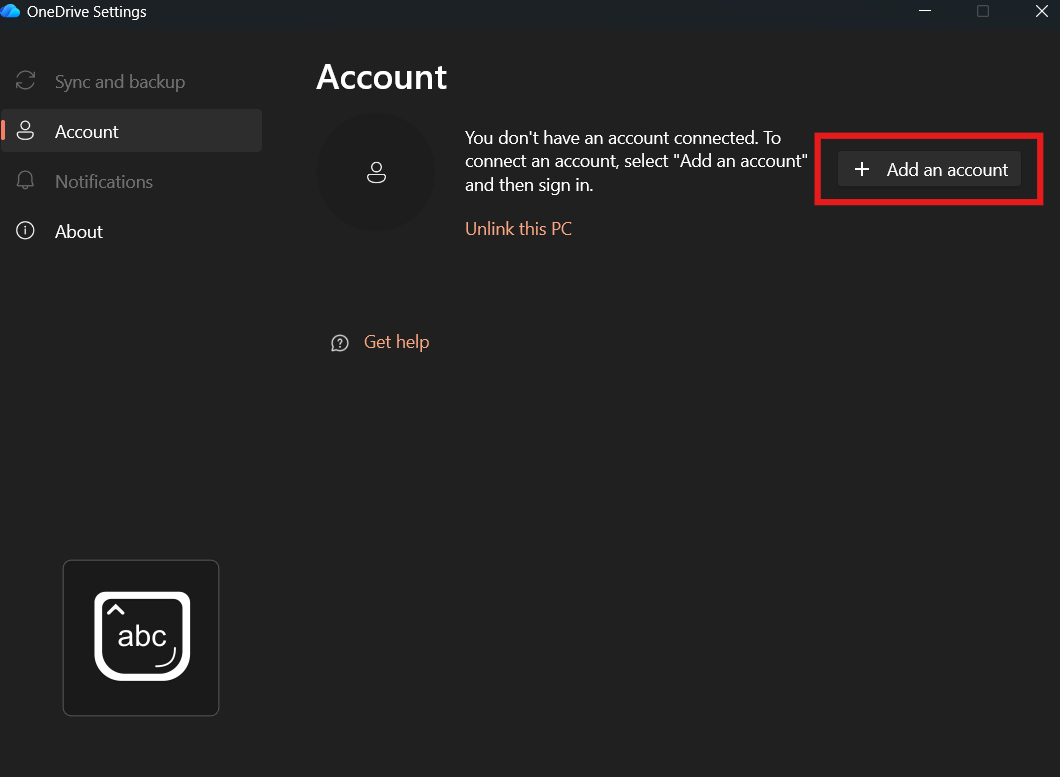
Sign in with your second account.
Once added, Windows creates a separate folder for it automatically.
What It Looks Like in Real Use
After setup, you’ll see two OneDrive folders in File Explorer.
For example:
- OneDrive (Personal)
- OneDrive (Company Name)
You can access both just like local folders.
There’s no need to log in and out or switch contexts manually.
When You Might Need to Switch Accounts
Actual switching only becomes necessary in specific cases.
For example:
- When using OneDrive in a browser
- When accessing account-specific settings
- When logging into different services tied to each account
Even then, browsers handle this better than the desktop app.
Real-World Workflow: What Works Best
The most practical setup is:
- Use both accounts simultaneously in File Explorer
- Use separate browser profiles for personal and work accounts
This avoids conflicts and keeps everything organized.
Trying to force a single-session workflow usually creates more friction.
Common Problems and How to Avoid Them
The most common issue is account confusion.
Files get saved to the wrong OneDrive folder, or users don’t realize which account they’re using.
To avoid this:
- Clearly name your folders
- Keep personal and work files separate
- Pay attention to file paths when saving
Another issue is syncing too much data across both accounts, which can affect performance.
Limitations You Should Know
There are some boundaries.
You can’t merge personal and work accounts into one space.
Permissions, storage limits, and policies remain separate.
Also, work accounts may have restrictions set by your organization, which can limit certain features.
The Bigger Picture
OneDrive isn’t designed for account switching. It’s designed for parallel use.
Once you understand that, the workflow becomes much simpler.
Instead of thinking in terms of “which account am I using,” you think in terms of “which folder am I working in.”
Final Thoughts
Switching between personal and work OneDrive accounts isn’t something you should be doing regularly.
Set both up once, let them run together, and use them like separate storage spaces.
It’s simpler, faster, and far less frustrating.
FAQs
Can I use personal and work OneDrive accounts together?
Yes, both can run simultaneously on the same PC.
Do I need to log out to switch accounts?
No, you can use both without logging out.
Where are the files stored?
Each account has its own folder in File Explorer.
Can I merge the two accounts?
No, they remain separate.
What’s the best way to manage both?
Use both simultaneously and keep files organized by folder.

Discussion (0)
Be the first to comment.