Are you wondering how to stop Skype from starting automatically in Windows 10? Whether you're using the default app for Windows 10 or the Skype desktop app, it is easy to disable Skype on startup. If you want to decide for yourself when to launch Skype on your Windows 10 computer or device, read this tutorial to learn how to stop Skype from starting automatically:
IMPORTANT: There are two versions of Skype you can have on your Windows 10 PC: the Skype app that comes with Windows 10 and the "classic" Skype desktop app. By default, both apps start automatically in Windows 10, but the process to disable them on startup is entirely different.
How to stop the default Skype app in Windows 10 from starting automatically
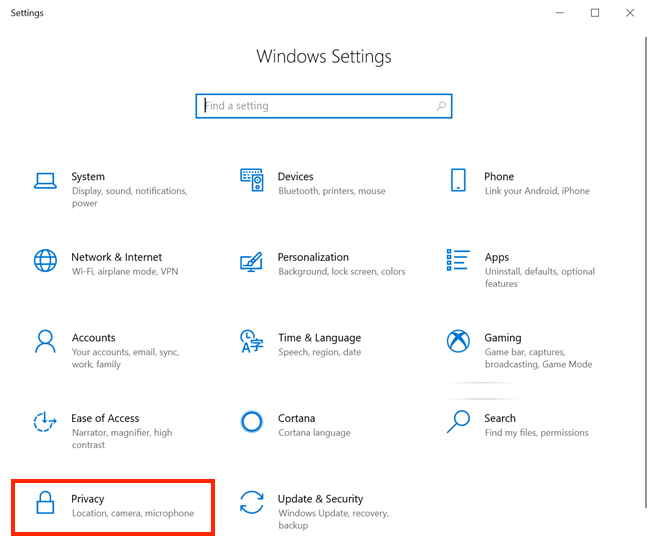
The Skype app in Windows 10 comes preinstalled, so it's the most comfortable to use. However, the steps needed to stop this Skype app from starting automatically in Windows 10 are anything but obvious. First, open the Settings app and click or tap on Privacy.
Access Privacy Settings
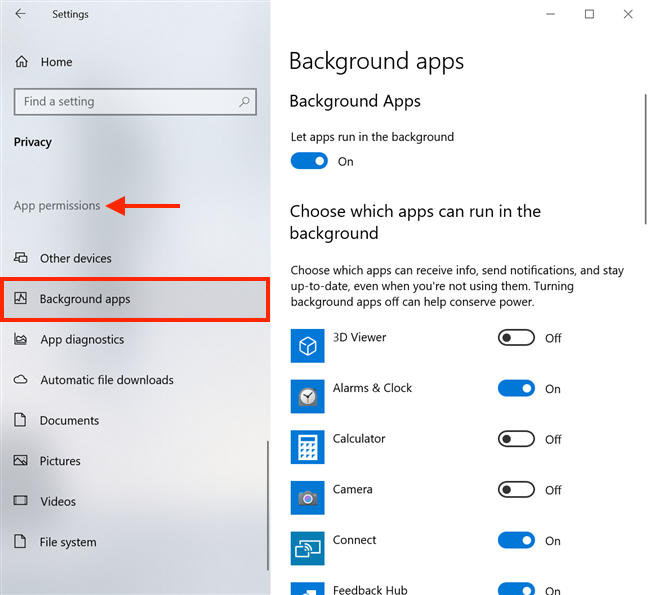
On the left side of the Privacy window, scroll down, and, under App permissions, you can find the Background apps tab hidden towards the bottom. Click or tap on it.
Scroll on the left-hand side of the window and press Background apps
The apps displayed on the right side of the window run in the background, even when you're not using them.
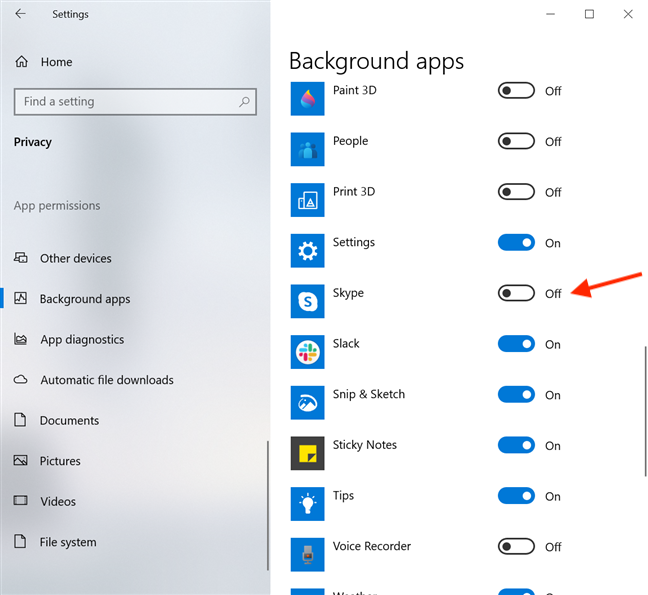
Since apps are listed alphabetically, scroll down, and click or tap on the switch next to Skype to turn it Off.
Turn the switch next to Skype off
That's it! You now disabled Skype on startup, if you're using the default (UWP) Windows 10 Skype app.
How to stop the Skype desktop app from starting automatically in Windows 10 (3 ways)
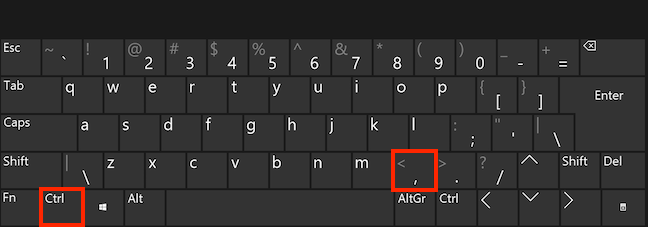
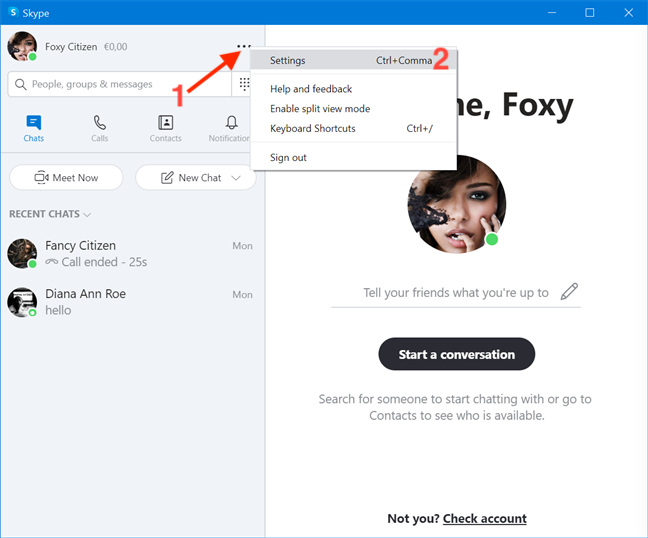
The classic Skype desktop app can be downloaded from here. This version of Skype has some improvements over the default Windows 10 one, like increased privacy while sharing your screen on Skype and more intuitive ways to stop Skype from starting automatically with Windows 10. To begin, log into the Skype for desktop app and press Ctrl + Comma (,) on your keyboard to access its Settings.
Pressing the Ctrl and Comma keys simultaneously opens Skype Settings
Alternatively, you can also press the More (...) button from the upper-right corner of Skype's main window. Then, click or tap on Settings.
Press More and then Settings
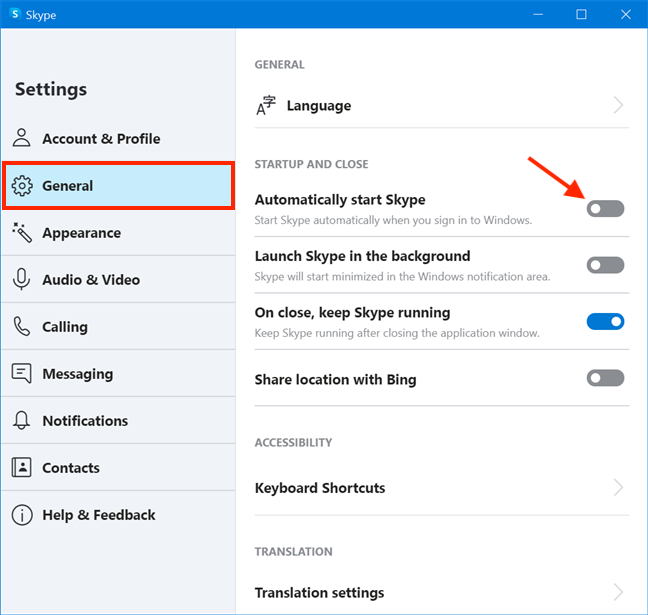
Access the General tab on the left-hand side, and then, on the right, click or tap on the switch next to "Automatically start Skype" to disable it.
Disable Skype on startup for the desktop app
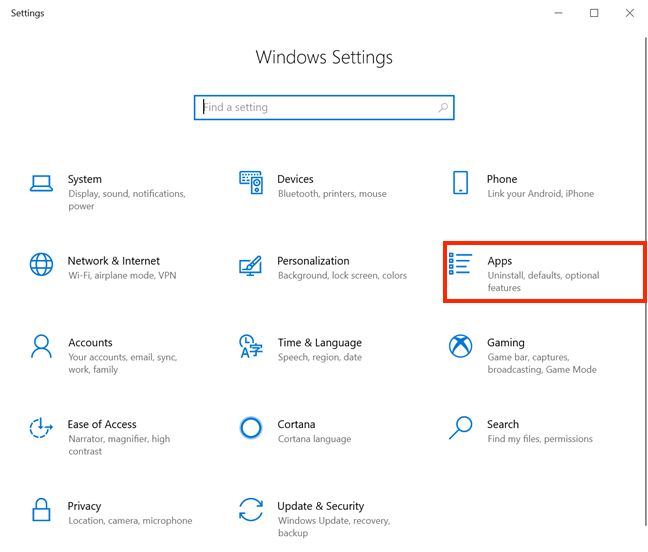
If you don't want to log into your account to stop Skype from starting automatically with Windows 10, you can also disable Skype on startup from the Settings app. Launch Settings and click or tap on Apps.
Access Apps Settings
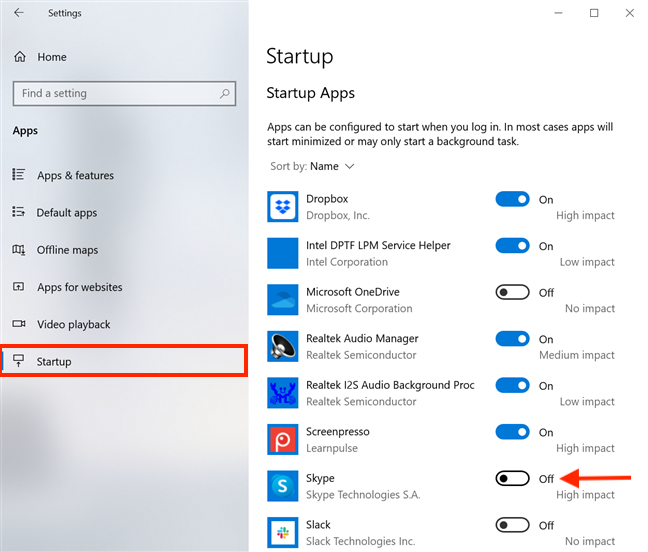
Access Startup from the tabs on the left, and you can see an alphabetical list of the apps you can configure to start with Windows 10 displayed on the right-hand side. Find Skype and turn Off the switch next to it.
That's it! You can now use any of these three ways to stop the Skype desktop app from automatically starting whenever you turn on your Windows 10 computer or device.
Why do you want to disable Skype on startup?
Like many users, we find this setting annoying and, as a rule, disable Skype on startup in Windows 10. This lets us organize our schedule without being prompted to answer any unwanted messages and losing focus on what we're working on. What about you? Do you also think Skype is a distraction? Why do you want to disable Skype on startup? Let us know in the comment section.
I don’t use skype.
I don’t want skype.
I don’t need Skype.
silverweb ·
I don’t use it, so I don’t need it…
Annie Bygrave ·
I never use Skype and having to deal with Skype on the start up screen every time I boot up is annoying. Using this method to disable Skype showed me what else was running that I had no idea about. My computer is strictly for business and I don’t play any games on it. I had no idea that lots of games were launching on start up and running in the background, eating up memory space! They have all been disabled now. Thank you for the tip.
Anonymous ·
Glad to help. Do not hesitate to subscribe to our newsletter, for more useful tutorials like this one.
Essaych ·
Thanks for this. Disabled autostart from a whole bunch of other useless applications as well in the process.
David Noone ·
I don’t use skype.
I don’t want skype.
I don’t need Skype.
It keeps reappearing with every update
Lukas ·
I disabled skype mostly, because I don’t need it. Therefore it is just annoying.
George ·
It is another distraction that I have to deal with. Now, it took 40 minutes of my time to find how to turn Skype off. It is an App that I turn on when I need it.
Jeff Hawkins ·
Surprisingly (or not) this does not work after the May 2020 update. It may appear to work, however, Skype runs in the background anyway without a system tray icon.
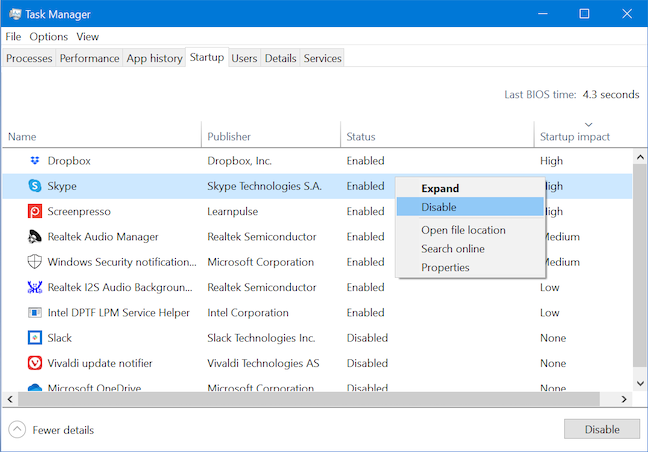
I first attempted to disable it via the startup setting (both in Task Manager and via Settings.) It no longer shows up there, and so cannot be removed. I then went to settings and disabled Skype from running in the background. This appeared to work, but on restart I got a notification that “Skype is now enabled and you are signed in as…”
The background app permission apparently only applies to the System Tray icon.
Ordinarily I would have left it installed and used it periodically. But I’ve just used Add/Remove Programs to uninstall it… We’ll see how long before Microsoft puts it back.
Lixegion ·
To uninstall Skype for Windows 10
Click the start window icon on your taskbar
Type powershell.
Right-click on the Powershell start menu and select “Run as administrator”.
Enter this command: get-appxpackage *skype* | remove-appxpackage
chesscanoe ·
Thanks for tip on stopping Skype Desktop from running after logon. Windows 10 completes the logon process more quickly and without the priority conflict with other starting applications. As an aside, for me Store Skype shows a blue icon on the taskbar when running, and Desktop Skype shows a green icon.
Eddy ·
Thanks! In the Skype version I have they’ve managed to remove the feature to disable form startup, so this was very helpful.
Anonymous ·
Glad to help. Do not hesitate to subscribe to our newsletter, for more useful tutorials.














Discussion (13)
I don’t use skype.
I don’t want skype.
I don’t need Skype.
I don’t use it, so I don’t need it…
I never use Skype and having to deal with Skype on the start up screen every time I boot up is annoying. Using this method to disable Skype showed me what else was running that I had no idea about. My computer is strictly for business and I don’t play any games on it. I had no idea that lots of games were launching on start up and running in the background, eating up memory space! They have all been disabled now. Thank you for the tip.
Glad to help. Do not hesitate to subscribe to our newsletter, for more useful tutorials like this one.
Thanks for this. Disabled autostart from a whole bunch of other useless applications as well in the process.
I don’t use skype.
I don’t want skype.
I don’t need Skype.
It keeps reappearing with every update
I disabled skype mostly, because I don’t need it. Therefore it is just annoying.
It is another distraction that I have to deal with. Now, it took 40 minutes of my time to find how to turn Skype off. It is an App that I turn on when I need it.
Surprisingly (or not) this does not work after the May 2020 update. It may appear to work, however, Skype runs in the background anyway without a system tray icon.
I first attempted to disable it via the startup setting (both in Task Manager and via Settings.) It no longer shows up there, and so cannot be removed. I then went to settings and disabled Skype from running in the background. This appeared to work, but on restart I got a notification that “Skype is now enabled and you are signed in as…”
The background app permission apparently only applies to the System Tray icon.
Ordinarily I would have left it installed and used it periodically. But I’ve just used Add/Remove Programs to uninstall it… We’ll see how long before Microsoft puts it back.
To uninstall Skype for Windows 10
Click the start window icon on your taskbar
Type powershell.
Right-click on the Powershell start menu and select “Run as administrator”.
Enter this command: get-appxpackage *skype* | remove-appxpackage
Thanks for tip on stopping Skype Desktop from running after logon. Windows 10 completes the logon process more quickly and without the priority conflict with other starting applications. As an aside, for me Store Skype shows a blue icon on the taskbar when running, and Desktop Skype shows a green icon.
Thanks! In the Skype version I have they’ve managed to remove the feature to disable form startup, so this was very helpful.
Glad to help. Do not hesitate to subscribe to our newsletter, for more useful tutorials.