



Valve has released a new Steam Deck Beta Client update that changes how the handheld manages Maximum Game Resolution settings. The update does not add a major new feature, but it improves an option that can affect image quality, performance, and external display behaviour.
The most useful change is a new message during game launch. Steam Deck will now show a note when the selected Maximum Game Resolution setting causes a game to run below the native resolution of the connected display. This should make it easier to understand why a game may look softer than expected on a monitor or TV.
The update also moves the Maximum Game Resolution setting to a more visible location in the Steam Deck menus. Instead of being placed inside the Advanced section of Display settings, it is now available directly under Settings and Display.
Steam Deck Now Adjusts Resolution Options for Your Screen Shape
Valve has also changed how the available resolution choices are generated. The Steam Deck will now create options based on the aspect ratio of the connected display.
This can be helpful for people using monitors that do not follow standard 16:9 or 16:10 formats. Ultrawide screens, older displays, portable monitors, and some televisions can use different aspect ratios, and the previous list of choices may not have always been ideal.
Extra choices for uncommon screen formats are still available through a More Options menu.
| Change | What it means |
|---|---|
| Launch screen warning | Steam Deck tells you when a game is launching below the display’s native resolution |
| New settings location | Maximum Game Resolution now appears directly in Settings and Display |
| Aspect ratio based options | Resolution choices better match the connected screen |
| More options menu | Additional resolution settings remain available for unusual displays |
The Update Can Help Avoid Unwanted Image Quality Drops
Maximum Game Resolution controls the highest resolution Steam Deck will offer to a game. It can be useful when you want to reduce GPU load, improve frame rates, lower power use, or prevent a game from rendering at an unnecessarily high resolution.
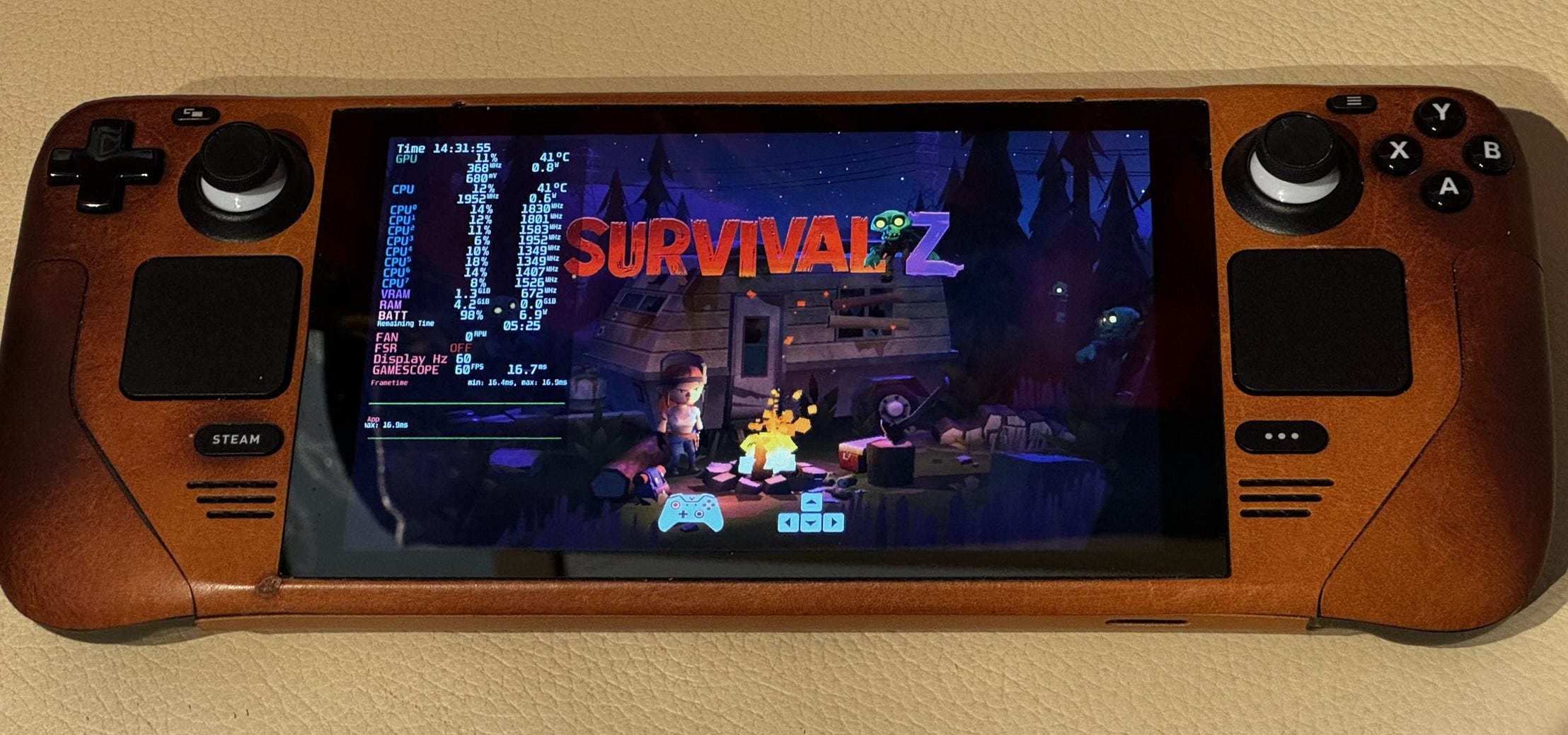
However, it can also cause confusion. A person may set a lower limit to improve performance and later forget that the game is no longer rendering at the display’s full native resolution. On a larger monitor or TV, that can result in a softer image.
The new launch warning should reduce this problem by making the setting more obvious before the game opens. It does not prevent you from using a lower resolution, but it provides a clearer reminder that image quality may be affected.
How to Install the Steam Deck Beta Client Update
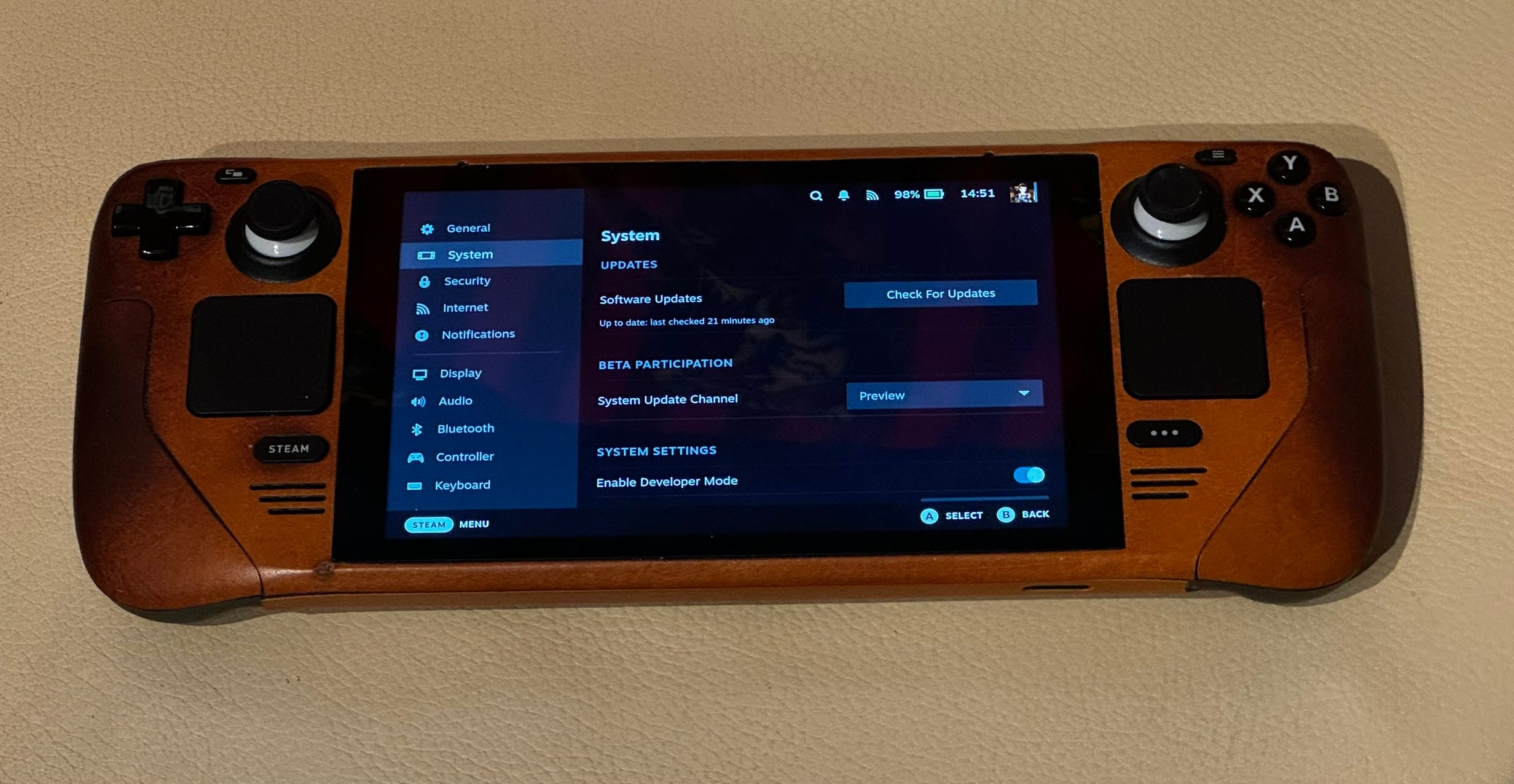
The update is available through the Beta and Preview update channels. To install it, open Settings on the Steam Deck, select System, and change the update channel to Beta or Preview. Then check for available updates and restart the device when prompted.
People using the Stable channel may need to wait until Valve moves the changes into a regular public release.
This is a small update, but it improves one of the Steam Deck settings that matters most for people who regularly connect the handheld to larger displays. The clearer warning and improved resolution list should make it easier to balance performance and image quality without guessing which setting is active.

Discussion (0)
Be the first to comment.