




Keyboard shortcuts let you control your Mac’s power states instantly, without opening menus or touching the mouse. Once you learn the correct key combinations, you can put your Mac to sleep, restart it, or shut it down in seconds, even when apps slow you down.
This guide explains every relevant Mac keyboard shortcut, how they behave on modern Macs, and what to do when they stop working.
Table of contents
Mac keyboard shortcuts for sleep, restart, and shut down
These shortcuts work system-wide on macOS and give you the fastest way to manage power states.
Put a Mac to sleep instantly
Press Control + Command + Q to put your Mac to sleep immediately. macOS pauses apps, dims the screen, and saves power while keeping your session ready to resume.

To turn off only the display, press Control + Shift + Power (or Control + Shift + Eject on older keyboards). The Mac stays awake, but the screen goes dark.
Restart a Mac using a keyboard shortcut
Press Control + Command + Power to restart your Mac. macOS prompts you to save open documents before restarting, which helps prevent data loss.
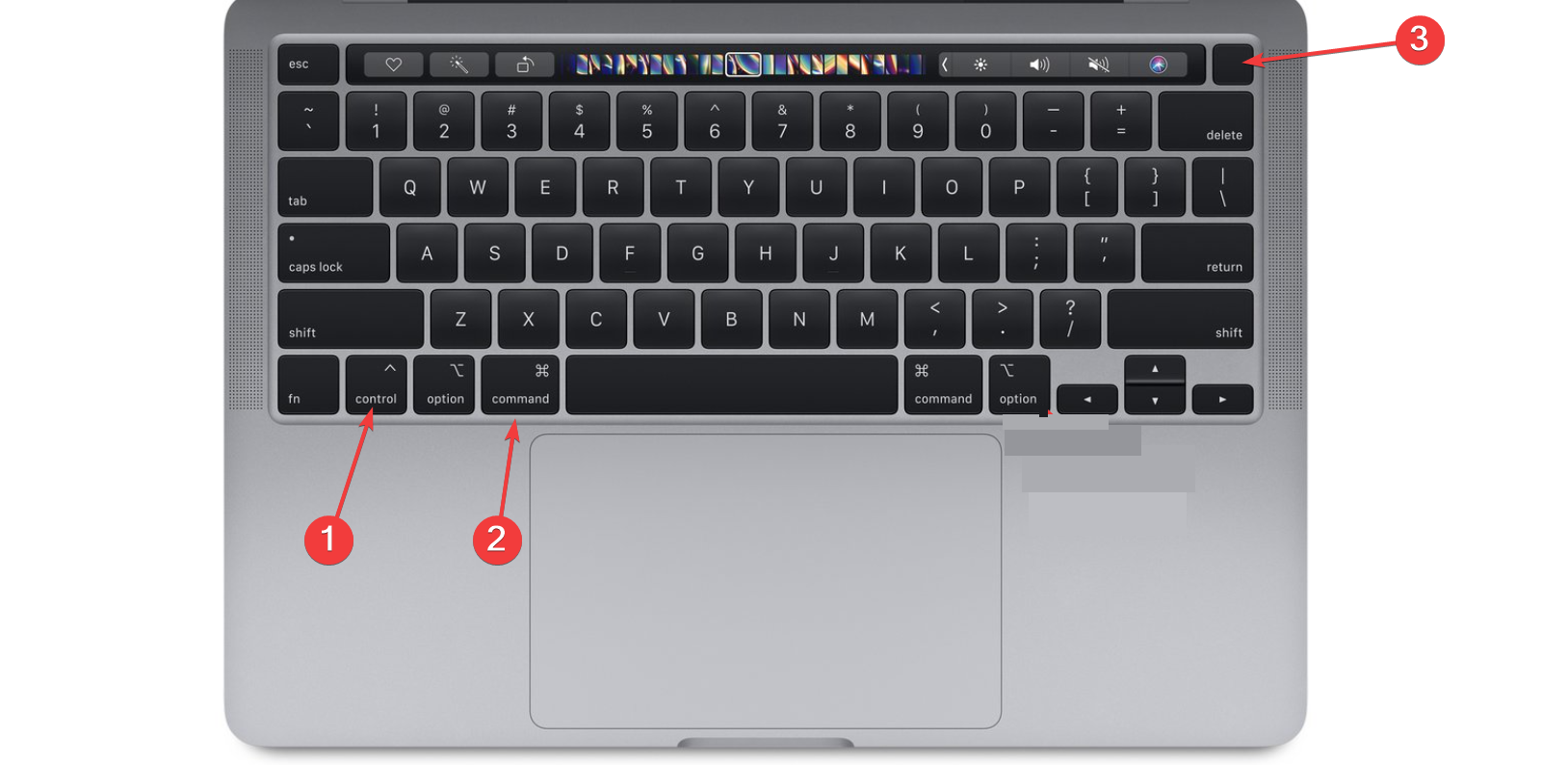
This shortcut works even when Finder menus feel slow or unresponsive.
Shut down a Mac using a keyboard shortcut
Press Control + Option + Command + Power to shut down your Mac immediately. macOS closes all apps and powers off the system without showing confirmation dialogs.

Use this shortcut only when you have already saved your work.
What happens when you hold modifier keys
Modifier keys change how macOS handles power actions. Understanding them helps you avoid surprises.
Skip save dialogs and close apps automatically
Holding Option while choosing Restart or Shut Down skips confirmation dialogs. macOS closes apps right away, so save your work before using modifier keys.
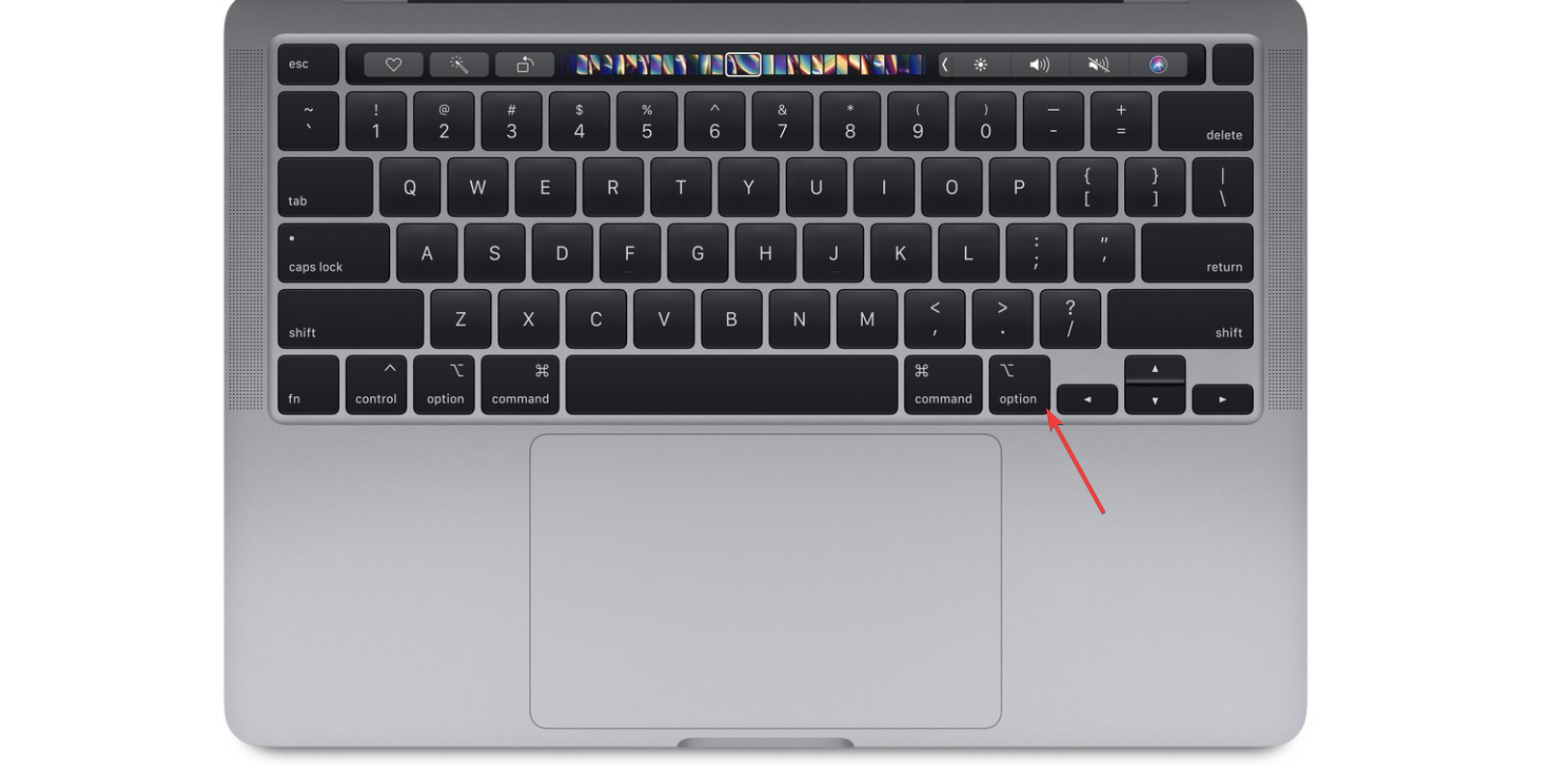
This behavior applies to both menu actions and keyboard shortcuts.
Force actions when the Mac is unresponsive
If macOS freezes, press and hold the Power button for about 10 seconds. The Mac forces a shutdown when software shortcuts no longer respond.
Use forced shutdowns only as a last resort.
Keyboard shortcuts on MacBooks vs desktop Macs
Mac hardware affects how power shortcuts behave, especially on newer laptops.
MacBook behavior with Touch ID and power button
On MacBooks with Touch ID, the power button also acts as the Touch ID sensor. A short press usually locks the screen, while a long press opens the power dialog or forces shutdown.
Keyboard shortcuts still work the same, regardless of Touch ID.
iMac, Mac mini, and Mac Studio differences
Desktop Macs rely on external keyboards, so key placement matters. Compact keyboards may replace the Power key with an Eject or Touch ID key.
macOS treats these keys the same for restart and shutdown shortcuts.
If Mac keyboard shortcuts stop working
When shortcuts fail, the issue usually comes from settings or hardware.
Check keyboard, settings, and accessibility conflicts
Test another keyboard to rule out hardware problems. Open System Settings > Keyboard and confirm no custom shortcuts override power actions.
Accessibility features like Sticky Keys or Slow Keys can also interfere with shortcuts.
Use the Apple menu or power dialog as a fallback
Press Control + Power to open the power dialog. From there, select Sleep, Restart, or Shut Down using the arrow keys and Return.
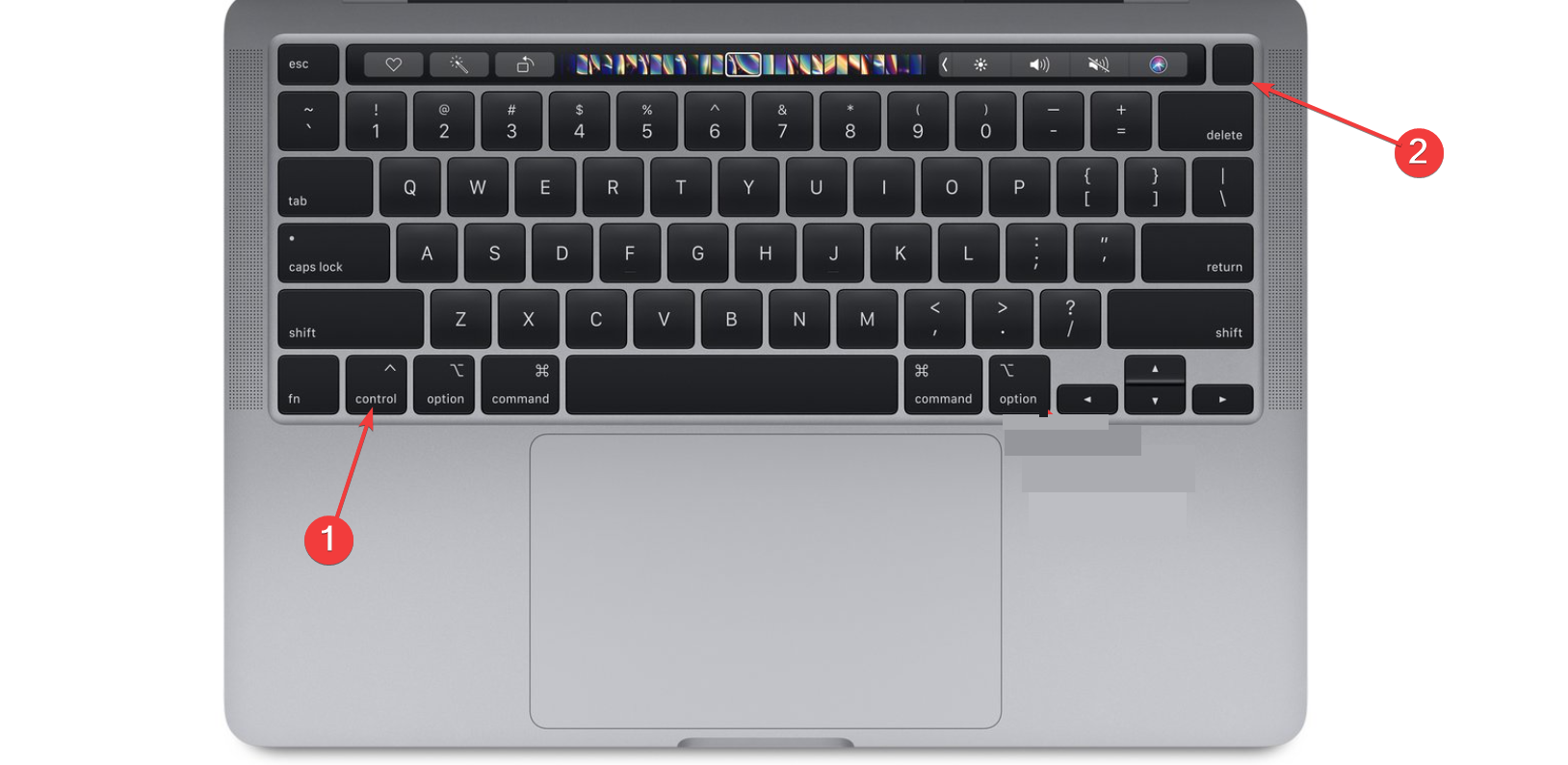
This method works even when Finder menus lag.
Advanced power control tips for macOS
These shortcuts add flexibility for power users and shared environments.
Open the power dialog without using the mouse
Press Control + Power to bring up the shutdown dialog instantly. You can navigate options entirely with the keyboard.
This approach balances speed with safety.
Sleep display without sleeping the Mac
Use the display sleep shortcut when downloading files or running background tasks. The screen turns off, but apps and network activity continue normally.
FAQs
What is the difference between sleep and display sleep on macOS?
Sleep pauses apps and lowers power usage, while display sleep only turns off the screen.
Can you shut down a Mac without saving open apps?
Yes. Use the immediate shut-down shortcut, but save your work first to avoid data loss.
Why does the power button behave differently on newer Macs?
Apple combined the power button and Touch ID, which changed the default press behavior.
Do these shortcuts work the same on all macOS versions?
They work consistently across recent macOS releases, though dialogs may look different.
Summary
- Use keyboard shortcuts to sleep, restart, or shut down a Mac instantly.
- Modifier keys change how macOS handles confirmations and opens apps.
- MacBooks and desktops handle power buttons differently.
- Keyboard and accessibility settings can block shortcuts.
Mastering these shortcuts saves time and keeps Mac power control predictable. Once they become muscle memory, managing sleep, restart, and shutdown feels effortless on any Mac.

Discussion (0)
Be the first to comment.