



If you generally care about your privacy and the protection of your information, then you should also care about your digital life. Nowadays we store an increasing amount of data digitally, and we're sure that you wouldn't like any of that to be compromised. It is well known that you should protect your computers and devices against malware, but what about the security of your online connections and web browsing activity? That's where a VPN service comes in handy: it encrypts your connection, makes you anonymous and possibly even lets you access resources that were previously blocked in your area. Today we review the latest version of ExpressVPN for Windows, one of the most popular VPN services on the web. Read on and learn what it has to offer:
What ExpressVPN 6 has to offer
ExpressVPN is a company based in the British Virgin Islands, a British overseas territory. This means that the company is governed by the laws applicable in British Virgin Islands which, in its turn, means they should be able to offer you a greater level of confidence in terms of privacy than the United States, for example. Another positive feature is that ExpressVPN doesn't log your network traffic at all, which is probably important for many users.
ExpressVPN doesn't come in different versions or editions: when you buy a subscription, you get everything this service offers. The price only depends on the duration of your subscription, as you can get a one-month, a six-month or a one-year subscription, depending on your needs. Previously the company offered VPN service for one device with a subscription: fortunately this has changed and now all subscriptions cover three devices of any type, for which an ExpressVPN app is available.
If you need to use the service on more than three devices, you have two choices: either buy more subscriptions (and get three additional devices covered with each of them), or use the ExpressVPN app for wireless routers, protecting each and every device in your home network. This is a much better offer than the previous one, and most users probably won't need VPN services on more than three devices anyway. Also note that this limit is valid for simultaneously connected devices: you can install ExpressVPN on any number of devices, but only three devices can be connected at any one time.
Would you like to test ExpressVPN before you buy it? Tough luck, they don't offer any free service, not even one that works for just a few days. Still, you have a 30-day money-back guarantee, which can be considered as a one-month test phase: if you don't like what you get, just ask for your money back. There is a free trial available on mobile devices, but currently we are focusing on the Windows version of the application.
As for global coverage, ExpressVPN advertises on its website that they have "over 145 VPN servers in 94 countries around the globe. Each location can have hundreds of servers, with each server containing thousands of IPs". You can check the full list of countries in the program itself and there truly are 94 countries to choose from. These cover Europe, the Americas, Africa, the Middle East, India and Asia Pacific, including Russia as well, which is known to be a difficult country to find a VPN server in.
A nice aspect that we'd like to share is the fact that, when we contacted ExpressVPN's support team, we did it via the live chat option on their website and we were pleasantly surprised that we got someone to talk to in less than 10 seconds. That's a really good support service.
Also, because we're talking about a privacy-related service, it's important to mention that, when you purchase a subscription, ExpressVPN includes a Bitcoin option for payment. If you choose to use it, all you'll have to provide in terms of personal information is an email address. Furthermore, you can use the TOR browser to sign up for the service via a dedicated TOR page, which provides the maximum possible anonymity.
Download and installation
Downloading and installing ExpressVPN on Windows is not a complicated process, but you can't download the application unless you buy a subscription on their website. Once you complete the payment, you receive an email with a link to your setup file, and a note with your activation code, which are required during installation.
You are then able to download the 14.9 MB setup file, called expressvpn_6.1.2.2062.exe. The filename will change with time, as new versions get released.
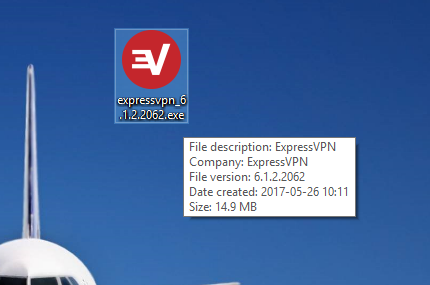
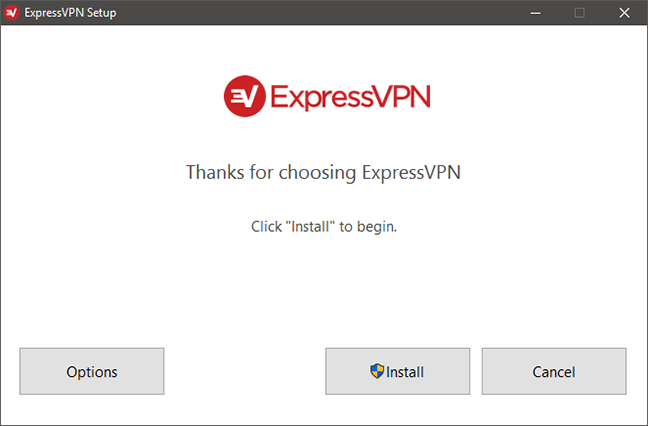
The installation procedure is simple: execute the setup file and click the big Install button. It's worth mentioning that, in order to be able to install ExpressVPN, you'll need administrative privileges.
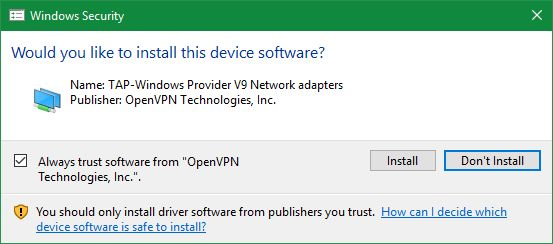
Also, in order for it to function properly, ExpressVPN installs a set of virtual network drivers - TAP-Windows Provider V9 Network adapters. When asked about it, choose Yes to allow the installation, otherwise ExpressVPN won't be able to work.
Note, that if you have other VPN software installed, the virtual network adapters might conflict, thus making one or both VPN applications unusable. It is recommended to have only a single VPN client installed on your Windows computer at any given time.
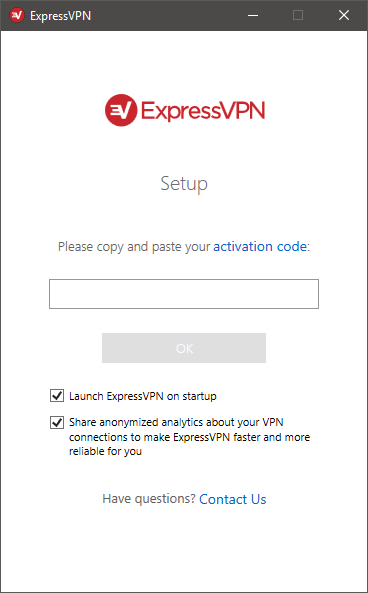
Finally, enter your activation code to complete the installation and start using ExpressVPN.
Our first impressions of ExpressVPN for Windows are quite positive: you get access to a lot of servers, the installation is very simple and you can pay in Bitcoins. It might be strange that you don't get a trial version of the software, but you can get your money back very easily, if you don't like it.
Using ExpressVPN 6 on Windows
If you're looking for an easy to use VPN client, you got it! Once you launch the application you are greeted with the following screen.
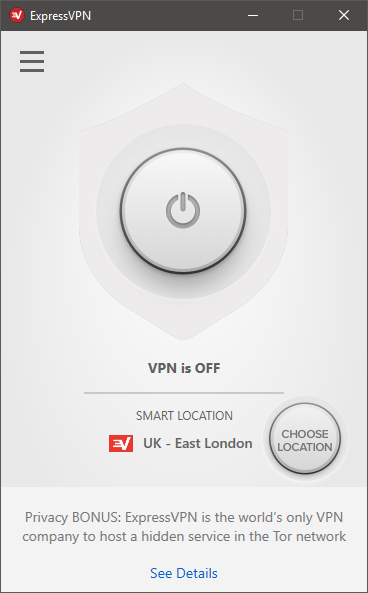
Here, the main focus is the huge on/off button in the center of the application window. Right below that you can see a VPN server recommended for you by ExpressVPN - this automatic selection feature is called Smart location. If you don't need a specific VPN server, just press the large button and initiate the connection to the recommended server.
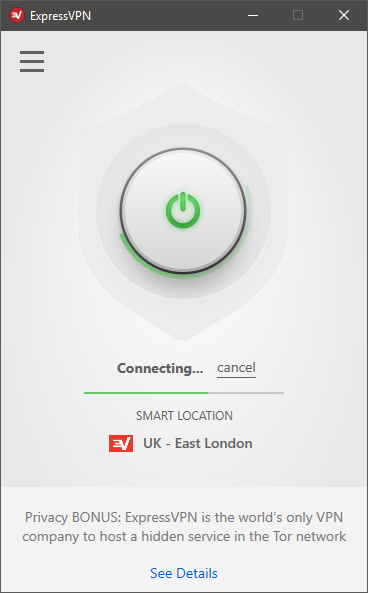
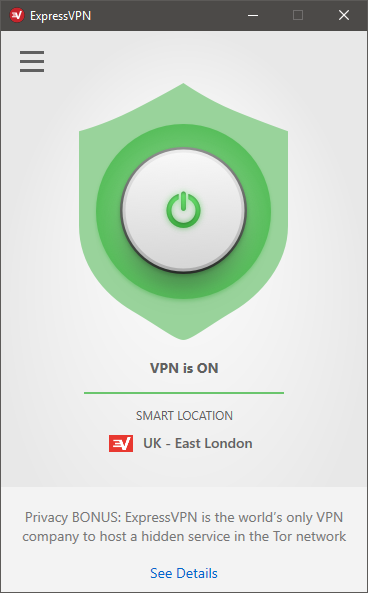
ExpressVPN shows you a quick progress bar for the connection, and once it's established, the shield symbol around the main button turns green. That's it, you're connected to the VPN server! To disconnect, just press the big button again.
Of course, many times you need to connect to a server in a specific country (or even city). That's when the Choose location feature comes handy. Before connecting, click the Choose location button: a window pops up showing the available VPN servers.
On the first tab you see a selection of servers recommended for you. You can either double-click on a country name to connect to a server in that country, or click the small arrow besides the country's name to open a list of servers there. Here you can again double-click on a specific server to connect.
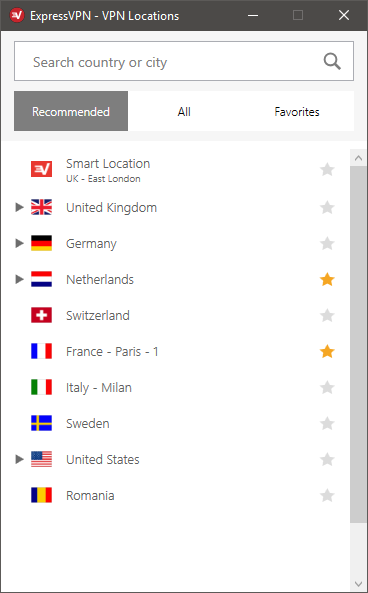
If you need a server from a different country, click the All tab, where every available ExpressVPN server is listed, categorized by continents.
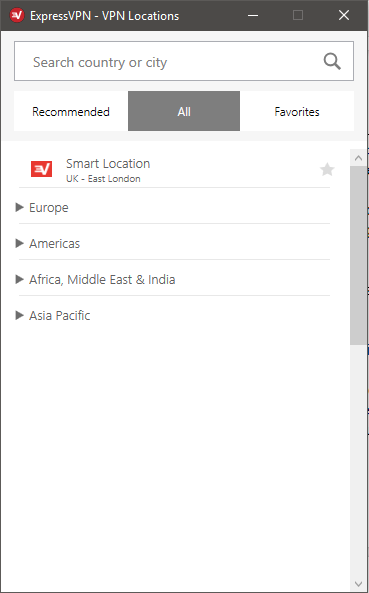
Note that you can choose your favorite countries and servers as well, by clicking the little start icon beside their name. When you set as favorite a country or a server, it appears on the Favorites tab. Here you can also see the three most recent servers you have connected to as well. This is a handy way to store your most used servers in a single place, so you don't need to look them up from a list each time you want to use them.
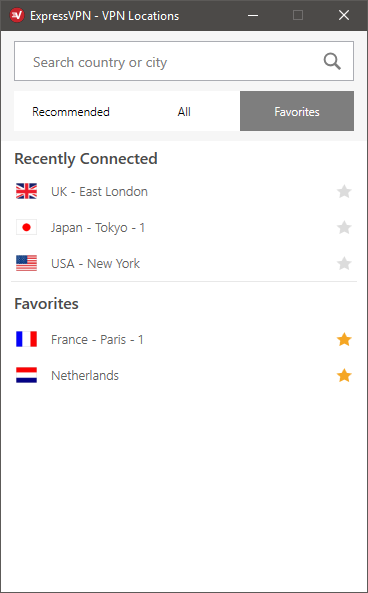
ExpressVPN is very easy to use. If you need a VPN connection to any available server, you just press a button. And, if you have to choose a specific country or city, the Choose location feature is also handy. Also, collecting your favorites into a single place is useful if you use ExpressVPN a lot.
Go to the second page of this review to learn about the advanced features offered by ExpressVPN 6 and the results it obtained in our performance benchmarks. You will also see our final verdict for this product.
Additional features in ExpressVPN 6
ExpressVPN 6 on Windows has some nice additional features that can be useful. These are accessible from the burger menu from the main interface. VPN Locations is the same as the Choose location feature which we have already talked about.
The Speed Test opens a window where you can run a test that measures the speed of the connection between your computer and every VPN server.
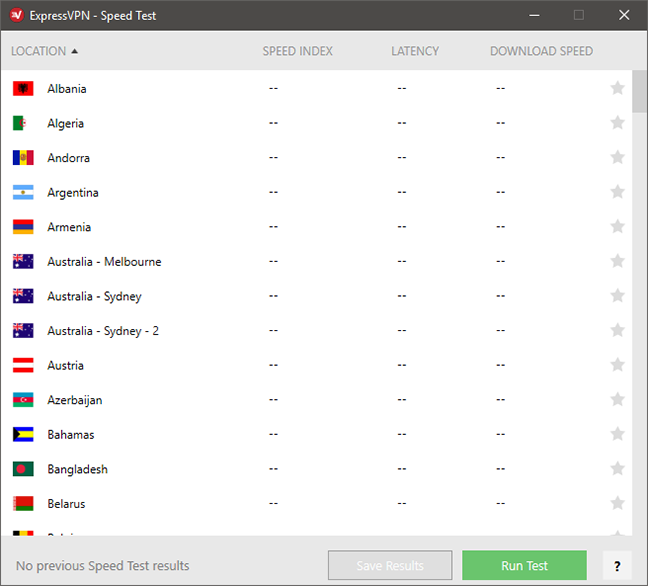
Clicking the Run test button initiates the test, and after a couple of seconds or minutes you receive information about each VPN server. This can help you judge which server to connect to. ExpressVPN recommends that you connect to servers with high speed indices. Note that you can only run the speed test while you are not connected to a VPN server. We have never managed to properly run a speed test, as it always crashed the application, and it could only be restarted after restarting its service or the whole computer.
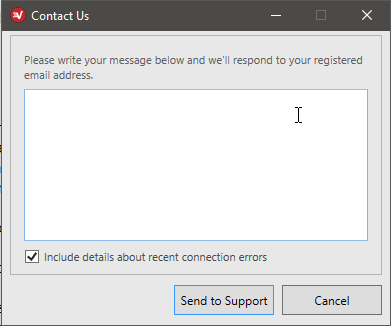
From the Help submenu you can open the ExpressVPN support website and a contact form. The latter can be used to send support messages to the developer team.
From Diagnostics you can view the application's log and save it to a text file, which can be useful for the support team if you are having technical difficulties.
The Get 30 days free menu item opens the ExpressVPN referral program page, where you can invite your friends via email to buy ExpressVPN - for each subscriber you get an additional 30 days of VPN service for free.
ExpressVPN doesn't offer a plethora of additional features like some other VPN services do, so there is no ad-blocking or anti-malware built-in, for example. The Speed test feature is great, if you can get it to work, and the ability to quickly save a log file can come in handy, if you run into problems.
Advanced settings and configuration
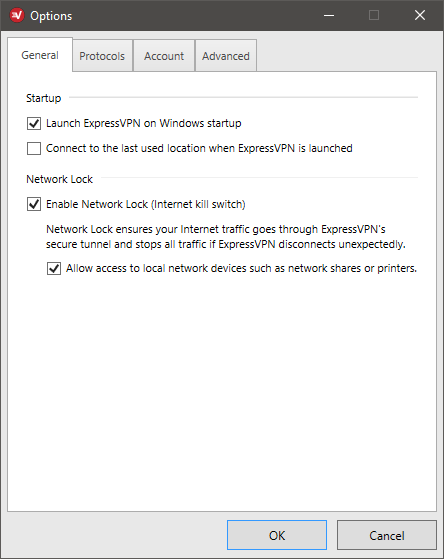
The ExpressVPN application is based on simplicity. It still has some additional settings that can be tweaked, although not much. You can access these from the burger menu, by clicking Options.
On the General tab you can choose to have ExpressVPN start automatically with the operating system, and even connect to the last used VPN server used upon launch. Here you can also enable the Network Lock which is an additional protection feature: if ExpressVPN disconnects unexpectedly, all network traffic is locked. You can choose to be able to connect to devices on the local network though.
The Protocols tab lets you choose between automatic VPN protocol selection or you can select a specific VPN protocol. Choosing anything other than the automatic setting is only recommended for advanced users.
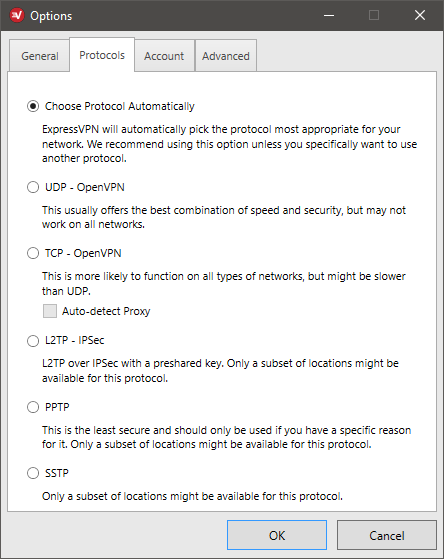
The Account tab offers information about your subscription, lets you log out and provides yet another link to the referral program webpage. On the Advanced tab you can set the application to use only the proprietary ExpressVPN DNS servers, which increases security and you can also allow the application to automatically share anonymous diagnostic data with the developers.
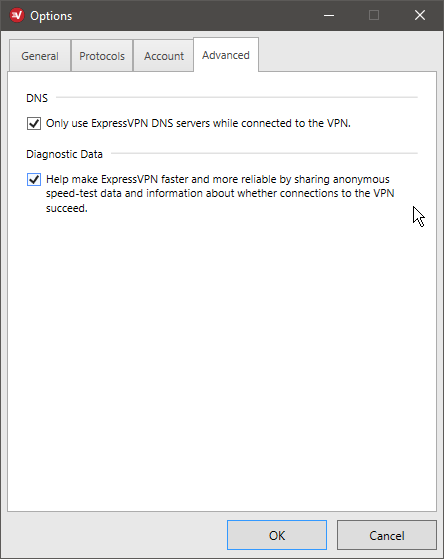
ExpressVPN is simple software: it is not only easy to use, but it doesn't offer much to fine-tune its settings, besides a couple of small tweaks.
Performance and speed
Using a VPN service like ExpressVPN you surely are safer on the internet and your privacy is better protected. But connecting through VPN means that you have to sacrifice some speed, as there is another server involved. You are not directly connected to the internet. In order to check how much ExpressVPN affected our internet connection's speed, we ran a couple of test using the popular Speedtest.net service.
We were using ExpressVPN on a reasonably fast Internet connection, advertised as having a speed of 100 Mbps for both download and upload. The screenshot below shows you the speeds measured by Speedtest.net before installing ExpressVPN on our test computer. Although the speeds are not exactly what the ISP advertises, they are rather close to 100 Mbps.

Next, we used ExpressVPN to establish a connection to a server that is located close by: in the same country as our real location - Romania. In this case, both download and upload speeds have dropped, but less than what happened with other VPN services that we used.

It's time to leave the country: we have now used ExpressVPN with a server that is still on the same continent, but in a different country – Germany, Europe. Speeds have dropped even further, but they are still quite acceptable.

Next, we wanted to know what speed we get if we connect through a server on a different continent, in the United States. The download and upload speeds were usable.

Finally, we went all over to the other side of the world, since Japan is one of the furthest possible points from us. The results were not much of a surprise: the ping reply went out the roof, and download and upload speeds have decayed drastically.

It should go without saying, that no matter what server you use, your download and upload speeds suffer when using a VPN service, because you are no longer directly connected to the internet. It is important to choose a server close to you, if you don't need one from a specific country, as there could be huge variations in speed from server to server. If you have a fast broadband connection, you shouldn't suffer huge speed losses unless you are using a VPN server on the other side of the world.
Default settings you might consider adjusting
There are two things you might consider adjusting when using ExpressVPN:
- By default, ExpressVPN starts automatically with Windows. If you don't always need a VPN service, you might want to disable this behavior.
- The Smart location feature doesn't always choose the fastest server. If you don't need one from a specific country, it's better to choose the closest possible VPN server by clicking on Choose location in the main window.
ExpressVPN doesn't have many settings to tweak, but there are still some nits and bits that you might consider tinkering with, to achieve optimal performance.
Pros and cons
Since ExpressVPN is one of the best VPN applications on the market, it has a lot of great features:
- Incredibly simple and easy to use interface
- It offers fast connections
- Lots of VPN servers to choose from
- Extra security with the Network lock feature
- Zero logging of your network traffic
There are some downsides to ExpressVPN as well:
- A lack of extra features and advanced options for power users
- It is more expensive than other VPN solutions
- It doesn't offer a trial version for Windows
Verdict
The need for VPN services is getting stronger nowadays, with the increase of different kinds of attacks against all kinds of systems and of government surveillance. If you want to have a secure and private connection to the internet, a VPN subscription is a must have.
It is quite clear that ExpressVPN is aimed at less experienced users: it has a simple and clean user interface that we like a lot and many beginners will love. Still, it might be a deal-breaker for the same inexperienced users to pay upfront for a service they don't know much about: a trial version for their Windows client would be a welcome addition. On the whole, ExpressVPN is a solid VPN service: it's fast, reliable, secure and has a lot of servers to choose from, which sets it apart from similar services.
Discussion (6)
here’s a link to their rates btw:
https://www.expressvpn.com/order
It would be nice to see the prices asked at the time of posting. THAT too is a consideration.
I liked this review a lot. The review isn’t a really exhaustive one but offers a good understanding of the product (ExpressVPN) and its features.
However, I would like to mention one thing though: I noticed a small typo in the first page of this article.
Please see this link: https://imgur.com/1LNapWF for more details.
Digital Citizens is doing an awesome job!!
Debroop
Thank you for your feedback. We corrected the typo. 😉
Thanks for the review!
You are welcome.