




Snapchat alerts users when someone screenshots or screen records a Snap, Story, or chat. That privacy system protects users, but it also means most traditional tricks no longer work on iPhone.
At the time of writing, only a few indirect approaches may avoid triggering a screenshot notification. These methods rely on external capture or off-device viewing rather than taking a screenshot inside the Snapchat app.
What Triggers A Screenshot Notification On Snapchat
Snapchat sends alerts when you capture a Snap, Story, or chat using built-in screenshot or screen recording tools. Profile pages, settings, and the Snap Map do not trigger notifications.
Because detection runs at the app level, most on-device workarounds fail after updates.
Use Another Device To Capture The Snap
Using a second phone or camera remains the most reliable option because Snapchat cannot detect external hardware. This method avoids interacting with screenshot features on the iPhone itself.
- Open Snapchat and load the Snap you want to save.
- Use another phone or camera to photograph or record the screen.
- Replay the Snap once if needed to ensure full capture.
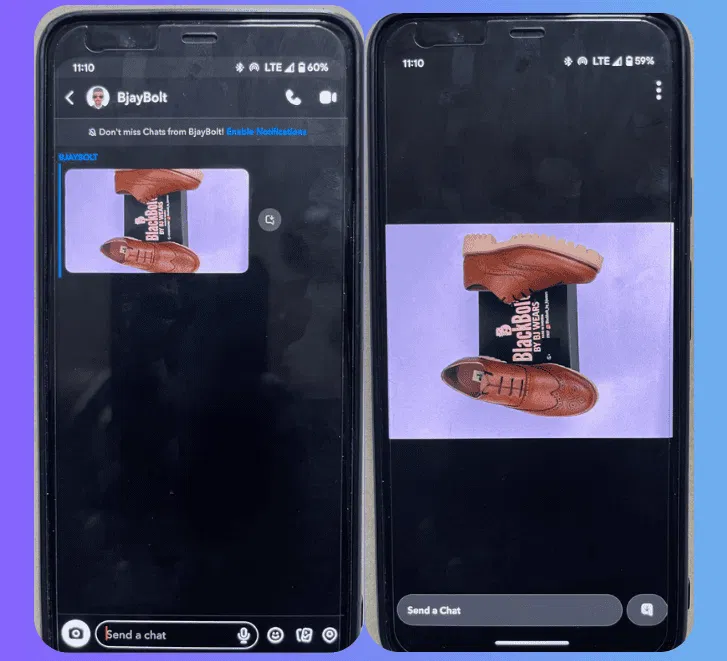
Image quality depends on the second device and lighting conditions.
Mirror Your iPhone Screen To A Computer And Record There
Screen mirroring sends your iPhone display to a Mac or PC, where recording occurs outside Snapchat. Detection varies by setup and software.
- Start screen recording on your computer.
- Mirror your iPhone screen to that computer.
- Open Snapchat and view the Snap.
- Stop recording after closing the Snap.
This approach can preserve higher quality, but it may stop working if Snapchat updates detection.
View Snapchat On The Web And Record The Screen
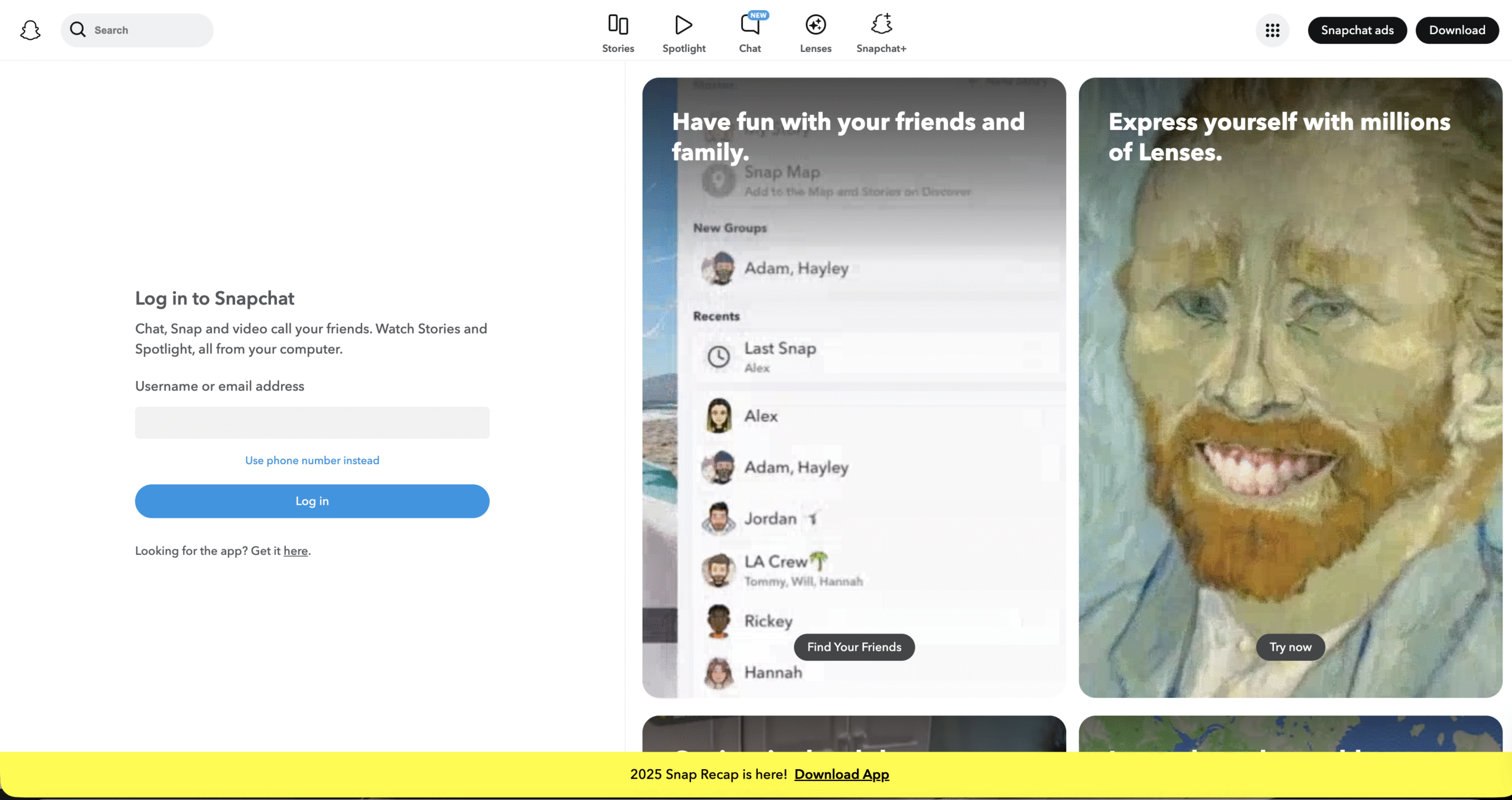
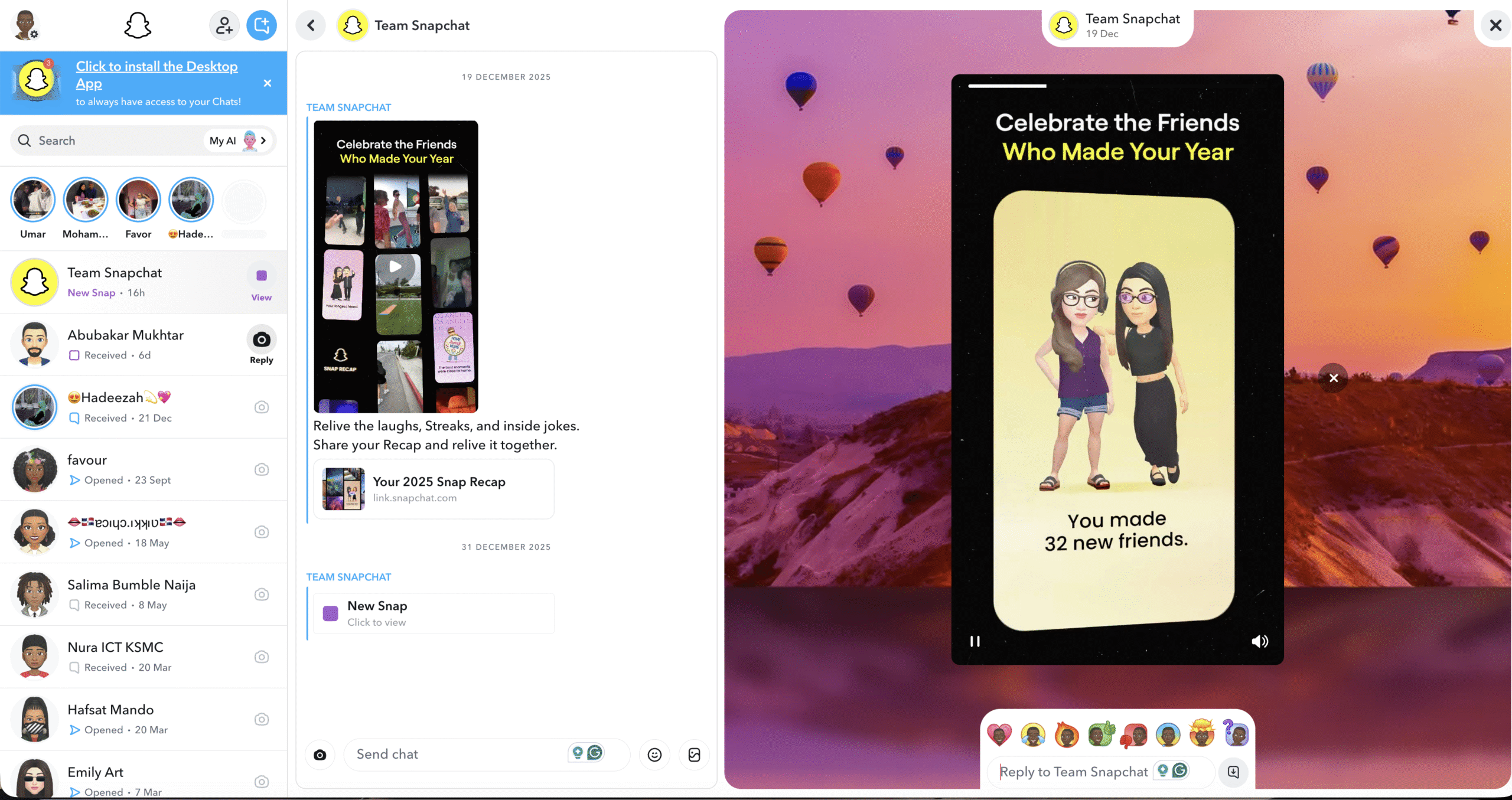
Snapchat Web allows access to chats and Snaps in a browser. Some desktop screen recording tools may not trigger alerts because the capture happens outside the mobile app.
- Sign in to Snapchat Web on a computer.
- Start screen recording at the system level.
- Open the Snap and let it play.
- Stop recording after viewing.
Results vary by browser and operating system, and detection rules can change.
Methods That No Longer Work Reliably
Snapchat regularly closes loopholes that once bypassed alerts. The following approaches typically trigger notifications now.
- iPhone screen recording.
- Airplane Mode before screenshotting.
- Clearing app cache after capture.
- Third-party screen recording apps.
- iPhone mirroring screenshots taken directly from macOS tools.
Troubleshooting Common Problems
If a notification still appears, Snapchat likely detected an in-app capture event. Updates can change detection behavior without notice.
Logging out, reinstalling the app, or changing devices does not remove screenshot alerts retroactively.
Tips
- Assume Snapchat may update detection at any time.
- Test methods only with content you own or have permission to save.
- Avoid on-device screenshots or recordings.
- Check what areas trigger alerts before capturing anything.
FAQ
Does Snapchat notify screenshots of profiles or the map?
No. Notifications apply to Snaps, Stories, and chats only.
Can I disable screenshot notifications in Snapchat?
No. Screenshot alerts are a built-in privacy feature.
Is screen recording treated the same as a screenshot?
Yes. Snapchat sends alerts for both.
Do these methods always work?
No. Snapchat can change detection at any time.
Summary
- Snapchat alerts users when in-app screenshots or recordings occur.
- External capture methods may avoid detection.
- Most older tricks no longer work.
- Results depend on updates and setup.
Conclusion
Snapchat’s screenshot detection is designed to protect user privacy. While indirect capture methods may work at the time of writing, they are never guaranteed. Always use caution and respect consent when saving content.



Discussion (0)
Be the first to comment.