



A Samsung T9 missing from File Explorer is not necessarily missing from Windows. First check its USB connection, then whether password protection is locking the full-capacity volume. Only after that should you inspect its drive letter.
Check the cable and security software
Connect the T9 directly to another USB port using a suitable data cable. Avoid a hub for this test. Samsung’s Portable SSD troubleshooting recommends connection checks before service.
If security is enabled, a locked Portable SSD can expose only a small software volume. That does not mean the rest of its capacity has disappeared. Use the compatible Samsung Portable SSD software or Samsung Magician from Samsung’s official tools page to unlock it. Do not download an alleged unlocker from an unrelated site.
Look in Disk Management without changing the disk
- Right-click Start and open Disk Management with administrator permissions.
- Identify the external SSD by its expected capacity and connection. Do not assume that a particular disk number always belongs to it.
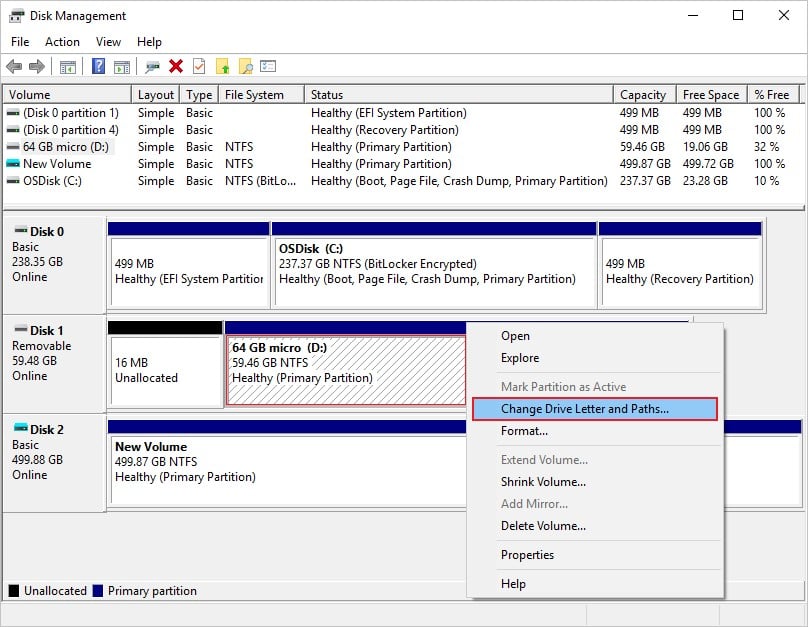
- If an existing, accessible, healthy data volume has no letter, right-click that volume and select Change Drive Letter and Paths > Add.
- Choose an unused drive letter, confirm, and check File Explorer again.
This is the narrow case covered by Microsoft’s drive-letter instructions. Do not change the letters of Windows or application partitions. If the T9 shows RAW, unallocated space, an inaccessible volume, or a disabled option, stop rather than initializing or formatting it.
Protect the data while narrowing the fault
Try another computer if available. If the drive unlocks and opens there, copy important files before further troubleshooting on the original PC. If it fails on multiple known-working ports and cables, contact Samsung with the model, capacity, software version, and exact status shown by Windows.
A newly visible drive letter is only the first confirmation. Open a known file and verify that it is intact. Do not accept a format prompt merely to make the drive appear in Explorer.
Featured image: AI-generated illustration of representative equipment, not an exact product photograph or a hands-on test.
Discussion (0)
Comments are closed.