ASUS RT-AC56U is the successor of the highly popular ASUS RT-N56U - which was both a great performer and a best seller. We were very curious to learn what the new model had offer, if it delivered better performance and more features. Is the new model a worthy replacement for ASUS RT-N56U? We have used and tested the ASUS RT-N56U Wireless-AC1200 router for 10 days and here's what we have learned:
Unboxing the ASUS RT-AC56U Router
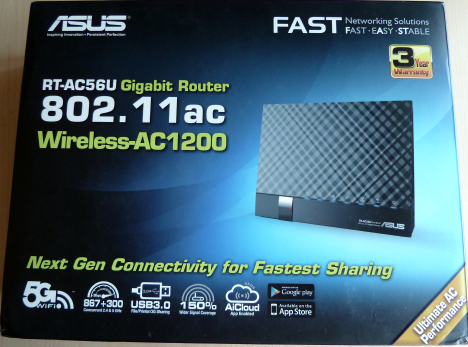
The packaging of the ASUS RT-AC56U is the same as that of other routers from ASUS. The box uses the same design and does a good job of advertising the main characteristics of the router.
ASUS RT-AC56U, wireless, ac1200, router, 2.4GHz, review, performance, benchmarks
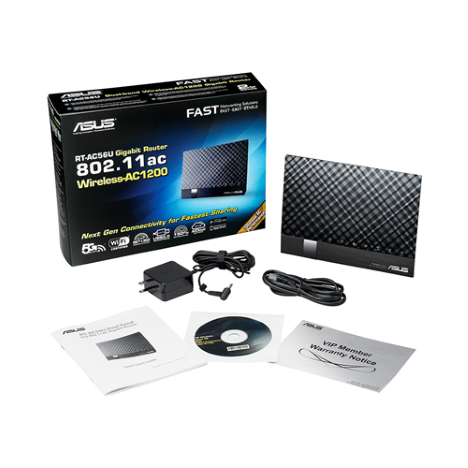
Inside the box you will find the router itself, the power adapter, the warranty, a quick setup guide, an Ethernet network cable, plus a support disc with the user manual and several utilities.
ASUS RT-AC56U, wireless, ac1200, router, 2.4GHz, review, performance, benchmarks
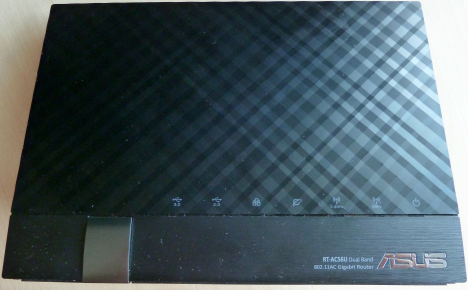
As you can see from the picture above, the ASUS RT-AC56U doesn't have any external antennas like most recent routers from ASUS. Does this impact its performance in any way? We were very curious to learn but for the time being, let's take a look at this router's hardware specifications.
Hardware Specifications
As its name implies, ASUS RT-AC56U Wireless-AC1200 offers support for the modern 802.11ac wireless networking standard, this being the first feature that makes it stand out from its predecessor. Its maximum theoretical throughput of 300 Mbps on the 2.4GHz wireless network and a maximum of 867 Mbps on the 5 GHz wireless network.
The router has 4 internal antennas (2 for each band), a Broadcom BCM4708A0 dual-core processor running at 800MHz (the same as its more expensive brother - ASUS RT-AC68U), 256 MB of RAM and 128MB of storage space.
ASUS RT-AC56U, wireless, ac1200, router, 2.4GHz, review, performance, benchmarks
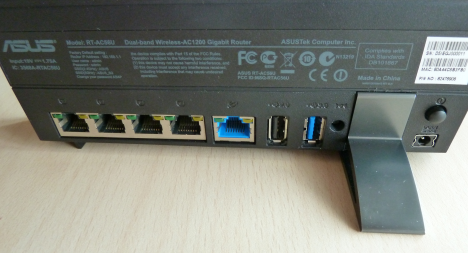
On the back of the router you will find two USB ports: one USB 3.0 and one USB 2.0.
ASUS RT-AC56U, wireless, ac1200, router, 2.4GHz, review, performance, benchmarks
The router has support for all the modern types of Internet connections, all the types of encryption, VPN support, WPS support and all the other features you would expect from a modern router.
You can read the details specifications here: ASUS RT-AC56U specifications.
Setting Up & Using the ASUS RT-AC56U Router
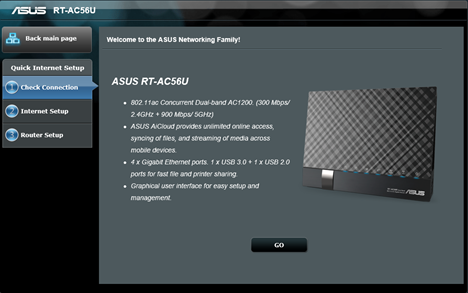
Setting up the ASUS RT-AC56U router is just as easy as setting up other ASUS routers. Plug in its power adapter, then the Internet connection cable from your Internet provider, turn on the router, connect the router to your computer using the bundled Ethernet cable and start your favorite browser.
Go to 192.168.1.1 or https://router.asus.com and follow the setup wizard.
ASUS RT-AC56U, wireless, ac1200, router, 2.4GHz, review, performance, benchmarks
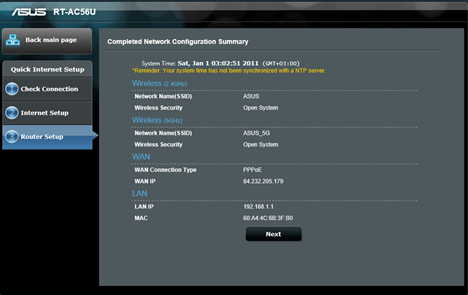
The wizard will automatically detect the type of Internet connection you are using and ask for the necessary connection details. During the setup you are asked to set a password for the router and also to set the wireless connections that will be made available. When done, you will be given the chance to review your configuration and see how you have set everything.
ASUS RT-AC56U, wireless, ac1200, router, 2.4GHz, review, performance, benchmarks
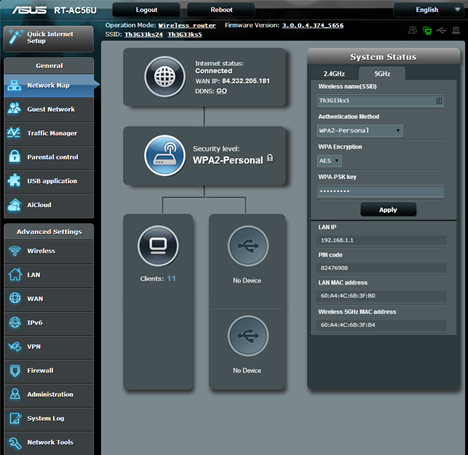
Since the firmware is the same as the one used on other modern ASUS routers, the interface used for the ASUS RT-AC56U router isn't any different. We find it well organized and easy to use, even for those who are not that familiar with ASUS routers. If you have used an ASUS router in the past you have the added bonus that you can import your old router's settings into the new one, so that you don't start the whole setup from scratch. Only the settings for the features that still exist in the new router are imported so there's little chance for you to screw things up.
ASUS RT-AC56U, wireless, ac1200, router, 2.4GHz, review, performance, benchmarks
When testing this router, we have used the latest firmware version that was available - 3.0.0.4.374_5656. The firmware offers very detailed controls for just about everything that's related to this router's functioning, so geeks and IT professionals will have no issues in making it work as they want to. Also, the defaults are generally set well and most users won't need to change its settings in order to get good performance. Only those that want the maximum possible performance will need to tweak this router's settings in more detail.
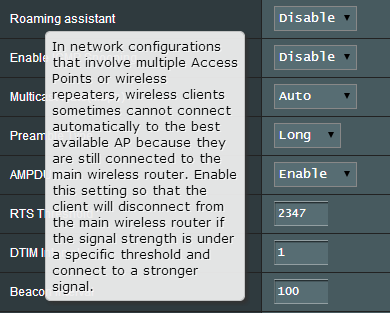
While fiddling with its settings, we discovered that this router has a Roaming assistant that you can enable. This helps when you have a range extender and other devices of this type that extend the range of your network. With this feature you can set wireless clients to disconnect from the router and allow them to connect to the range extender instead, when their wireless signal strength goes below a certain value.
ASUS RT-AC56U, wireless, ac1200, router, 2.4GHz, review, performance, benchmarks
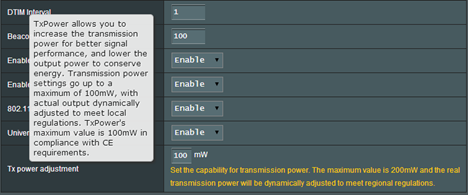
Another interesting feature that we discovered is the Tx power adjustment which allows you to increase the transmission power so that you get a better signal if you are encountering problems with the signal strength.
ASUS RT-AC56U, wireless, ac1200, router, 2.4GHz, review, performance, benchmarks
In terms of language support, things are looking great as ASUS offers the firmware in 22 languages, from English to Romanian or Malay.
ASUS RT-AC56U, wireless, ac1200, router, 2.4GHz, review, performance, benchmarks
We were satisfied by the quick setup process and with the way this router worked. We did not encounter any pesky bugs or issues so we went on to our performance testing. Let's see what we have learned.
Wireless Network Performance
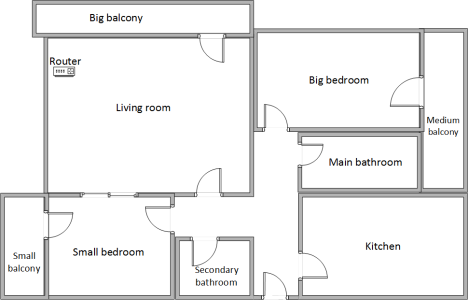
First, let's take a look at the apartment we used in our testing and how it is set up. You can see that the router is placed in the living room. Also, please note the rooms that are farther from the router.
ASUS RT-AC56U, wireless, ac1200, router, 2.4GHz, review, performance, benchmarks
In all our measurements we have compared ASUS RT-AC56U to its predecessor ASUS RT-N56U, its more expensive brother ASUS RT-AC68U and Linksys Smart Wi-Fi EA6900 (the second most expensive router from Linksys). Our testing was done using a very fast 1 Gigabit Internet connection.
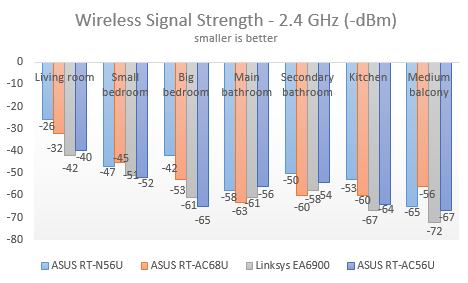
We measured the strength of the wireless signal across the apartment, using inSSIDer. Below you can see how the signal strength evolves from room to room.
We were a bit surprised to see that the signal strength for the 2.4 GHz wireless network was not better than that of of its predecessor - ASUS RT-56U. ASUS RT-AC56U managed to outperform only Linksys EA6900.
ASUS RT-AC56U, wireless, ac1200, router, 2.4GHz, review, performance, benchmarks
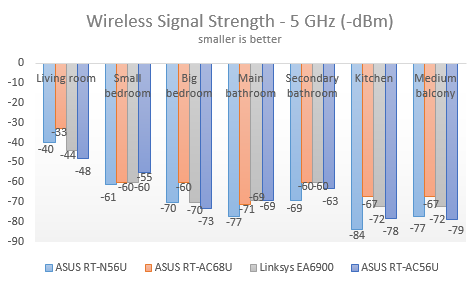
Then we measured the signal strength for the 5GHz wireless network. Here the situation was better as ASUS RT-AC56U managed to beat its predecessor in some rooms.
ASUS RT-AC56U, wireless, ac1200, router, 2.4GHz, review, performance, benchmarks
At this point we started fiddling with the Tx power adjustment setting and we increased the power to the maximum - 200mW. After doing this we noticed a 10% increase in signal strength. However, we were not worried as we knew that the signal strength is not a real indicator of how fast the wireless connection actually is.
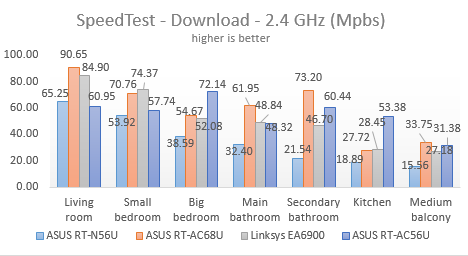
We measured how fast the download speed was using SpeedTest. ASUS RT-AC56U managed to beat its predecessor in all the rooms of our apartment. In some rooms it was the fastest router we tested so far.
ASUS RT-AC56U, wireless, ac1200, router, 2.4GHz, review, performance, benchmarks
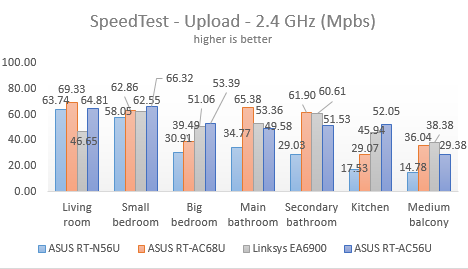
In terms of upload speed, the same trend was noticed - ASUS RT-AC56U provides a good speed increase over its predecessor.
ASUS RT-AC56U, wireless, ac1200, router, 2.4GHz, review, performance, benchmarks
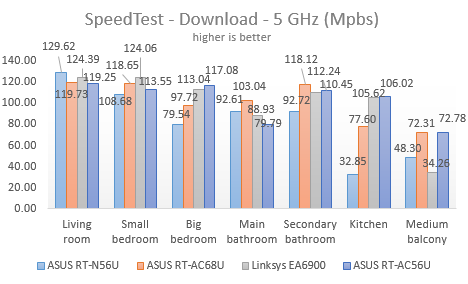
Then, we measured the speed provided by the 5GHz wireless network. As you might expect, the download speeds were much better than when using the 2.4 GHz frequency. ASUS RT-AC56U was generally faster than its predecessor in all the rooms except the one where the router was placed. In the rooms that were further away from the router, it managed to provide download speeds similar to that of more expensive routers.
ASUS RT-AC56U, wireless, ac1200, router, 2.4GHz, review, performance, benchmarks
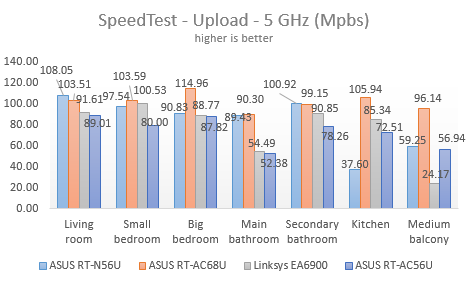
When using the 5GHz wireless network, the upload speed is not a strength of the ASUS RT-AC56U. It got outperformed by its predecessor almost in every every room.
ASUS RT-AC56U, wireless, ac1200, router, 2.4GHz, review, performance, benchmarks
ASUS RT-AC56U provides faster downloads and a better coverage for the wireless network than its predecessor - ASUS RT-N56U. However, the upload speed on the 5GHz wireless network is slower than what we have expected.
Wired Network Performance
In order to test the quality of the wired Ethernet connection, we have used a desktop PC, equipped with an eight-core processor, 8GB of RAM and a very fast ADATA SX900 SSD drive, as well as an old laptop with a quad-core processor and an SSD drive from RunCore.
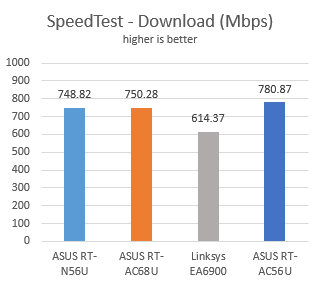
First, we measured the download and upload speeds using SpeedTest. ASUS RT-AC56U performed very well and offered the best download speed we have achieved in this test - 780.87 Mbps.
ASUS RT-AC56U, wireless, ac1200, router, 2.4GHz, review, performance, benchmarks
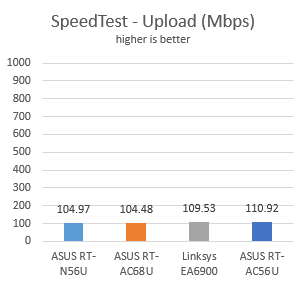
In terms of upload speed, ASUS RT-AC56U was again the top performer, offering a maximum speed of 110.92 Mbps.
ASUS RT-AC56U, wireless, ac1200, router, 2.4GHz, review, performance, benchmarks
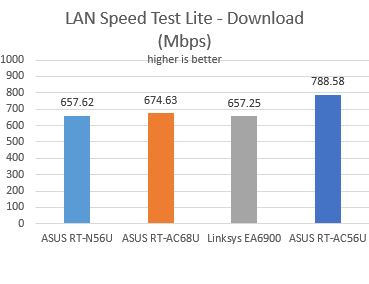
Then, we used LAN Speed Test Lite to measure the download and upload speeds when transferring a 350 MB file to and from two computers connected to the network via Ethernet cables.
Again, ASUS RT-AC56U delivered a stellar performance, proving to be the faster router in our testing.
ASUS RT-AC56U, wireless, ac1200, router, 2.4GHz, review, performance, benchmarks
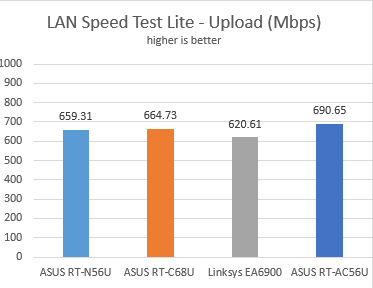
The same is true regarding the upload speed over the network.
ASUS RT-AC56U, wireless, ac1200, router, 2.4GHz, review, performance, benchmarks
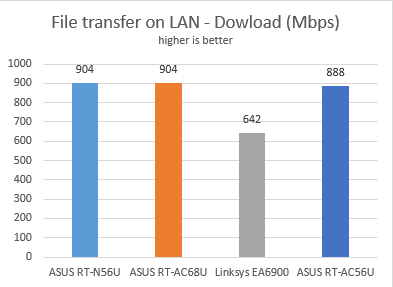
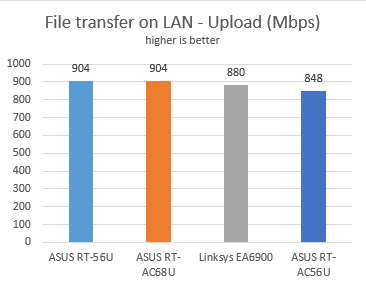
As a final test, we transferred an 883 MB file across the network, between the same two computers.
When downloading the file from another computer, ASUS RT-AC56U delivered transfers of 888 Mbps.
ASUS RT-AC56U, wireless, ac1200, router, 2.4GHz, review, performance, benchmarks
When uploading that file to another computer, ASUS RT-AC56U delivered transfers at 848 Mbps - 6% less than the top performing routers.
ASUS RT-AC56U, wireless, ac1200, router, 2.4GHz, review, performance, benchmarks
In terms of wired Ethernet connections, ASUS RT-AC56U delivers great results. In some of our tests, it managed to be the fastest router we have tested thus far. When it was slower than other routers, it was slower by a small margin.
Extra Features
One of the things that we appreciate about ASUS routers is that the firmware is the same on all their recent models. This means that you get access to the same great features, even if you have purchased a more affordable model like ASUS RT-AC56U. The difference between models is generally made by their hardware configuration and how much performance they deliver.
ASUS RT-AC56U boasts some great features like:
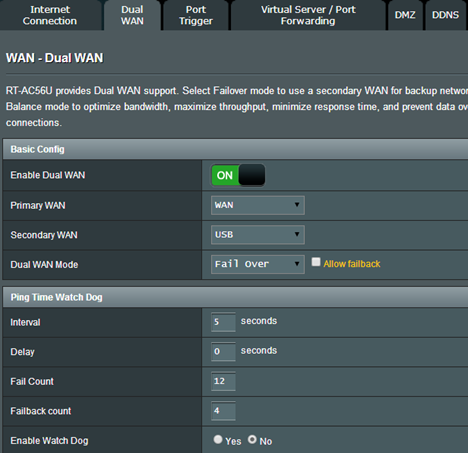
Dual WAN - very useful for both small businesses and professionals that require always-on Internet connections. You can also use a dual WAN to improve the quality of your Internet connection and get the best possible performance. Gamers might also love this.
ASUS RT-AC56U, wireless, ac1200, router, 2.4GHz, review, performance, benchmarks
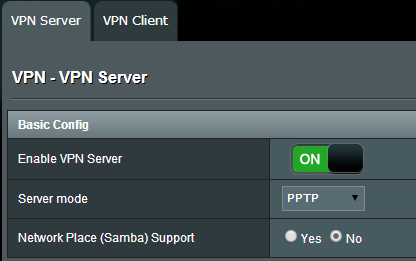
VPN server - you can set the router to work as a VPN server and you can also use it to turn your network-connected devices into VPN-enabled clients via OpenVPN, PPTP and L2TP protocols without additional VPN software required.
ASUS RT-AC56U, wireless, ac1200, router, 2.4GHz, review, performance, benchmarks
ASUS AiCloud - with the help of this app, you can access the folders shared in your home network from your Android or iOS smartphone, from anywhere on the Internet. The only downside is that this app doesn't have a Windows Phone version.
Guest network - you can set up a guest wireless network that provides Internet access for your guests but restricts access to your network devices.
Parental Controls - these are basic controls that allow you to set when a network device can access the Internet and when it cannot. The router doesn't ban network access, only Internet access.
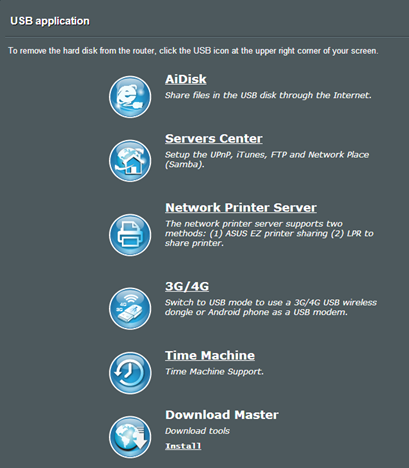
You have also access to applications that allow you to work with USB devices like printers, external hard drives or 3G/4G modems.
ASUS RT-AC56U, wireless, ac1200, router, 2.4GHz, review, performance, benchmarks
ASUS offers lots of features on this router and other manufacturers tend to offer less at the same price point.
Product rating4/5
Verdict
ASUS RT-AC56U is a worthy successor to the best selling ASUS RT-N56U. Even though it is not faster than its predecessor in all scenarios (e.g. the upload speed on the 5GHz wireless network), it manages to deliver better coverage for the wireless network, better download speeds, more features, and faster wired connections. Overall, it is a good deal for users who want a reasonably priced router that offers support for the latest networking standards, good speed, modern features and lots of customization options.
I have logged into to the RT-N56U but unable to see any where the word Guest – does this particular model not have Guest settings?
Anders ·
I had hoped that my kids and their friends could use the guest network to play games on LAN with each other. But the clients on the guest network are separated and can only access Internet (not each other over LAN). Is there any way to change this so that the guest client can access each other?
Mark ·
Since they are all on same LAN, on the guest network page there is an option Access Intranet – be sure that this is enabled. If it’s set to disable they will only be able to access the internet and not the LAN side (intranet).
Anders ·
If I do that, then the clients on the guest network can access the _whole_ intranet. I want the clients on the guest network to be able to access the other clients on the guest network. The clients on the guest network should not be able to access the main LAN as it currently behaves. Is this behavior a router software bug?
Chas ·
I’ve had the N56U for the last couple years or so. I’ve read that there may be some security vulnerabilities. What should I do? How do I tell if my router has been hacked or others are bootlegging on my router?
Thanks.
Deanna ·
I have an Rt-ac56u, my daughter lives about 250 feet away from my house and doesn’t get much of a signal, can anyone tell me what kind of range extender would be compatible?
Anders ·
I bought a rt-ac56u today to be able to provide a guest network in my house. I activated the guest network and activated password to login to this guest network. After connecting to the guest network, I can still access my whole LAN. Anyone with the same problem who knows how to fix it?
Ciprian Adrian Rusen ·
I have the exact same router at home. Log in to the router’s admin page and go to Guest. There you will find a setting that says “Access Intranet”. Set it to Disable.
Anders ·
Thank you! (I misread it as “Internet” so I set that one to “Enable”)
snakes ·
hello i want use this device as repeater can i do this? i docent found information
Ciprian Adrian Rusen ·
Yes, you can use it as a repeater.
Daniele ·
I have 2 RT-N66U and both have issue with the 5GHz, often my Lumia 1520 and 930 loose the connection (it happen sometimes with the Ativ Smart PC) and the 5GHz coverage is less then the 2.4GHz
Ciprian Adrian Rusen ·
RT-N66U is a member of the old family or ASUS routers, designed for the 802.11n wireless networking standard. ASUS RT-AC56U is designed for the latest 802.11ac standard, it has newer hardware (e.g. a dual-core processor, instead of a single-core one) and more features.
I have used multiple Lumia smartphones with it and a Samsung Ativ S smartphone and none of them had issues with connecting to the wireless network. Also, I have not witnessed any issues with lost connections.
The maximum number of devices that I connected to the network was 12: Xbox One and PS3 consoles, PCs, tablets, wireless printers and smartphones.































Discussion (13)
I have logged into to the RT-N56U but unable to see any where the word Guest – does this particular model not have Guest settings?
I had hoped that my kids and their friends could use the guest network to play games on LAN with each other. But the clients on the guest network are separated and can only access Internet (not each other over LAN). Is there any way to change this so that the guest client can access each other?
Since they are all on same LAN, on the guest network page there is an option Access Intranet – be sure that this is enabled. If it’s set to disable they will only be able to access the internet and not the LAN side (intranet).
If I do that, then the clients on the guest network can access the _whole_ intranet. I want the clients on the guest network to be able to access the other clients on the guest network. The clients on the guest network should not be able to access the main LAN as it currently behaves. Is this behavior a router software bug?
I’ve had the N56U for the last couple years or so. I’ve read that there may be some security vulnerabilities. What should I do? How do I tell if my router has been hacked or others are bootlegging on my router?
Thanks.
I have an Rt-ac56u, my daughter lives about 250 feet away from my house and doesn’t get much of a signal, can anyone tell me what kind of range extender would be compatible?
I bought a rt-ac56u today to be able to provide a guest network in my house. I activated the guest network and activated password to login to this guest network. After connecting to the guest network, I can still access my whole LAN. Anyone with the same problem who knows how to fix it?
I have the exact same router at home. Log in to the router’s admin page and go to Guest. There you will find a setting that says “Access Intranet”. Set it to Disable.
Thank you! (I misread it as “Internet” so I set that one to “Enable”)
hello i want use this device as repeater can i do this? i docent found information
Yes, you can use it as a repeater.
I have 2 RT-N66U and both have issue with the 5GHz, often my Lumia 1520 and 930 loose the connection (it happen sometimes with the Ativ Smart PC) and the 5GHz coverage is less then the 2.4GHz
RT-N66U is a member of the old family or ASUS routers, designed for the 802.11n wireless networking standard. ASUS RT-AC56U is designed for the latest 802.11ac standard, it has newer hardware (e.g. a dual-core processor, instead of a single-core one) and more features.
I have used multiple Lumia smartphones with it and a Samsung Ativ S smartphone and none of them had issues with connecting to the wireless network. Also, I have not witnessed any issues with lost connections.
The maximum number of devices that I connected to the network was 12: Xbox One and PS3 consoles, PCs, tablets, wireless printers and smartphones.