



Xiaomi is famous for its smartphones and very few western users know that the company makes many other products, including a couple of wireless routers. We recently got our hands on a Xiaomi Mi Router 3. This WiFi router costs less than 40 USD, and it looks like a premium device. But is it any good at networking? To find out the answer to this question, read our review:
Xiaomi Mi Router 3 AC1200: Who is it good for?
Xiaomi Mi Router 3 is a suitable choice for:
- Small-sized apartments and networks with a small number of devices
- People with a very low budget
- Users who do not have internet connections that are faster than 100 Mbps
- People who value good-looks more than networking features and performance
NOTE: We received the Xiaomi Mi Router 3 AC1200 wireless router for testing, from Gearbest.com. It is an online shop that offers excellent prices and international free shipping. You can buy this router at a discount price, from here.
Pros and cons
Xiaomi Mi Router 3 has the following positives:
- The price is very affordable
- It looks great
- It offers a mobile app for remote management
- The user interface is beautiful
- It offers good speeds on the 2.4 GHz wireless band
- It includes more features than most AC1200 routers on the market
There are also important downsides to consider:
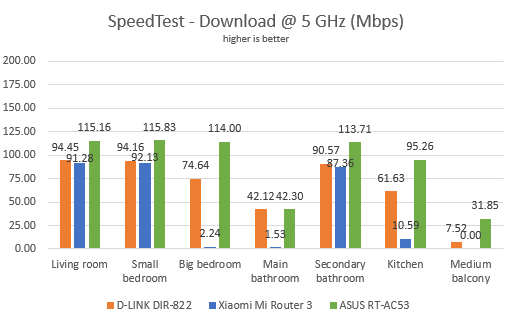
- The performance on the 5 GHz wireless band is disappointing
- The user interface is available only in English and Chinese. Some apps are just in Chinese
- You need a Windows app to access the USB storage on this router, which is in Chinese
- It is incapable of using internet connections which are faster than 100 Mbps
- It cannot be mounted on walls
- It has only two Ethernet ports, and they work at a maximum of 100 Mbps
Verdict
Xiaomi Mi Router 3 is an unbalanced product. On one hand, it benefits from beautiful design, and a great-looking user interface. This product looks a lot more expensive than it is, and it includes some features you rarely see on AC1200 wireless routers, like remote management from a mobile app. Also, the performance it offers on the 2.4 GHz band is good. However, the WiFi on the 5 GHz is completely different story, as we had rooms in our test apartment where it was unusable. Also, its language support is lacking, when compared to other vendors in the smart home space. The fact that it cannot use internet connections that are faster than 100 Mbps, is a big downside for us, and so is the fact that Ethernet connections work only at 100 Mbps, instead of 1 Gbps. Even though this router is very affordable, you can find better options, at a similar price.
Unboxing the Xiaomi Mi Router 3 AC1200 wireless router
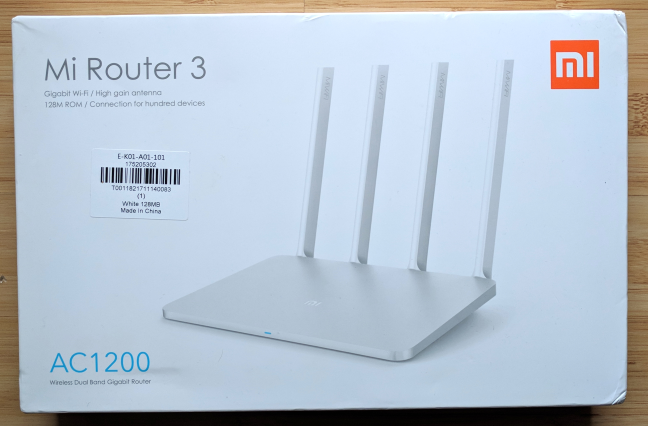
The Xiaomi Mi Router 3 AC1200 wireless router comes in a thin white cardboard box. You can see a picture of the device on the top, the company logo, and little information.
On the back side of the box, you see information about this product's main features. Open the box, and you get to look at the wireless router, nicely packaged.

When you open everything, you find the following items: the Xiaomi Mi Router 3 router, the power adapter, the warranty and the product manual. Unfortunately, there is no network cable bundled.
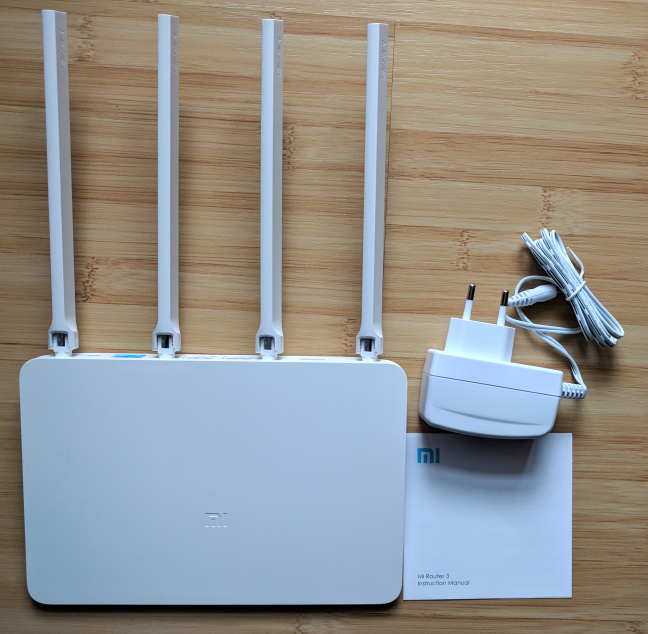
The unboxing experience offered by Xiaomi is enjoyable. However, the package lacks an Ethernet cable. You need to purchase one separately if you plan to connect a desktop computer to the Xiaomi Mi Router 3.
Hardware specifications and design
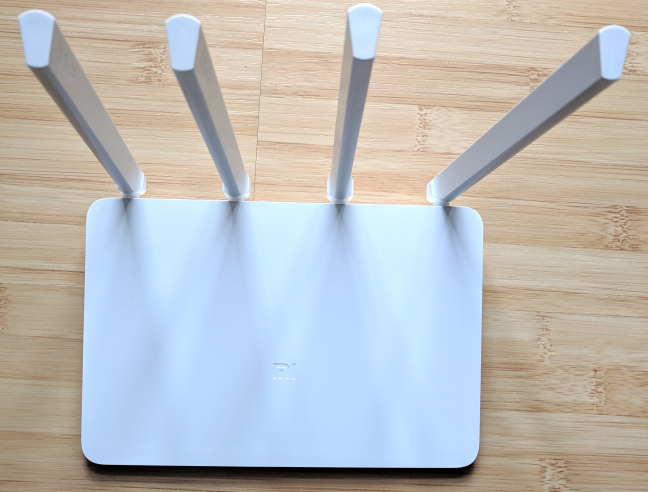
Xiaomi Mi Router 3 is a beautiful wireless router with four external antennas which cannot be detached. The coating of the router is scratch-resistant and prevents the appearance of fingerprints. Xiaomi Mi Router 3 has a MediaTek MT7620 SoC (System-on-a-chip) running at 580 MHz, 128 MB of RAM, and 128 MB of storage space for the firmware. It offers support for the 802.11ac and 802.11n wireless standards.
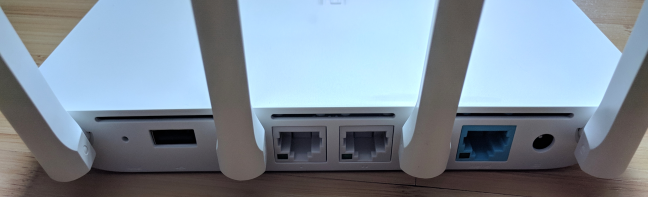
The theoretical maximum bandwidth is 300 Mbps for the 2.4 GHz band, and 867 Mbps for the 5 GHz band. On the back side of the router, we have the following items: the Reset jack, a USB 2.0 port, two Ethernet ports working at 100 Mbps, the WAN port for connecting the router to the internet (it operates at 100 Mbps), and the Power jack. Compared to other routers, the Xiaomi Mi Router 3 has no buttons for WPS and Power.
The ventilation grids are on the bottom of the router, and they ensure that the Xiaomi Mi Router 3 does not heat up too much during its operation. As you can see below, it has no holes for mounting it on walls. It can only be placed on flat surfaces.
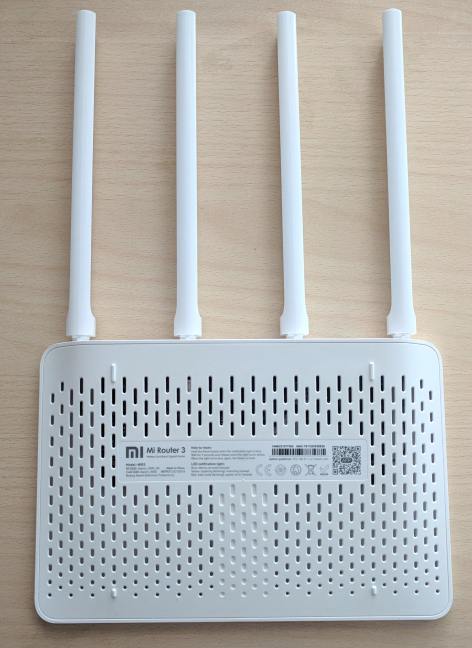
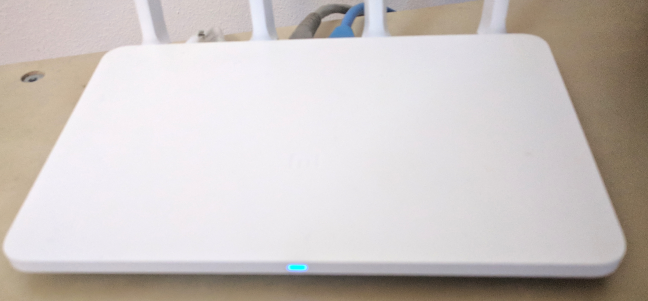
As you have seen in our pictures, the Xiaomi Mi Router 3 is compact and lightweight. It is 7.6 x 5.11 x 0.93 inches or 195×130×24 mm in width, depth, and height. It also weighs just 7 ounces or 200 grams. The front panel of the router has a three-color LED that reports its status. If a network failure occurs or another device logs in, the indicator flashes with a corresponding color. There are no other LEDs and lights on this router, and some users will appreciate this.
If you would like to read all the official specifications of this product, go to this page: Xiaomi Mi Router 3 Specifications.
Setting up and using the Xiaomi Mi Router 3 AC1200 wireless router
You can set up the Xiaomi Mi Router 3 just like any other wireless router. You can connect to its default wireless broadcast, or you can connect a desktop PC using a network cable that you have to purchase separately. After your PC is connected, load the IP address of the router (192.168.31.1) or mifi.com, in your favorite web browser. Agree to the terms of service, and provide the details requested of you for connecting the router to the internet.
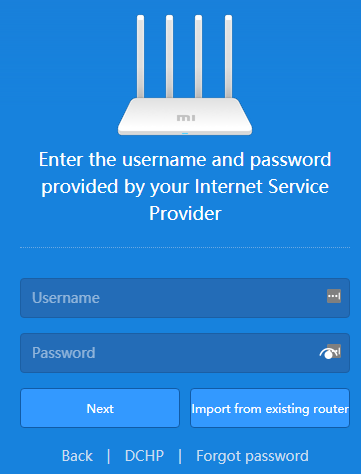
After Xiaomi Mi Router 3 establishes a connection to the internet, it asks you to set up a name and password for the wireless network. Unfortunately, you cannot set different names and passwords for the two wireless bands: 2.4 GHz and 5 GHz. Xiaomi uses the same password for both frequencies and adds "_5G" to the name of the network broadcast on 5 GHz band. However, you can change this later from the administration user interface.
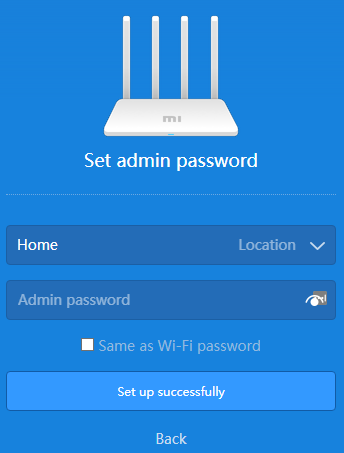
You are then asked to change the administrator password. Unfortunately, you cannot change the username. Whatever you do, do not set this password to be the same as your WiFi password.
At the next step, Xiaomi recommends that you download the MiWiFi app on your smartphone. Do that, if you want, and then load the administration user interface. As you can see below, Xiaomi did a great job with the user interface. It looks great, and it is nicely organized. Beginners and casual users will love it and feel at ease when setting up their network.
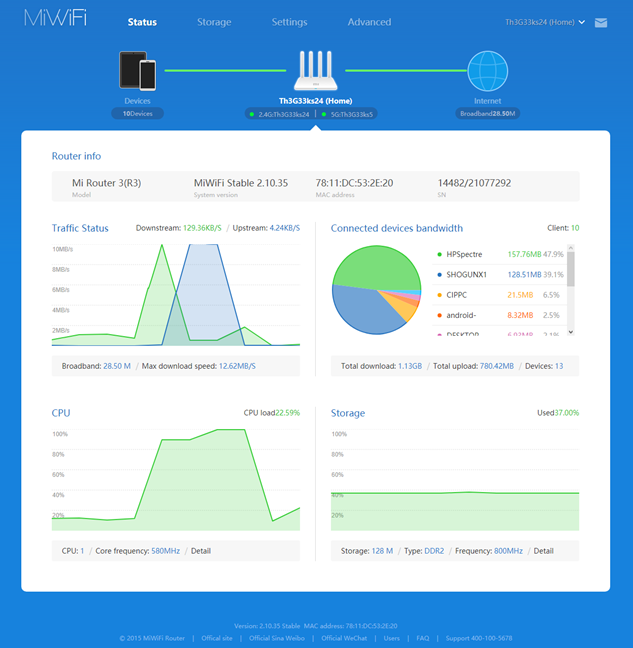
One minor downside is that, when you change important settings, the router has to reboot to apply them. The upside is that this process tends to be fast, and it is over in about 30 to 40 seconds. Another downside that we immediately noticed is that Xiaomi Mi Router 3 can only use internet connections that are up to 100 Mbps in speed. Ours has 1 Gbps, so it was wasted on this router.
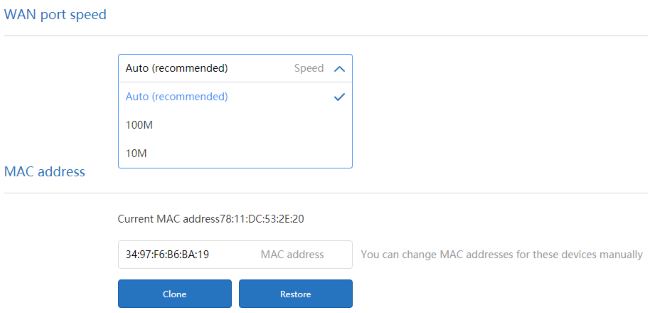
The user interface, while it looks great, is available only in English and Chinese. This may be an important downside in some markets. One positive feature is that the help documentation is easily accessible, and does a good job at explaining the more technical issues of configuring the Xiaomi Mi Router 3.
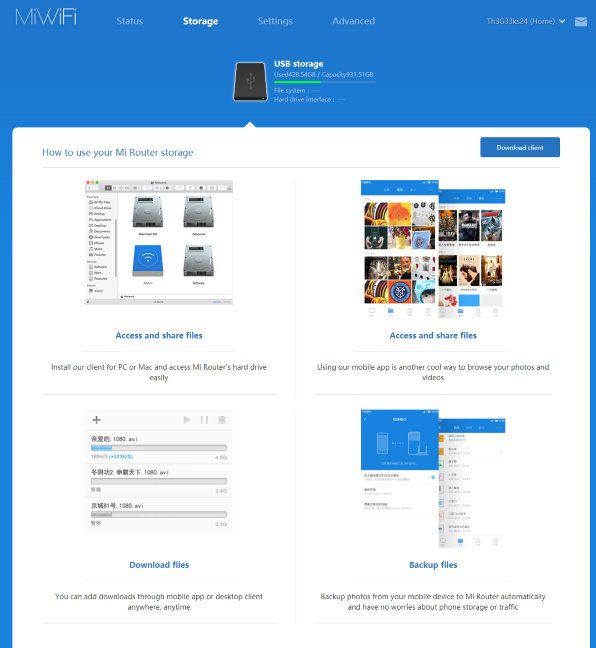
When it comes to storage, Xiaomi has a different approach from other companies. When you attach an external hard disk through the USB port, the router detects its and mounts it automatically. However, it does not share it with the network as other wireless routers do.To access and manage your hard disk, you need to download and install the Mi Router storage client app for Windows, or the MiWiFi app on your smartphone. Unfortunately, the Windows app is available only in Chinese, and we could not use it. Therefore, we could not test how fast the USB port is on this router.
After configuring the Xiaomi Mi Router 3, we connected all our devices to it: desktop PCs, laptops, tablets, smartphones, smart plugs, a smart bulb, a wireless printer, and an Xbox One console. We had no issues in connecting our devices, and we were able to perform network transfers with ease. The speed we enjoyed was good on the 2.4 GHz frequency. We were able to stream media over the network, share files and folders, create a Homegroup, and so on.
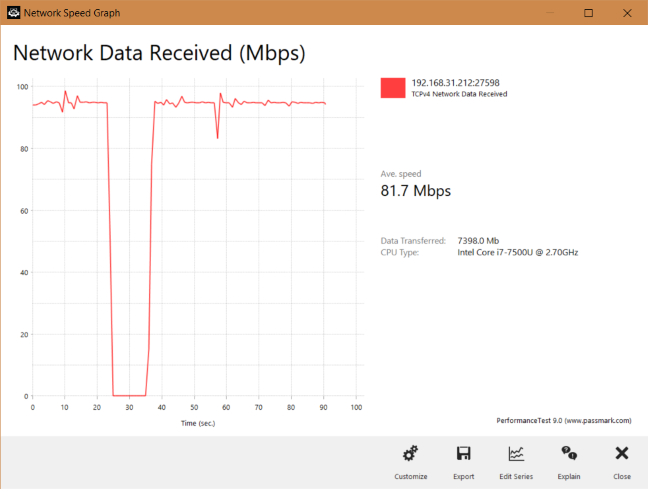
However, the performance on the 5 GHz wireless frequency was rather poor. In some rooms, the internet barely worked, while network transfers were functional. Also, there were frequent drops in performance that plagued our network transfers. You can see below a graphical representation of a WiFi network transfer that we performed in the same room with the router. While the average speed was good, it had a sudden drop in the middle of the transfer. We encountered this issue daily, for the whole week we tested the Xiaomi Mi Router 3.
Xiaomi Mi Router 3 is beautiful to look at, and to set up. The setup process is not difficult, but it does not let you set everything you can on other AC1200 routers. You have to enter the administration user interface so that you can make the network work the way you want to. Performance is good on the 2.4 GHz band, and rather poor on the 5 GHz band.
If you would like to learn more about the real-life performance of this wireless router and our benchmarks, read the next page of this review.
Wireless network performance
Before we show you the data from our measurements, let's take a look at the apartment that was used in our testing and how it is set up. You can see that the router is placed in the living room. With most wireless routers, the signal strength is not that high in places like the Kitchen and the Medium balcony.
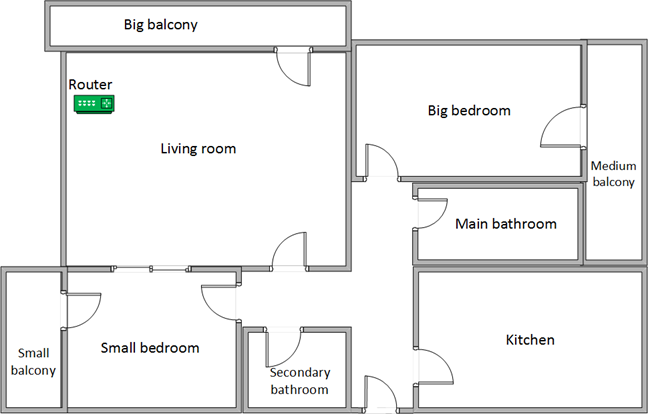
Our testing was done using a fast 1 Gigabit Internet connection that is capable of uploads on the internet of up to 500 Mbps. We used an HP Spectre 13 laptop for all our measurements and several software tools.
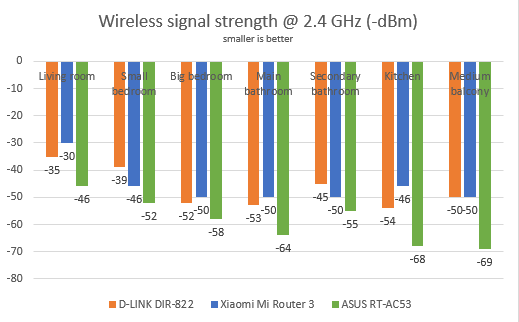
To get a better idea of the performance offered by Xiaomi Mi Router 3, we compared it with D-LINK DIR-822 and ASUS RT-AC53. We started by evaluating the 2.4 GHz wireless network and measured the signal strength provided in each room, using a tool named inSSIDer. The signal strength offered by Xiaomi Mi Router 3 on the 2.4 GHz band was good in all rooms.
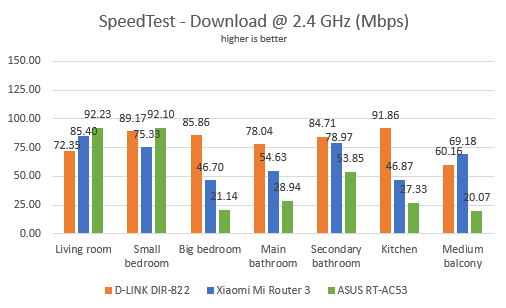
Then, we used SpeedTest to measure how fast the Internet connection offered by this router is. In the download test, Xiaomi Mi Router 3 performed well in all rooms. It was not always the fastest router in our comparison, but it delivered satisfactory speed everywhere.
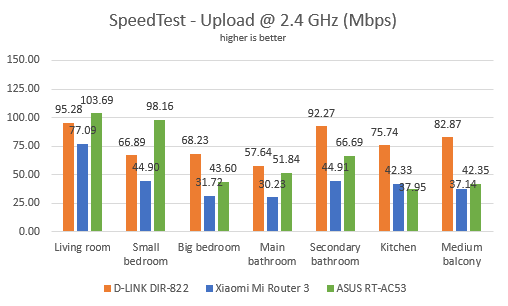
In the upload test, Xiaomi Mi Router 3 delivered slightly slower transfers.
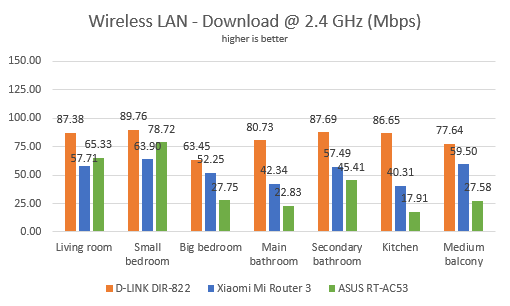
Continuing our measurements on the 2.4 GHz wireless network, we used the PassMark Performance test to transfer data between two computers connected to the network. Xiaomi Mi Router 3 performed well, without being the fastest router in our comparison.
The upload speed was OK too, without being the best.
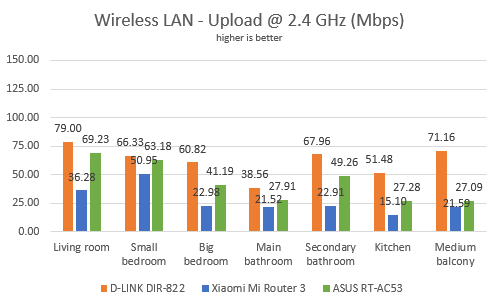
The wireless performance of the Xiaomi Mi Router 3 on the 2.4 GHz band is good, similar to other AC1200 wireless routers.
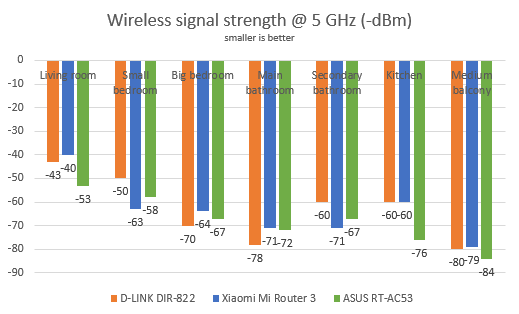
For the next set of measurements, we analyzed the performance of the 5GHz wireless frequency. We looked at the evolution of the signal strength, from room to room. As you can see below, Xiaomi Mi Router 3 delivered better signal strength that its competitors.
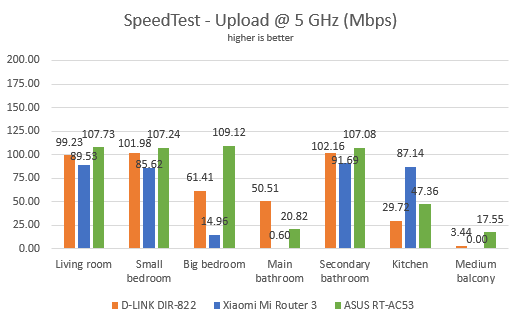
Then, we ran SpeedTest to see how fast the internet connection is when using the 5GHz frequency. In some rooms, Xiaomi Mi Router 3 was very slow and unstable. In rooms like the Medium balcony, the internet connection was too unstable for us to complete a successful measurement. Therefore, where you see the speed as 0 or close to 0, the result was caused by the instability of the wireless network on the 5 GHz band.
The same was true when measuring the upload speed.
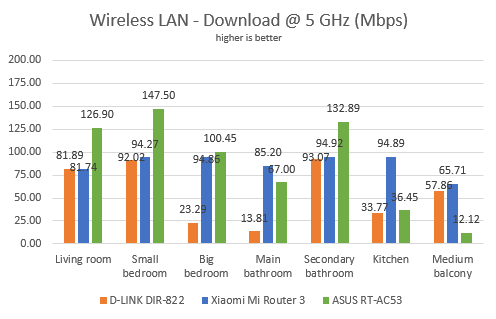
For the last measurements on the 5GHz wireless network, we used the PassMark Performance test to transfer data between two computers connected to the network. This time, Xiaomi Mi Router 3 performed better, and we were able to finalize our tests, even though there were sudden drops that lowered the average speed.
The upload speeds were OK too, but they were also impacted by the instability of the wireless signal.
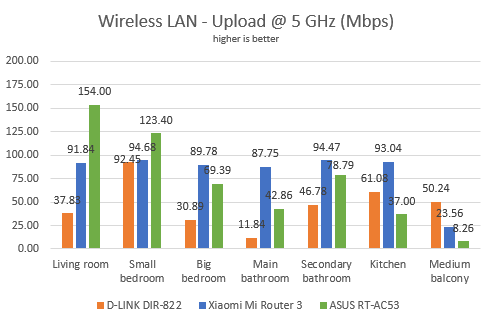
The wireless performance offered by Xiaomi Mi Router 3 on the 5 GHz band is disappointing.
Wired network performance
To test the quality of the wired Ethernet connection, we used a desktop PC, equipped with an Intel Core i5 4460 processor, running at 3.20GHz, 16GB of RAM and a very fast Samsung 850 Pro 512GB SSD, and a Lenovo IdeaCentre 610s mini PC.
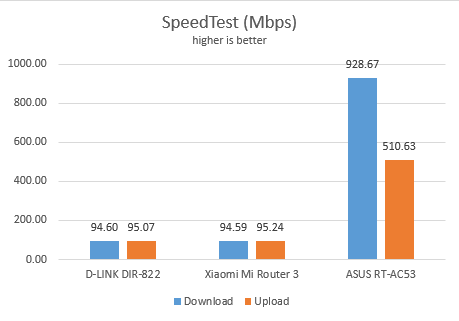
We measured the speed of the internet connection when using a 1 Gbps Ethernet cable, using SpeedTest. Xiaomi Mi Router 3 delivered transfer speeds that were closed to 100 Mbps. However, other AC1200 routers with a similar price can provide speeds that are close to 1 Gbps.
For the next measurements, we ran a network transfer between the two computers, using the PassMark Performance test. Xiaomi Mi Router 3 offered similar results.
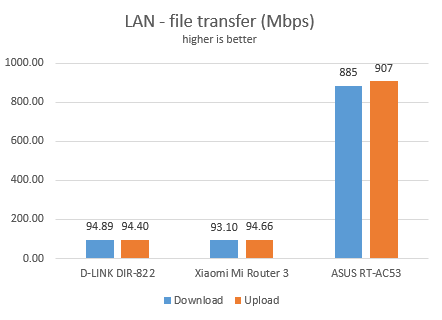
Xiaomi Mi Router 3 offers Ethernet connections that work at 100 Mbps. Modern networks need connections that reach 1 Gbps.
Extra features
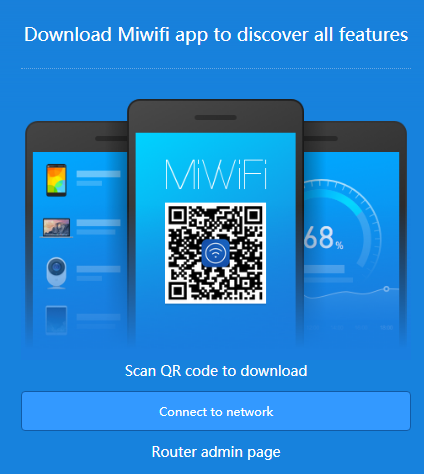
Xiaomi Mi Router 3 is an affordable router that bundles a few exciting features. First of all, it has a mobile app. It is named MiWiFi, and it is available for iOS and Android. With the help of this app, users can manage their router remotely, even when they are not on the local network. This is a useful feature that you do not often see on affordable wireless routers.
Other useful features are:
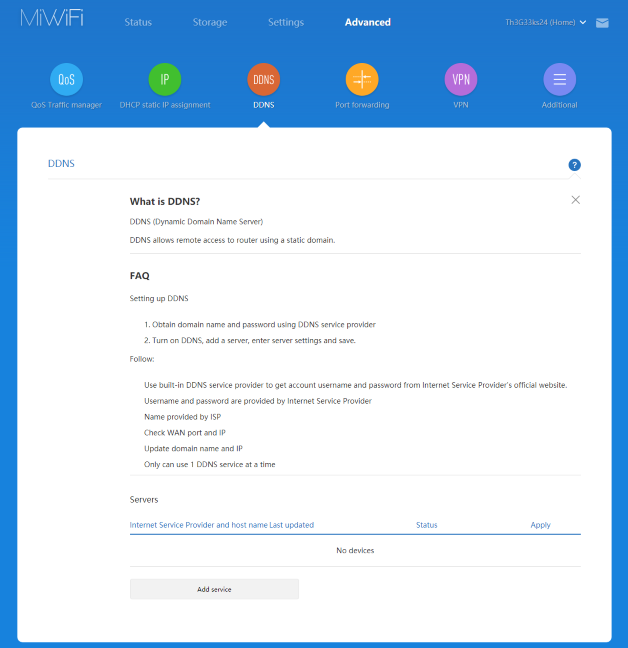
- Dynamic DNS - you can use Dynamic DNS services with your router so that you can access it from anywhere on the internet.
- VPN - you can set your router to use a specific VPN service for the whole network. You do not often see this on other routers with a similar price.
- Guest networks - one guest network for each WiFi band.
- QoS - a basic Quality of Service feature, that helps you prioritize network traffic based on your rules.
Xiaomi Mi Router 3 offers a few extra features that are not always found on other affordable wireless routers.
What is your opinion about Xiaomi Mi Router 3 AC1200 wireless router?
Now you know our opinion about the Xiaomi Mi Router 3 wireless router and how it performed in our testing. If you already have this router at home, do not hesitate to share your experience in a comment below. Other readers will find it useful.
Discussion (0)
Be the first to comment.