




Sometimes, you may need to know the IP address of your computer or the address that connects you to the internet. This information is useful when setting up file sharing, fixing network problems, connecting to other devices, or configuring remote access.
Windows 11 makes it easy to find both your local IP address and your public IP address. You can use built-in tools such as Settings, Command Prompt, PowerShell, or even a web browser.
This guide explains how to find your local and external IP addresses on Windows 11 using simple and reliable methods.
Local IP vs Public IP Explained
Before checking your IP address, it helps to understand the difference between local and public IPs.
| Type | Description |
|---|---|
| Local IP (LAN) | Used inside your home or office network |
| Public IP (WAN) | Used to connect your network to the internet |
| Assigned by | Router or internet provider |
| Changes often | Yes, in most cases |
How to Find Your Local IP Address on Windows 11
Your local IP address is assigned by your router and is used to communicate with other devices on the same network.
Check Local IP Address Using Command Prompt
This method shows detailed network information for active connections.
Steps
- Open Start.
- Search for Command Prompt and open it.
- Type the following command and press Enter:
ipconfig
Look for IPv4 Address under the active network adapter, such as Ethernet or Wi-Fi.
The Default Gateway listed here is the IP address of your router.
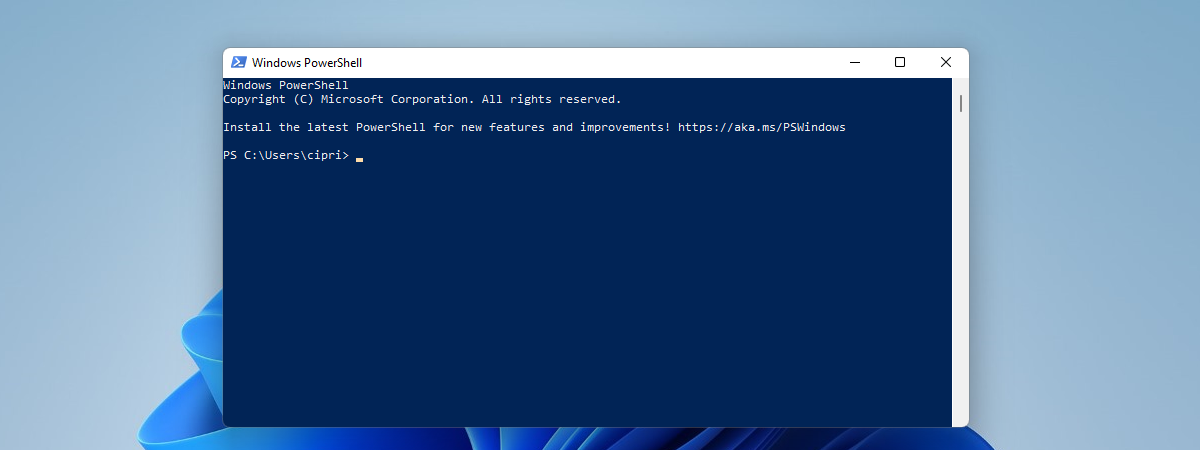
Check Local IP Address Using PowerShell
PowerShell provides a more detailed view of network settings.
Steps
- Open Start.
- Search for PowerShell and open it.
- Type the following command and press Enter:
Get-NetIPConfiguration -Detailed
Check the IPv4Address and IPv6 entries under the active adapter.
The IPv4DefaultGateway shows the router address.
Check Local IP Address Using the Settings App
This is the easiest method for most users.
Steps
- Open Settings.
- Click Network & internet.
- Select Wi-Fi or Ethernet, depending on your connection.
- Click Properties.
- Scroll down to view the IP address information.
This method shows IPv4 and IPv6 addresses but does not display full network details.
View Full Network Configuration in Settings
If you need complete network details, Windows 11 provides a full overview.
Steps
- Open Settings.
- Go to Network & internet.
- Click Advanced network settings.
- Select Hardware and connection properties.
Here, you can view IP addresses, default gateway, DNS servers, and all active adapters.
How to Find Your Public IP Address on Windows 11
Your public IP address is assigned by your internet provider and is used to access the internet.
Check Public IP Address Using a Web Browser
This is the quickest method.
Steps
- Open any web browser.
- Type the following in the address bar and press Enter:
ifconfig.me
Your public IP address will appear on the page.
Check Public IP Address Using Command Prompt
You can also find your public IP without opening a browser.
Steps
- Open Command Prompt.
- Run the following command:
nslookup myip.opendns.com. resolver1.opendns.com
Your public IP address appears under the Non-authoritative answer section.
Check Public IP Address Using PowerShell
PowerShell offers a clean and fast method.
Steps
- Open PowerShell.
- Type the command below and press Enter:
(Invoke-WebRequest ifconfig.me/ip).Content.Trim()
Your public IP address will be displayed instantly.
When You Might Need Your IP Address
- Fixing internet or network issues
- Setting up file sharing or printers
- Connecting to remote devices
- Configuring firewall or router settings
Frequently Asked Questions
Why does my IP address change?
Most internet providers use dynamic IP addresses that change periodically.
Is it safe to share my public IP address?
Sharing it publicly is not recommended, especially on forums or social media.
Why do I see multiple IP addresses?
Each network adapter can have its own IP address, such as Wi-Fi and Ethernet.
What is IPv6?
IPv6 is a newer IP version designed to replace IPv4 and support more devices.
Windows 11 provides several easy ways to find both your local and public IP addresses. Whether you prefer using Settings, Command Prompt, PowerShell, or a web browser, each method gives you quick access to the information you need. Knowing how to find your IP address helps with troubleshooting, network setup, and device connectivity. Choosing the right method depends on how much detail you need and how comfortable you are with command-based tools.
Discussion (0)
Be the first to comment.