Google Discover is the way Google helps you find news and other content on the internet, directly from your smartphone or tablet. By default, it displays data based on your search history, but it can also be personalized to better match your interests. If you want Google Discover to do a great job at keeping you informed about what matters to you, here is how to personalize it on your Android smartphone:
NOTE: This guide covers Google Discover for smartphones with Android. On iOS, things look different, and we are going to publish a separate guide for iPhone users.
How to start Google Discover on your smartphone
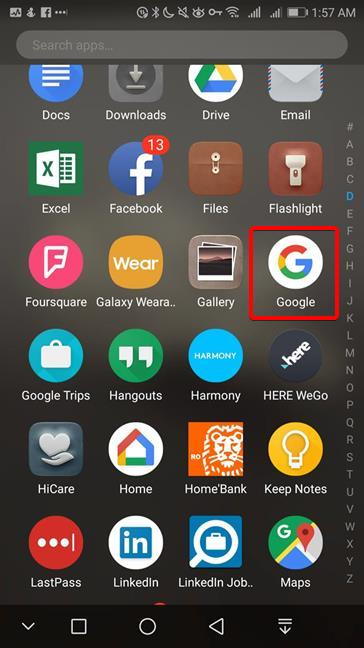
Google Discover is available for all Android devices. You have several methods of accessing it. The first is to launch the Google app on your Android smartphone.
Open the Google app to access Google Discover
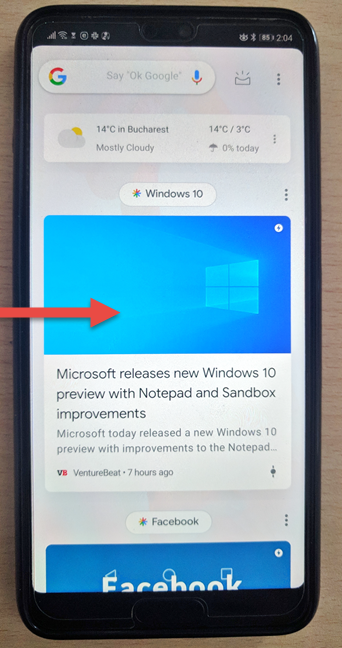
On many Android devices that do not have custom app launchers, you open Google Discover with a flick to the right, from the left side of the screen.
Flick from the left side of the screen, to the right
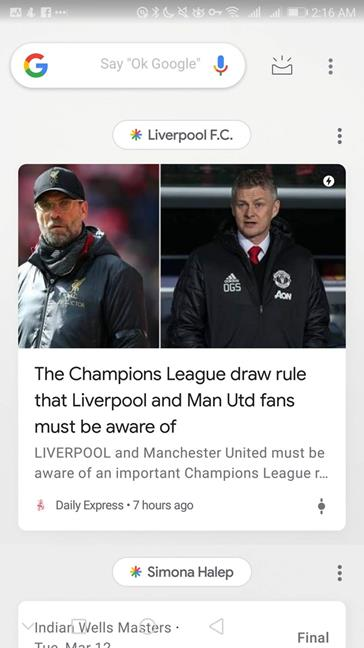
The Google Discover feed is displayed immediately underneath the search box.
Google Discover in the Google app
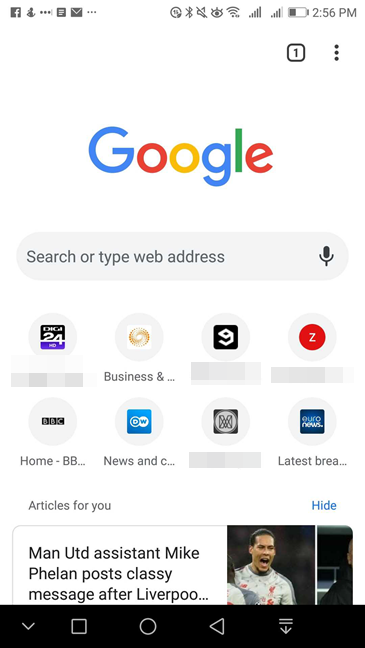
Google Discover sometimes populates the Google homepage underneath the search box, whenever you open google.com in Google Chrome. In other web browsers, you may not see the Google Discover feed. Also, different regions seem to have different settings, so some of you may not see the Google Discover feed when you visit google.com.
Google Discover in Google Chrome
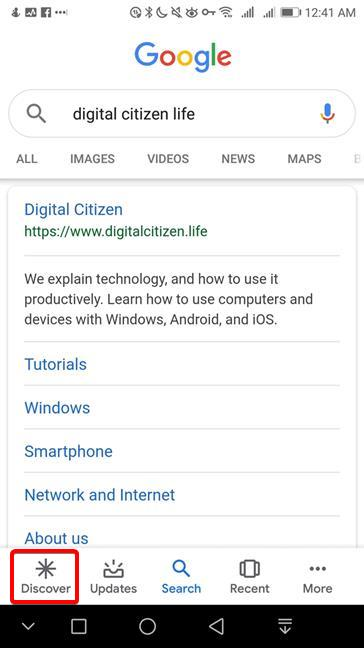
Whenever you perform a search on your mobile device, you also get a Discover icon and caption in the bottom-left corner.
Google Discover icon in the search results page
Where to personalize Google Discover
Customizing Google Discover can be done from many places, depending on how you are accessing it.
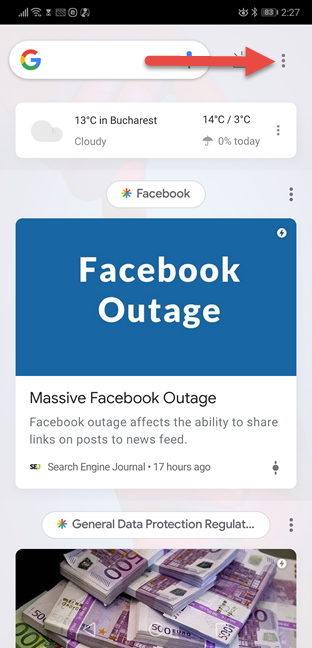
If you access the Google Discover feed directly, tap the three dots on the top-right corner of the feed, near the search box.
The Menu button for Google Discover
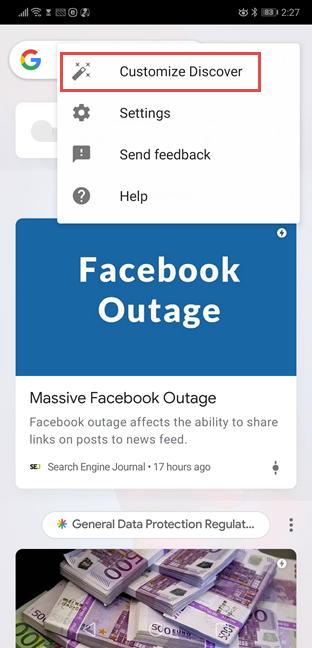
In the menu that opens, tap Customize Discover.
Tap Customize Discover
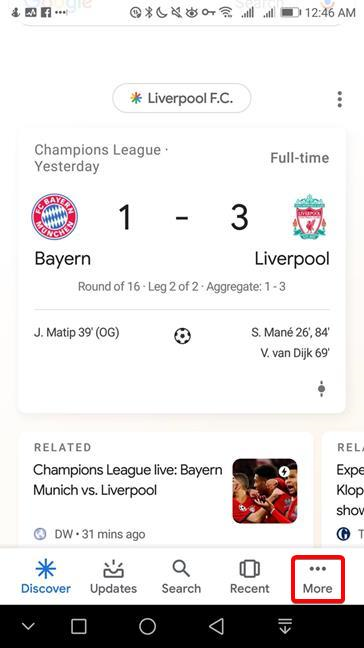
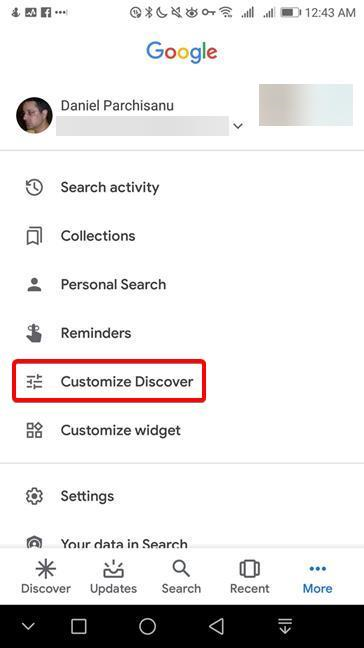
If you prefer using the Google app to access the Google Discover feed, tap the More button in the bottom-right corner represented by three horizontal dots.
Tap More in the Google app
In the list of options that opens, tap Customize Discover.
Customize Discover in Google app
How to personalize Google Discover with the topics that interest you
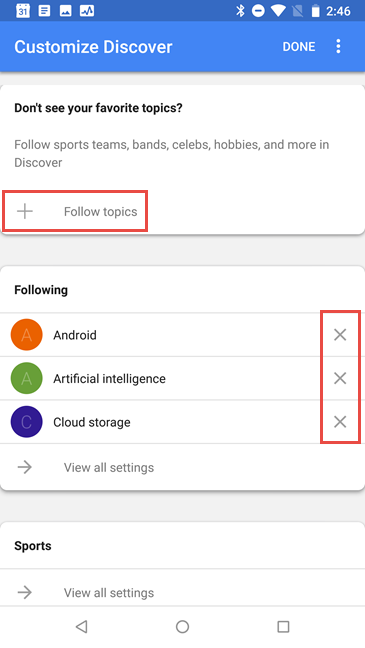
The Customize Discover page displays the topics already selected for you, in the Following section. If you want to delete a topic, tap the X button to its right. If you want to add more topics, tap Follow topics at the top of the page.
Delete or add topics to Google Discover
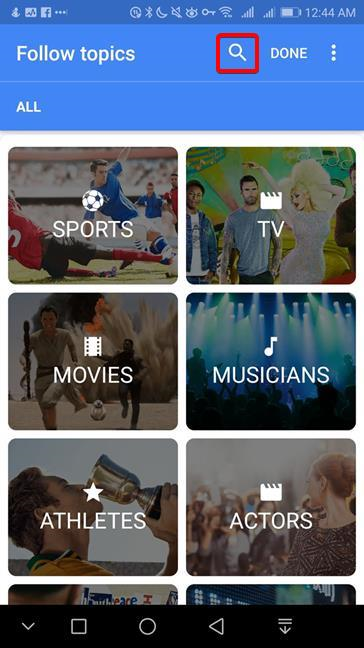
Google Discover proposes categories of topics in the format of cards that you can browse. If you have a more precise idea of what you want, tap the magnifying glass button at the top of the page.
Search for topics to follow in Google Discover
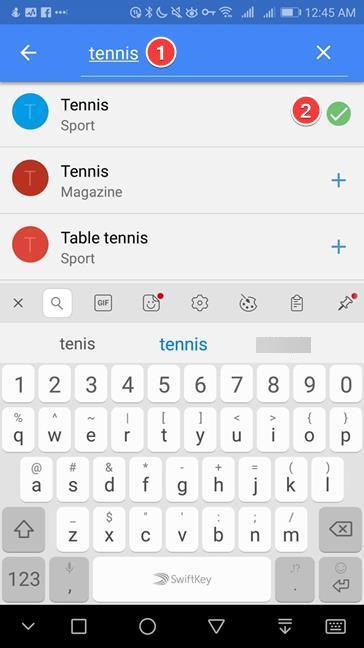
Type your interest at the top of the page, and then tap the plus sign next to the specific topic that you want to follow, shown in the list of results.
Add a new topic to follow in Google Discover
Keep in mind that you can search for just about anything, including people that you want to follow. You can follow Donald Trump, news about China, the Oscars, Ariana Grande, or Oprah Winfrey. You can repeat the process until you are happy with the set of topics that you selected for Google Discover.
How to personalize Weather updates, travel time updates, and other items in Google Discover
Scroll down on the Customize Discover screen beyond the Following section. The sections below let you customize the personal info shown in the Google Discover feed.
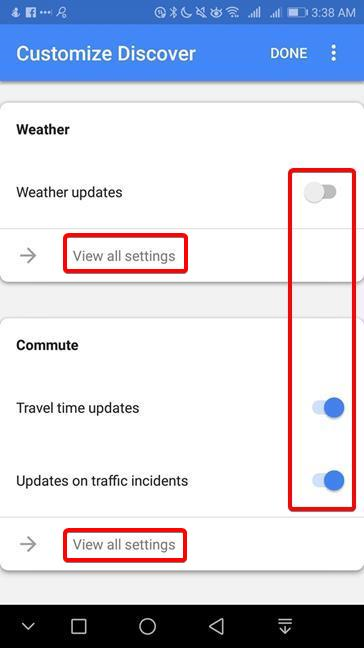
The first two customizations refer to Weather and Commute. You can include or exclude from Google Discover the cards related to Weather updates, Travel time updates, or Updates on traffic incidents by tapping on the switches next to each topic. For even finer detail, tap View all settings to display even more switches that control what information is displayed in your feed.
Customize the Weather and the Commute in Google Discover
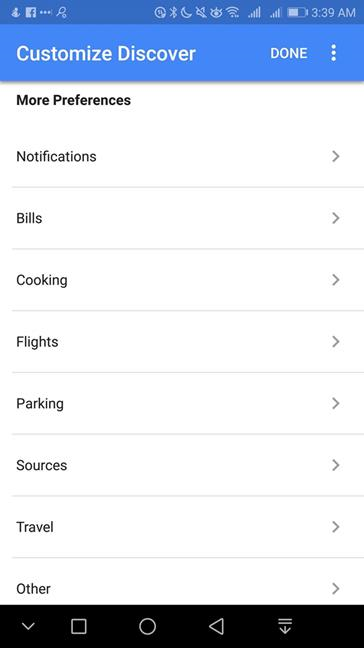
Scrolling down even further, and you get more categories of info cards like Bills, Flights, or Travel. Tap the one you want, to display the customizations available for that category. The customization is done through switches that you can turn on or off depending on your preferences.
More preferences in Google Discover
How to personalize Google Discover using the cards from your feed
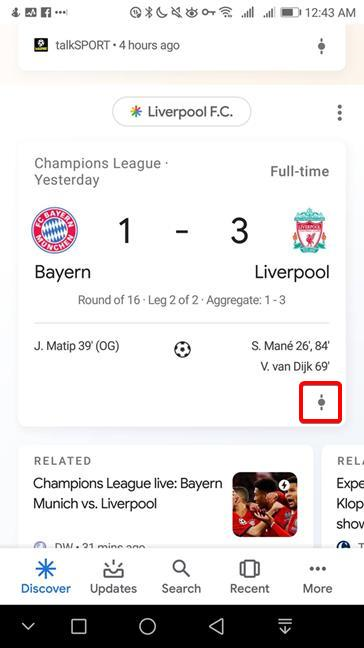
Google Discover has introduced a new way to express your interest or disinterest in the topics that it displays. Rather than going through never-ending lists of topics, this method allows you to interact with the cards presented in Google Discover and give feedback on the spot. Open the Google Discover feed and identify a card with a topic that you want to see either more or less. Tap the Discover button in the bottom-right corner of the card. It looks like a slider.
The Discover button in the Google Discover feed
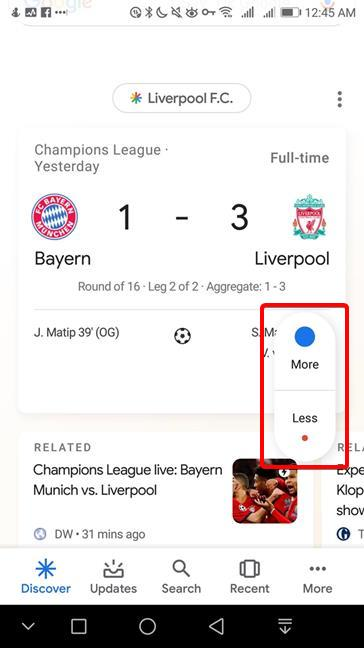
Google Discover displays two options: More or Less. Tap the option you prefer.
Choose to see More or Less of a topic in Google Discover
You can change your settings on the fly, discovering new interests or hiding the ones that you do not like, as you go through your feed.
How often do you use Google Discover?
Introduced as an enhancement alongside the Google search experience, Google Discover wants to gain its foothold in the way you consume the news on your smartphone. Employing the Knowledge Graph technology developed for Google's search engine, Google Discover can make connections to your interests, and your customization can make it even more precise. Google led the introduction of Google Feed with the words from Dr. Seuss: "there is no one alive who is you-er than you." Do you agree with them? Also, how do you like Google Discover? We use it daily, and we admit that it has dramatically changed how we get our daily dose of information. Let us know your experience and thoughts about Google Discover, in the comments below.










Discussion (0)
Comments are closed.