



Do you need to know how to change the keyboard language Windows 10 shortcut? Maybe you want a more comfortable alternative, or perhaps the shortcut to change the keyboard language clashes with other hotkeys you’ve set up. Would it be easier to use one key instead of a keyboard shortcut to change the language in Windows 10? Or, if you added a lot of input languages, wouldn’t you like a dedicated keyboard language shortcut for the layout you use the most? If that sounds good, read our guide to find out how to change the keyboard language shortcut in Windows 10 and assign convenient hotkeys to help you type faster:
NOTE: This tutorial was created using Windows 10 October 2020 Update. To find out which version you have installed, read our guide on checking the Windows 10 version, OS build, edition, or type.
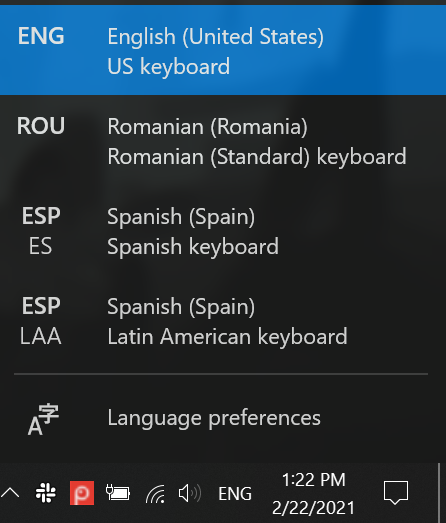
 Each Windows 10 change keyboard language shortcut works with the language bar
You can modify and even disable the last two keyboard shortcuts on the list, if they’re conflicting with other hotkeys you use in Windows 10, On top of that, you can add a shortcut to change the keyboard language immediately to any other layout you want. It might sound complicated, but the most challenging part is finding the necessary settings on your Windows 10 computer or device.
Each Windows 10 change keyboard language shortcut works with the language bar
You can modify and even disable the last two keyboard shortcuts on the list, if they’re conflicting with other hotkeys you use in Windows 10, On top of that, you can add a shortcut to change the keyboard language immediately to any other layout you want. It might sound complicated, but the most challenging part is finding the necessary settings on your Windows 10 computer or device.
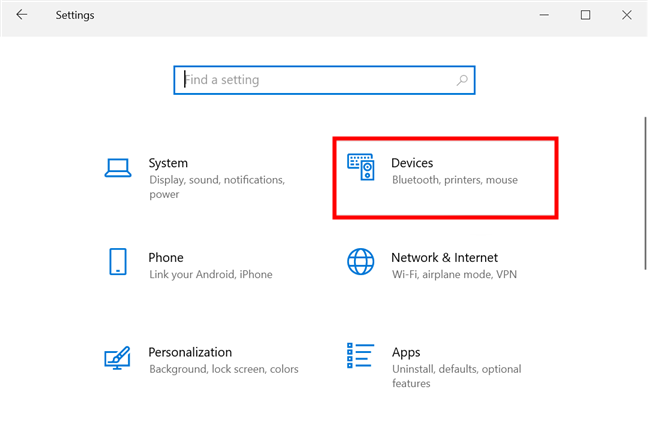
 In Windows 10, change the keyboard language shortcut from Devices Settings
Access the Typing tab from the left sidebar menu, and then scroll to the bottom on the right-hand side. Click or tap on the “Advanced keyboard settings” link, on the right.
In Windows 10, change the keyboard language shortcut from Devices Settings
Access the Typing tab from the left sidebar menu, and then scroll to the bottom on the right-hand side. Click or tap on the “Advanced keyboard settings” link, on the right.
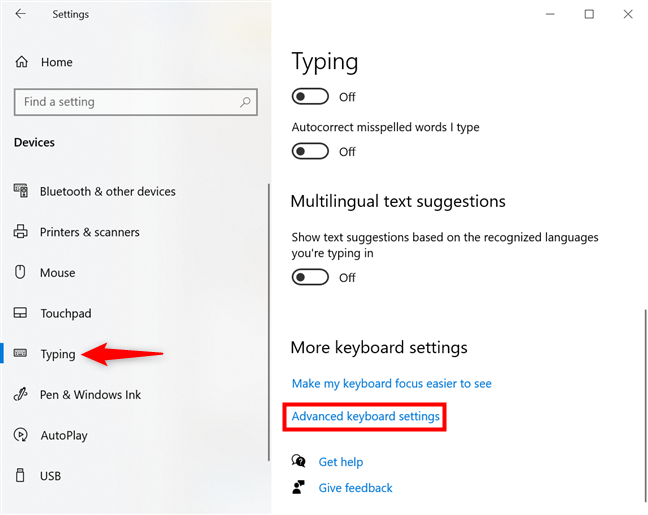
 Access Advanced keyboard settings
In the “Switching input methods” category, press on the “Input language hot keys” link.
Access Advanced keyboard settings
In the “Switching input methods” category, press on the “Input language hot keys” link.
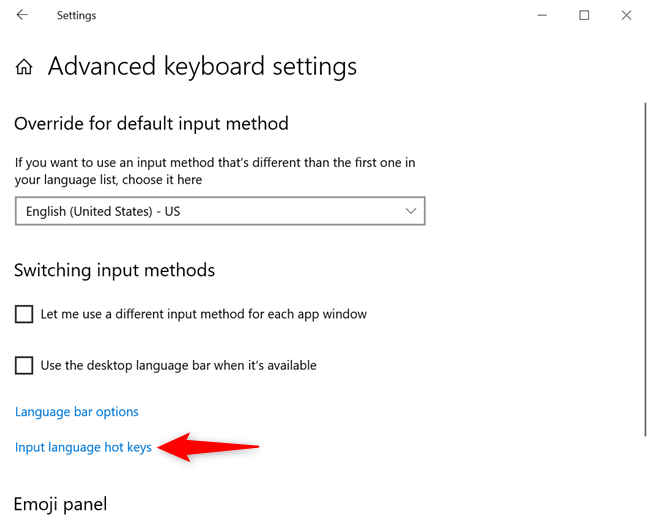
 Click or tap on Input language hot keys
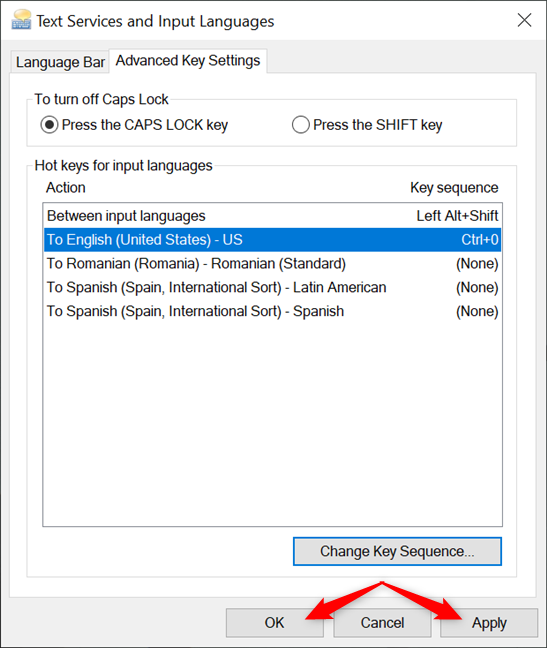
This opens the “Advanced Key Settings” tab of the “Text Services and Input Languages” window. All you need to change the keyboard language shortcut in Windows 10 is the “Hot keys for input languages” section, which takes up most of the window.
Click or tap on Input language hot keys
This opens the “Advanced Key Settings” tab of the “Text Services and Input Languages” window. All you need to change the keyboard language shortcut in Windows 10 is the “Hot keys for input languages” section, which takes up most of the window.
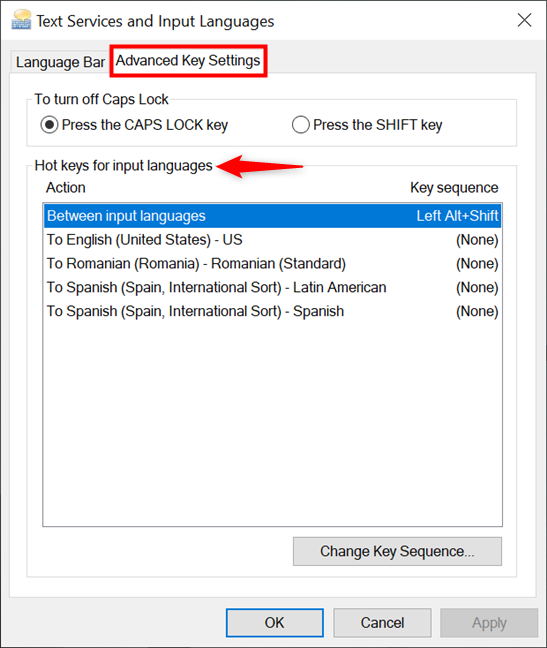
 Use Hot keys for input languages to manage any keyboard shortcut to change language
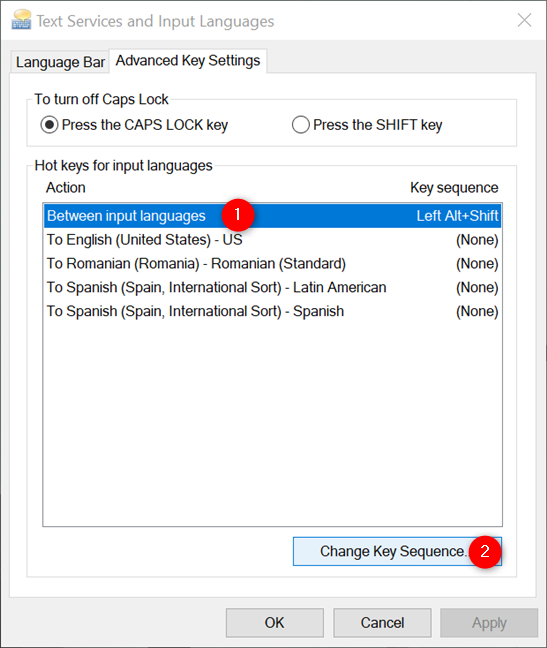 How to change the keyboard language Windows 10 shortcut
This opens the “Change Key Sequence” pop-up window. The two panels in it offer alternative shortcuts to “Switch Input Language”(left) and “Switch Keyboard Layout” (on the right).
Unfortunately, you can only choose between the four preset options. Select Not Assigned to disable a shortcut, or press the Grave Accent (`) to change the language or layout using just one key. Keep in mind that you can’t select the same keyboard shortcut for switching the input language and the keyboard layout. When you’re done, click or tap on OK.
How to change the keyboard language Windows 10 shortcut
This opens the “Change Key Sequence” pop-up window. The two panels in it offer alternative shortcuts to “Switch Input Language”(left) and “Switch Keyboard Layout” (on the right).
Unfortunately, you can only choose between the four preset options. Select Not Assigned to disable a shortcut, or press the Grave Accent (`) to change the language or layout using just one key. Keep in mind that you can’t select the same keyboard shortcut for switching the input language and the keyboard layout. When you’re done, click or tap on OK.
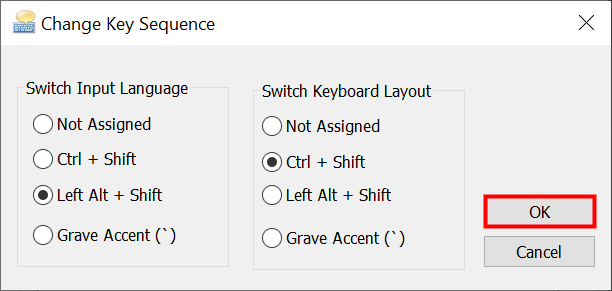
 Switch the keyboard language shortcut to another option and press OK
You are returned to the Advanced Key Settings tab. Press OK or Apply to confirm your changes once more.
Switch the keyboard language shortcut to another option and press OK
You are returned to the Advanced Key Settings tab. Press OK or Apply to confirm your changes once more.
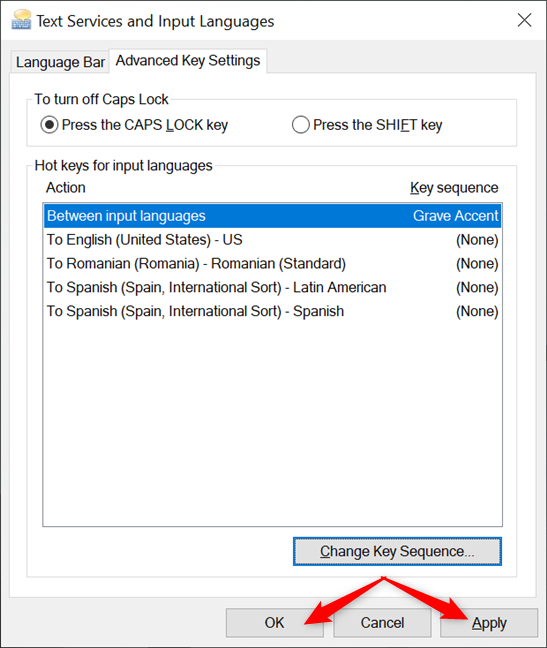 Change the language keyboard shortcut and press OK or Apply
You can now use the new shortcut(s) you selected to switch between the available languages and layouts.
Change the language keyboard shortcut and press OK or Apply
You can now use the new shortcut(s) you selected to switch between the available languages and layouts.
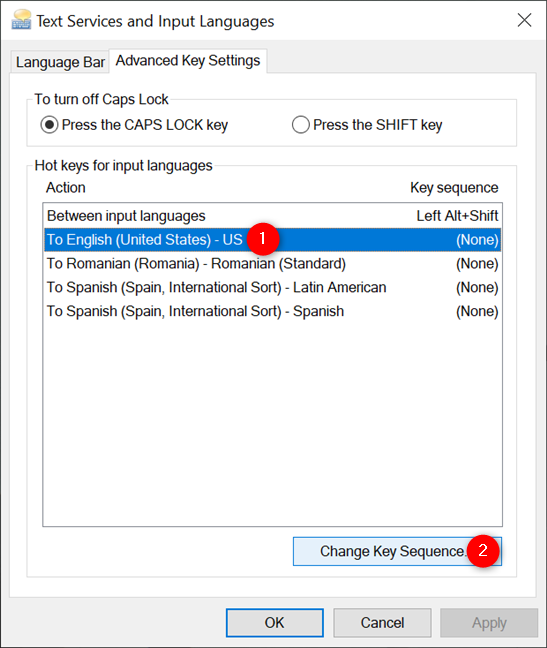 Select a layout and press Change Key Sequence
Next, make sure to check the “Enable Key Sequence” box, and you can use the two dropdown menus at the bottom. Compared to the switch keyboard language shortcut in the previous chapter, you get more flexibility when choosing the hotkeys for a specific language. The idea is to combine hotkeys from the first menu with keys from the second, creating different keyboard shortcuts for your favorite languages and layouts. Press on the left dropdown menu to reveal three possible options using modifier keys.
Select a layout and press Change Key Sequence
Next, make sure to check the “Enable Key Sequence” box, and you can use the two dropdown menus at the bottom. Compared to the switch keyboard language shortcut in the previous chapter, you get more flexibility when choosing the hotkeys for a specific language. The idea is to combine hotkeys from the first menu with keys from the second, creating different keyboard shortcuts for your favorite languages and layouts. Press on the left dropdown menu to reveal three possible options using modifier keys.
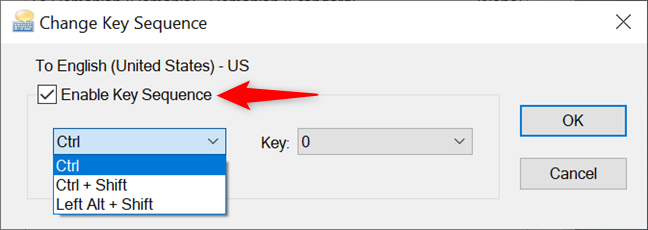
 Check Enable Key Sequence to set a keyboard shortcut
Click or tap on the Key dropdown menu, which lists the number keys (from 0 to 9), the tilde (~) key, and the Grave Accent (`) key. When you decide on the keyboard language shortcut you want to use, click or tap on OK.
NOTE: Our tests using the tilde and Grave Accent keys were not successful, so we recommend using the number keys during this step.
Check Enable Key Sequence to set a keyboard shortcut
Click or tap on the Key dropdown menu, which lists the number keys (from 0 to 9), the tilde (~) key, and the Grave Accent (`) key. When you decide on the keyboard language shortcut you want to use, click or tap on OK.
NOTE: Our tests using the tilde and Grave Accent keys were not successful, so we recommend using the number keys during this step.
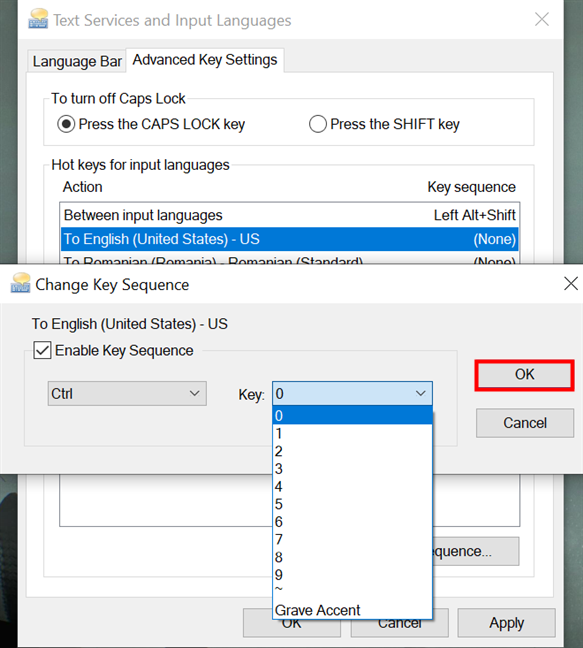
 Set a keyboard shortcut to change the language to one you use the most
Confirm your choice once more by clicking OK or Apply.
Set a keyboard shortcut to change the language to one you use the most
Confirm your choice once more by clicking OK or Apply.
 Confirm your choice to use the new shortcut
When you use the new keyboard shortcut, the language is changed at once to the corresponding one. To disable a custom shortcut, follow the same steps, but uncheck the “Enable key sequence” box in the “Change Key Sequence” window.
TIP: If you prefer using your keyboard, you might also be interested in our guide about Windows 10 keyboard shortcuts.
Confirm your choice to use the new shortcut
When you use the new keyboard shortcut, the language is changed at once to the corresponding one. To disable a custom shortcut, follow the same steps, but uncheck the “Enable key sequence” box in the “Change Key Sequence” window.
TIP: If you prefer using your keyboard, you might also be interested in our guide about Windows 10 keyboard shortcuts.
First things first: There is more than one default Windows 10 change language shortcut
If you’re wondering how to switch the keyboard language as fast as possible, there’s nothing quicker than a keyboard shortcut. There are three keyboard shortcuts you can use to switch between your favorite languages and layouts in Windows 10:- Windows + Spacebar - activates the next keyboard language or layout. This is the only Windows 10 change language shortcut you can not modify.
- Left Alt + Shift - the default shortcut to change the keyboard language in Windows 10. It ignores other layouts you’re using for the same language.
- Ctrl + Shift - switches between different keyboard layouts used for the same language. It only works if you added an alternative key configuration for the active language.
How to access the Advanced Key Settings in Windows 10
In previous Windows 10 versions, you could use the Control Panel to access the “Advanced Key Settings” and change the keyboard language shortcut. However, while the method to modify the Windows 10 change language shortcut remains the same, Microsoft decided to bury the options you need deep inside the Settings app, making them difficult to find. To begin, open Settings and click or tap on Devices.Modify or disable the default keyboard shortcut to change language in Windows 10
In Windows 10, the change keyboard language shortcut is, by default, Left Alt + Shift. To switch between layouts, you use Ctrl + Shift. However, if you use the same hotkeys for another purpose, it’s easy to set another keyboard shortcut to change the language or layout. In the “Hot keys for input languages” section, select the first option from the list, “Between input languages.” Then, click or tap on the “Change Key Sequence” button at the bottom.Add a custom shortcut to change the keyboard language to a specific option
Multilingual users might add several keyboard languages and/or layouts to Windows 10. If you install too many options, switching between them using the default keyboard shortcuts can become time-consuming and confusing. Luckily, you can also set hotkeys to switch to specific languages or layouts you previously added. In the “Text Services and Input Languages” window you opened earlier, select any layout from the “Hot keys for input languages” list and click or tap on “Change Key Sequence.”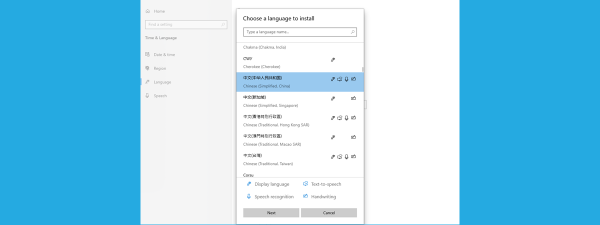

Discussion (22)
This seems to be an excellent article which makes it more frustrating that I cannot get the advice to work. I see others have similar problems. Before my PC crashed and was restored I could easily switch between English US and English UK/GB using AltShift. Now I cannot do it at all, it is stuck on English UK which means when I press the @”” key I get “””” and #### gives me ££££ (which is how I know it is UK!) plus some other anomalies.
None of the shortcuts work, including AltSpace which does nothing (it used to list the installed languages). I only have English US and UK installed, and have tried swapping them around between first and second place. It still does no work.
A solution would be greatly appreciated!
This is very helpful. Thank you!
Very useful. Thank you.
You are welcome. Happy to help! 😉
This did not solve my problem. I am using english as default language but since I have a swedish keyboard. I want to use a swedish qwerty keyboard layout. When I go to settings – pc settings – time and language – region and language – English (Unitded States). There is only 1 keyboard installed (Swedish). Sounds good right? But somehow there are 2 keyboards “installed” anyway. (English keyboard is installed automatically and randomly). The only way to remove this is to first manually add the correct keyboard which somehow was added automatically and then remove it again. But since the keyboard is installed again without my permission this is not a permanent solution
I need to switch off all language options and type plain US-ASCII (if you know what that means). No umlauts. No French accents, I want to disable all that and get my ‘ ” without having to type a space after. And it can’t be done, I tried everything. This shit happened after I connected a Microsoft keyboard to my laptop.
Thanks
Thanks a lot for sharing! Really helped me!
Thank you very much. This really helped me, after more than an hour looking for a solution and this is what I was looking for. 🙂
I changed the shortcut key settings in this way, but sometimes, it keeps changing.
I added new keyboard layout and set the shortcut key.
By the way, after some time, I lost the shortcut key. It is removed to (None).
It is really strange.
Can you guide me?
I have the exact same problem, have you found a solution? Any help would be appreciated.
I’m using Windows 10 by the way.
Thanks, nice article!
I login in Windows 8.1 using the same hotmail account in two different machines, each having a different keyboard layout (US on the laptop I bought in the USA and PT on the desktop PC).
Using the shortcut it’s easier to switch between keyboard layouts.
It was an odd decision from MS to store the keyboard layout in the account settings, as it is mostly a setting of the machine/keyboard not of the user (except maybe when changing from US to US International), and this requires that I switch the keyboard layout each time I login in the other machine. An option to override this behavior would be nice, any clue? Cheers.
Can you tell me how to stop windows from detecting and changing my input language automatically? I want to control the keyboard manually.
The Shift+Alt thing was driving me crazy for a long long time. Should have looked this up sooner. An option for setting it to the right shift would be neat. But whatever. thx m8 ^^
A bit confusing why Windows 8.1 says ALT+SHIFT when the real shortcut is WIN+SPACE
I finally found the solution to my problem. This is so useful. Thank you so much!
Thank you!
Thank you very much!!!
I did that, but windows key+space still toggles languages. Any ideas? 🙁
Same, when I press the windows key + space, it doesn’t work. Someone please help me!
that was very useful. thank you.
I’m glad you found this article useful. Don’t hesitate to subscribe to our website using any of the options we have available. We’re sure you will discover other interesting content.