There are a couple of tools in Microsoft Word that you can use to make your document easier to comprehend and read, or to provide some additional information about it. Headers and footers are a great place to include data like the document's author and title, while page numbers are an essential part of any long document, letting readers navigate the document more easi ly. Let's see how to add headers, footers and page numbers in Microsoft Word for Android:
How to insert headers & footers in Microsoft Word for Android
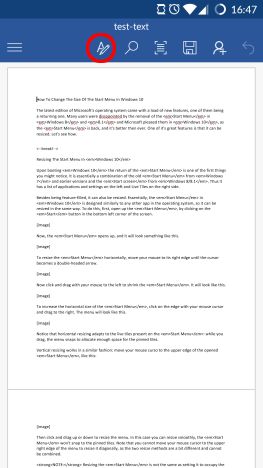
The header and footer of a document are special places reserved on the top and bottom margins of a document. In order to manage them, first tap the A icon on the top menu bar.
Android, Microsoft Word, insert, footers, headers, page numbers, documents
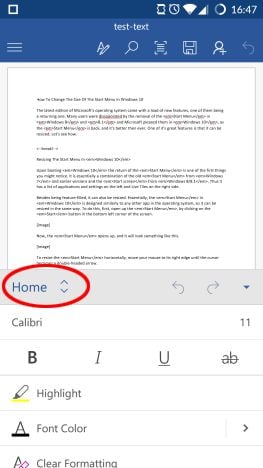
Now tap Home to open up the list of menus in Word.
Android, Microsoft Word, insert, footers, headers, page numbers, documents
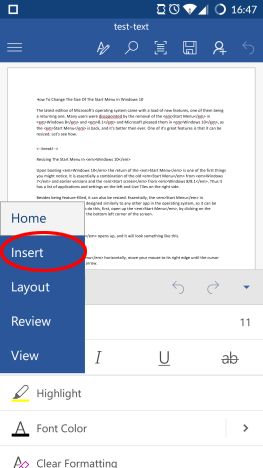
Then tap Insert to see related options.
Android, Microsoft Word, insert, footers, headers, page numbers, documents
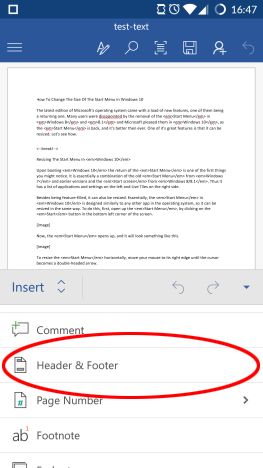
In the Insert menu, tap Header & Footer to activate them.
Android, Microsoft Word, insert, footers, headers, page numbers, documents
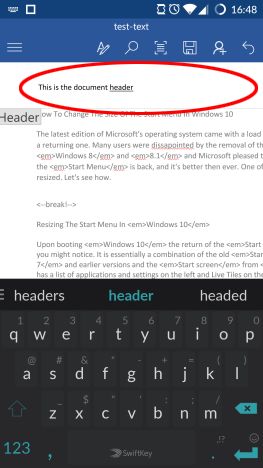
You are automatically taken to the header of the first page. Here you can enter and edit text as you would in any other part of the document. You can read more about editing text in Word for Androidin this tutorial.
Android, Microsoft Word, insert, footers, headers, page numbers, documents
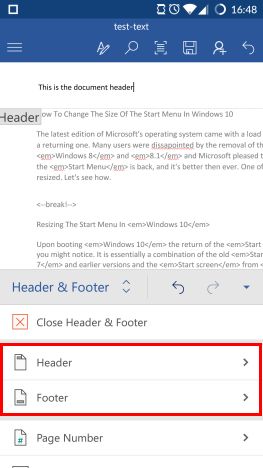
To switch between headers and footers, just scroll the document, and tap inside the header or the footer to edit it. Alternatively, you can tap the A icon again to access its menu, where you can tap Header or Footer.
Android, Microsoft Word, insert, footers, headers, page numbers, documents
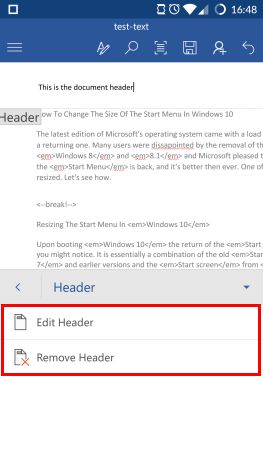
You can choose Edit Header or Edit Footer to access them. Tapping Remove Header or Remove Footer will remove all contents from the header, or, respectively, the footer.
Android, Microsoft Word, insert, footers, headers, page numbers, documents
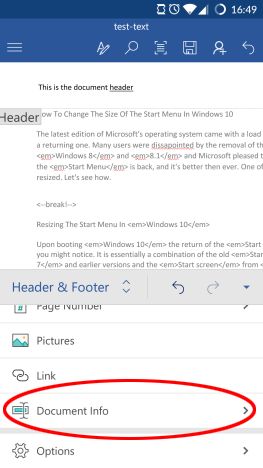
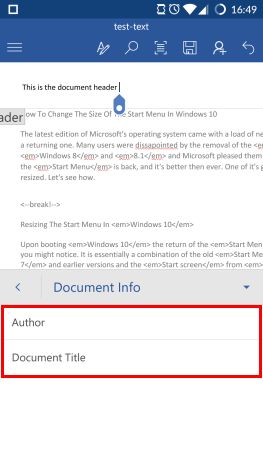
To insert the author's name or the document's title into the header or the footer, tap Document Info when in the Header & Footer menu.
Android, Microsoft Word, insert, footers, headers, page numbers, documents
Tapping Author or Document Title will each insert a field into the header and footer.
Android, Microsoft Word, insert, footers, headers, page numbers, documents
Android, Microsoft Word, insert, footers, headers, page numbers, documents
Tap these fields to enter the author's name or the document's title.
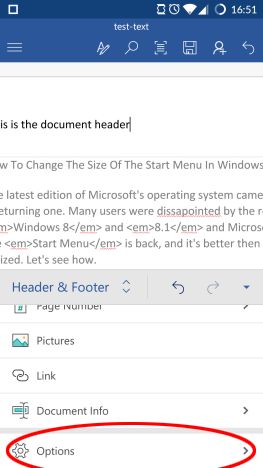
To set additional header and footer options, tap Options on the Header & Footer menu.
Android, Microsoft Word, insert, footers, headers, page numbers, documents
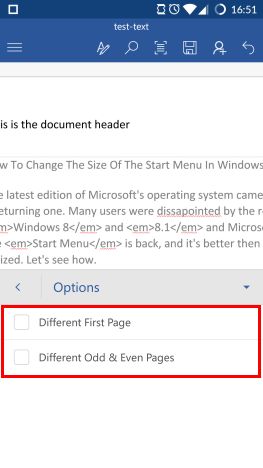
By default, the headers and footers are same on each page, but Different First Page will make it possible to have different ones on the first page, while Different Odd & Even Pages will make it possible to have alternating headers and footers on odd and even pages. After enabling these options you can customize the corresponding headers and footers.
Android, Microsoft Word, insert, footers, headers, page numbers, documents
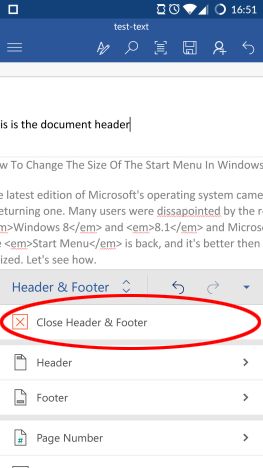
To return to editing the document, tap Close Header & Footer on the Header & Footer menu.
Android, Microsoft Word, insert, footers, headers, page numbers, documents
How to insert page numbers in Microsoft Word for Android
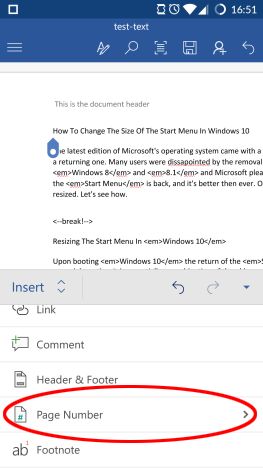
To insert page numbering into your document, you first need to access the Insert menu. In order to do that, tap the A icon on the top menu bar. Tap Home to open a list of menus and then tap Insert. Lastly, tap Page Number on the Insert menu.
Android, Microsoft Word, insert, footers, headers, page numbers, documents
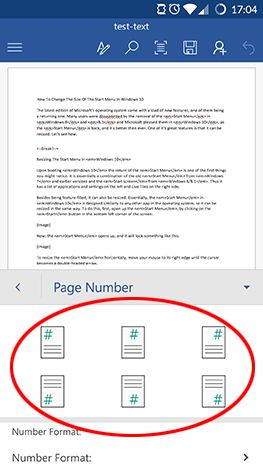
Here, the first six icons let you choose where the page numbering will be displayed: you can have it on the left, center or right of the header or the footer.
Android, Microsoft Word, insert, footers, headers, page numbers, documents
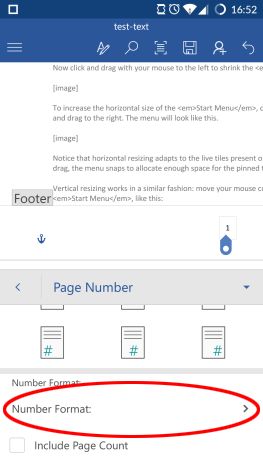
We have inserted numbering in the middle of the footer. Now, to choose what the page numbers will look like, tap Number Format: on the Page Number menu.
Android, Microsoft Word, insert, footers, headers, page numbers, documents
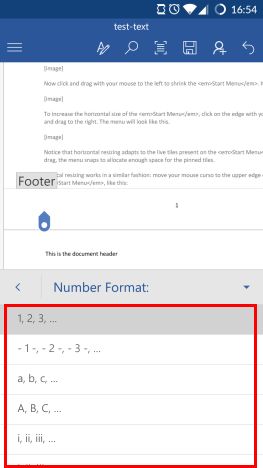
There are six possible formats for page numbering: tap the one you would like to use.
Android, Microsoft Word, insert, footers, headers, page numbers, documents
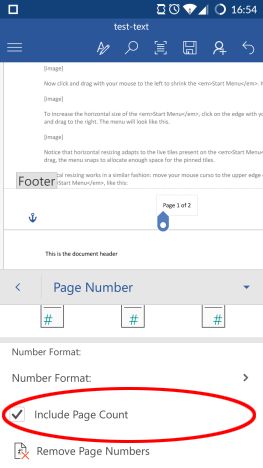
Back on the Page Number menu, you can tick the Include Page Count box, which will not only show the current page's number, but also the total number of pages in the document.
Note, however, that this function is only available when the first, most simple numbering format is selected.
Android, Microsoft Word, insert, footers, headers, page numbers, documents
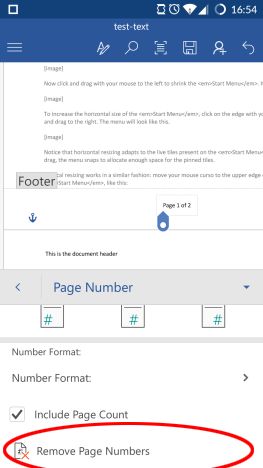
Tapping Remove Page Numbers will remove all page numbering from the document.
Android, Microsoft Word, insert, footers, headers, page numbers, documents
Conclusion
Although the bulk of information in a document is the main text inside it, the header and footer are also important areas. You can use them for adding logos, company information or other necessary data on official documents, or to display page numbering on lengthy documents. Using them efficiently will let your readers have a much smoother reading experience.








Discussion (0)
Comments are closed.