OneDrive is one of the best cloud storage solutions available to regular users all over the world. One of the best things about it is that Microsoft also offers mobile apps that you can use on your smartphone or tablet to sync your files to the cloud and have them available everywhere. Fortunately, that also includes iPhones and iPads, devices on which you can install the OneDrive app. Among other features, the OneDrive app also lets you automatically back up all the photos and videos you take with your iPhone/iPad. However, you must first configure the OneDrive app to upload your photos and videos automatically, to the cloud. If you want to learn how to do that, read this guide:
Step 1. Launch the OneDrive app on your iPhone or iPad and open its Settings
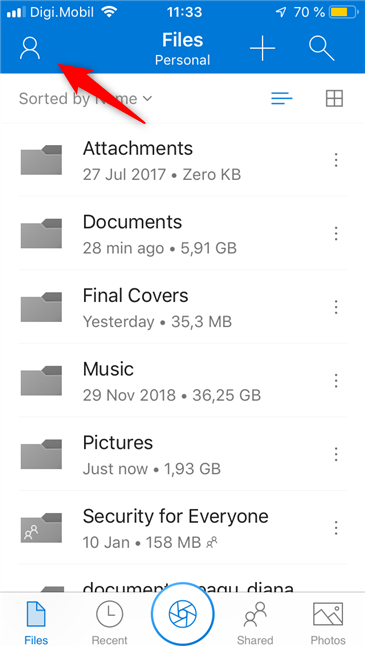
Start by opening the OneDrive app on your iPhone or iPad. Then, tap on the Me icon found on the top-left corner of the screen.
The Me button from the OneDrive app on iOS
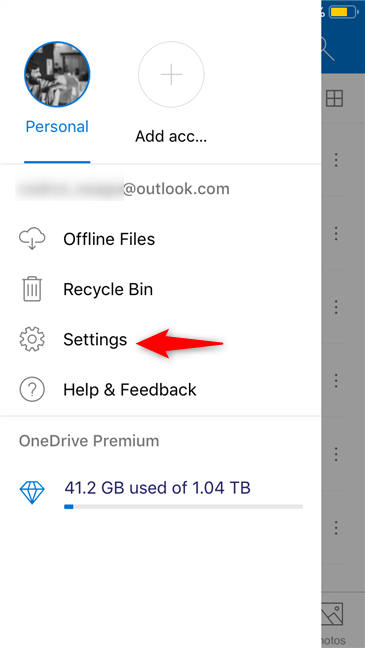
The previous action opens a menu with various settings and information. Tap the Settings entry.
The Settings from the OneDrive app for iOS
Step 2. Find the Camera Upload settings from the OneDrive app
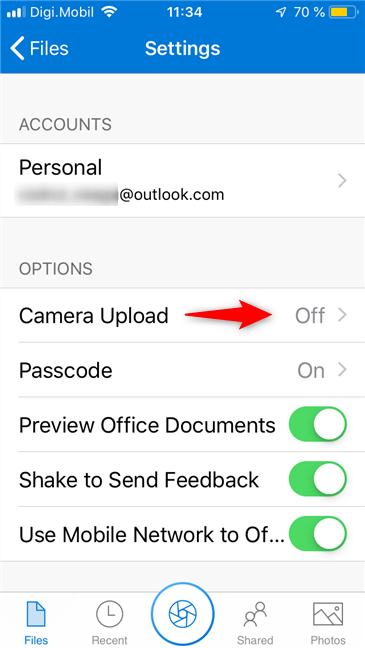
In the Settings list, tap Camera Upload. If you did not already configure the automatic upload of your iPhone/iPad photos to your OneDrive, it should say that it is Off.
The Camera Upload entry in OneDrive for iOS
Step 3. Upload the photos from your iPhone/iPad to your OneDrive
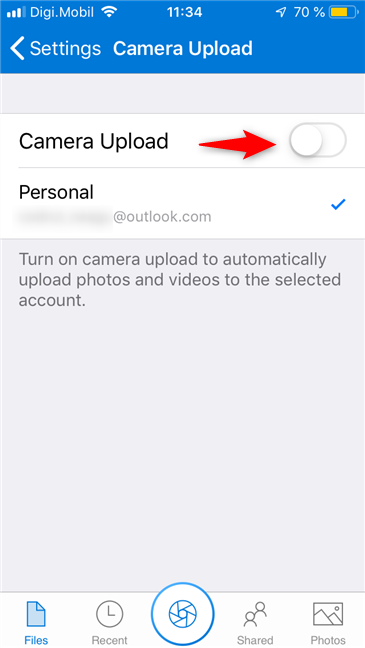
The OneDrive app now opens the screen called Camera Upload. On it, you should see the Camera Upload switch, which is turned Off by default, and the Camera upload account, which is the Microsoft account used to connect to the OneDrive cloud storage space.
The Camera Upload switch from OneDrive for iPhone
To enable the automatic upload of your photos, tap the Camera Upload switch to enable it.
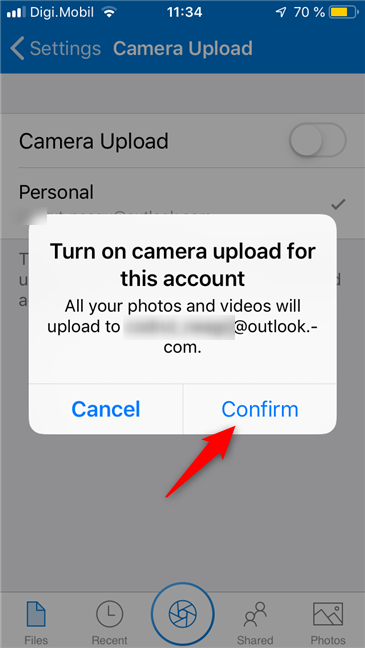
When you do that, OneDrive asks if you want to "Turn on camera upload for this account." Tap Confirm.
Enabling the camera roll upload in OneDrive for iPhone
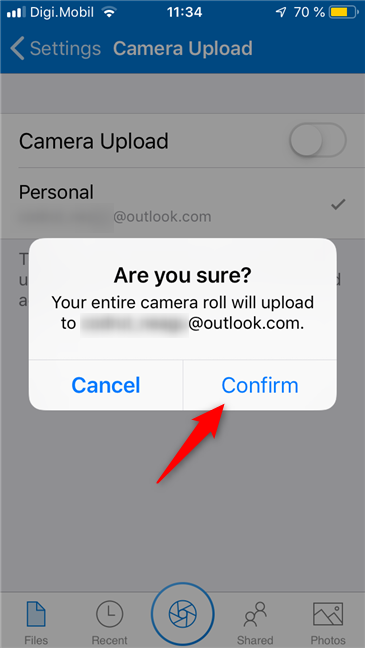
OneDrive wants you to confirm once more that you want to back up your entire camera roll to your OneDrive space. Tap Confirm again.
Confirming the camera roll backup to OneDrive
Note that the first time you do this, it could take a while for all your photos to be backed up, if you have many. That is why it is probably a good idea to keep your iPhone or iPad connected to a power source.
From now on, all the photos you take, as well as the ones you have already shot and are found on your iPhone or iPad, are automatically uploaded to your OneDrive cloud storage space. However, there are a few more settings that you can adjust so that the uploading goes just as you want it to: read the next section of this guide to see them.
Step 4. Set when and how OneDrive for iPhone/iPad uploads your photos and videos
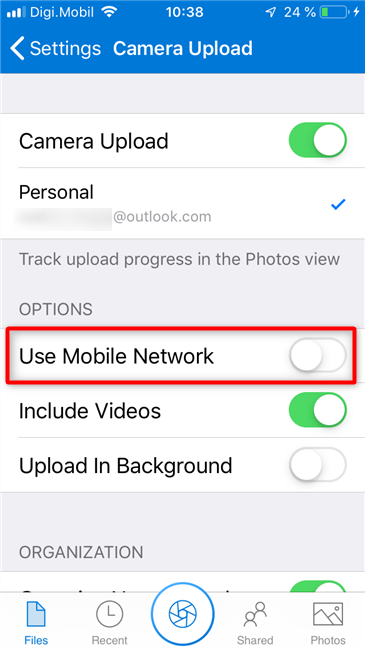
In iOS, the OneDrive app uploads your photos only when your iPhone or iPad is connected to Wi-Fi. However, you can also choose to "Use Mobile Network," which means that the pictures uploads are also performed when you are using your mobile data plan.
Choosing to use the mobile network to upload pictures to OneDrive
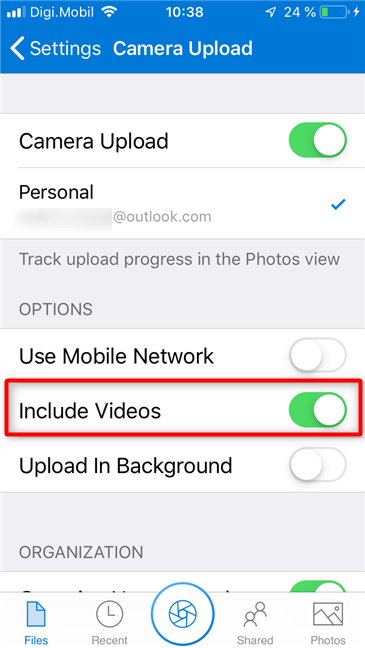
If you want to make sure that videos are also uploaded to your OneDrive, make sure that the "Include Videos" switch is On.
Selecting whether to include videos in the OneDrive backups
Because of the iOS limitations, the OneDrive app can only upload photos and videos if it is the active app. iOS automatically suspends OneDrive when it is not active and that means that it does not upload your photos in the background. However, it resumes uploading them when you reopen the app on your iPhone or iPad.
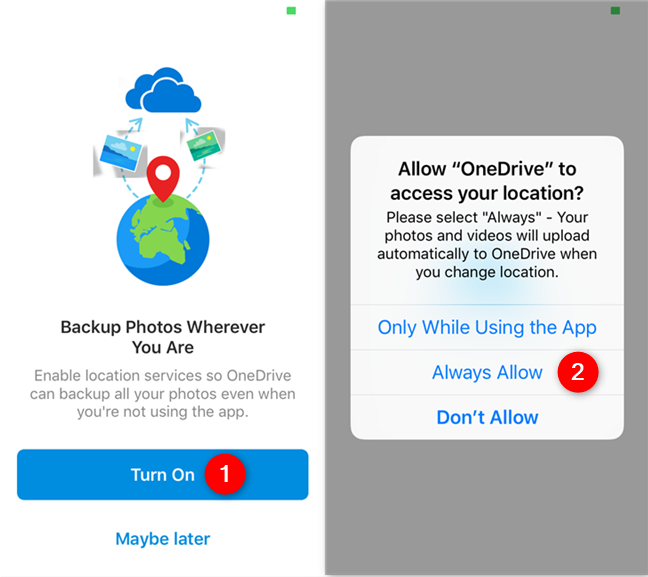
If you want it to be able to upload them all the time, regardless of whether the app is active or not, tap the "Upload In Background" switch and allow OneDrive to access your location.
Making OneDrive for iOS to upload pictures automatically, in the background
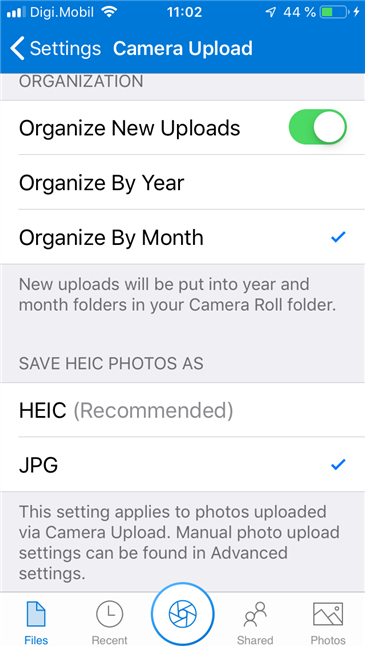
Back on the Camera Upload screen, if you scroll down, you can change a few settings about how OneDrive organizes your uploads and whether HEIC photos are uploaded as HEIC files or as JPEG files. OneDrive can organize your photos and videos by year or by month, so choose the method you like best. As for the HEIC photos, it is recommended that you upload them as they are, not change them into JPEGs. However, although HEIC pictures have better quality, JPEG files are better from a compatibility perspective.
Uploads organizing options in the OneDrive app for iPhones
So that is it: once you have finished configuring all the settings as you like, you can close the app and let it do its job of uploading your photos and videos to your OneDrive.
Do you use the OneDrive app to upload the photos and videos from your iPhone and iPad?
OneDrive is one of the best cloud services in the world and considering how many people use Windows on their devices but also own iPhones or iPads, it is a good thing that you can back up and sync photos and videos. If you have questions about using OneDrive on your iPhone or iPad, comment below.
I cannot find the option for jpg and heic files.
Is that option removed that I must upload heic file format?
I tried to open the files with OneDrive on computer and I need to install a plug in for $1USD. Is that needed?
After uploading to OneDrive, the photos are still in my iphone. Can it be set auto deleted once uploaded?
I used to use Google photo and it has a great search function. I can type cat and showed all the cat photo. Is there similar function in OneDrive?
Thanks.
Vance ·
When I switch the iphone setting to 1:1 instead of 4:3 for the picture, and upload with Onedrive it uploads two picture one with it turned 90 degrees and it says IMG_E1234 and the other is IMG_1234. I do not want two versions of the picture uploading. Thanks
graham g garioch ·
hi so what is the step after this? because i have over 6GB of photos on my ipad. can i now delete them from the ipad as i have them stored on onedrive? obv keeping in mind i will only be able to view onedrive photos while connected to the internet. thanks
igobythisname ·
i am a new MS 365 user; with all the limitation and restrictions coming to Google Photos, I am giving the 5TB in my 365 account a try! I have about 230GB of photos/videos in my iCloud; i am using my iPad Pro 2020 to upload my iCloud photos to OneDrive; the app is opened, never closing, the iPad is connected to power, less than 15ft away from my Modem/Router, and it is taking FOREVERRRRRRR… it’s been about 12 hrs since the upload has been running, and it seems it has only uploaded about 1,000 photos/videos; my upload speed is about 40Mbps, but it doesn’t seem like OneDrive is using all those resources. this is painfully slow! will consider sticking with Google then…
Barbara T ·
I was so excited to see this. BUT the directions do not correspond to my IPhone 12 once I get to the Camera Upload screen, so the instructions were meainingless. So disappointed.
Ciprian Adrian Rusen ·
Hi Barbara. We will try to update this guide sometime in the near future, so that it matches with the latest experience.
Drew ·
I like the article, but unfortunately I don’t have all the same options in mobile OneDrive, like turning HEICs to JPGs. Also, the photos shown aren’t the latest, culled version I have on my phone. Thanks in advance for your help.
Drew ·
I’m using an iPhone 7, if that makes a difference.
Nico ·
I’m using version 11 of the app and can’t find the “upload in background” option
GC ·
Me too. I couldn’t locate that option. Following for answer.
Naomi J ·
This was great! Clear, helpful, crisp. Just what I needed. Many thanks!
Anonymous ·
Happy to help. Do not hesitate to subscribe to our e-mail newsletter, for more useful content.
Don Cameron ·
I tried to do this but not all the photos uploaded. What can I do?









Discussion (13)
I cannot find the option for jpg and heic files.
Is that option removed that I must upload heic file format?
I tried to open the files with OneDrive on computer and I need to install a plug in for $1USD. Is that needed?
After uploading to OneDrive, the photos are still in my iphone. Can it be set auto deleted once uploaded?
I used to use Google photo and it has a great search function. I can type cat and showed all the cat photo. Is there similar function in OneDrive?
Thanks.
When I switch the iphone setting to 1:1 instead of 4:3 for the picture, and upload with Onedrive it uploads two picture one with it turned 90 degrees and it says IMG_E1234 and the other is IMG_1234. I do not want two versions of the picture uploading. Thanks
hi so what is the step after this? because i have over 6GB of photos on my ipad. can i now delete them from the ipad as i have them stored on onedrive? obv keeping in mind i will only be able to view onedrive photos while connected to the internet. thanks
i am a new MS 365 user; with all the limitation and restrictions coming to Google Photos, I am giving the 5TB in my 365 account a try! I have about 230GB of photos/videos in my iCloud; i am using my iPad Pro 2020 to upload my iCloud photos to OneDrive; the app is opened, never closing, the iPad is connected to power, less than 15ft away from my Modem/Router, and it is taking FOREVERRRRRRR… it’s been about 12 hrs since the upload has been running, and it seems it has only uploaded about 1,000 photos/videos; my upload speed is about 40Mbps, but it doesn’t seem like OneDrive is using all those resources. this is painfully slow! will consider sticking with Google then…
I was so excited to see this. BUT the directions do not correspond to my IPhone 12 once I get to the Camera Upload screen, so the instructions were meainingless. So disappointed.
Hi Barbara. We will try to update this guide sometime in the near future, so that it matches with the latest experience.
I like the article, but unfortunately I don’t have all the same options in mobile OneDrive, like turning HEICs to JPGs. Also, the photos shown aren’t the latest, culled version I have on my phone. Thanks in advance for your help.
I’m using an iPhone 7, if that makes a difference.
I’m using version 11 of the app and can’t find the “upload in background” option
Me too. I couldn’t locate that option. Following for answer.
This was great! Clear, helpful, crisp. Just what I needed. Many thanks!
Happy to help. Do not hesitate to subscribe to our e-mail newsletter, for more useful content.
I tried to do this but not all the photos uploaded. What can I do?