




You can zip and unzip files on iPhone and iPad using the built-in Files app, without installing any third-party apps. iOS and iPadOS let you compress single files, multiple items, or entire folders, and extract ZIP archives with a single tap, whether they’re stored locally or in iCloud Drive.
This guide shows you how to do this quickly, along with extra tips on how to resolve common issues you might encounter.
Table of contents
- How to zip files on iPhone and iPad using the Files app
- How to unzip files on iPhone and iPad
- Where zipped and unzipped files are saved
- Differences between iPhone and iPad when zipping files
- Common problems when zipping or unzipping files
- When you need a third-party app to zip or unzip files
- Tips for managing ZIP files on iPhone and iPad
- Summary
How to zip files on iPhone and iPad using the Files app
This method works on all modern iPhone and iPad models running recent iOS or iPadOS versions. You only need the Files app.
Zip a single file
Use this option when you want to compress one document or image for sharing.
- Open the Files app.
- Navigate to the file you want to zip.
- Long-press the file.
- Tap Compress.
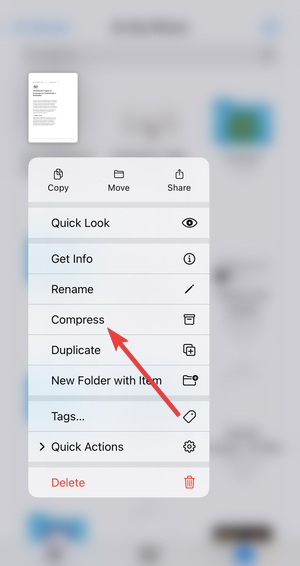

The Files app creates a ZIP file in the same folder with the same name.
Zip multiple files at once
This option helps when you need to send several files together.
- Open the Files app.
- Go to the folder containing the files.
- Tap the three-dot menu, then tap Select.
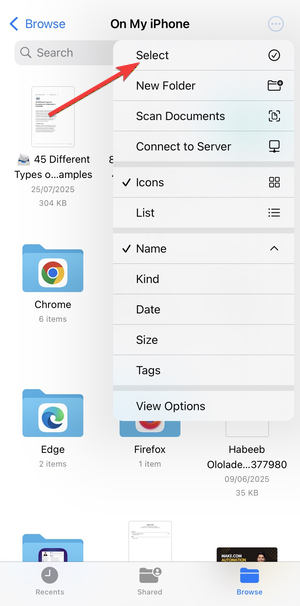

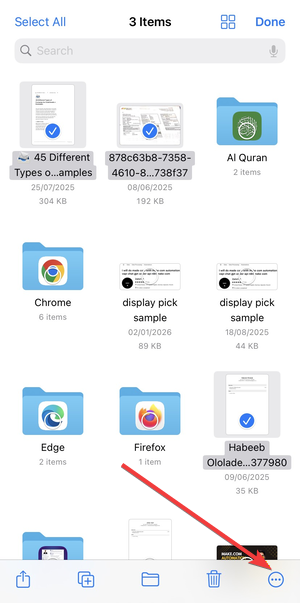
- Select all files you want to include.
- Tap the three-dot menu again.

- Tap Compress.
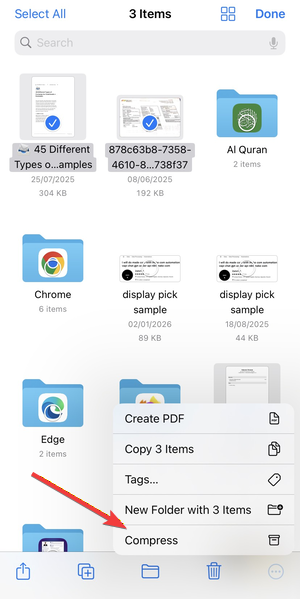

iOS creates a single ZIP archive containing all selected files.
Zip an entire folder
Folders compress faster than selecting individual files.
- Open the Files app.
- Locate the folder you want to zip.
- Long-press the folder.
- Tap Compress.
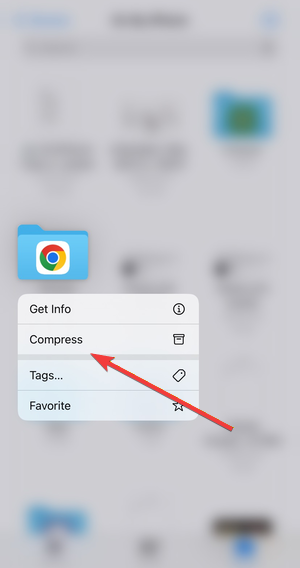

The ZIP file appears in the same directory as the original folder.
How to unzip files on iPhone and iPad
Unzipping files takes even fewer steps because iOS handles extraction automatically.
Unzip a file stored locally
This works for ZIP files saved on your device or in iCloud Drive.
- Open the Files app.
- Find the ZIP file.


- Tap the ZIP file once.
iOS extracts the contents into a new folder in the same location.
Unzip files from iCloud Drive or other cloud locations
Cloud-based ZIP files behave the same way as local ones.
- Open the Files app.
- Navigate to iCloud Drive or another cloud provider.
- Tap the ZIP file.
The extracted folder downloads automatically and becomes available offline.
Where zipped and unzipped files are saved
The Files app always saves ZIP files and extracted folders in the same directory as the original archive. If you compressed files from iCloud Drive, the ZIP stays in iCloud. If you worked in On My iPhone or On My iPad, the files stay local.
Differences between iPhone and iPad when zipping files
iPad offers extra flexibility through drag-and-drop and split view. You can select files faster using a trackpad or keyboard, but the compress and extract steps remain identical on both devices.
Common problems when zipping or unzipping files
“Compress” option missing in Files
The option disappears when you long-press unsupported file types or system folders. Move the file to On My iPhone or iCloud Drive, then try again.
ZIP file won’t open or extract
Corrupted ZIP files or unsupported formats can block extraction. Re-download the file or confirm the archive uses standard ZIP formatting.
Large ZIP files failing to create or extract
Large archives need free storage space. Check available storage space on your iPhone in Settings → General → iPhone Storage before retrying.

When you need a third-party app to zip or unzip files
The built-in Files app covers most needs, but it has limits.
Password-protected ZIP files
iOS can create ZIP files, but cannot add passwords. You need a third-party app to open protected archives.
Advanced archive formats like RAR or 7z
Files app does not support RAR or 7z formats. External apps handle these archive types.
Tips for managing ZIP files on iPhone and iPad
- Rename ZIP files before sharing to avoid confusion.
- Use folders to group files before compressing.
- Delete ZIP files after extraction to save storage.
- Keep large archives in iCloud to avoid local storage issues.
FAQs
Can I zip files on iPhone and iPad without installing an app?
Yes. iOS and iPadOS include built-in ZIP support in the <strong>Files</strong> app, so you can compress files and folders without third-party apps.
Why don’t I see the Compress option in the Files app?
The Compress option appears only for supported files and folders stored in locations like On My iPhone or iCloud Drive. System folders and some shared locations do not support compression.
Where do unzipped files go on iPhone and iPad?
Extracted files appear in a new folder in the same location as the ZIP file. The Files app names the folder after the original archive.
Can iPhone and iPad open password-protected ZIP files?
The Files app cannot open password-protected ZIP files. You need a third-party app to extract archives that require a password.
Summary
- Open the Files app to manage ZIP files.
- Long-press files or folders and tap Compress to create ZIP archives.
- Tap any ZIP file once to extract its contents.
- Check storage space if zipping or unzipping fails.
Zipping and unzipping files on iPhone and iPad works reliably through the Files app and covers most everyday tasks. Once you know where files are saved and how selection works, managing archives becomes quick and predictable.



Discussion (0)
Be the first to comment.