



Windows 11 can save passwords for websites, apps, Wi-Fi networks, and system sign-ins. This makes logging in faster, but many users are unsure where these passwords are stored or how to view them when needed.
This guide explains how to view saved passwords on Windows 11 using built-in tools, browsers, and system settings. It also covers what to do if passwords are missing and how to manage them safely.
Where Windows 11 Saves Passwords
Windows 11 does not store all passwords in one place. Passwords are saved in different locations depending on how they are used.
Common storage locations include:
- Web browsers such as Edge and Chrome
- Wi-Fi network profiles
- Microsoft account and system credentials
- Third-party apps
Each type requires a different method to view it.
View Saved Passwords in Web Browsers
Most website passwords are saved in your browser.
View Saved Passwords in Microsoft Edge
Steps:
- Open Microsoft Edge
- Click the three-dot menu
- Select Settings
- Click Profiles
- Select Passwords
- Find the website
- Click the eye icon
- Verify your Windows PIN or password
The saved password will be revealed.
View Saved Passwords in Google Chrome
Steps:
- Open Google Chrome
- Click the three-dot menu
- Select Settings
- Click Autofill and passwords
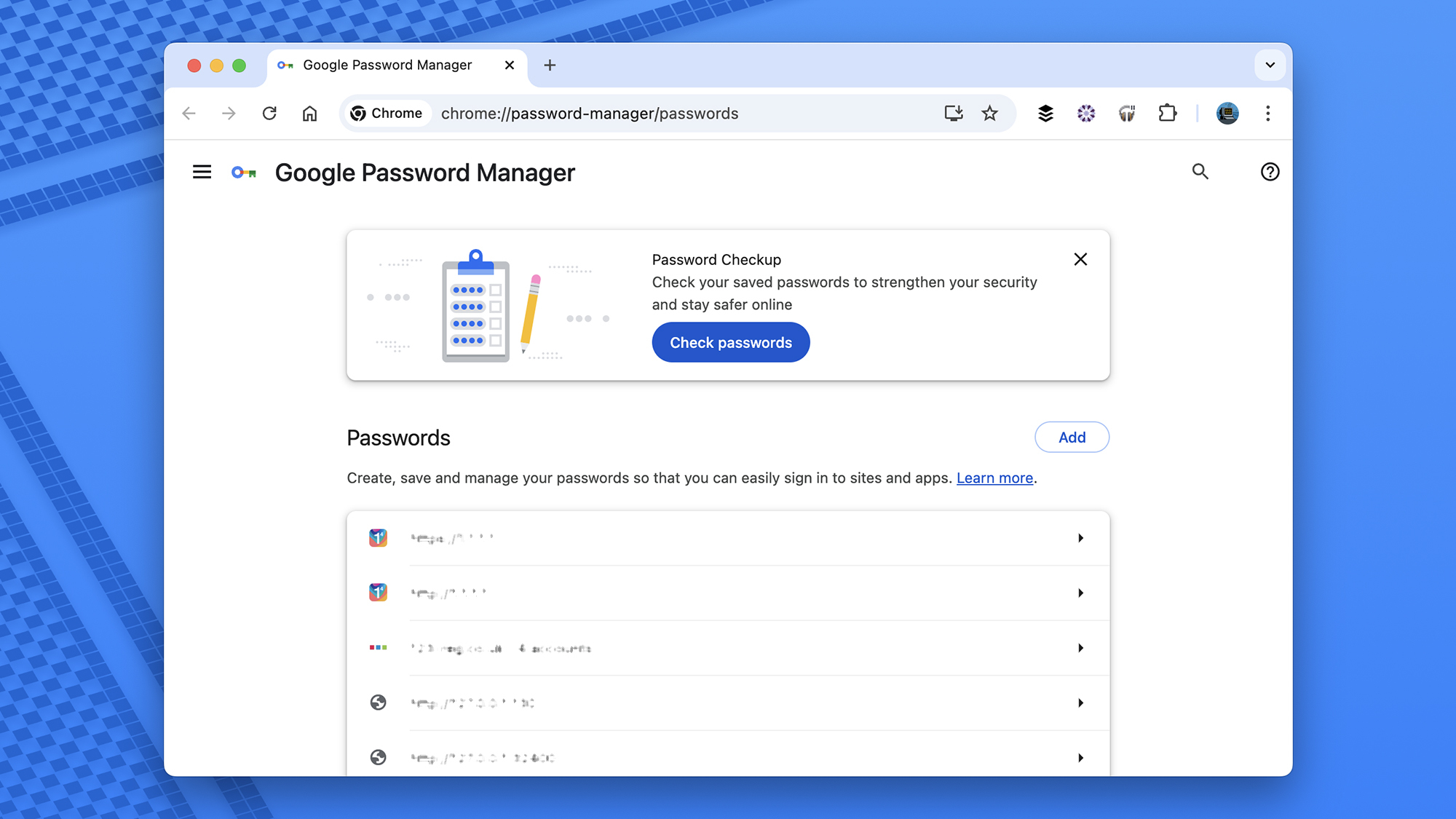
- Open Google Password Manager
- Select a website
- Click the eye icon
- Authenticate to view the password
This works if you are signed in to Chrome or your Google account.
View Saved Wi-Fi Passwords in Windows 11
You can view the password for Wi-Fi networks you have already connected to.
Steps
- Open Control Panel
- Go to Network and Internet
- Select Network and Sharing Center
- Click your active Wi-Fi network
- Select Wireless Properties
- Open the Security tab
- Check Show characters
The Wi-Fi password will now be visible.
View Saved App and Network Passwords
Windows stores some credentials in Credential Manager.
How to Use Credential Manager
- Open Control Panel
- Select User Accounts
- Click Credential Manager
- Choose Windows Credentials or Web Credentials
- Click a saved entry
- Select Show
- Enter your Windows account password
This includes saved credentials for apps, networks, and services.
Why Some Passwords Cannot Be Viewed
Some passwords are protected by system security and cannot be displayed in plain text.
Examples include:
- Microsoft account password
- Windows login password
- PIN or biometric data
These credentials can be changed or reset, but not viewed.
Security Tips When Viewing Saved Passwords
When accessing saved passwords, keep security in mind.
Best practices:
- Do not view passwords on shared or public PCs
- Lock your screen when stepping away
- Use a strong Windows account password
- Enable device encryption if available
Anyone with access to your Windows account can potentially view saved passwords.
Final Thoughts
Viewing saved passwords on Windows 11 is possible, but the steps depend on where the password is stored. Browsers, Wi-Fi settings, and Credential Manager each handle different types of credentials. While saved passwords are convenient, protecting your Windows account is essential to keep them secure.
Knowing where to look saves time and avoids unnecessary password resets.

Discussion (0)
Be the first to comment.