



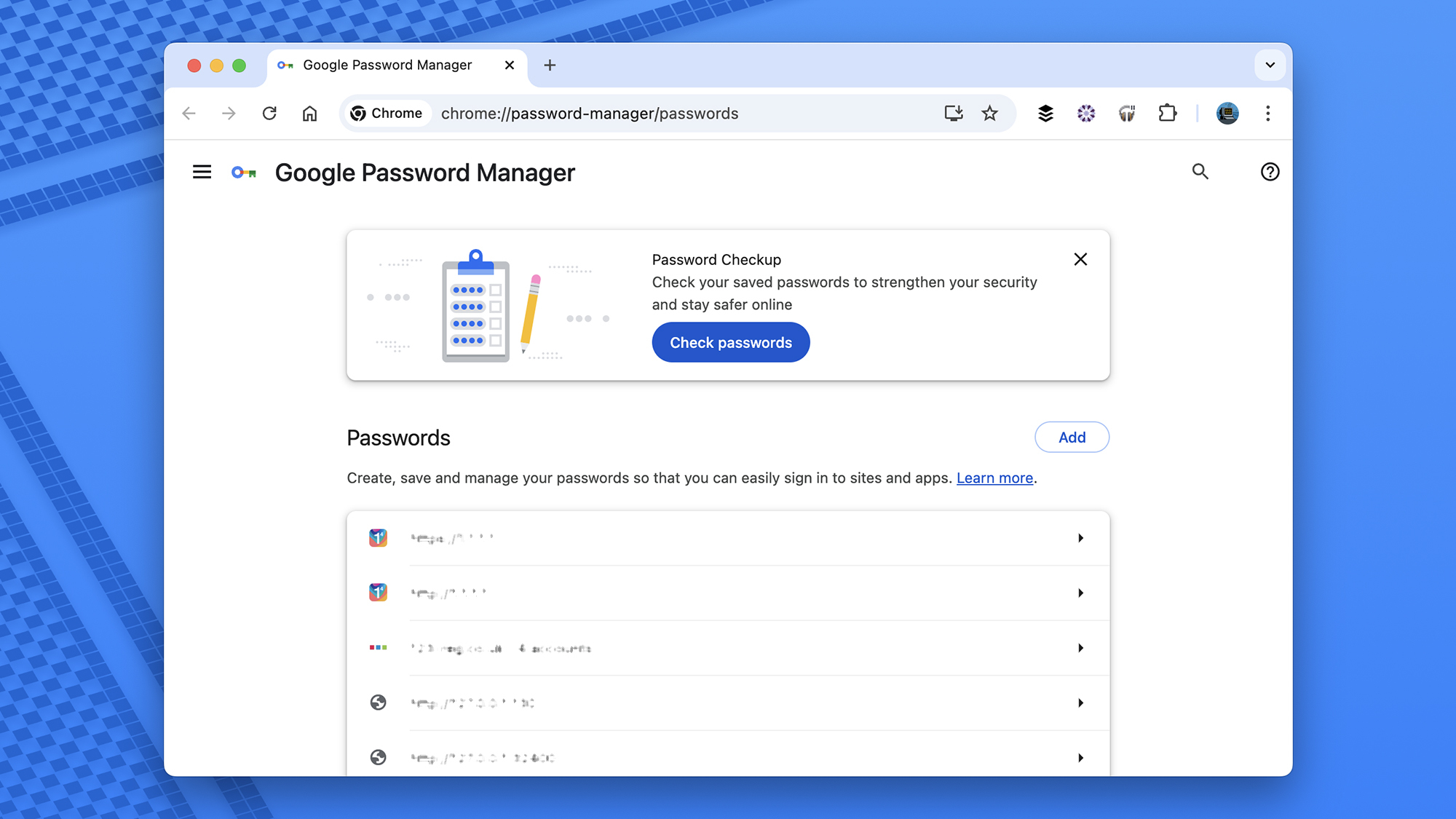
Google saves your passwords when you sign in to websites using Chrome or an Android device. This makes logging in faster, but many users forget where these passwords are stored or how to view them later.
This guide explains how to view saved Google passwords on desktop, Android, and iPhone, how to edit or delete them, and what to do if passwords are missing.
Where Google Saves Your Passwords
Google passwords are stored in your Google Account, not just in the Chrome browser. This allows passwords to sync across devices when you are signed in to the same account.
Passwords may be saved from:
- Google Chrome on Windows or Mac
- Android phones and tablets
- Chrome on iPhone or iPad
To view them, you must sign in to your Google Account and verify your identity.
How to View Saved Google Passwords on Desktop
This method works on Windows, macOS, and Linux.
Method 1: Using Google Password Manager Website
This is the easiest and most reliable option.
Steps:
- Open any web browser
- Go to passwords.google.com
- Sign in to your Google Account
- Verify your identity if prompted
- Browse the list of saved websites
- Click a website to view the saved password
You may need to enter your Google account password again to reveal it.
Method 2: Using Google Chrome Settings
Steps:
- Open Google Chrome
- Click the three-dot menu in the top right
- Select Settings
- Click Autofill and passwords
- Select Google Password Manager
- Click any saved site
- Authenticate to view the password
This method works only if you are signed in to Chrome.
How to View Saved Google Passwords on Android
On Android devices, passwords are managed directly through your Google Account.
Steps:
- Open Settings on your phone
- Scroll down and tap Google
- Select Manage your Google Account
- Go to the Security tab
- Tap Password Manager
- Authenticate using fingerprint, PIN, or pattern
- Select a website to view the password
This works on most Android phones, including Samsung, Pixel, and others.
How to View Saved Google Passwords on iPhone
On iPhone, Google passwords are accessible through Chrome or the Google app.
Using Google Chrome on iPhone
Steps:
- Open Google Chrome
- Tap the three-dot menu
- Select Settings
- Tap Password Manager
- Sign in to your Google Account if needed
- Tap a saved website
- Authenticate to view the password
Make sure Chrome sync is enabled for passwords.
How to Edit or Delete Saved Google Passwords
You can manage your saved passwords anytime.
Edit a Password
- Open Google Password Manager
- Select the website
- Click Edit
- Verify your identity
- Update the username or password
- Save changes
Delete a Password
- Open Google Password Manager
- Select the website
- Click Delete
- Confirm the action
Deleted passwords cannot be recovered.
at to Do If Google Passwords Are Not Showing If you cannot see saved passwords, try these checks.
| Problem | Solution |
| Not signed into Google account | Sign in with the correct account |
| Sync disabled | Enable password sync in Chrome |
| Wrong Google account | Switch to the account used earlier |
| Browser cache issue | Restart browser or clear cache |
| Corporate device restrictions | Password viewing may be blocked |
Final Thoughts
If you were wondering how to view saved Google passwords, the process is simple once you know where to look. Google Password Manager lets you view, edit, and delete passwords across all your devices using one account. Keeping sync enabled and securing your Google account ensures your passwords remain accessible and safe.


Discussion (0)
Be the first to comment.