



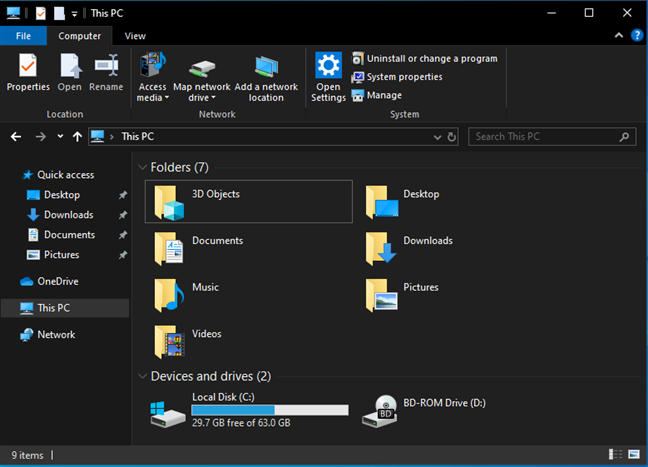
File Explorer is one of the most important tools in Windows 11. It helps you find, open, organize, and manage files stored on your computer and in the cloud. Whether you are working with documents, photos, videos, or downloads, File Explorer is where everything comes together.
Windows 11 brings a cleaner design and several improvements to File Explorer. Once you understand how it works, you can save time, stay organized, and work more efficiently on your PC.
What Is File Explorer in Windows 11
File Explorer is the built-in file management app in Windows 11. It allows you to browse folders, access drives, manage connected storage devices, and work with cloud files like OneDrive. You can create folders, rename files, move data, and search for content using one window.
The updated design in Windows 11 focuses on simplicity, with a modern layout that reduces clutter and highlights commonly used actions.
How to Open File Explorer
There are several easy ways to open File Explorer in Windows 11. You can use whichever method feels most comfortable.
- Click the folder icon on the taskbar
- Press Windows + E on your keyboard

- Open Start, type File Explorer, and press Enter
- Right-click the Start button and select File Explorer


Understanding the File Explorer Layout
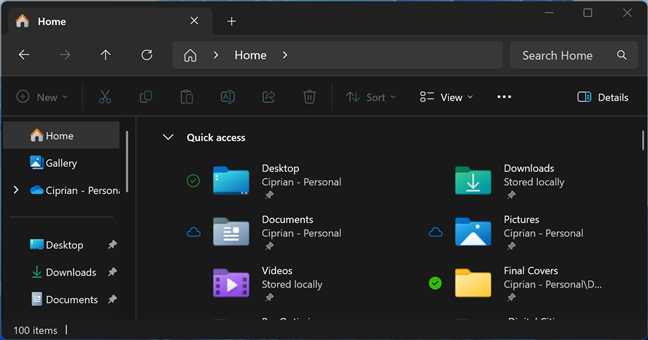
When File Explorer opens, you will see different sections that help you move around and manage files.
- Navigation pane on the left shows folders, drives, and cloud locations
- Address bar at the top shows your current location
- Command bar contains options like copy, paste, delete, rename, and sort
- Main area displays files and folders
- Search box lets you find files in the current folder or drive
Once you get familiar with this layout, basic file tasks become much faster.
Browsing Files and Folders
To open a folder, simply double-click it. You can move back and forward using the arrow buttons at the top. Clicking different parts of the address bar lets you jump to earlier locations without going step by step.
File Explorer also supports tabs, which means you can open multiple folders in a single window. This makes it easier to drag files between folders without opening many windows.
Changing Views and Sorting Files
Windows 11 allows you to change how files appear on the screen. This helps when working with different types of content.
Available View Options
- Extra large icons
- Large, medium, or small icons
- List view
- Details view with size and date
- Content view
You can also sort files by name, date modified, type, or size. Grouping options help keep similar files together, such as images or documents.
Managing Files and Folders
File Explorer makes everyday file management simple.
Common Actions
- Create a new folder by selecting New > Folder
- Rename a file or folder by selecting it and pressing
F2 - Copy files using right-click or keyboard shortcuts
- Move files by dragging them or using cut and paste
- Delete files to send them to the Recycle Bin
You can select multiple files by holding Ctrl while clicking or press Ctrl + A to select everything in a folder.
Quick Access and Favorites
Quick Access shows folders you use often and files you opened recently. This section helps you reach important locations faster without searching every time.
You can add your own folders to Quick Access by right-clicking a folder and choosing Pin to Quick access. If you no longer need it there, you can remove it just as easily.
Searching for Files in File Explorer
The search box in File Explorer helps you find files quickly. You can search by file name or use filters like date, type, or size.

For example, you can search for all image files or documents modified recently. This is useful when working with large folders or external drives.
New and Improved Features in Windows 11
File Explorer in Windows 11 continues to improve with performance and design updates. The app now opens faster on many systems, and menus are cleaner and easier to use.
Right-click menus focus on common actions, while advanced options are grouped to reduce clutter. Dark mode also works more consistently across File Explorer windows, making it easier on the eyes during long sessions.
Helpful Keyboard Shortcuts
Using keyboard shortcuts can speed up everyday tasks in File Explorer.
| Action | Shortcut |
|---|---|
| Open File Explorer | Windows + E |
| New tab | Ctrl + T |
| Search | Ctrl + E |
| Select all files | Ctrl + A |
| Rename item | F2 |
| Open context menu | Shift + F10 |
Tips to Use File Explorer Better
- Enable file name extensions to clearly see file types
- Use tabs to manage multiple folders at once
- Change the default opening location to This PC if you prefer
- Use Details view when working with many files
These small changes can make a big difference in daily use.
Frequently Asked Questions
Can I use File Explorer to access OneDrive files?
Yes, if you are signed in to OneDrive, your cloud files appear inside File Explorer and work like local files.
How do I show hidden files and folders?
Open the View menu, go to Show, and enable Hidden items.
Can I customize how File Explorer opens?
Yes, you can change whether it opens to Quick Access or This PC through folder settings.
File Explorer in Windows 11 is a powerful yet easy-to-use tool for managing files. With its modern design, tab support, and improved performance, it helps both new and experienced users stay organized.
Once you understand its layout, views, and shortcuts, everyday tasks like finding files, moving folders, and managing storage become faster and less frustrating. Learning File Explorer well is one of the best ways to improve your overall Windows 11 experience.

Discussion (0)
Be the first to comment.