



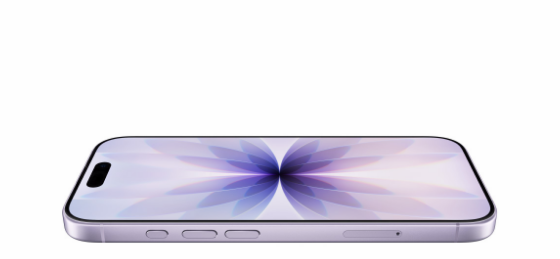
The iPhone 17 does not turn off with a single button press. Pressing only the side button activates Siri instead of the power menu. You need to press two buttons at the same time, or use one of the alternative methods below. Here is every way to do it.
Method 1: Using the Physical Buttons (Fastest)
This works on iPhone 17, iPhone 17 Air, iPhone 17 Pro, and iPhone 17 Pro Max.
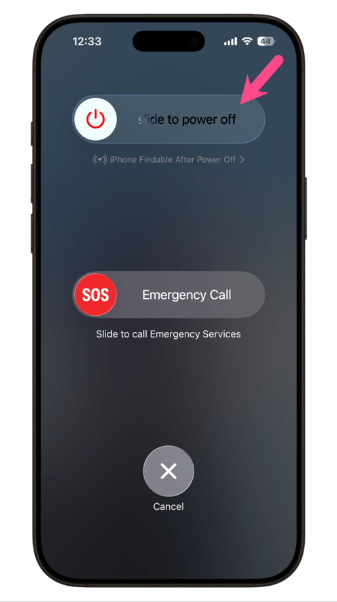
Press and hold the Volume Up button and the Side button simultaneously. Keep both buttons held down until the slide to power off slider appears on screen. Release both buttons. Drag the slider from left to right. The screen goes dark and the iPhone powers off within a few seconds.
To turn it back on, press and hold the Side button until the Apple logo appears, then release.
Method 2: Through Settings
This method works when you prefer not to use the button combination, or if your volume buttons are not responding.
Open the Settings app. Tap General. Scroll to the very bottom and tap Shut Down. The slide to power off slider appears. Drag it to the right to power off.
Method 3: Using Siri
If your hands are occupied or you prefer voice commands, Siri can power off the device.
Say "Hey Siri, turn off my iPhone" or "Hey Siri, shut down." Siri asks you to confirm. Tap Shut Down on the screen to complete the action.
Method 4: Through Control Centre
Swipe down from the top right corner of the screen to open Control Centre. Press and hold the Power icon in the top right area of Control Centre. The slide to power off slider appears. Drag it to the right.
How to Force Restart When the Screen Is Frozen
If the iPhone 17 is completely unresponsive and none of the above methods work, a force restart clears the issue without deleting any data.
Quickly press and release the Volume Up button. Quickly press and release the Volume Down button. Then press and hold the Side button until the screen goes black and the Apple logo appears. Keep holding even if the slide to power off slider appears. Release the button when the Apple logo shows.
The iPhone restarts automatically from this point without requiring you to drag any slider.
Turning the iPhone 17 Back On
After the iPhone is fully powered off, press and hold the Side button on the right edge of the device. Hold it until the Apple logo appears on screen, then release. The iPhone boots up and returns to the lock screen. You must enter your passcode the first time after a restart. Face ID does not work until the passcode has been entered at least once after each startup.
Frequently Asked Questions
Why does pressing the side button alone not turn off the iPhone 17?
Apple changed the single side button press to activate Siri starting with iPhone X. Powering off now requires holding the side button and a volume button simultaneously to prevent accidental shutdowns. If you find the button combination inconvenient, the Settings method and Control Centre method both achieve the same result with a single button.
Will turning off my iPhone 17 cancel my alarms?
Yes. A powered-off iPhone does not sound any alarms. If you rely on an alarm, leave the iPhone powered on. Even with Do Not Disturb enabled, alarms still sound. Use Low Power Mode instead of a full shutdown if you want to conserve battery while keeping alarms active.
Does turning off the iPhone 17 delete anything?
No. Powering off the iPhone saves your data exactly as it is. Apps in the background are closed, unsaved work within apps may be lost if the app does not auto-save, but your photos, messages, settings, and installed apps are completely unaffected.



Discussion (0)
Be the first to comment.