




If your iPhone flashlight is on and you want it off quickly, you have several fast options. iOS lets you disable the flashlight from Control Center, the Lock Screen, Siri, and accessibility features, even when the phone is locked.
Below are the most reliable methods, followed by fixes for cases where the flashlight refuses to turn off.
Table of contents
- Turn off flashlight from Control Center
- Turn off flashlight from the Lock Screen
- Ask Siri to turn off the flashlight
- Use Back Tap or AssistiveTouch to turn off the flashlight
- Flashlight won’t turn off on iPhone
- Stop the flashlight from turning on by accident
- Does turning off flashlight affect battery life?
- Summary
Turn off flashlight from Control Center
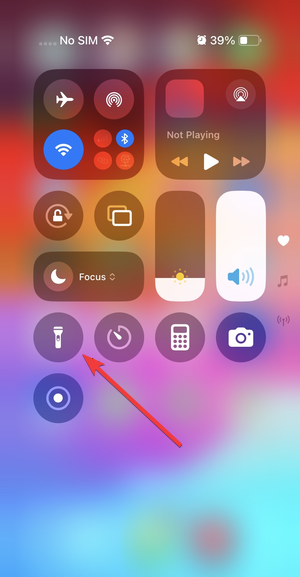
You can turn on the flashlight on iPhone from the Control Center, and the same goes for turning it off. This method works on every modern iPhone and stops the flashlight instantly.
Open Control Center and tap the flashlight icon
Swipe down from the top-right corner of the screen on Face ID models. Swipe up from the bottom on older iPhones with a Home button, then tap the flashlight icon to turn it off.
Turn off flashlight from the Lock Screen
This option helps when the flashlight turns on accidentally.
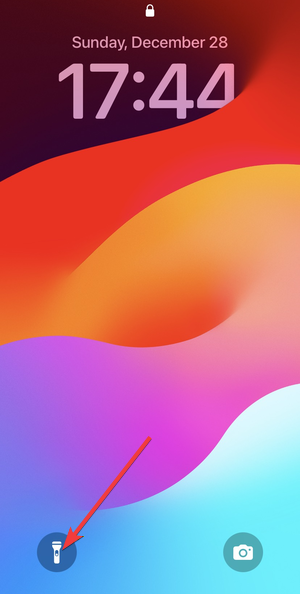
Disable flashlight using the Lock Screen shortcut
Wake the iPhone without unlocking it. Press the flashlight icon in the bottom-left corner once to switch it off.
Ask Siri to turn off the flashlight
Voice control works when your hands are busy or the screen is locked.
Use Siri voice commands
Say “Hey Siri, turn off the flashlight” or “Hey Siri, flashlight off.” Siri disables the light immediately without opening any menus.
Use Back Tap or AssistiveTouch to turn off the flashlight
Accessibility features can toggle the flashlight even faster.
Turn off flashlight with Back Tap
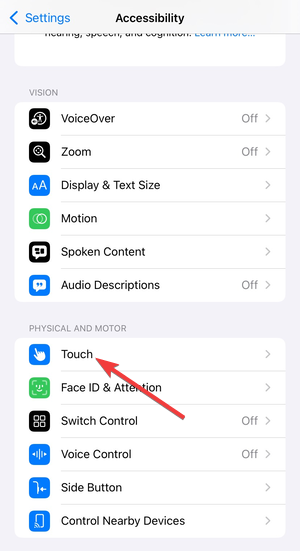
Open Settings, tap Accessibility, then Touch, and choose Back Tap. Assign Flashlight to Double Tap or Triple Tap, then tap the back of the phone to turn it off.
Turn off flashlight using AssistiveTouch
Go to Settings, tap Accessibility, then Touch, and enable AssistiveTouch. Tap the onscreen button and select Flashlight to disable it.

Flashlight won’t turn off on iPhone
If the icon stays on or does nothing, a system issue usually causes it.
Close the Camera app if it is open
Swipe up from the bottom and close the Camera app completely. The camera can lock the flashlight until it shuts down.
Restart your iPhone to reset the flashlight
Press and hold the Side button with a volume button, then slide to power off. Turn the phone back on and check the flashlight again.

Let the iPhone cool down
iOS limits the flashlight during overheating. Let the device cool for a few minutes before trying again.
Update iOS if the flashlight keeps getting stuck
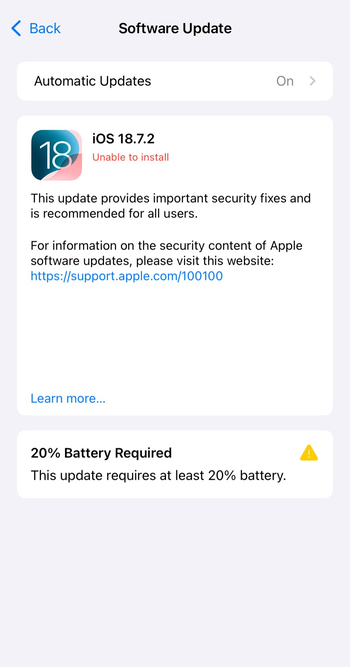
Open Settings, tap General, then Software Update. Install the latest update to fix known flashlight bugs.
Stop the flashlight from turning on by accident
Accidental activation usually comes from gestures or Lock Screen touches.
Avoid Lock Screen activation triggers
Keep the phone face-up in your pocket or bag. Avoid pressing the Lock Screen flashlight icon unintentionally.
Adjust accessibility settings that control the flashlight
Check Back Tap and AssistiveTouch assignments. Remove the flashlight action if it triggers too often.
Does turning off flashlight affect battery life?
Yes, the flashlight drains battery quickly. Turning it off as soon as possible helps preserve battery health.
Summary
- Turn off the flashlight from Control Center for the fastest result.
- Use the Lock Screen icon or Siri when the phone is locked.
- Enable Back Tap or AssistiveTouch for quick access.
- Restart or update iOS if the flashlight gets stuck.
Turning off the flashlight on an iPhone takes only a second when you use the right method. Control Center and the Lock Screen handle most cases, while Siri and accessibility features add extra convenience. If the flashlight refuses to turn off, a restart, cooldown, or iOS update usually fixes the problem quickly.


Discussion (0)
Be the first to comment.