




Spending more time on your computer than you planned often sneaks up on you. If you want to know how to track your screen time on PC and Mac, both Windows and macOS now include solid tools that show exactly where your hours go each day.
On Windows 10 and Windows 11, Microsoft Family Safety helps you see when and how long you or your kids use a device. On Mac, Screen Time tracks app usage, notifications, and pickups across your Apple devices when you sign in with the same Apple ID. Once you understand these dashboards, you can set limits, improve your focus, and protect your eyes and sleep.
Windows does not show one simple “screen time” tile the way a phone does. Instead, you use Microsoft Family Safety with your Microsoft account to track screen time on Windows 10 and Windows 11 for yourself or family members.
You manage most of these controls online through your Microsoft account, but you start by setting up family members in Windows. This screen time tracker works best when each person signs in with their own account.
Set Up Family Safety On Windows
First, add family members so Windows can log activity per user instead of mixing everything together under one profile.
- Click the Start button and open Settings.
- Select Accounts, then choose Family & other users or Family depending on your Windows version.
- Click Add a family member.
- Enter the person’s Microsoft account email, or create a new account if needed.
- Choose whether they join as an Organizer (adult) or Member (child).
- Finish the prompts so the account appears under your family list.
- Have each person sign in on the PC with their own account so Windows can track their screen time separately.
This basic setup gives Family Safety the data it needs to monitor screen time across Windows 10 and Windows 11 devices linked to the same Microsoft family group.
View Screen Time Reports For Windows Devices
After you set up accounts, you can check screen time and set limits from any browser. This works whether the PC sits in your home office or in your child’s bedroom.
- Open a browser and sign in at your Microsoft account dashboard.
- Go to your Family section and pick the child or account you want to review.
- Select Screen time to open that person’s screen time tracker.
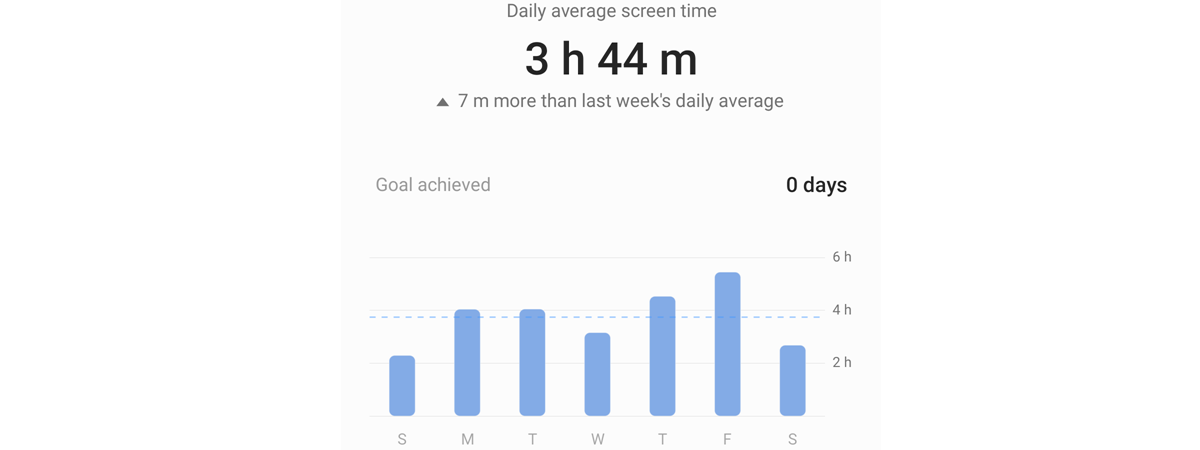
- Review the daily and weekly charts for total time spent on Windows devices.
- Turn on Use one schedule on all devices if you want limits to apply across multiple Windows PCs and Xbox consoles.
- Under PC screen time, toggle Set limits for when my child can use devices.
- Set allowed hours and blocked hours for each day using the timeline grid.
- Adjust limits as needed if someone reaches their time cap too early or needs more time for homework.
This screen time dashboard not only shows when the PC runs, but also helps you enforce reasonable daily limits without constant arguments or manual tracking.
Check App And Game Usage On Windows
If you want more detail than a single daily total, Family Safety also breaks down which apps and games use the most time on Windows.
- In the same Microsoft family dashboard, select the person’s name again.
- Choose Apps and games or a similar section depending on the current layout.
- Review time spent in each app, such as browsers, games, and social media tools.
- Block specific apps entirely if they cause distractions during work or school.
- Use these reports to decide where new limits or app blocks make the most sense.
Using this kind of desktop screen time tracker on Windows makes it easier to see whether gaming, social media, or streaming sites consume most of a day.
Check Screen Time On Mac With Screen Time
On macOS, Apple built Screen Time directly into the operating system. You use it to monitor screen time on Mac, set limits, and share data across iPhone, iPad, and Mac as long as everything signs in with the same Apple ID.
Newer macOS versions moved Screen Time into the System Settings app, but the core features still focus on app usage, notifications, and device pickups.
Turn On Screen Time On Your Mac
First, enable Screen Time so macOS can start recording usage. You only turn this on once per Mac.
- Click the Apple menu in the top left corner.
- Select System Settings or System Preferences, depending on your macOS version.

- Choose Screen Time from the sidebar or main grid.

- Click Turn On to enable Screen Time for your user account.
- Turn on Share across devices if you want app usage totals from your iPhone and iPad to appear in the same report.

- If you manage a child’s Mac, select their name in the sidebar and repeat the process for their account.
Once you enable this Mac screen time tracker, macOS starts logging app usage, categories, and notification counts in the background.
View Screen Time Reports On Mac
After Screen Time collects data for a day or two, you can see where your hours actually go. These reports help you decide which apps need limits.
- Open System Settings or System Preferences again.
- Go to Screen Time.
- Make sure your name appears in the sidebar if you manage multiple users or family members.
- Review the Today and Last 7 Days charts at the top of the window.
- Scroll down to see time per app and per category, such as Social, Productivity, or Entertainment.
- Click an app name to see more detailed information when available.
This Mac screen time tracker view shows total hours, peak times of day, and which apps dominate your workday or late-night sessions.
Set Downtime And App Limits On Mac
Once you see your usage patterns, you can turn those insights into action using Downtime and App Limits. These tools help you reduce screen time without removing essential apps.
- In Screen Time, select Downtime.
- Toggle Downtime on and pick the hours when you want to block most apps, such as overnight.
- Return to the Screen Time sidebar and choose App Limits.
- Click Add Limit and pick categories or individual apps you want to restrict.
- Set daily time limits, such as one hour a day for social media or games.
- Enable a Screen Time passcode under Options if you manage a child’s Mac and want to prevent easy changes.
These Mac Screen Time settings let you keep work tools available while keeping distracting apps under control during focus hours.
Use Third-Party Tools To Track Screen Time On Desktop
Built-in tools usually cover what most people need, but some users want a more advanced desktop screen time tracker. Third-party apps often add productivity scoring, detailed website tracking, and weekly email reports.
Look for cross-platform screen time apps that support Windows 10, Windows 11, and macOS, especially if you split your day between several computers. Many of these apps also help you block specific sites, set focus sessions, and compare your habits over months instead of just days.
If you try one of these tools, make sure you review its privacy policy and data handling practices. Your screen time data reveals a lot about your daily routine, so you want a trustworthy vendor before you install any background tracker.
Troubleshooting Common Problems
If your PC or Mac screen time tracker does not show data or feels inaccurate, you can usually fix the issue with a few simple checks.
- Screen Time Is Blank On Mac
Make sure Screen Time is turned on for the correct user account. Confirm you selected the right name in the Screen Time sidebar and that Share across devices uses the same Apple ID on all devices. - Family Safety Does Not Show Windows Screen Time
Check that each person signs in with their own Microsoft account on the PC. Confirm the account appears inside your Microsoft family group and that activity reporting remains turned on in the online dashboard. - Windows Screen Time Looks Too Low
If you share one account on a family computer, Windows cannot properly separate each person’s usage. Create individual accounts and have each person sign in separately to get accurate screen time totals. - Mac Screen Time Limits Do Not Apply
Verify that you turned on Downtime or App Limits and applied them to the correct user or child account. If you use a Screen Time passcode, confirm nobody changed the limits without you noticing. - Reports Differ Across Devices
On Mac and iOS, confirm Share across devices uses the same Apple ID everywhere. On Windows, make sure each device signs in with the same Microsoft family profile for that person. - Third-Party Screen Time App Uses High CPU
If a third-party tracker slows your desktop, open its settings and reduce how often it samples activity. Disable extra features you do not need, or try a different app that offers lighter system usage.
Tips
Once you learn how to track your screen time on PC and Mac, these tips help you turn raw numbers into healthier digital habits.
- Set A Baseline Week First
Let Windows and Mac track your normal behavior for a full week before you set aggressive limits. You need a realistic picture of your average day first. - Target Categories, Not Just Total Hours
Use app categories to find which types of apps cause the most distraction. Cutting one hour of social media often matters more than cutting one hour of focused work. - Create Different Rules For Workdays And Weekends
On both Microsoft Family Safety and Mac Screen Time, set stricter limits for work or school days and looser caps for weekends. - Combine Screen Time Limits With Focus Modes
Pair screen time limits with focus or do-not-disturb settings to cut notifications during deep work sessions. - Review Reports Weekly
Schedule a quick weekly review of your Windows and Mac screen time dashboards. Adjust limits based on what actually worked or failed during the past seven days. - Use Device-Free Blocks During Evenings
Block off at least one short window every evening for a completely screen-free break. Use that time for walking, reading, or talking with family. - Start With Small Reductions
If you spend six hours a day on non-work apps, cutting to three hours overnight rarely works. Start with a 30-minute reduction and tighten limits gradually.
FAQ
How Accurate Is Screen Time On PC And Mac?
Windows and macOS track when the device stays active, along with which apps run in the foreground. They usually give a reliable picture of your usage, but they may undercount time if you let the screen sit idle for long periods without moving the mouse or keyboard.
Can I Track Screen Time For Multiple Computers?
Yes. On Windows, Microsoft Family Safety can combine screen time from several PCs and Xbox consoles under the same Microsoft account. On Mac, Screen Time merges data from Macs and iOS devices that share the same Apple ID when you enable the cross-device option.
Can I See Exactly Which Websites I Visit?
Built-in tools focus more on apps and broad categories than individual websites. If you need detailed website tracking on PC or Mac, you usually need a third-party productivity or screen time app that offers site-level reports.
Do Screen Time Limits Block Apps Completely?
On Windows and macOS, limits usually lock an app once you hit the daily cap, unless you extend time or enter a passcode. You can still keep essential apps like email or work tools allowed during downtime while restricting games or social media.
Will Tracking Screen Time Make My Computer Slower?
The built-in screen time trackers on Windows and Mac run very efficiently and usually do not cause noticeable slowdowns. Heavy third-party trackers can use more resources, so you should test them on your PC or Mac and remove any app that impacts performance.
Summary
- Windows 10 and Windows 11 use Microsoft Family Safety to track screen time per user across PCs and consoles.
- macOS includes Screen Time, which logs app usage and lets you set Downtime and App Limits on your Mac.
- Both platforms support family management, so parents can monitor and limit kids’ computer usage.
- Third-party desktop screen time trackers add deeper reports but require extra privacy checks.
- Regular reviews and small, realistic limits turn screen time data into healthier digital habits.
Conclusion
Learning how to track your screen time on PC and Mac gives you real numbers instead of guesses about how you use your day. With Microsoft Family Safety on Windows and Screen Time on macOS, you can see exactly when you stay productive and when distractions take over.
Start by turning these tools on, let them record a normal week, then set gentle limits based on your actual habits. As you review your reports and adjust your schedules, you will build a healthier relationship with your desktop screens without giving up the benefits of modern apps and services.


Discussion (0)
Be the first to comment.