



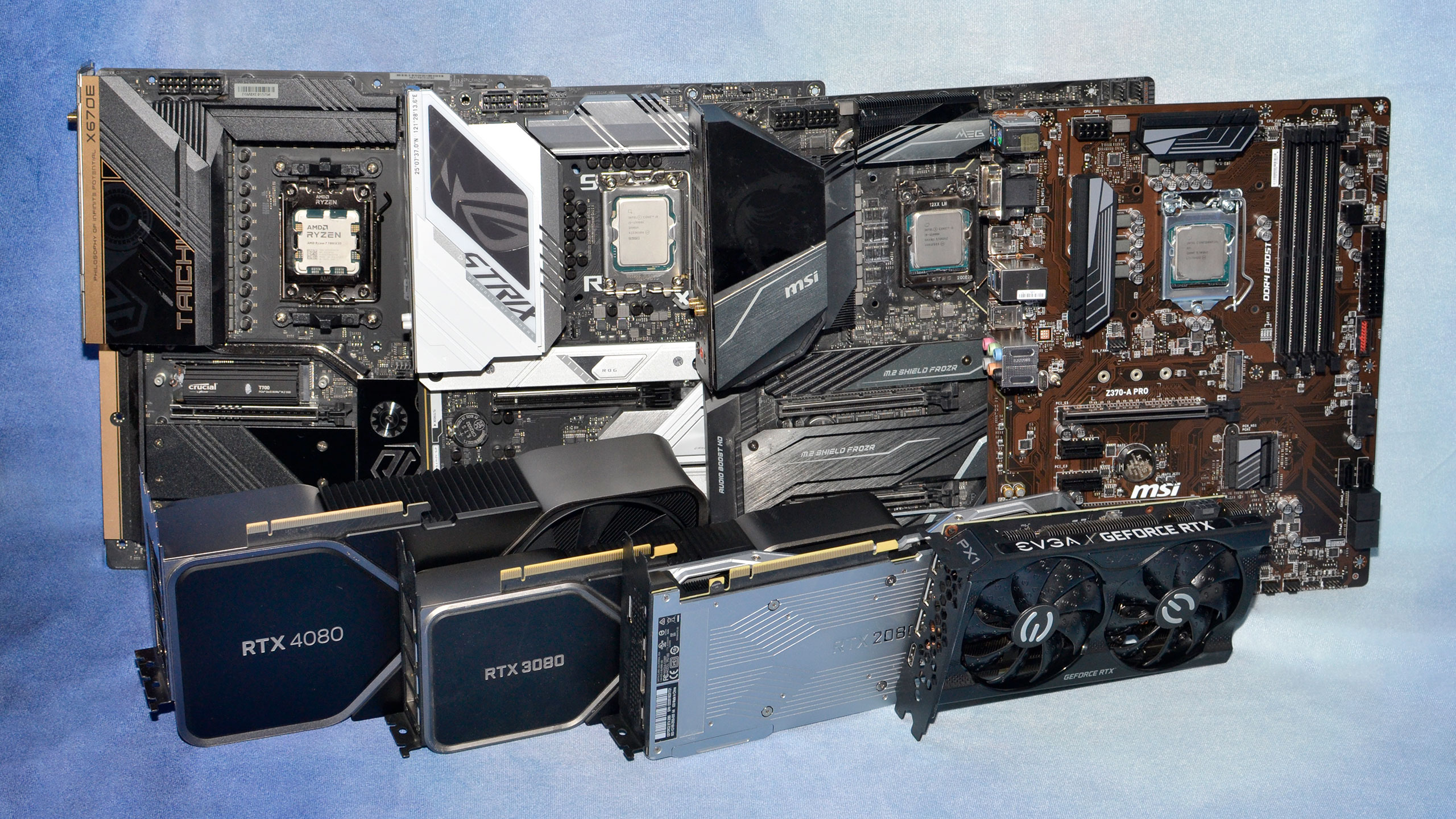
You can find out whether your CPU or GPU is limiting game performance by monitoring GPU usage, checking frametimes, and lowering the game’s resolution. If your GPU stays near full usage, your graphics card is usually the limit. If GPU usage remains low and performance barely changes after lowering resolution, your CPU, RAM, or another part of the system is likely holding the game back.
A bottleneck is not a permanent problem with your PC. It can change depending on the game, your resolution, visual settings, ray tracing, frame rate target, and even the area you are playing in. A system may be GPU limited in one game and CPU limited in another.
How to understand a CPU or GPU bottleneck
A gaming bottleneck happens when one part of the PC cannot keep up with the rest of the system.
If the GPU cannot render frames quickly enough, it becomes the bottleneck. If the CPU cannot prepare game data, process simulations, manage draw calls, or send work to the GPU quickly enough, then the CPU or wider platform becomes the limit.
This can also involve RAM, storage speed, VRAM limits, shader compilation, background apps, and poor game optimization.
| Performance limit | What it usually means |
|---|---|
| GPU bottleneck | The graphics card is working at or close to full capacity |
| CPU bottleneck | The GPU is waiting for the processor to prepare more work |
| RAM bottleneck | System memory is full or running too slowly |
| VRAM bottleneck | The graphics card does not have enough video memory for current settings |
| Storage bottleneck | Asset streaming causes sudden stutters or loading delays |
| Shader compilation stutter | New effects or areas cause temporary frame spikes |
How to use an in-game performance overlay
The easiest way to identify a bottleneck is to enable a performance overlay while gaming.
You can use tools such as MSI Afterburner with RivaTuner Statistics Server, NVIDIA App, AMD Adrenalin, Intel PresentMon, or CapFrameX.
Track these numbers while playing:
- GPU usage, power draw, clock speed, temperature, and VRAM use
- CPU usage, per core activity, temperature, and power draw
- System RAM use
- FPS, average frame rate, 1% lows, and frametimes
Do not judge your PC from one short moment. Test in a busy area of the game, such as a large city, multiplayer match, or demanding boss battle.
How to identify a GPU bottleneck
You are likely GPU limited when GPU usage stays around 95% or higher during gameplay. GPU power draw should also be reasonably high, while clock speeds remain stable.
A GPU bottleneck is common in modern games, especially at 1440p or 4K with high graphics settings, ray tracing, and heavy visual effects.
You can confirm this by lowering your resolution or enabling DLSS, FSR, or XeSS. If your frame rate rises significantly, the GPU was the main limit.
| Sign | Likely meaning |
|---|---|
| GPU usage stays above 95% | GPU bottleneck |
| Lower resolution greatly improves FPS | GPU bottleneck |
| DLSS, FSR, or XeSS improves FPS | GPU bottleneck |
| Ray tracing causes major FPS loss | GPU bottleneck |
| GPU power draw is high | GPU is actively working |
A GPU bottleneck is not necessarily bad. In many games, you want the GPU to be the busiest part because it is designed to render frames.
How to identify a CPU or platform bottleneck
You may be CPU limited when GPU usage stays below around 90%, especially if GPU power draw is also low. Lowering resolution or reducing graphics settings may produce little or no FPS improvement because the graphics card was already waiting for more work.
One common mistake is assuming CPU usage must hit 100% before the processor can be blamed. That is not true.
A game may heavily rely on one or two threads while other CPU cores remain less active. Your total CPU usage could look like 40% or 50%, but one important game thread may already be at its limit.
Look for these signs:
- GPU usage frequently falls below 90%
- GPU power draw is lower than expected
- Lowering resolution barely improves FPS
- FPS drops badly in cities, crowds, or multiplayer matches
- Frametime graphs look uneven
- 1% and 0.1% lows are much worse than average FPS
How to use the resolution scaling test
The resolution scaling test is one of the fastest ways to find the main limit.
First, play at your normal settings. Then reduce the resolution and graphics quality heavily, such as moving from 1440p Ultra to 1080p Low.
| Test setting | What it tests |
|---|---|
| 1080p Low or Medium | CPU, RAM, and platform limits |
| 1440p High or Ultra | Balanced real-world performance |
| 4K Ultra with ray tracing | GPU limits |
If your FPS jumps dramatically at lower resolution, your GPU was holding performance back.
If your FPS barely changes, the CPU, RAM, storage, or game engine is likely limiting the system.
How to check frametimes instead of only FPS
Average FPS can hide performance problems. A game may average 120 FPS but still feel bad because it suffers from sudden frametime spikes.
Frametime is the time taken to display each frame. A stable frametime graph usually means smoother gameplay. Sharp spikes can cause visible stutter.
Use CapFrameX or PresentMon to record a repeatable gameplay section for at least 20 seconds. Then compare frametime spikes with GPU usage.
If a frametime spike happens while GPU usage stays high, the game may be struggling with a heavy graphical scene.
If a spike happens while GPU usage suddenly drops, the GPU may be waiting for the CPU, RAM, storage, shader compilation, or asset streaming.
How to fix a GPU bottleneck
You do not always need to fix a GPU bottleneck, but you may need to reduce GPU load if you are below your target frame rate.
Try these changes:
- Lower resolution or render scale
- Enable DLSS, FSR, or XeSS
- Reduce ray tracing or path tracing
- Lower shadows, volumetric effects, and global illumination
- Reduce texture quality if VRAM usage is too high
- Check GPU temperatures and clock speeds
- Clean dust from the PC and improve airflow
How to fix a CPU, RAM, or storage bottleneck
Lowering resolution will not solve a CPU bottleneck because the GPU is already waiting for data.
Instead, reduce settings that increase CPU load:
- Lower crowd density and traffic density
- Reduce draw distance and object density
- Lower NPC count, physics quality, and simulation settings
- Disable ray tracing if it adds CPU overhead
- Close browsers, launchers, recording tools, and other background apps
- Check that your CPU is boosting properly
- Enable Intel XMP or AMD EXPO in BIOS
- Make sure RAM is installed in dual channel mode
- Consider 32GB RAM for modern games if 16GB is regularly full
- Install demanding games on an SSD or NVMe SSD
How to avoid false bottleneck readings
Sometimes low GPU usage is not caused by the CPU.
Check for V-Sync, in-game FPS caps, driver frame limits, background recording tools, Discord overlays, OBS, or software conflicts. Bad graphics drivers, Windows updates, and game patches can also create sudden performance drops.
Temporary stutters when entering a new area may be shader compilation or asset streaming problems rather than a hardware bottleneck.
The best approach is to test carefully before buying new hardware. Check the overlay, run the resolution scaling test, look at frametimes, and identify whether the GPU is actually busy. Once you know what is delaying the next frame, you can adjust the right settings instead of spending money on the wrong upgrade.
Discussion (0)
Be the first to comment.