




You can capture your Dell laptop screen with built-in Windows shortcuts and tools. The process varies slightly because Dell keyboards use different Print Screen layouts. This guide shows every method that works on Windows 10 and explains how to fix common screenshot issues.
Table of contents
- Understand Dell keyboard screenshot keys
- Capture a screenshot with basic keyboard shortcuts
- Take screenshots with Snip & Sketch
- Use the Snipping Tool for older workflows
- Record and screenshot with Xbox Game Bar
- Where to find saved screenshots
- Take a scrolling screenshot on Dell laptops
- Compare Dell screenshot methods
- Troubleshoot screenshot problems on Dell laptops
- Tips for faster Dell laptop screenshots
- FAQs
- Summary
Understand Dell keyboard screenshot keys
Dell keyboards use different Print Screen labels, which confuses many users. This section helps you locate the correct key and understand when you must use the Fn key.
Locate PrtScn variations on Dell laptops
Most Dell laptops label the key as PrtSc, PrtScn, PrntScr, or Print Screen. Some models share it with Insert or Home. Check the top row so you press the correct key every time.
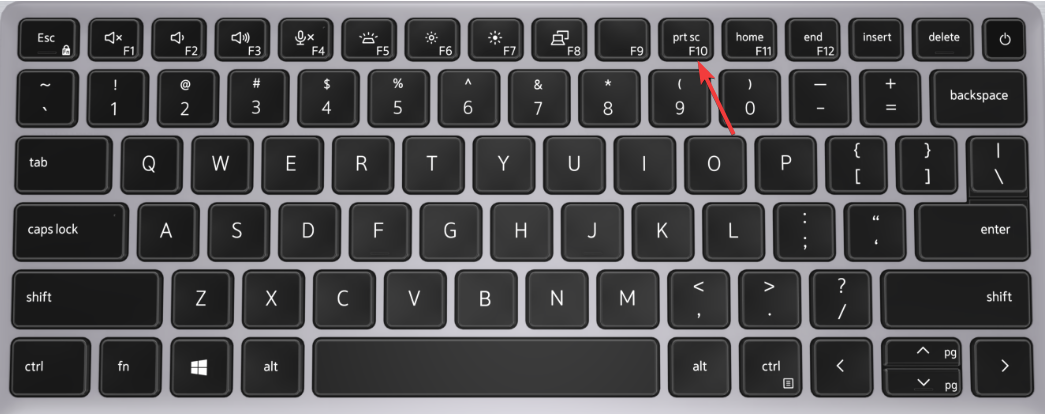
When to use Fn + PrtScn
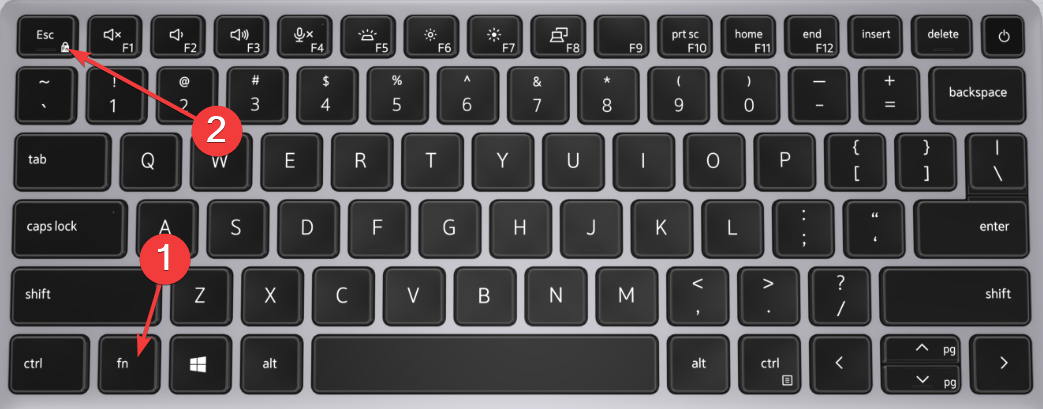
Some Dell laptops ship with multimedia keys enabled. This setup disables single-press Print Screen shortcuts. Press Fn + PrtScn to trigger screenshot actions when the key does nothing.
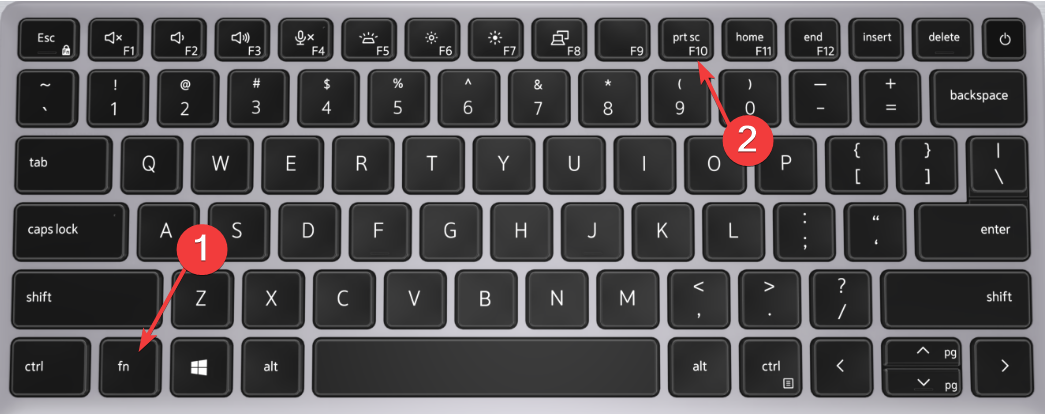
How to toggle Fn Lock
Fn Lock lets you use Print Screen without holding Fn. Press Fn + Esc to change the mode. The small lock LED confirms the change on supported models.
Capture a screenshot with basic keyboard shortcuts
Capturing a screenshot on Windows 10 uses the same shortcuts across most devices. These following univeral shortcuts also work on any Dell laptop.
Use PrtScn to copy the screen
- Press PrtScn.

- Open Paint or another app.
- Next, press Ctrl + V to view the screenshot.
- Save the image.
Use Windows + PrtScn for auto-saved screenshots
- Press Windows + PrtScn.

- Your screen dims for a moment.
- Now, open the Pictures folder.
- Open the Screenshots folder to find the saved image.
Use Alt + PrtScn for active window capture
- Select the app window you want to capture.
- Press Alt + PrtScn.

- Next, open Paint or another app.
- Press Ctrl + V and save the image.
Take screenshots with Snip & Sketch
Snip & Sketch includes flexible capture modes and markup tools. You can capture only the part of the screen you need and save it quickly.
Launch Snip & Sketch quickly
- Press Windows + Shift + S.
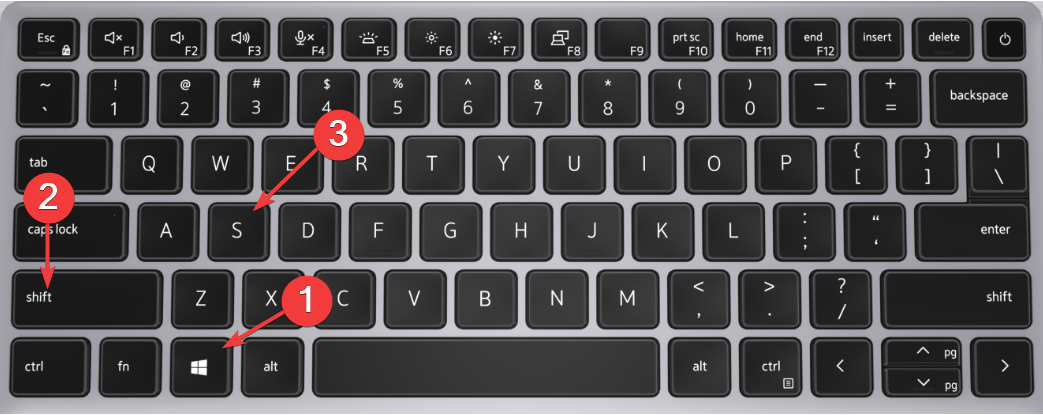

- Now, wait for the snipping bar to appear.
- Choose your preferred snip mode.
Choose snip modes
The toolbar includes rectangle, freeform, window, and full-screen options. Pick the mode that matches the content you want to capture.
Save and annotate your screenshot
- Click the Snip & Sketch notification.
- Mark the screenshot with the pen or highlighter.
- Finally, click Save to store the image.
Use the Snipping Tool for older workflows
Snipping Tool still exists in Windows 10 for users who prefer a simple interface. It supports time delays for capturing menus.
Create delayed screenshots
- Open Snipping Tool.
- Click Delay.
- Pick a delay value.
- Click New and open the menu you want to capture.
- Wait for Snipping Tool to capture the screen.
Record and screenshot with Xbox Game Bar
Game Bar captures screenshots during full-screen games and apps. This tool saves images to a dedicated folder.
Take a Game Bar screenshot
- Press Windows + G to open Game Bar.
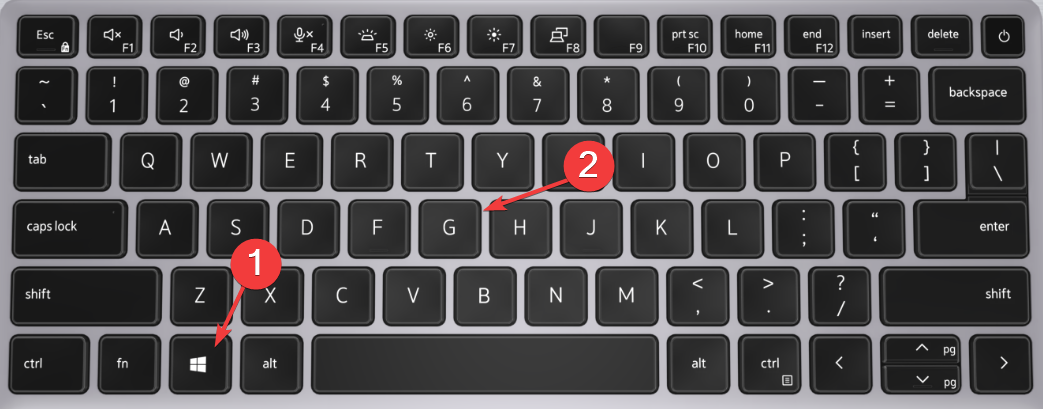

- Click the camera icon or press Windows + Alt + PrtScn.
- Find your image in the Videos > Captures folder.
Enable Game Bar if shortcuts do not respond
- Open Settings.
- Select Gaming.
- Select Xbox Game Bar.
- Turn on the feature toggle.
Where to find saved screenshots
The save location depends on the method you choose. This section helps you locate your files quickly.
Pictures > Screenshots folder
Windows + PrtScn creates images in your Pictures > Screenshots folder. Open File Explorer and check that folder first.
Clipboard-only captures
PrtScn and Alt + PrtScn store screenshots in your clipboard. You must paste the image into another app before you save it.
Game Bar Captures folder
Game Bar screenshots save in Videos > Captures. Open Game Bar and select Gallery to jump to the folder.
Take a scrolling screenshot on Dell laptops
Windows 10 does not include a scrolling screenshot feature. Third-party tools provide this option for long webpages or documents.
Use trusted apps like ShareX or PicPick
Install ShareX or PicPick to capture entire webpages or long chat windows. These tools also include markup features and export options.
Compare Dell screenshot methods
Each screenshot tool suits different needs. This section helps you choose the best method for your workflow.
Keyboard shortcuts vs tools vs Game Bar
Keyboard shortcuts work fastest for full-screen captures. Snip & Sketch works best for precise captures. Game Bar works best for full-screen apps and games.
Troubleshoot screenshot problems on Dell laptops
This section fixes common Dell screenshot issues. These quick steps help when shortcuts stop working or screenshots fail to save.
Fix Print Screen not working
- Press Fn + PrtScn to test the key.
- Press Fn + Esc to toggle Fn Lock.
- Now, restart your laptop.
- Update your keyboard driver in Device Manager.
Resolve screenshots not saving
- Open OneDrive settings.
- Select Backup.
- Disable or enable screenshot capture based on your needs.
- Check Dropbox or other cloud apps for similar settings.
Update Dell keyboard and chipset drivers
- Open Dell SupportAssist.
- Run a driver scan.
- Install the latest keyboard and chipset updates.
- Restart your laptop.
Reset Windows screenshot tools
- Open Settings.
- Select Apps.
- Search for Snip & Sketch.
- Click Advanced options.
- Click Repair or Reset.
Tips for faster Dell laptop screenshots
- Use Windows + Shift + S for quick access.
- Enable Fn Lock to simplify Print Screen shortcuts.
- Store screenshots in organized folders.
- Use ShareX for bulk or advanced screenshots.
FAQs
Why does Print Screen not work on my Dell laptop? The Fn key often controls Print Screen on Dell laptops. Press Fn + PrtScn to test it. Toggle Fn Lock with Fn + Esc. Update your keyboard driver if the key still fails.
Where do my Dell screenshots save in Windows 10? Windows + PrtScn saves images in Pictures > Screenshots. Game Bar saves images in Videos > Captures. PrtScn and Alt + PrtScn store screenshots in your clipboard only.
Do Dell keyboards use different screenshot shortcuts? Yes, Dell laptops use different Print Screen labels and layouts. Some keys require Fn + PrtScn. Windows shortcuts still work on every Dell model.
How do I capture a scrolling window on my Dell laptop? Windows 10 cannot capture scrolling screenshots. Use ShareX or PicPick to capture long pages or documents with one click.
Summary
- Use Dell keyboard shortcuts like PrtScn and Windows + PrtScn.
- Use Snip & Sketch for advanced capture options.
- Use Game Bar for full-screen apps and games.
- Fix issues by checking Fn Lock, drivers, and cloud settings.
- Use third-party tools for scrolling screenshots.
You can capture screenshots easily on your Dell laptop once you learn the correct shortcuts. Try Snip & Sketch for detailed captures or use Game Bar for gaming screenshots. Update your drivers and adjust cloud settings if Print Screen shortcuts stop working.

Discussion (0)
Be the first to comment.