




If you want to show the compass on Google Maps, you can enable it by adjusting the map orientation or tapping the compass icon that appears on the screen. The compass helps you understand the direction you are facing while navigating, especially when using map rotation.
Normally, Google Maps keeps the map aligned with north at the top. However, when you rotate the map or start navigation, the compass icon appears to help you reorient the map. This guide explains how to show the compass on Google Maps and use it properly.
What Is the Compass in Google Maps?
The compass in Google Maps is a small icon that indicates the direction of north relative to your current map orientation. It helps you understand which direction you are facing when the map is rotated.
The compass usually appears in the corner of the map and includes:
- A red pointer showing north
- A grey or white pointer showing south
When the map is rotated, the compass becomes visible to help you reset the orientation.
Why the Compass May Not Be Visible
Google Maps hides the compass when the map is already aligned with north.
This means the compass may not appear if:
- The map is in north-up mode
- The map has not been rotated
- Navigation mode is not active
Once the map rotates, the compass icon will appear automatically.
How to Show the Compass on Google Maps (Mobile)
Follow these steps to display the compass on your phone.
Step 1: Open Google Maps
- Launch the Google Maps app on your phone.
- Make sure location services are enabled.
Step 2: Rotate the Map
- Place two fingers on the map.
- Rotate the map in any direction.
When the map rotates, the compass icon appears on the screen.
Step 3: Tap the Compass to Reset Orientation
- Tap the compass icon.
- The map will automatically return to north-up view.
The compass will disappear again once the map is aligned.
How to Show the Compass in Navigation Mode
When using navigation, the compass may appear automatically.
Steps:
- Open Google Maps.
- Enter a destination.
- Tap Start to begin navigation.
During navigation, the compass icon helps you keep track of direction.
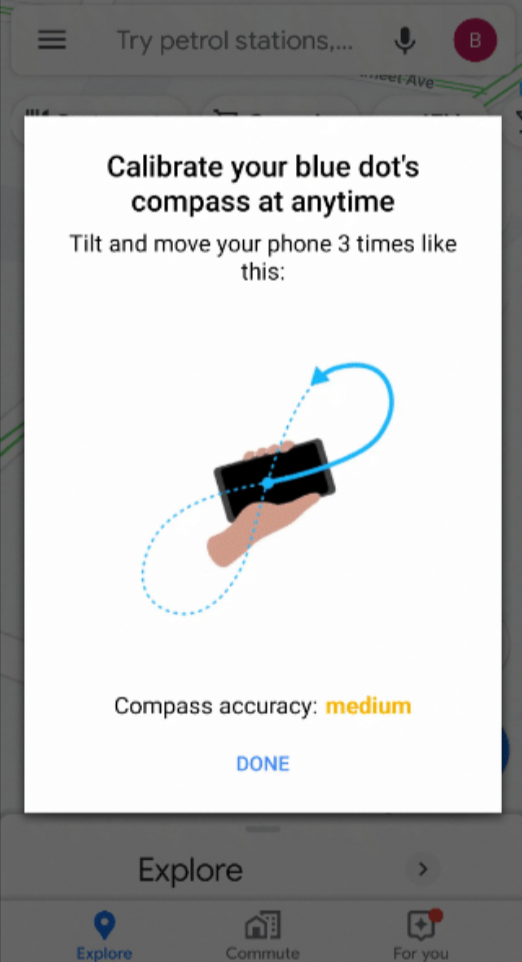
Enable Compass Calibration
If the compass appears inaccurate, you may need to calibrate your phone’s sensors.
To calibrate:
- Open Google Maps.
- Tap the blue location dot.
- Select Calibrate compass.
- Move your phone in a figure-eight motion.
This improves compass accuracy.
Tips for Better Compass Accuracy
To ensure the compass works properly:
- Keep location services enabled
- Turn on high accuracy mode in location settings
- Avoid strong magnetic interference
- Calibrate the compass when needed
These steps help Google Maps detect direction more accurately.
Final Thoughts
Learning how to show the compass on Google Maps makes navigation easier, especially when the map is rotated or when walking in unfamiliar areas. The compass appears automatically when the map orientation changes and allows you to quickly return to the north-facing view.
If the compass seems inaccurate, calibrating your phone’s sensors can improve its performance.
FAQs
Why can't I see the compass in Google Maps?
The compass only appears when the map is rotated away from the north-up position.
How do I reset the map direction in Google Maps?
Tap the compass icon to return the map to north-up orientation.
How do I calibrate the compass in Google Maps?
Tap your location dot and select Calibrate compass, then move your phone in a figure-eight motion.
Does the compass work during navigation?
Yes. The compass helps you track direction when using Google Maps navigation.


Discussion (0)
Be the first to comment.